MIDI Event Processor — Round 2

I’ve got a stable MIDI event framework up and running. Time to summarize a few lessons learned.

CircuitPython

The CircuitPython libraries are pretty decent overall. AdaFruit did a good job with on-line documentation and I can usually find a helpful example to copy, paste and modify.

Python itself is a PITA. I don’t know why or how anyone calls it a “beginner’s language”. Three big bug-a-boos jump out:

  • Spacing. Zealots say, “Oh, you don’t need brackets; indentation handles everything.” I haven’t seen such idiotic enforcement of spacing rules since 1960s FORTRAN. Give me brackets, give me free-form layout.
  • Run-time type checking. Python does not do a lot of compile-time type checking. So, you’ll get a clean compile and then stumble on a type compatibility issue during the first run.
  • Type conversion. Type conversion can be very weird. Thanks to run-time type checking, it might take several runs to get conversion right.

I’m going to finish the job in CircuitPython out of a spirit of self-discipline. Please teachers, do not inflict this language on new programmers.

AdaFruit hardware

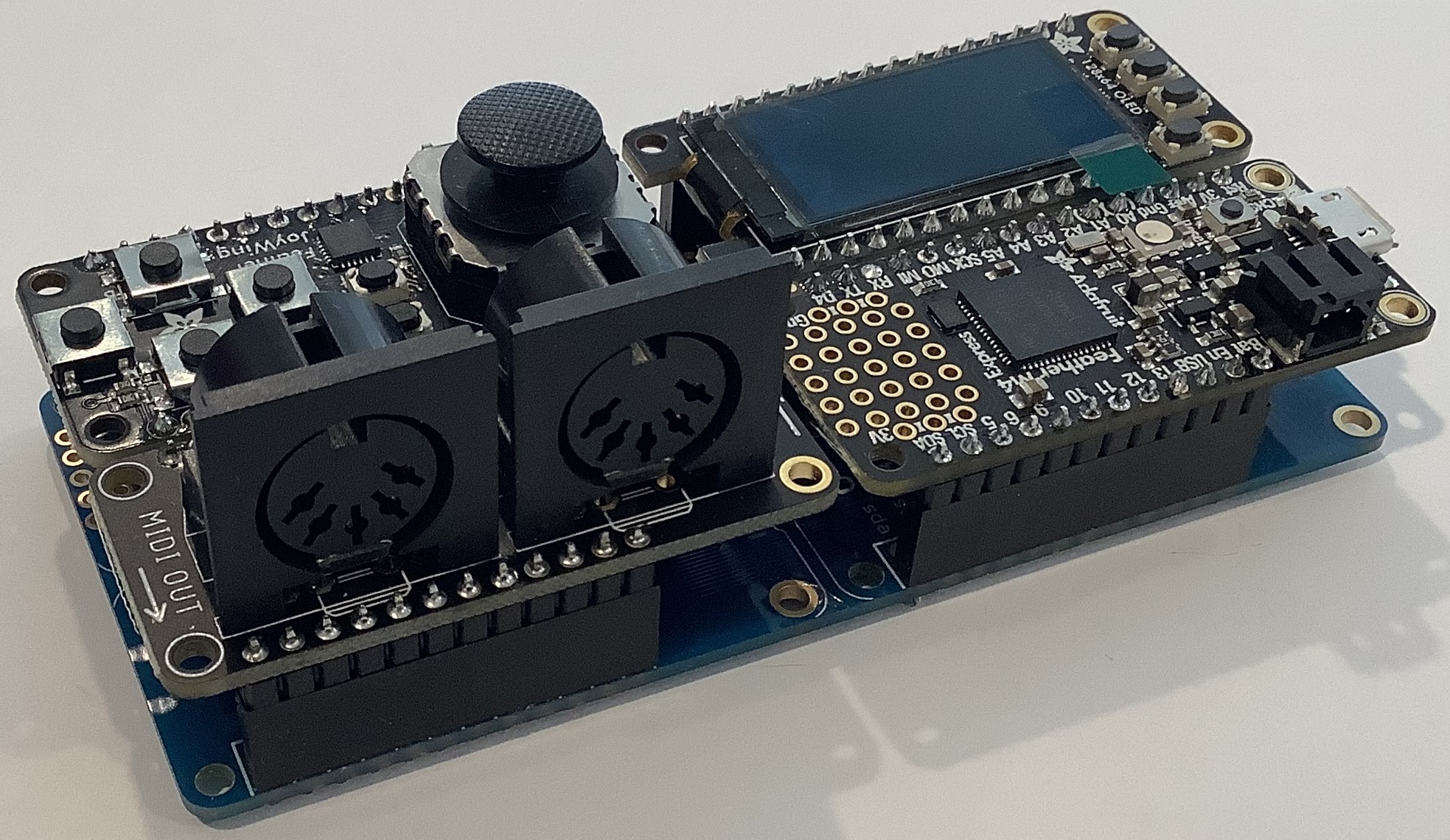
The AdaFruit Feather hardware is solid. No complaints. The AdaFruit Feather M4 Express is a speedy little bugger compared to Arduino UNO! The OLED display is bright and clear. The MIDI ports work. Other than testing, the joystick FeatherWing hasn’t gotten much use yet.

MIDI library

I wanted to love the MIDI library. It offers pre-defined MIDI message types (classes) and necessary send/receive operations. All good.

Unfortunately, I don’t think the MIDI library was tested with a real-world synth. I’m using Yamaha MODX6 for testing. Yamaha uses MIDI running status extensively. Hit and release a key, and MODX sends a NOTE ON status byte followed by two key/velocity pairs:

    0x90 0x48 0x73 0x48 0x00

The first pair is NOTE ON and the second pair is effectively NOTE OFF (i.e., velocity is 0x00).

That’s not so bad in itself. However, MODX sends real-time Active Sensing messages (MIDI status byte 0xFE) and Active Sensing may appear in the middle of a MIDI message, running status or not.

Using the MIDI library, notes and controller events were getting dropped everywhere. At first, I thought CircuitPython was too slow to keep up with the incoming MIDI. Nope. When I switched to reading and dispatching bytes from the UART, I could handle everything without straining processor resources.

Bottom line: Bag the MIDI library as it could have bugs with running status.

OLED display and REPL

The OLED display and CircuitPython REPL have been very handy for debugging. The UART implements the MIDI IN/OUT ports leaving USB serial I/O available for debugging. (You need Arduino Leonardo to get separate UART and USB serial I/O.) I like to drop in the occasional “print” statement until I’m sure of the control flow and internal values.

Example: Knowing what the MODX is sending. It is easy to whip up a MIDI monitor sending byte values to either the OLED or the Mu Editor REPL. Knowing that I had to handle Active Sensing and running status together, made the task clear.

The task

Now I realize that the event processing application needs to map note ON/OFF events and to echo all other events (messages) unmodified. My current message processing framework reflects this simplicity. It took a few experiments to get here.

Initial code

If you need a quick start for your own Feather-based MIDI event processor, here is a ZIP file with my initial CircuitPython code. It doesn’t handle complete SysEx messages. The code framework will probably change in the next version.

Copyright © 2025 Paul J. Drongowski

AdaFruit Feather: MIDI Event Processor

Just want to report about a work in progress.

My favorite bugaboo is the lack of scripting in MIDI controllers and devices. Yeah, they’re OK for 90 percent of the common use cases. However, you’ll eventually run into the need for System Exclusive (SysEx) message support or some other MIDI functionality which doesn’t fit the fixed, built-in usage model.

I’ve wanted a flexible, scriptable MIDI event processor for quite some time. The MIDI Solutions Event Processor Plus handles the most common filter and mapping use cases, but lacks scripting. In particular, I want to build a MIDI event processor that handles key switching like a VST software instrument. I want to be able to invent my own “Super Articulation” voices that use key switching, for example. [More about this idea another day.]

Arduino-based solutions are sort of OK. The Sparkfun MIDI shield coupled with a standard Arduino UNO is a good start. However, if you want to stack a display on top of the MIDI shield, you’re out of luck (the MIDI connectors prevent stacking).

Feather-based MIDI event processor (front)

The AdaFruit Feather family of boards is feeling like a good solution. The Feather form factor is very small. The Feather M4 Express processor board (ID: 3857), by itself, is much smaller than Arduino UNO. There’s a lot packed on that tiny board: a 120MHz ARM Cortex-M4 processor (ATSAMD51), a Neopixel, the usual micro USB connector, a JST connector with LiPo charge support, and all the usual ins/outs (digital, analog, I2C, SPI, etc.)

Feather-based MIDI event processor (rear)

The FeatherWing expansion boards have the same small, stackable form factor and the range is staggering. I have the following FeatherWings at hand:

  • FeatherWing 128×64 OLED display (ID: 4650)
  • MIDI FeatherWing (ID: 4740)
  • Joy(stick) FeatherWing (ID: 3632)
  • FeatherWing NeoKey mechanical key switches (ID: 4879)

The whole lot can be had for less than $100 USD. Together with the M4 Express, the FeatherWings make for a powerful MIDI processing platform.

Of course, a vertical stack of Feather boards would be quite unweildy. AdaFruit offer three “motherboards” for arranging Feather boards horizontally:

  • FeatherWing Doubler (ID: 2890)
  • FeatherWing Tripler (ID: 3417)
  • FeatherWing Quad (ID: 4253)

The horizontal layout provides convenient access/visibility to the joystick, display and 5-pin MIDI ports. This is so much better than vertical stacking.

Feather MIDI event processor (top)

I have the Doubler and Quad, and intend to use the Quad for my MIDI event processor. Even though I used the word “motherboard”, the Doubler and Quad are completely passive and merely route the Feather signals across two or four slots, respectively.

Software is, of course, an important ingredient. The Feather M4 Express supports both the Arduino IDE (C programmeing) or CircuitPython. I decided to try CircuitPython in order to learn something new. The best and fastest way to go is the Mu Editor (environment). The Mu workflow is a bit quirky if you’re accustomed to the Arduino IDE or Java environments. Once you get with its flow, you’re good.

The FeatherWings are all supported by one or more CircuitPython libraries. You’ll need to chase down the libraries and copy them to the M4’s internal flash memory. Fortunately, the M4 presents itself as a flash drive, so it’s simple to copy the libraries to the M4 Express from a Windows PC or Mac.

As to project status, the headers are soldered on, Mu and the libraries are installed, and I’ve run example code for the OLED display, joystick, and MIDI ports. AdaFruit has quite a bit of development information on-line — all well-written with downloadable PDFs. Still, you should expect to modify the example code for your specific boards and use cases (e.g., SH1107 display, 5-pin MIDI instead of USB MIDI).

I haven’t done much Python programming, so that is another learning curve. Given Python’s formatting requirements and syntax, I don’t really see how Python is an easy beginner’s language. Somebody is smokin’ somethin’. I’m going to stick with CircuitPython unless I run into execution speed issues. Take your medicine, boy. 🙂

Copyright © 2025 Paul J. Drongowski
littleBits Arduino MIDI interface

I thought, “When it comes time to test the 5-pin MIDI interface with the littleBits Arduino, just hook it up. Download the sketches. Take a victory lap.”

Instead, I got an “opportunity” to discover and learn. Not so fast, but not so bad, either.

Please recall that a few posts ago I described the design of a 5-pin MIDI interface for Arduino. The MIDI IN part of the interface attaches to the Arduino RX pin (pin D0) and the MIDI OUT part connects to the TX pin (pin D1). I tested the 5-pin MIDI interface with an Arduino UNO board using the simple MIDI sequencer sketch and a sketch to echo MIDI IN to MIDI OUT. My original plan was to connect the 5-pin MIDI interface to the littleBits Arduino via two protoboards, then run the sketches, again, for testing.

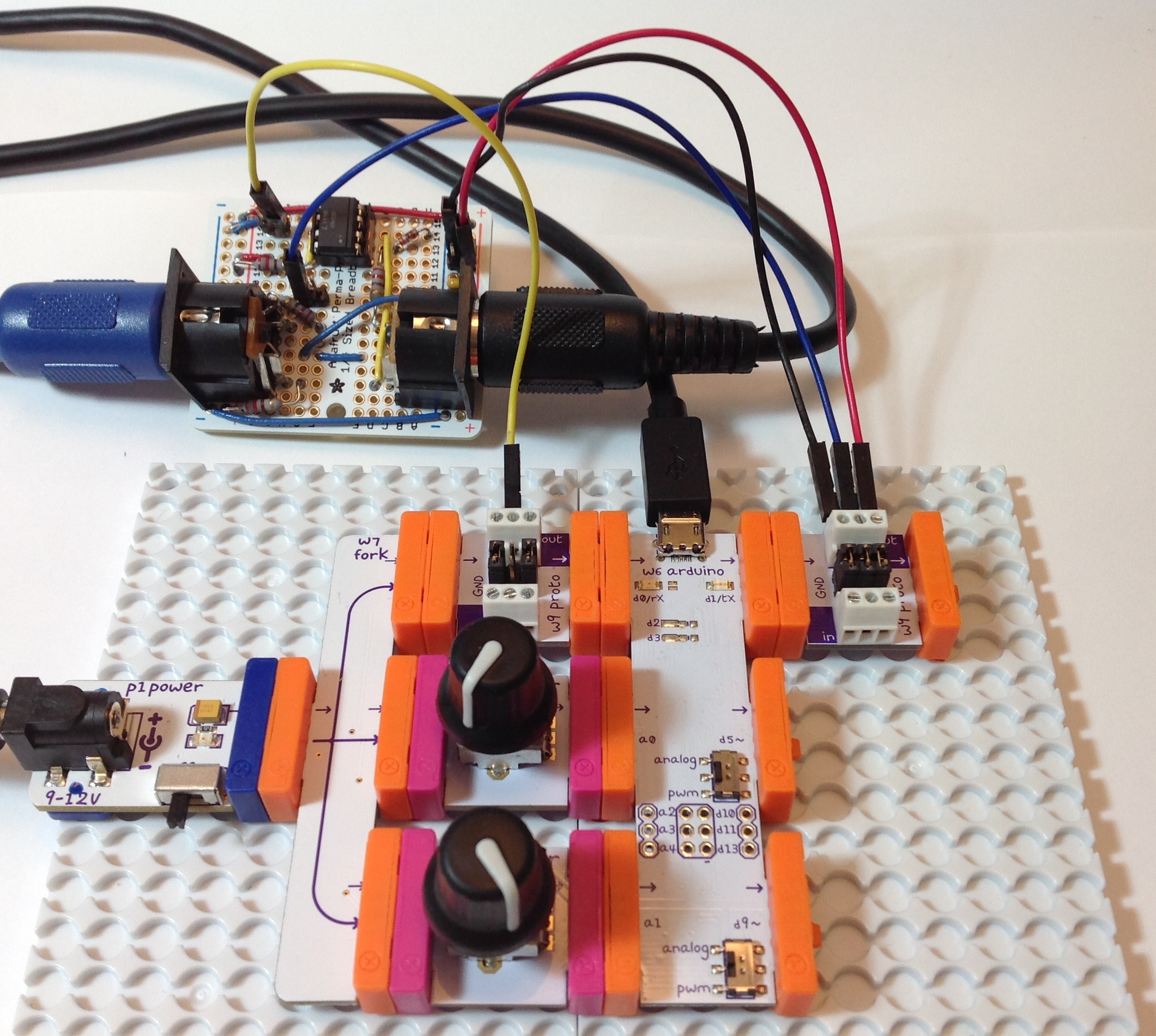
First, the hook up. The image below shows the littleBits hardware. (Click the image for full resolution.) The Arduino is “at the heart” and communicates with a PC through the USB port. The littleBits proto module directly to the left of the USB port brings the logic-level MIDI IN signal to the Arduino RX pin. The proto module directly to the right of the USB port sends the Arduino TX signal to the MIDI OUT circuit. The signals to and from the 5-pin MIDI interface board are:

  • Yellow wire: Logic-level MIDI IN
  • Blue wire: Logic-level MIDI OUT
  • Red wire: +5 Volts (Vcc)
  • Black wire: Ground

MIDI is a serial communication standard operating at a rate of 31,250 bits per second. RX and TX are the Arduino’s digital serial receive and transmit pins, respectively.

littlebits_arduino_midi_interface

So far, so good. There are a few extra details to consider. The positive supply voltage (+5 Volts) and ground are distributed throughout the whole interface board. Only one set of power supply connections are needed to power the interface board. I attached the power supply connections to the proto module handing the MIDI OUT. Next, the proto module jumpers are configured a little bit differently on the MIDI IN and MIDI OUT sides. Having all three jumpers in place, the MIDI OUT proto module passes all signals: Vcc, ground and the data signal arriving from TX. The MIDI IN proto module only passes Vcc and ground. It does not pass the signal from its input bitSnap. The output from the proto module is generated by the signal coming from the 5-pin MIDI interface board (i.e., the yellow wire). This signal is send to the RX pin.

Adhering to my original test plan, I downloaded the simple MIDI sequencer sketch. This sketch tests the MIDI OUT circuit by sending MIDI note on and note off messages. I attached the MIDI OUT connector to a MIDI tone module, flipped the power switch, and no sound. MIDI data was not being sent to the MIDI tone module. After much wailing, gnashing of teeth and browsing, I remembered that the Arduino Leonardo board has two serial ports, not one port like the UNO. One serial interface handles RX/TX and another serial interface handles USB communications.

The littleBits Arduino is a Leonardo board. Was the MIDI data being sent to the USB port? I turned on the Serial Monitor in the IDE. Yep, the Serial Monitor was showing jibberish arriving from the Arduino. I expected jibberish because the bit rate was all wrong, but nonetheless, observations confirmed that MIDI data was going to the wrong port (USB instead of TX).

The Arduino IDE exposes two serial ports for a Leonardo board:

  • Serial” refers to the virtual serial port over USB.
  • Serial1” refers to the serial port through RX/TX.

Originally, I wrote and compiled the MIDI sequencer sketch for an Arduino UNO board. The calls to write() refered to Serial. That’s fine on the UNO because the UNO uses the same serial port for RX/TX and USB communication and everything works. On Leonardo (littleBits), however, the sketch refers to the USB serial port, not RX/TX as I had intended.

I solved the problem with conditional compilation. Here is the new code for the function MidiSend() in the MIDI sequencer sketch:

//
// Send a short, 3-byte MIDI message
//
void MidiSend(byte cmd, byte data1, byte data2)
{
#ifdef LEONARDO
  Serial1.write(cmd | CHANNEL) ;
  Serial1.write(data1) ; 
  Serial1.write(data2) ; 
#else
  Serial.write(cmd | CHANNEL) ;
  Serial.write(data1) ; 
  Serial.write(data2) ; 
#endif
}

The symbol “LEONARDO” determines the code to be compiled into the sketch. If LEONARDO is defined then the sketch sends MIDI bytes to Serial1. If LEONARDO is not defined, then the sketch sends MIDI bytes to Serial. I also needed to fix up the code in setup():

#ifdef LEONARDO
  Serial1.begin(31250) ;
#else
  Serial.begin(31250) ;
#endif

After making these changes and defining LEONARDO at the beginning of the sketch:

#define LEONARDO 1

I compiled and uploaded the sketch. Voila! I heard music from the tone module! MIDI data was now being sent to the appropriate Arduino serial port (TX).

Along the way, I also learned some useful information about the RX and TX LEDs. The RX and TX LEDs flash when data is transfered through the USB port. They do not flash when data is sent through the RX/TX pins. If you want to flash the LEDs yourself, then use the following macros:

    RXLED0;
    RXLED1;
    TXLED0;
    TXLED1;

These macros are a feature of the Leonard board and are not recognized on UNO.

Two separate, independent serial ports has its advantages. First, it isn’t necessary to disconnect the 5-pin MIDI interface board when uploading a sketch. With only one serial port on UNO, TX/RX and USB communication cannot peacefully co-exist. On Leonardo (littleBits), they do peacefully co-exist and you can use the virtual serial port over USB (i.e., Serial Monitor) to trace program execution and print debug messages while using RX/TX for MIDI communication. Finally, if we don’t ever touch Serial1, we should be able to configure D0 and D1 as regular Arduino digital input and output pins (respectively).

By now, you realize that I had to modify the sketch that echoes MIDI IN to MIDI OUT, too. Instead of conditional compilation, this sketches defines a symbolic constant, “SERIALPORT,” which expands to the name of the serial port to be read and written. Full disclosure: I did not test the MIDI library version on littleBits (Leonardo).

//
// Send MIDI IN to MIDI OUT (THRU)
//

// Author:  P.J. Drongowski
// Date:    6 June 2016
// Version: 1.1
//
// Copyright (c) 2016 Paul J. Drongowski
// Permission granted to use, copy and distribute

// Uncomment the following line to use the Arduino 
// MIDI library instead of serial read() and Write().
// #define USE_MIDI_LIBRARY 1
// This has not been tested/debugged on LEONARDO!

// Define the symbol SERIALPORT to select the appropriate
// serial port:
//    Serial    UNO
//    Serial1   LEONARDO/littleBits
#define SERIALPORT Serial1


#ifdef USE_MIDI_LIBRARY

#include <MIDI.h>
MIDI_CREATE_DEFAULT_INSTANCE() ;

void setup() {
  MIDI.begin(MIDI_CHANNEL_OMNI) ;
}

void loop() {
  if (MIDI.read())
  {
    MIDI.send(MIDI.getType(),
              MIDI.getData1(),
              MIDI.getData2(),
              MIDI.getChannel());
  }
}

#else

int midiByte = 0 ;

void setup() {
  // Initialize the serial port for MIDI
  SERIALPORT.begin(31250) ;
}

void loop() {
  if (SERIALPORT.available() > 0) {
    midiByte = SERIALPORT.read() ;
    SERIALPORT.write(midiByte) ;
  }
}
#endif