
Yamaha Extrack playing partner

EXTRACK is a Yamaha app which hasn’t yet broken surface in the United States. It was released in Japan about five months ago. My guess — Yamaha is in the process of “globalizing” the app for international release, including the subscription Extrack Pass service.

In Yamaha’s own words (translated from Japanese):

Extrack is a music app for iOS and Android that lets you practice and jam with your favorite songs, experiencing the immersive experience of playing along with a real artist. The basic features are free with no expiration date. By paying for a subscription, you can enjoy even more features.

Yamaha is always looking for ways to enhance instrument sales. Extrack is a music-minus-one practice partner on steroids.
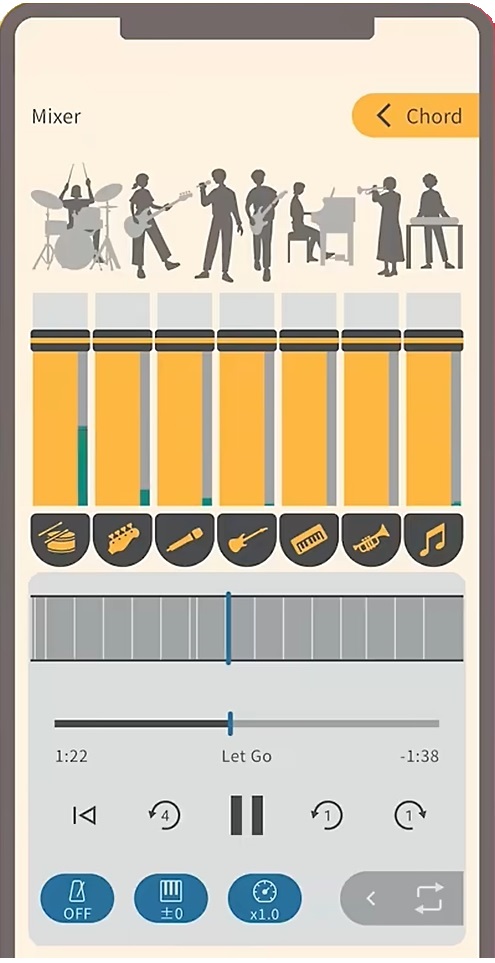
Yamaha Extrack stem mixing

Extrack uses stem extraction technology to separate an audio song into individual instrument parts, e.g., vocals, guitar, piano, bass, drums and wind instrument. You can adjust the volume of individual parts and remix the song, either enhancing a part to be learned or suppressing a part so you can take over (minus-one). Yamaha also throws in chord analysis, variable playback speed (tempo change), transposition (key change) and partial repeat.

Here’s the Extrack Quick Start video for ya.

Yamaha keeps getting better at IOS integration. You can analyze songs on your phone (tablet), or songs saved on iCloud drive, Google Drive, Dropbox or OneDrive. Extract handles songs encoded in MP3, AAC and FLAC. Songs from streaming services cannot be loaded (restricted rights). Analyzed songs are stored in an “Extrack Library”. The number of songs in the Extrack Library is limited, but the number can be increased through a paid subscription (Extract Pass).

Speaking of which, only basic app functionality is free. The Japanese Extrack Pass subscription service (available through in-app purchase) is ¥7,000 ($47USD) for one year and ¥900 (about $6USD) per month.
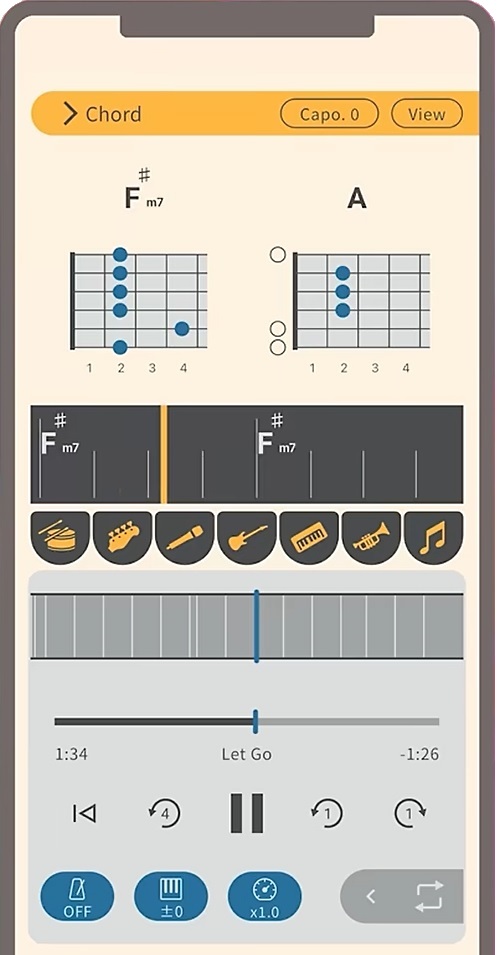
Yamaha Extrack chord analysis

Extrack possesses Chord Tracker-like features. You can choose chord symbol, TAB, keyboard, and notation views. Guitarists will appreciate the CAPO feature. There are a few refinements over Chord Tracker such as the ability to shift the beat in order to align chord changes with bars. (Chord Tracker sometimes loses “the one.”) There is a metronome which syncs with playback.

Like Chord Tracker, Extrack identifies song sections (intro, verse, chorus, etc.) You can navigate within a song by section.

On a different front, Yamaha’s piano evoce ß application has dropped from sight. The dedicated web site is nowhere to be found. Here is Yamaha’s brief description of the application:

“piano evoce ß” is an application that analyzes music data and provides a function that plays back vocal parts in sync with the user’s performance. By connecting a keyboard instrument such as an electronic piano or keyboard to your Mac and playing along with the chords displayed on the application screen, the AI ensemble technology will play back the vocal parts in sync with your performance, allowing you to easily enjoy the feeling of playing in an ensemble.

I captured a little bit of information from the initial announcement.

As I’ve said time and again, Yamaha experiments with technologies and tools with no guarantee that any of it will appear in an actual product. Maybe Extrack aced piano evoce ß?

Copyright © 2025 Paul J. Drongowski
Hidden arranger smarts: file system SysEx

What to do with the ennui that sets in on New Years Day? Explore unexamined territory!

Yamaha Musicsoft Downloader is a valuable tool for Yamaha arranger keyboardists. Downloader lets you transfer MIDI song files, registrations file, text files, etc. between a Windows PC and a compatible Yamaha arranger keyboard. It even works with digital home pianos, too.

Most folks transfer their files using a USB jump drive. This isn’t a big deal when moving a few files maybe once or twice a day. When I’m developing a new style, however, I swap a drive quite frequently — dozens of times a day. All that physical swapping causes wear and tear on USB ports. I often use a short USB extender to reduce wear on the computer and/or instrument USB ports. I’d rather have a cheap cable fail than a USB port on a motherboard.

Downloader saves a lot of that wear and tear by copying data over a cable instead of a USB drive. Downloader supports both USB and good ole 5-pin MIDI transfers. Thus, folks who own older pre-USB keyboards can use Downloader, too.

Downloader has been around a while — one reason why it’s backward compatible. The user interface is a little bit dated, but it works and who cares? To move a file, you add the file to the holding area at the top of the screen, then move the file to its final destination by pressing one of the big arrow buttons. Classic.

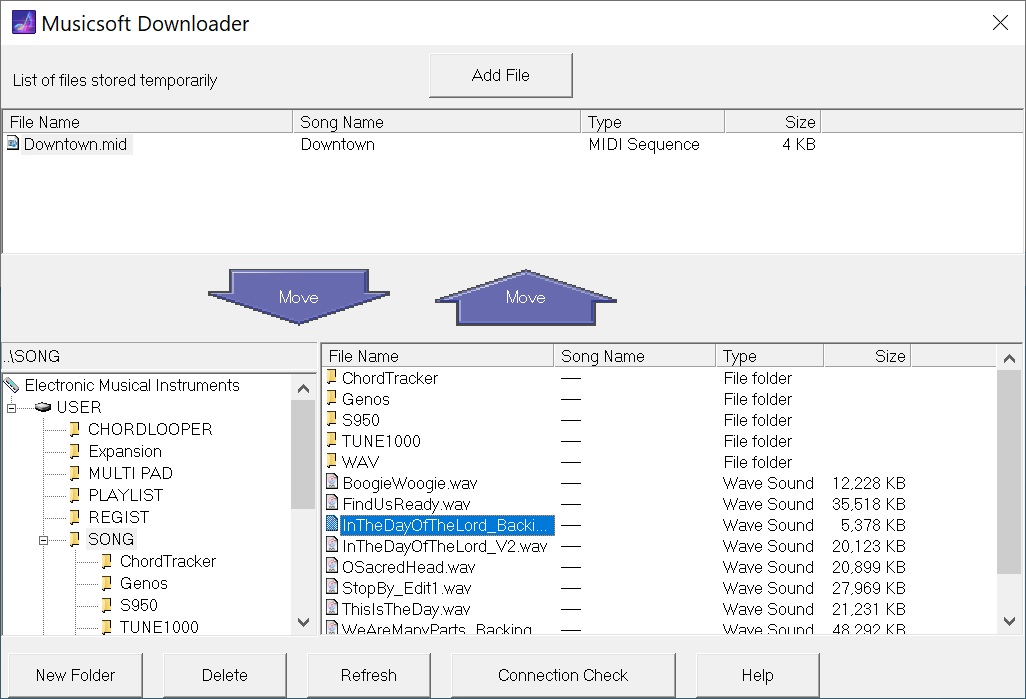
Yamaha Musicsoft Downloader in action

The screenshot shows Downloader connected to Genos over 5-pin MIDI. The file “Downtown.mid” is in the temporary storage area. The lower left hand panel navigates instruments, drives and directories. The lower right hand panel selects files within a directory.

So, how does it do the actual transfer?

Because Downloader is old skool, it does it with MIDI. (Even over USB.) Downloader was written back in the day when MIDI was king and could do anything and everything. As another example, I give you the MIDI Sample Dump Standard (SDS) for representing and transferring samples to/from early-day samplers.

Downloader performs a dance with the target instrument. Like SDS, Downloader and the target instrument follow a set of rules — a protocol — for communication. To my knowledge, Yamaha has never published this protocol. It’s all done via MIDI System Exclusive (SysEx) messages although you won’t find these message types in the instrument’s reference manual or data list file. Nonetheless, your instrument is smarter than you think!

Of course, a lot depends upon the storage and capability of the target instrument. Entry-level instruments may be oblivious to Downloader or maybe just transfer back-up files. Mid- to higher-end arrangers are fully capable.

I decided to get a taste of this hidden protocol by monitoring the exchange of MIDI SysEx messages between Downloader and Genos. I split the MIDI stream and watched the dance as Downloader makes contact with Genos and acquires top-level directory information. After watching this process several times, I tried sending my own SysEx messages via MIDI-OX. (What a great tool!)

Here is a typical start-up sequence. It shows Genos’ response for each SysEx message that I sent.

F0 43 50 00 00 00 01 F7 
Genos responds: F0 43 50 00 00 00 02 01 01 F7
F0 43 50 00 00 02 01 F7
Genos responds: F0 43 50 00 00 02 02 33 00 01 00 00 01 00 01 00 00 1B
78 17 3F 01 00 00 00 00 00 00 01 7F 00 00 00 32 00 00
00 00 00 00 00 00 00 00 00 00 00 00 27 08 00 00 02 00
04 7F 7F 7F 7F F7
F0 43 50 00 00 01 01 F7
Genos responds: F0 43 50 00 00 01 02 00 F7
F0 7E 7F 06 01 F7 Identity request
Genos responds: F0 7E 7F 06 02 43 00 44 42 1C 0A 00 00 01 F7
F0 43 50 00 00 01 00 01 F7 Make connection (Genos is connected)
Genos responds: F0 43 50 00 00 01 02 01 F7

The first three out-bound messages test for a response. Downloader uses these messages as a connection check. The identity request message is a MIDI standard message for obtaining the identity of a musical device or instrument. Genos identifies itself as Yamaha (0x43) and model.

After getting the instrument identity, Downloader initiates the actual connection. When connected, the Genos display changes to a special background with the message: “Connected to the computer or smart device.” Genos is now listening for Downloader commands.

Thereafter, Downloader asks Genos for device, file and directory information. Here is the inquiry about top-level devices:

F0 43 50 00 05 0B 00 00 F7     Request drive 0 information 
Genos responds: F0 43 50 00 05 0B 01 42 00 00 05 00 55 53 45 52 F7
U S E R

Yamaha arranger people will recognize the USER drive where all user directories and files are kept. Genos returns the name for device 0: “USER”. If you have a USB jump drive attached, you will see:

F0 43 50 00 05 0B 00 01 F7     Request drive 1 information 
Genos responds: F0 43 50 00 05 0B 01 42 00 00 05 00 55 53 42 31 F7
U S B 1

Makes me think that Genos tells Downloader how many devices are available — maybe in response to the connection command?

Moving on, Downloader interrogates Genos about the directories and files at the next level down in the file hierarchy.

F0 43 50 00 05 04 00 3F 00 08 00 30 3A 5C 2A 2E 2A 00 F7    dir 0:\*.* 
? 0 : \ * . *
Genos responds: F0 43 50 00 05 04 01 10 31 39 38 30 20 31 20 31 20 30
1 9 8 0 1 1 0
20 30 20 30 03 01 00 00 00 03 00 2E 00 F7
0 0 .

You’ll notice that some command arguments and responses are ASCII characters, including the date and time stamps.

The number of subdirectories and files varies. So, Downloader and Genos go into a “loop” in which Downloader asks for the next entry (i.e., list item) and Genos responds with the entry’s information:

F0 43 50 00 05 05 00 F7        Request next dir list item 
Genos responds: F0 43 50 00 05 05 01 10 32 30 32 31 20 36 32 36 20 30
2 0 2 1 6 2 6 0
34 34 35 34 03 01 00 00 00 06 00 53 4F 4E 47 00 00 F7
4 4 5 4 S O N G

This loop continues until the list of available items is empty:

F0 43 50 00 05 05 00 F7        Request next dir list item 
Genos responds: F0 43 50 00 05 7F 01 01 01 42 00 00 F7 End of list

Genos responds with a unique message saying “no more” (0x7F).

Finally, it’s time to close the connection:

F0 43 50 00 00 01 00 00 F7     Disconnect command

Genos drops the connection and returns to normal operation, that is, it displays its usual main screen.

Sharp-eyed readers have noted the “ChordTracker” subdirectory in the “SONG” directory. ChordTracker created this subdirectory when I transfered an accompaniment from my iPad to Genos. How did ChordTracker create the subdirectory and perform the transfer? That’s new territory (more SysEx) to explore!

Well, that was one way to stave off the New Year’s blues. 🙂

Copyright © 2022 Paul J. Drongowski