About pj

Now (mostly) retired, I'm pursing electronics and computing just for the fun of it! I'm a computer scientist and engineer who has worked for AMD, Hewlett Packard and Siemens. I also taught hardware and software development at Case Western Reserve University, Tufts University and Princeton. Hopefully, you will find the information on this site to be helpful. Educators and students are particularly welcome!

littleBits Arduino MIDI interface

I thought, “When it comes time to test the 5-pin MIDI interface with the littleBits Arduino, just hook it up. Download the sketches. Take a victory lap.”

Instead, I got an “opportunity” to discover and learn. Not so fast, but not so bad, either.

Please recall that a few posts ago I described the design of a 5-pin MIDI interface for Arduino. The MIDI IN part of the interface attaches to the Arduino RX pin (pin D0) and the MIDI OUT part connects to the TX pin (pin D1). I tested the 5-pin MIDI interface with an Arduino UNO board using the simple MIDI sequencer sketch and a sketch to echo MIDI IN to MIDI OUT. My original plan was to connect the 5-pin MIDI interface to the littleBits Arduino via two protoboards, then run the sketches, again, for testing.

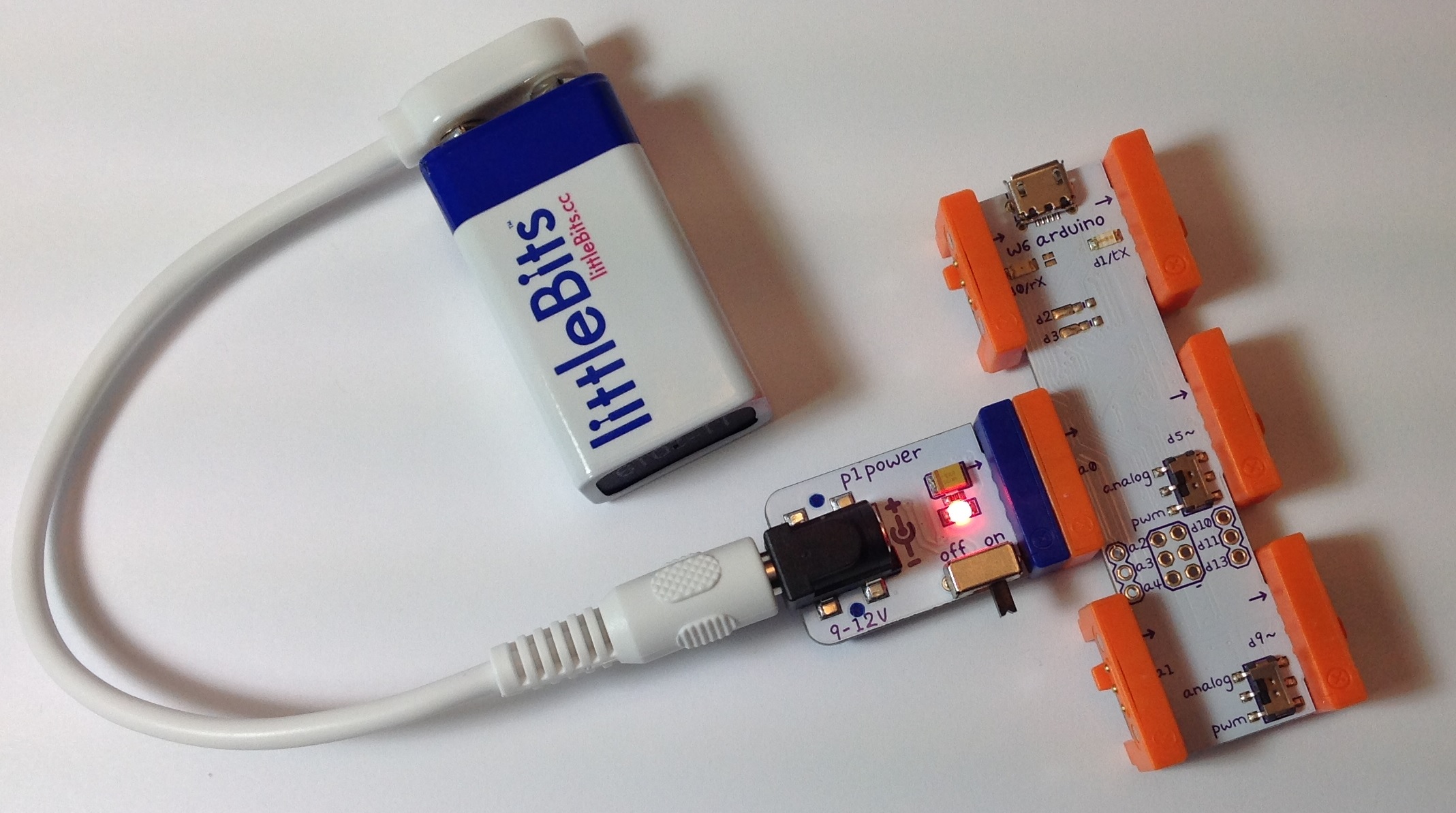
First, the hook up. The image below shows the littleBits hardware. (Click the image for full resolution.) The Arduino is “at the heart” and communicates with a PC through the USB port. The littleBits proto module directly to the left of the USB port brings the logic-level MIDI IN signal to the Arduino RX pin. The proto module directly to the right of the USB port sends the Arduino TX signal to the MIDI OUT circuit. The signals to and from the 5-pin MIDI interface board are:

  • Yellow wire: Logic-level MIDI IN
  • Blue wire: Logic-level MIDI OUT
  • Red wire: +5 Volts (Vcc)
  • Black wire: Ground

MIDI is a serial communication standard operating at a rate of 31,250 bits per second. RX and TX are the Arduino’s digital serial receive and transmit pins, respectively.
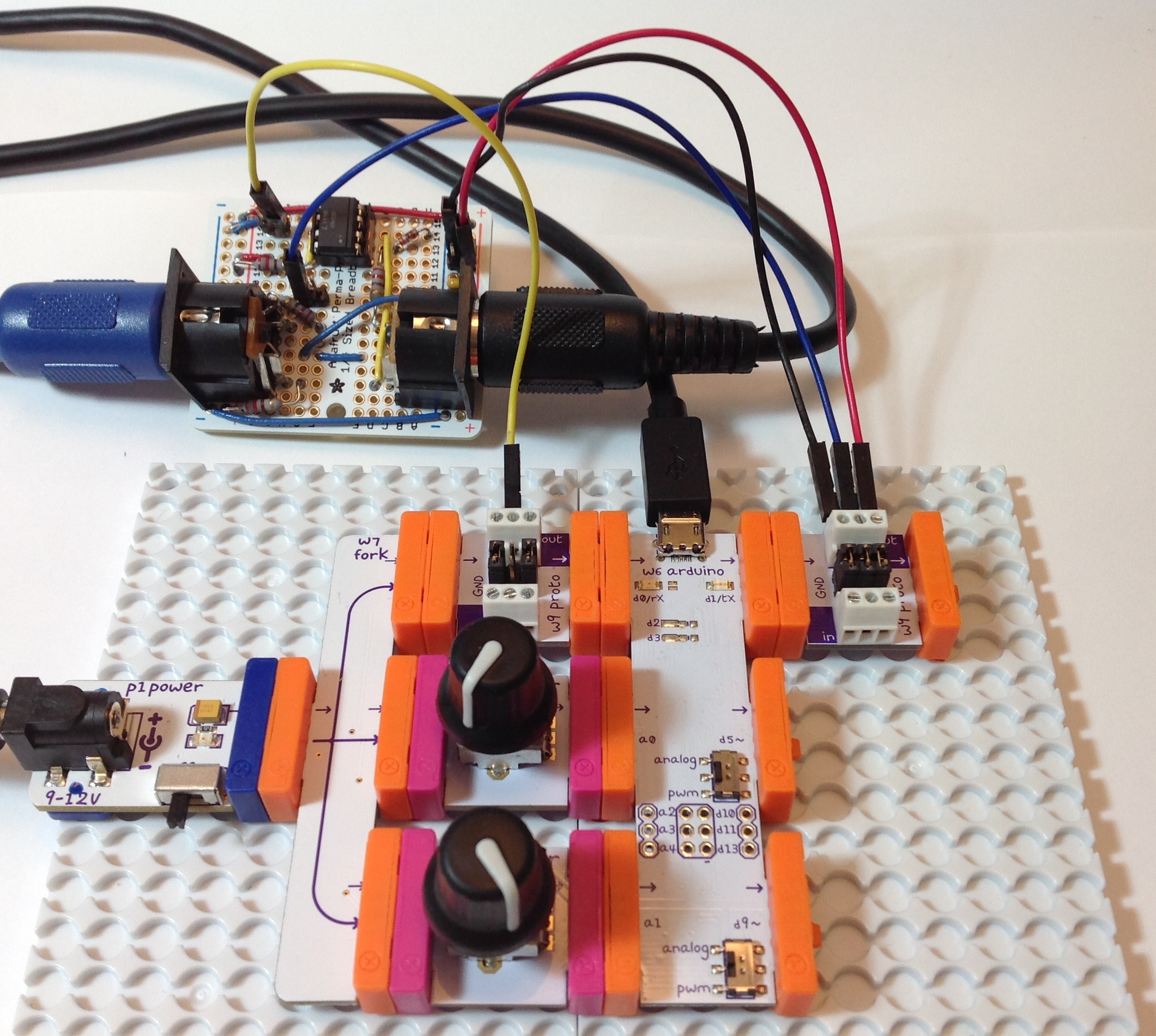
littlebits_arduino_midi_interface

So far, so good. There are a few extra details to consider. The positive supply voltage (+5 Volts) and ground are distributed throughout the whole interface board. Only one set of power supply connections are needed to power the interface board. I attached the power supply connections to the proto module handing the MIDI OUT. Next, the proto module jumpers are configured a little bit differently on the MIDI IN and MIDI OUT sides. Having all three jumpers in place, the MIDI OUT proto module passes all signals: Vcc, ground and the data signal arriving from TX. The MIDI IN proto module only passes Vcc and ground. It does not pass the signal from its input bitSnap. The output from the proto module is generated by the signal coming from the 5-pin MIDI interface board (i.e., the yellow wire). This signal is send to the RX pin.

Adhering to my original test plan, I downloaded the simple MIDI sequencer sketch. This sketch tests the MIDI OUT circuit by sending MIDI note on and note off messages. I attached the MIDI OUT connector to a MIDI tone module, flipped the power switch, and no sound. MIDI data was not being sent to the MIDI tone module. After much wailing, gnashing of teeth and browsing, I remembered that the Arduino Leonardo board has two serial ports, not one port like the UNO. One serial interface handles RX/TX and another serial interface handles USB communications.

The littleBits Arduino is a Leonardo board. Was the MIDI data being sent to the USB port? I turned on the Serial Monitor in the IDE. Yep, the Serial Monitor was showing jibberish arriving from the Arduino. I expected jibberish because the bit rate was all wrong, but nonetheless, observations confirmed that MIDI data was going to the wrong port (USB instead of TX).

The Arduino IDE exposes two serial ports for a Leonardo board:

  • Serial” refers to the virtual serial port over USB.
  • Serial1” refers to the serial port through RX/TX.

Originally, I wrote and compiled the MIDI sequencer sketch for an Arduino UNO board. The calls to write() refered to Serial. That’s fine on the UNO because the UNO uses the same serial port for RX/TX and USB communication and everything works. On Leonardo (littleBits), however, the sketch refers to the USB serial port, not RX/TX as I had intended.

I solved the problem with conditional compilation. Here is the new code for the function MidiSend() in the MIDI sequencer sketch:

//
// Send a short, 3-byte MIDI message
//
void MidiSend(byte cmd, byte data1, byte data2)
{
#ifdef LEONARDO
  Serial1.write(cmd | CHANNEL) ;
  Serial1.write(data1) ; 
  Serial1.write(data2) ; 
#else
  Serial.write(cmd | CHANNEL) ;
  Serial.write(data1) ; 
  Serial.write(data2) ; 
#endif
}

The symbol “LEONARDO” determines the code to be compiled into the sketch. If LEONARDO is defined then the sketch sends MIDI bytes to Serial1. If LEONARDO is not defined, then the sketch sends MIDI bytes to Serial. I also needed to fix up the code in setup():

#ifdef LEONARDO
  Serial1.begin(31250) ;
#else
  Serial.begin(31250) ;
#endif

After making these changes and defining LEONARDO at the beginning of the sketch:

#define LEONARDO 1

I compiled and uploaded the sketch. Voila! I heard music from the tone module! MIDI data was now being sent to the appropriate Arduino serial port (TX).

Along the way, I also learned some useful information about the RX and TX LEDs. The RX and TX LEDs flash when data is transfered through the USB port. They do not flash when data is sent through the RX/TX pins. If you want to flash the LEDs yourself, then use the following macros:

    RXLED0;
    RXLED1;
    TXLED0;
    TXLED1;

These macros are a feature of the Leonard board and are not recognized on UNO.

Two separate, independent serial ports has its advantages. First, it isn’t necessary to disconnect the 5-pin MIDI interface board when uploading a sketch. With only one serial port on UNO, TX/RX and USB communication cannot peacefully co-exist. On Leonardo (littleBits), they do peacefully co-exist and you can use the virtual serial port over USB (i.e., Serial Monitor) to trace program execution and print debug messages while using RX/TX for MIDI communication. Finally, if we don’t ever touch Serial1, we should be able to configure D0 and D1 as regular Arduino digital input and output pins (respectively).

By now, you realize that I had to modify the sketch that echoes MIDI IN to MIDI OUT, too. Instead of conditional compilation, this sketches defines a symbolic constant, “SERIALPORT,” which expands to the name of the serial port to be read and written. Full disclosure: I did not test the MIDI library version on littleBits (Leonardo).

//
// Send MIDI IN to MIDI OUT (THRU)
//

// Author:  P.J. Drongowski
// Date:    6 June 2016
// Version: 1.1
//
// Copyright (c) 2016 Paul J. Drongowski
// Permission granted to use, copy and distribute

// Uncomment the following line to use the Arduino 
// MIDI library instead of serial read() and Write().
// #define USE_MIDI_LIBRARY 1
// This has not been tested/debugged on LEONARDO!

// Define the symbol SERIALPORT to select the appropriate
// serial port:
//    Serial    UNO
//    Serial1   LEONARDO/littleBits
#define SERIALPORT Serial1


#ifdef USE_MIDI_LIBRARY

#include <MIDI.h>
MIDI_CREATE_DEFAULT_INSTANCE() ;

void setup() {
  MIDI.begin(MIDI_CHANNEL_OMNI) ;
}

void loop() {
  if (MIDI.read())
  {
    MIDI.send(MIDI.getType(),
              MIDI.getData1(),
              MIDI.getData2(),
              MIDI.getChannel());
  }
}

#else

int midiByte = 0 ;

void setup() {
  // Initialize the serial port for MIDI
  SERIALPORT.begin(31250) ;
}

void loop() {
  if (SERIALPORT.available() > 0) {
    midiByte = SERIALPORT.read() ;
    SERIALPORT.write(midiByte) ;
  }
}
#endif

MIDI sequencer: Testing your MIDI interface

Now that you’ve assembled the MIDI interface for your Arduino, it’s time to try it out. That means you need a few basic sketches to test and debug the interface.

First, a philosophical word or two. Testing is one of the most neglected and least emphasized topics in engineering. Other than careful design, assembly and coding, nothing else is as important to the success of a project as testing. In practice, you should be thinking about testing while you design, code, layout and solder. Without getting too computer science-y, it all comes down to controllability and observability — the ability to apply a stimulus (test input) and the ability to measure and assess a response (expected vs. actual test output).

Take the case of our MIDI interface. There are two major subsystems: the MIDI IN circuit and the MIDI OUT circuit. We must drive the MIDI IN circuit with a keyboard (or some other device) that sends MIDI to the 5-pin MIDI IN connector. The Arduino reads the logic level bit-stream through its RX pin (pin D0). The messages in the bit-stream need to conform to the MIDI message standard. On the MIDI OUT side, the Arduino sends a logic level bit-stream into the MIDI OUT circuit via the TX pin (pin D1). Again, the bit-stream carries standard MIDI messages. We must observe the outgoing MIDI messages, perhaps by playing the MIDI stream into a MIDI-compatible keyboard or tone module.

In addition to controllability and observability, you also need a test plan that identifies the features to be tested and the order in which you intend to test those features. A carefully constructed plan can make your work more efficient and systematic. Again, taking the case of the MIDI interface, I intend to test the MIDI OUT side first because I can easily write a sketch to generate MIDI messages and that sketch does not require a working MIDI IN circuit. Once I know that the MIDI OUT is correct, I can use the MIDI OUT as part of MIDI IN testing. By testing MIDI OUT first, I can work around the limited controlability and observability of our system.

I hope this plan makes sense to you. Here’s a few additional points. We don’t need to test all MIDI standard messages and can restrict testing to simple 3-byte messages like NOTE ON and NOTE OFF. We need to have a reliable, known-good MIDI sender (like a keyboard or other controller) and MIDI receiver (like a tone module). I have two MIDI-compatible devices — a Roland SK-88 Pro Sound Canvas keyboard and a Boss DS-330 Dr. Synth module — that I like to use for testing. Both devices now have emeritus status, meaning that I won’t cry too much if I blow them up! I send the MIDI OUT from the Arduino to both devices and play the audio through self-powered speakers. I play the SK-88 keyboard and send MIDI NOTE ON and NOTE OFF messages to the MIDI IN circuit under test and read those messages on the Arduino.

With these preliminaries out of the way, let’s dive into the details.

MIDI OUT: Simple MIDI Sequencer

In order to test MIDI OUT, we need a sketch that sends MIDI NOTE ON and NOTE OFF messages via the TX pin into the MIDI OUT circuit. With a MIDI tone generator connected to the 5-pin MIDI OUT connector, we just need to listen to the audio from the tone generator to determine if the outgoing notes are correct.

I took the simple Arduino tone sequencer sketch and modified it to send MIDI NOTE ON and NOTE OFF messages. I replaced calls to the Arduino tone() function with code to send MIDI NOTE ON and NOTE OFF as appropriate. (Reusing code this way is known as “copy and modify.”) The new sketch is a simple MIDI sequencer that repeatedly plays back a musical sequence of notes through the MIDI OUT port. The sketch is a useful little program in itself — not just a specialized test.

Here are direct links to the source code for the sketch:

MidiNoteNum.h: Defines symbolic constants for the note names
ToneNote.h: Defines symbolic constands for note/rest durations
MidiSeq.ino: The simple MIDI sequencer Arduino sketch

The sketch does not use the Arduino MIDI library. It sends messages by making calls to the Arduino Serial library. I will use the Arduino MIDI library in future projects, especially when we need to parse complicated incoming messages.

The sketch sends messages on MIDI channel 1. So, be sure to have the destination tone generator configured to receive on channel 1 (or OMNI).

Here’s a possible gotcha that could drive you insane. The Arduino’s serial port is used for both uploading sketches and for MIDI communications. MIDI operates at a rather “unusual” data rate of 31,250 bits per second and most likely does not match the default rate established by the Arduino IDE. Even worse, the MIDI devices used for testing (i.e., keyboard controller) may be sending real time status messages that collide with commands from the IDE. Soooo, you may see messages about “sync” failure when uploading a sketch. If that is the case, then temporarily disconnect the MIDI IN circuit while uploading a sketch. Also, you will not be able to print to the serial port, etc. and see text serial messages in the IDE’s Serial Monitor window. Unfortunately, this limits the use of serial communication for tracing and debugging purposes when MIDI is connected and active.

MIDI IN: Echo MIDI IN to MIDI OUT

Once we know that the MIDI OUT port is working, it’s time to check the MIDI IN port. An easy way to test is to simply echo the incoming MIDI messages to the MIDI OUT port. If we have a MIDI keyboard connected to MIDI IN and a tone generator connected to MIDI OUT, then anything that we play on the keyboard should be heard through the tone generator. If the keyboard and tone generator are part of the same instrument (e.g., a synthesizer workstation, arranger or digital piano), be sure to turn LOCAL off. You want to hear the MIDI messages coming in through the instrument’s MIDI IN port.

Here is the code for the MIDI IN to MIDI OUT sketch.

//
// Send MIDI IN to MIDI OUT (THRU)
//

// Author:  P.J. Drongowski
// Date:    30 May 2016
// Version: 1.0
//
// Copyright (c) 2016 Paul J. Drongowski
// Permission granted to use, copy and distribute

// Uncomment the following line to use the Arduino 
// MIDI library instead of serial read() and Write().
// #define USE_MIDI_LIBRARY 1

#ifdef USE_MIDI_LIBRARY

#include <MIDI.h>
MIDI_CREATE_DEFAULT_INSTANCE() ;

void setup() {
  MIDI.begin(MIDI_CHANNEL_OMNI) ;
}

void loop() {
  if (MIDI.read())
  {
    MIDI.send(MIDI.getType(),
              MIDI.getData1(),
              MIDI.getData2(),
              MIDI.getChannel());
  }
}

#else

int midiByte = 0 ;

void setup() {
  // Initialize the serial port for MIDI
  Serial.begin(32500) ;
}

void loop() {
  if (Serial.available() > 0) {
    midiByte = Serial.read() ;
    Serial.write(midiByte) ;
  }
}
#endif
There are two ways to echo the incoming MIDI message stream. One way is to echo the bytes arriving on the serial input to the serial output. This is the most straightforward method. The other way is to use the Arduino MIDI library to read incoming MIDI messages and send the messages to the MIDI OUT port. The code (above) implements both methods and uses conditional compilation (#ifdef) to select and compile one of the methods. If you want to get your feet wet with the Arduino MIDI library, then define the symbol USE_MIDI_LIBRARY before the #ifdef.

Here are a few links for the Arduino MIDI library to help you get started.

Arduino MIDI Library site
Arduino MIDI Library Documentation
Deprecated site

The current version is 4.2. The Arduino IDE has a nice library management system: Sketch > Include Libraries > Manage Libraries.

5-pin MIDI IN/OUT for Arduino

I hope you enjoyed the last post about a simple tone-based sequencer for littleBits Arduino. My next goal is to make the littleBits Arduino fluent in MIDI. Then we can turn the littleBits Arduino into the heart of MIDI-based tools like real time controllers and synthesizers.

At the time of this writing, littleBits does not offer a 5-pin MIDI input module or a 5-pin MIDI output module. That shouldn’t stop us. With a little know-how and some soldering, it’s easy to whip up 5-pin MIDI IN and MIDI OUT circuits. I will show you how. Even though this discussion is in the context of littleBits Arduino, the circuits below will work with any Arduino. The circuits will even work with Raspberry Pi or Beaglebone for that matter! Once I get a couple littleBits proto modules, I’ll show you how to connect the MIDI interface circuits to the littleBits Arduino.

5-pin MIDI is a mature standard and is one of the most successful, long-running standards in personal computing. Most musicians are familier with MIDI cables and MIDI connections. MIDI cables have familiar 5-pin DIN connectors at either end. Wiring is symmetric. Unlike USB, there isn’t an A side and a B side. Connect a MIDI OUT to a MIDI IN and you’re good to go.

Even though a connector has five pins (and associated wires), only three pins are really involved in MIDI data communication. One of the three pins — “the one in the middle” — carries electrical ground. The other two pins form a current loop from the sender to the receiver and back to the sender. “Current loop” means that we are communicating 0’s and 1’s using the presence or absence of electrical current.

Everyday logic like CMOS or TTL digital circuits use voltage level to represent logical zero and logical one. Low voltage (nominally 0 Volts) represents logical zero and high voltage (nominally 5 Volts in a 5 Volt system) represents logical one. Digital circuits actually switch through a transition zone between 0 and 5 Volts. Logical 0 and 1 are defined by threshold voltages, and now we’re getting too far afield! You get the idea — the representations and electrical mode of operation are different.

Let’s start with the receiver (MIDI IN) because that’s where all of the interesting action takes place. Here is the schematic for a very basic MIDI IN. (Click on images to get full resolution.)

schematic_midi_in

The incoming current flows through a 220 ohm resistor into the optical side of a 6N138 optoisolator. That may sound scary, but Arduino folks already know how to blink an LED on and off. That’s what the current loop does. It blinks an LED in the optoisolator. The LED shines on a photodiode that controls two transistor switches. The transistors switch the output (pin 6 of the optoisolator) between logical 0 and logical 1 (in voltage-ese). Pin 6 is connected to the Arduino serial receive port (pin D0, also known as “RX”). That’s all there is to it!

The optoisolator isolates the sender and receiver electrically. This is a good thing in stage environments and any place rife with grounding problems, connection mistakes, etc. The resistor before the LED limits the current through the loop and into the LED. This resistor plus the 1N4148 diode provide input protection.

Here is the schematic for a basic MIDI OUT circuit.

schematic_midi_out

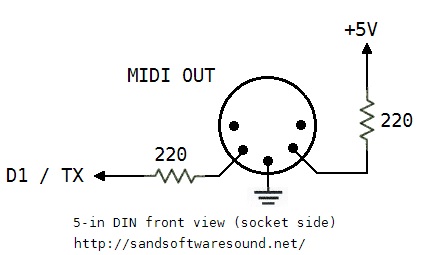
All the sender needs to do is to drive or remove an electrical current through the loop. When the loop is driven, the LED at the other end of the loop shines. When the current is removed, the LED turns off. The current loop is controlled by the Arduino send port (pin D1, also known as “TX”). The 220 ohm resistors are current limiting resistors that put a limit on the amount of current driven into the loop.

This MIDI OUT circuit gets the job, but is a little basic. Most practical commercial circuits use a driver (such as a CMOS 74HC125 buffer/driver IC) or a transistor switch. The driver provides a little more electrical assurance and protection on the sender’s side. Better to blow up an inexpensive driver IC than your Arduino!

I built both the MIDI IN and MIDI OUT circuits on an Adafruit Perma-Proto quarter-sized breadboard PCB. I like the layout of these boards and they have nice through-holes for soldering. They have the same layout as a quarter-sized solderless breadboard. In this case, you solder connections instead of inserting jumper wires and component leads into solderless breadboard holes. Please, note. If you want to use the circuits above, but are reluctant to solder, then by all means, use a solderless breadboard!

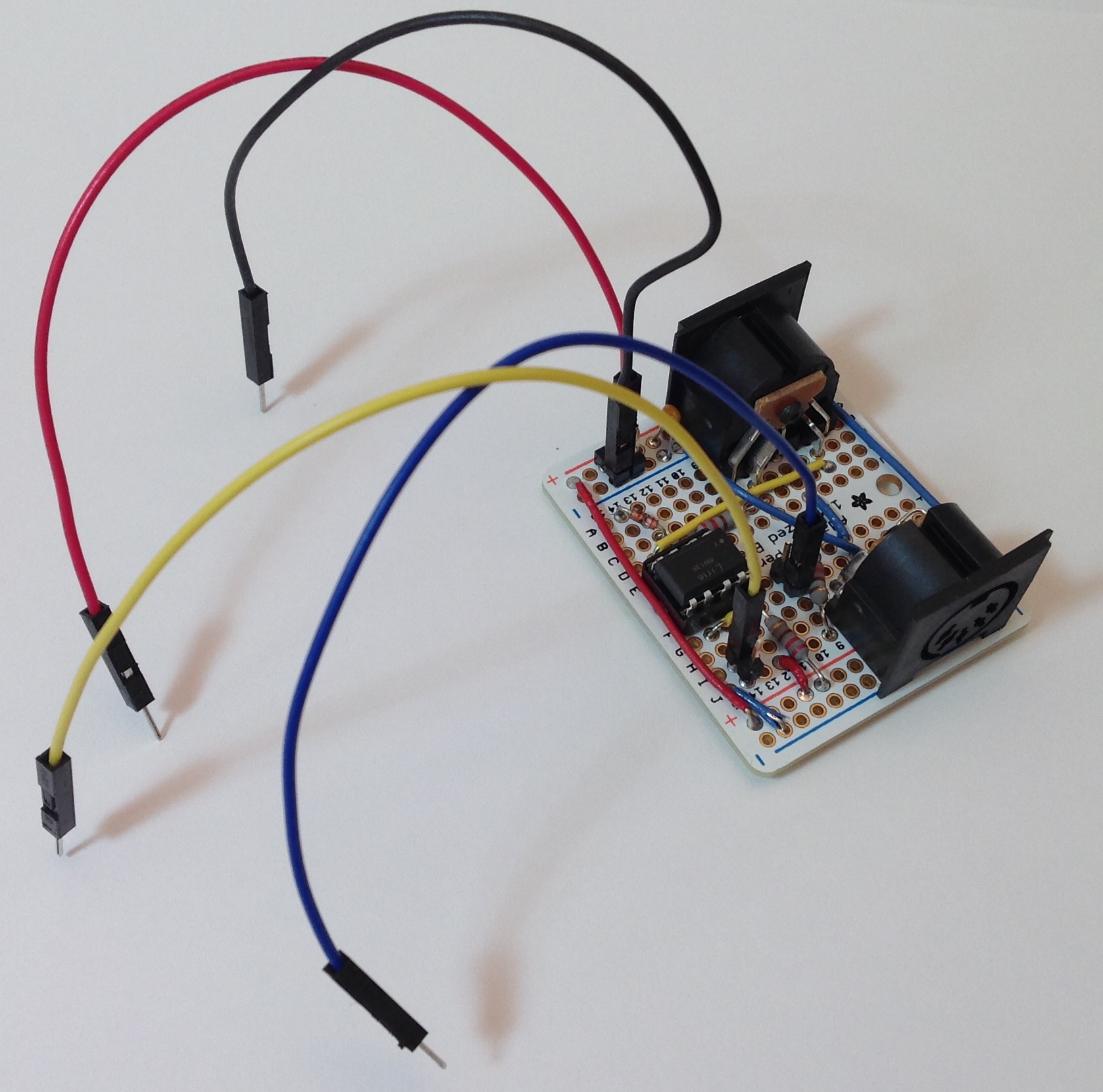
The following image shows the final result looking at the MIDI IN connector. Click the image for full resolution.

board_midi_in

The jumper wires sprouting from the board are not intended to make the board look like a court-jester. They are the connections to be made to the Arduino:

  • Red: +5 Volts
  • Black: Ground
  • Yellow: Connect to D0 / RX
  • Blue: Connect to D1 / TX

My construction style uses 2×1 and 2×2 headers to make external connections. The header pins mate up neatly with either Female/Female or Female/Male jumper wires. I used F/M jumpers in order to plug into the signal headers on a standard Arduino UNO for testing.

The next image shows the final resulting looking at the MIDI OUT connector.

board_midi_out

If you don’t mind soldering, but don’t want to go free-style on a prototyping board, then I recommend the Sparkfun MIDI Shield (DEV-12898). The latest revision of the MIDI Shield has good input protection and output drivers. It also has a RUN/PROG switch that is handy when uploading a sketch to the Arduino. MIDI and PC communications share the same serial port and conflicts must be avoided. (More about this issue in another post.) With the prototyping board, I just pull the yellow jumper wire when I upload a sketch.

The Sparkfun MIDI Shield has two knobs and three switches. This is a bonus if you are working with a standard Arduino. The knobs and switches go unused if you are working with a littleBits Arduino. In either case, the Sparkfun MIDI Shield is a viable alternative to “roll you own.”

Next time, I’ll describe the sketches that I wrote in order to test the MIDI IN and MIDI OUT.

Update: Use this simple MIDI sequencer sketch to test the MIDI OUT portion of the 5-pin interface.

littleBits Arduino tone sequencer

The littleBits Arduino module has the potential to be a MIDI-driven tone generator for a mono or paraphonic synthesizer. After getting the module, I was anxious to try it out even though I haven’t built a MIDI interface for it (yet).

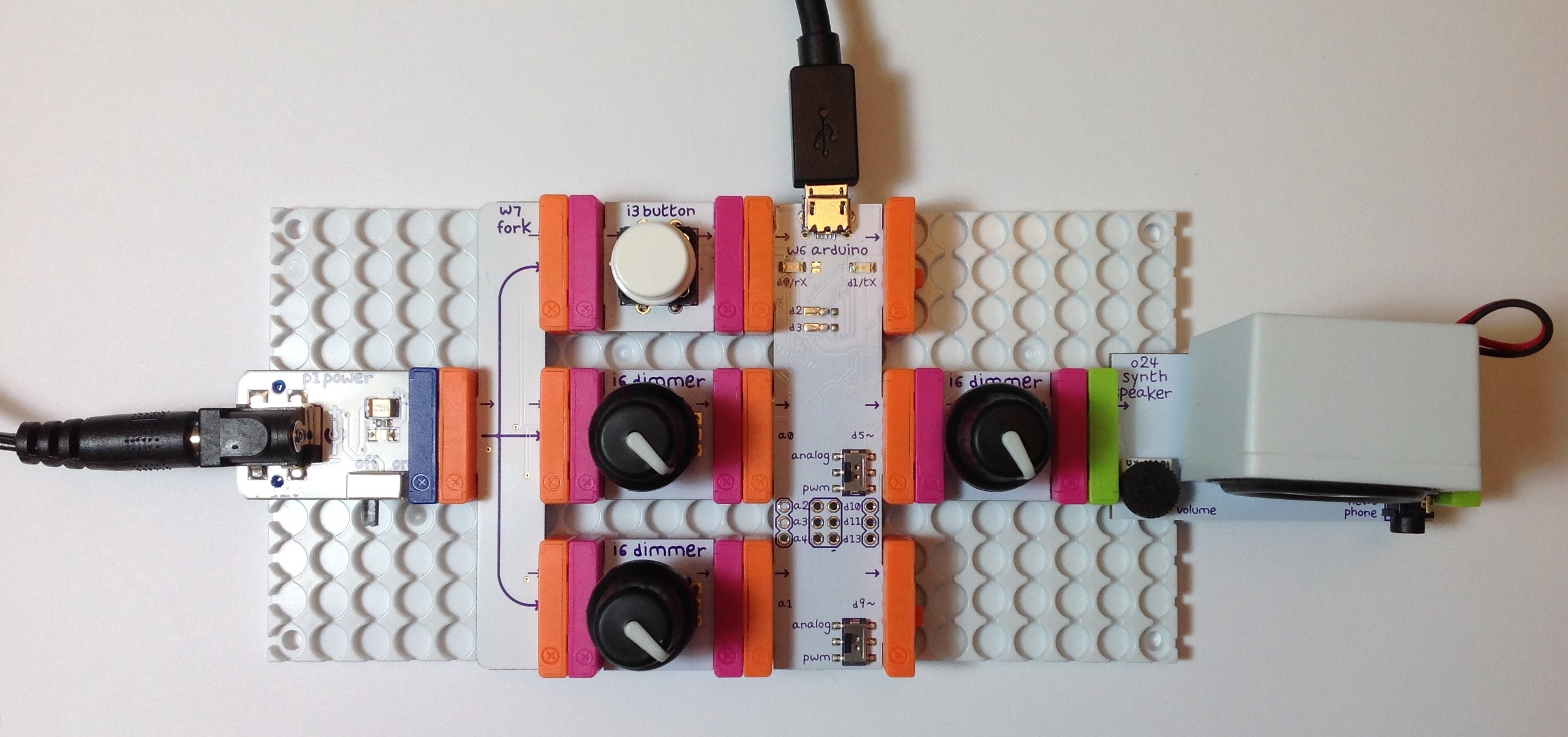
Here is a picture of the littleBits hardware. (Click the image to get full resolution.) The Arduino module is in the middle between the controls at the left (button and dimmers) and the synth speaker at the right. The controls on the left hand side don’t do anything at the moment. I put a dimmer between the output pin (D5) and the synth speaker in order to control audio volume. It’s just more convenient to control the volume with a dimmer than the tiny trim pot on the synth speaker module. The knobs on the dimmers are my own touch; they aren’t standard-issue with the littleBits dimmers.

arduino_dimmer_speaker

To keep things simple, I wrote a sketch that implements a basic note sequencer. Each note has a pitch (frequency) and a duration (milliseconds). The notes are stored in an array. The Arduino loop() function steps through the array of notes and plays one note at a time. After the loop plays the last note in the array, it goes back to the beginning of the array. The loop has a delay() in it and the loop keeps track of the remaining duration of the currently playing note. The sketch calls the Arduino tone() function to play notes by sending a square wave at the desired frequency to output pin D5.

If you would like to learn more about this project, then read about the design of this simple Arduino-based sequencer and tone generator. Here are links to the source code:

ToneTest.ino: Main sketch
ToneFreq.h: Note frequencies
ToneNote.h: Note durations

The D5 and D9 output pins on the littleBits Arduino module have a switch that enables or disables low pass filtering. The “analog” switch position turns on the filtering. The “pwm” position turns filtering off. Should you build this project yourself, try both switch positions. The “pwm” position doesn’t filter the square wave and you will hear it loud and nasty. The “analog” position produces a quieter, mellower timbre thanks to the low pass filter. Be sure to try the littleBits synth filter, envelope and delay modules, too.

One more tidbit. Pictures of the littleBits envelope, filter and delay modules usually show the top-view. The picture below flips the modules over and shows the bottom-view.

envelope_filter_delay

From left to right, the modules are the envelope, filter and delay, respectively. There is some serious electronics on these boards! (Click the image for full resolution.) I hope to use these modules to mangle audio, not just synthesis.

All the best.

Update: 28 June 2016. If you enjoyed this project and have the littleBits Synth Kit, then check out an expanded version of the tone sequencer which drives the filter and envelope modules.

littleBits Arduino: More observations

Back with a few more quick observations as I get started with the littleBits Arduino module. (Please see my first review.)

I decided to see how much stuff I could cram around the littleBits Arduino. (Click on the image below for full resolution.) This configuration starts with the power module on the left hand side. The power module is connected to a 9V 1500mA (1.5A) center positive power adapter with a 2.1mm plug. As I mentioned in my previous post, this is the same adapter that I use with my Arduino UNO. Already, I like the power switch on the power module — a very handy touch.

arduino_full_up

The power module drives three input modules (a button and two dimmers) via the fork module which is included in the Arduino Development Kit. The button module is connected to Arduino digital input D1 and the dimmer modules are connected to the Arduino analog inputs A0 and A1.

The Arduino D5 output is connected to a dimmer module that adjusts the volume (amplitude) of the signal sent to the synth speaker module. Yep, the synth speaker module has a volume control of its own. It’s that little trim pot in the lower left corner of speaker module. I find it difficult to adjust the tiny trim pot. Trim pots are designed for “set and forget” applications and have a limited rotational life (number of cycles). So, I splurged and inserted a dimmer module on the input to the speaker module.

I love the bargraph. You can use it as a poor man’s volt meter or logic indicator. I connected the bargraph module to Arduino output D9. Before I forget, the switches for D5 and D9 are set to the “analog” position.

I didn’t connect anything to Arduino digital output D1. A good first sketch would be blinking the on-board D1 LED on and off. So, I left the bitSnap empty.

The knobs on the dimmer modules are my own doing. The knobs do not come with the dimmer modules. I have a dozen or so of these basic knobs. The equivalent knobs are:

  • Multicomp CR-BA-7C6-180D ($0.35 per knob through MCM Electronics)
  • Sparkfun COM-08828 (now retired)

Knobs just make life easier and make things a little more dressed up.

I was hoping that littleBits had preloaded a sketch to the Arduino module and they did. The preloaded sketch makes the bargraph “breathe.” The sketch repeatedly ramps up the output voltage from zero volts to the MAX (5 volts) and ramps the voltage back down to zero volts. The dimmer connected to A1 controls the ramping speed, i.e., how fast the bargraph breathes.

I wish that littleBits made the preloaded sketch available on their web site. I couldn’t find it. Quite frequently, it’s handy to have a known-good sketch for testing purposes. I’m a stickler for testing and diagnostic programs. Too much emphasis on coding, not enough emphasis on testing, I say.

The littleBits site has a good introduction to installing and using the Arduino Integrated Development Environment (IDE). If you’re confused about the “analog” and “pwm” switch settings, be sure to scroll down into the comments section on this page. There is a good explanation. A short bit of advice: If you need to send an analog signal that varies anywhere from 0 to 5 volts, then put the switch into the “analog” position. If you need to send a purely digital signal (ON: 5V, OFF: 0V), then put the switch in the “pwm” position. (A pulse chain is, of course, a type of digital signal.)

If you’ve taken a look at the Arduino module schematic, you know that the switch enables (or disables) two extra stages of low pass filtering. The low pass filters (when enabled) generate an analog signal by smoothing out a PWM signal. This is essentially a poor man’s digital to analog converter (DAC) although it isn’t very hi-fi.

The littleBits web site has ten sketches to get you started. This part of their site could use a little polishing. First, I couldn’t find the source code for the sketches! At last, I realized that the link to a sketch is under the “ADDITIONAL FILES” section on the right hand side of the page — beneath the relatively huge “ADD ALL TO CART” button. Ah, sales before service. Beginning users may not realize that this is the link to the code. They may not know that the “ino” file extension refers to an Arduino IDE code file! Maybe kids are less confused than adults, but details like this could easily turn off a youngster who is lacking self-confidence.

The sketch file names are a little whack and don’t always directly refer to the section or page titles on the sketch web pages. Here is a correspondence table that I put together:

Example                     Source code file
--------------------------  ------------------------------
Blink                       blink.ino
Hold An On/Off State        buttonRead_stateChange.ino
Blink Speed Control         analogRead_digitalOutput.ino
LED Fading Effect           analogRead_analogOutput.ino
Servo Sequence Recorder     Sequence_Recorder_Starter.ino
DIY Etch A Sketch           etchasketch_arduino.ino
Analog Pong                 analog_pong_arduino.ino
DIY Computer Mouse          mouseMoveNClick.ino
Play A Melody               toneMelody.zip
Change The Pitch            tonePitchFollower.ino

Again, littleBits need to reduce the frustration barrier especially since kids are involved or teachers who have suddenly been assigned to computer science.

In my first review, I mentioned how mounting boards are essential for building mechanically robust and electrically reliable littleBits systems. Definitely true. However, littleBits still have room for improvement. The current mounting boards have quite a bit of flex in them and the pegs still pop out easily. I had a heck of a time getting the system (pictured above) to stay firmly put in the mounting board. It’s takes a lot of pressure to get a big system into a mounting board. I’m afraid that the pressure will weaken the board connections. Perhaps things will get better with practice or use…

If you’re interested in the backstory about the littleBits Arduino module, then read this article.

littleBits: First review

Some things are inevitable…

I taught undergraduate and graduate hardware design for many years. It was always a challenge to give students hands-on experience with digital logic circuits, especially for large-scale digital systems. Gosh, I could write several long blog posts that recount the various breadboarding, prototyping and simulation approaches that my students used in the lab. Along with the achievements came many horrors.

So, picking up littleBits was inevitable.

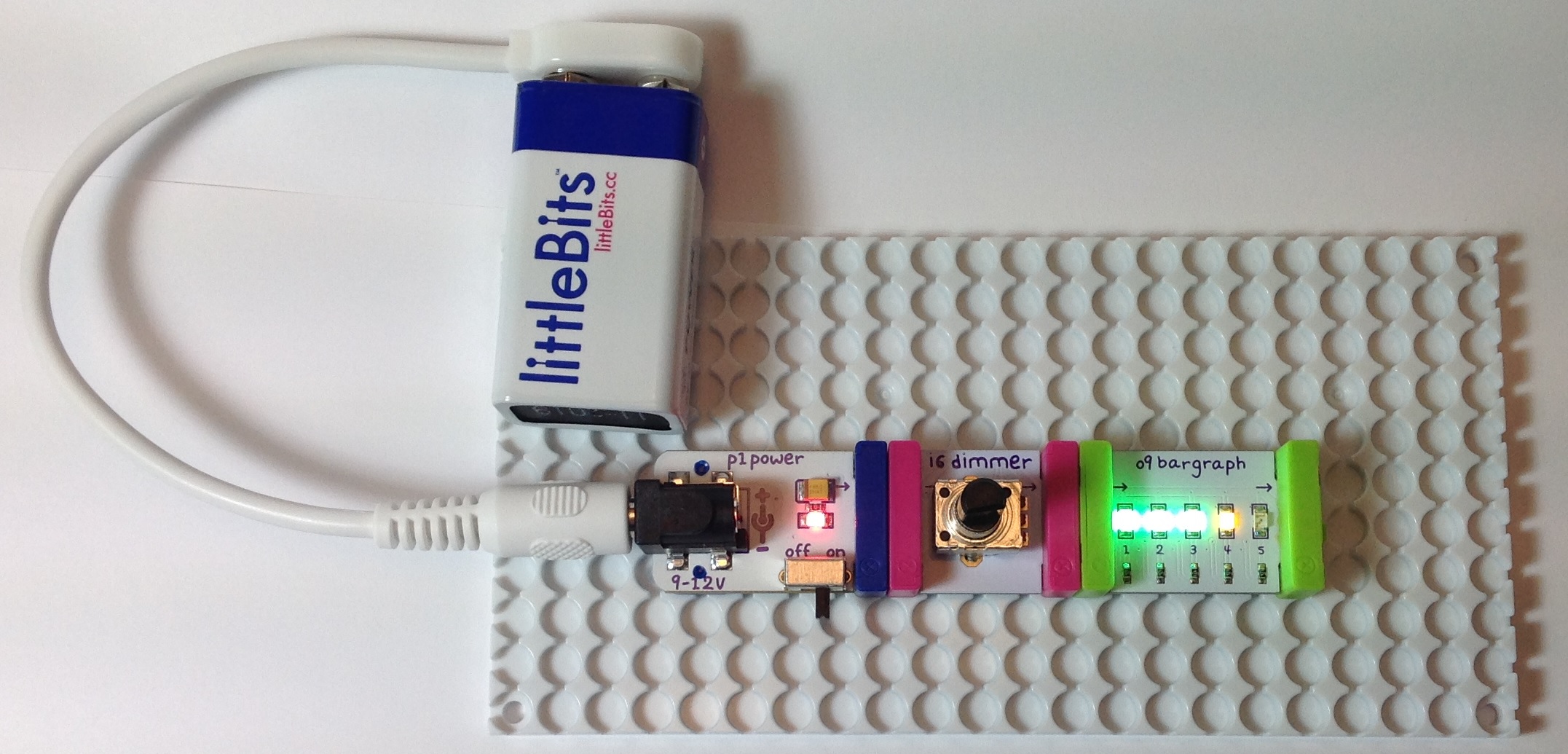
littleBits are so cute. Just in case you’ve been in an isolated cave, littleBits modules are small building blocks with magnetic “bitSnaps” at opposing ends. The magnetic bitSnaps sort the ports into inputs and outputs, and enforce an output-to-input connection rule. Each bitSnap carries the positive voltage rail, the ground rail and a signal. (Click images to get full resolution.)

dimmer_bargraph

The littleBits range covers basic digital logic and analog building blocks including audio. The Synth Kit — designed in collaboration with Korg — has perhaps done the most to promote widespread discovery and use of littleBits. The Synth Kit certainly placed littleBits in relatively non-traditional hands and sources, namely, musicians and musical instrument retailers. Before their recent bankruptcy proceedings, one could find individual ‘Bits in Radio Shack stores.

According to the manager of a local Radio Shack, the littleBits suffered a very high theft rate. Shame on anyone who unlawfully filched these!

Most retailers today (like Barnes and Noble bookstores) sell littleBits kits. The kits make it easier for people to get started and it reduces the number of separate SKUs at point-of-sale. With Radio Shack’s reorganization, these days, it is more difficult to buy individual modules a la carte. The littleBits on-line shop carries the full range, of course. Still, one rarely finds ‘Bits or kits at a discount.

The kits are also a little less easy to steal although a Barnes and Noble shopkeeper acknowledged high theft potential, too. Stop stealing!

One reason why people may feel entitled to boost littleBits with sticky fingers is their perceived expense. An LED at $7.95 may seem grossly overpriced. However, each individual module has at least two bitSnaps and there is value-added design and electronics on board. The LED module, for example, has a voltage protected input and a driver. In fact, all signals in the littleBits series are driven and normalized; that’s what makes them special. If all you want is a naked LED with two leads, then by all means pass up littleBits and try something else!

Signal standardization is what makes littleBits what they are. littleBits are very close to the plug-and-play electronic LEGO™ blocks that educators have wanted for a zillion years.

I decided to forego prepackaged kits and buy a la carte. The kits usually have modules which I probably won’t use and it just seems like a waste to buy them. That includes the Synth Kit, too. (Are you surprised?) I don’t have any interest in the tiny keyboard or the sequencer. I’m not that interested in the oscillators for that matter. I want to drive my synth and other experiments with Arduino. Thus, the only kit that I have purchased is the Arduino Coding Kit. Everything in this kit is quite useable with the exception of the servo module. (Although a Neil Young Whizzer would be a unique project!)

The littleBits Arduino board is a good example of value-added engineering. Sure, the Arduino ‘Bit doesn’t provide all of the ins and outs of a stock Arduino UNO, for example. However, the bitSnap signals are standardized with protection on the inputs and (switchable) low pass filters on the PWM outputs. The serial transmit (TX) and receive (RX) signals are made available through bitSnaps, making MIDI IN and OUT a future possibility. Programming is supported through either USB or ICSP. You’ll need to add header pins for ICSP, but if you’re using ICSP, you already ride tall in the saddle.

arduino_battery

I intend to whip up MIDI IN and MIDI OUT circuits using PROTO modules. I thought long and hard about the options. The Hardware Development Kit contains two PROTO modules, one PERF module and 12 bitSnaps (6 male, 6 female). I am not a fan of pad-per-hole perf board, so the PERF module is not that attractive to me. I much prefer “DIP style” prototyping boards that accomodate full size, through hole DIP ICs. This is sooooo much easier to solder. For similar reasons, I’m not sure that I want to fiddle around crafting circuit boards to conform to the bitSnaps. Overall, I will probably buy two PROTO modules a la carte.

The littleBits web site is a little sketchy on certain vital details:

  • The Arduino board USB port is a micro USB port.
  • The power module can be driven by a 9V, center positive, 2.1mm power adapter — the same as an Arduino UNO.
  • The power module can drive any input bitSnap (any port in a storm).
  • The Arduino IDE should be configured for the Leonardo board.

I don’t like hunting around for this kind of information and I especially do not want to watch videos to find it! In fact this information should be printed on the plastic purple baggy containing the Arduino board. (Also, the link to Arduino sketches on the current baggy is dead.)

Thank goodness that the Arduino Development Kit comes with two mounting boards. A mounting board holds a littleBits circuit in place and makes connections reliable. I whipped together a simple circuit without using a mounting board and the relatively heavy adapter cable kept pulling the power module away from the other boards. The bitSnap magnets are simply not that big and strong. Programming and using an Arduino module without a mounting board would be a nightmare.

So far, a favorable, somewhat vanilla review. Here’s a bit of my own value-added as a computer science educator.

When I first powered up the pulse module — a 555 timer-based circuit that generates a regular stream of digital pulses — I didn’t necessarily see a clock. I saw a token generator. I thought, “Given the current design of the logic elements, wouldn’t it be neat to build and visualize a one-hot state machine (controller)?” If each latch module had a built-in LED showing the state of the latch, this application would be a natural for littleBits.

Even better, why not bag synchronous control altogether and go asynchronous, self-timed?

Ivan E. Sutherland, Turing Award paper, Communications of the ACM, Volume 32, Number 6, June 1989, pages 720-738. And don’t forget everything written by Chuck Seitz, too!

This immediately raises the question of what we want students to learn from their experience with littleBits. I want students to learn that:

Electronic systems are inherently parallel.

Students need to be exposed to concurrency and parallelism before their minds are corrupted by the sequential, synchronous paradigm in conventional programming languages.

The other question that pops up is scalability. littleBits logic elements currently operate at the bit level. However, I’d love to have modules at the bus level such that students could build their own CPUs, GPUs, whatever. Plug-and-play busses are a tougher design challenge electrically and mechanically. One possible solution is to transmit data words serially from module to module. Pass the word size along with the data in order to simulate any (reasonable) bus width. littleBits could then keep the current bitSnap form factor.

Finally, I would like to mention the module technology that gave me a start in digital electronics: DEC Register Transfer Modules, also called the “PDP-16” or “RTMs.” RTMs use a flowchart-like notation for control design. This approach opened a whole world to me including ISP, Petri Nets and eventually dataflow computing. Most importantly, RTMs taught my 19 year-old mind that computation is fundamentally parallel and we should design for and exploit concurrency right from the get-go. Nico Habermann, God bless him, did the same in the sophomore programming course at C-MU. This point of view influenced my entire professional life!

If you would like to know more about RTMs, then read “Designing Computers and Digital Systems Using PDP-16 Register Transfer Modules,” by C. Gordon Bell, John Grason and Allen Newell, 1972. I was one of the first guinea pigs to use RTMs in the computer design course taught by John Grason. Thanks, John!

See also “The Description and Use of Register-Transfer Modules,” C. Gordon Bell, J.L. Eggbert, J. Grason, and P. Williams, IEEE Transactions on Computers, Volume C-21, Number 5, May 1972, pages 495-500.

Tenor to the max!

A few posts ago, I deconstructed the Yamaha MOX (Motif XS) tenor saxophone patches. The article summarizes the waveform assignment and Expanded Articulation (XA) control for each element within a preset voice. I’m not going to dive into the basics here, so I recommend reviewing the article for background information on XA and its behavior.

The blog entry covered the MOX (Motif XS) tenor sax presets, but not the newer Motif XF (MOXF) presets. The XF series workstations have two additional waveforms:

  1. Tenor Sax2 Growl
  2. Tenor Sax2 Falls

bringing the XF up to the level of Tyros/PSR Super Articulation tenor sax voices. This article deconstructs the “Tenor MAX” preset which makes use of these additional waveforms. The analysis is relevant even in the Montage era because the Montage tenor sax is based upon the XF waveforms (no update in the new model).

Pushing the main topic aside for a moment, Super Articulation 2 (SArt2) voices are a whole different technology and even to this day, the Motif and Montage do not implement SArt2 voices. SArt2 seems to be a premium feature that is reserved for Tyros. SArt2 requires realtime analysis of playing gestures and computation which is beyond basic AWM2 synthesis.

The table below gives the waveform, key range, and velocity range for each element in the “Tenor MAX” patch.

    Elem#  Waveform            XA        Notes   Velocity
    -----  ------------------  --------  ------  --------
      1    Tenor Sax2 Soft     AllAFOff  C-2 G8    1   79
      2    Tenor Sax2 Med      AllAFOff  C-2 G8   80  110
      3    Tenor Sax2 Growl    AllAFOff  C-2 G8  126  127
      4    Tenor Sax2 Hard     AllAFOff  C-2 G8  111  125
      5    Tenor Sax2 Hard     AF2 On    C-2 G8    1  127
      6    Tenor Sax2 Falls    AF1 On    C-2 G8    1  127

When the AF1 and AF2 buttons are OFF, one of the first four waveforms are triggered based upon the key velocity. The four elements cover the dynamic range from soft, through medium, through hard, all the way up to growl. The AF1 and AF2 buttons select particular waveforms depending upon the player’s intention. When AF2 is ON, all key velocities trigger the hard waveform. When AF1 is ON, all key velocities trigger sax falls.

So, bottom line, the “Tenor MAX” programming is just about what I expected.

I hope the analysis of tenor sax programming has helped you to understand XA and Motif/MOX voice programming. If you’re a Tyros/PSR player, then I hope that this analysis has helped you to understand a little bit of the technology beneath the Super Articulation voices.

Montage review: Yes, I’ve played one!

The Yamaha Montage synthesizer is now hitting stores in North America. One of the local retailers (GC in Natick) have a Montage set up for demo. Let’s go!

The demo unit is a Montage8 with the 88-key balanced hammer effect keyboard. I have always liked Yamaha’s upper-end “piano” actions and the Montage8 is no exception. I primarily play lighter “synth” action keyboards like the MOX and the PSR-S950. Fortunately, I spent the previous week working out on the Nord Elecro 2 waterfall keyboard, which requires a slightly heavier touch. I played the Montage8 for a little bit more than an hour without my hands wilting — a good sign.

First off, the demo unit was plugged into two Yamaha HS7 monitors and a Yamaha HS8S subwoofer. GC usually patches keyboards through grotty keyboard amplifiers, so I suspect that Yamaha provided the monitors in order to create the best impression of the Montage. I was dismayed when I started off with a few B-3 organ patches and could not contain the low end. The front panel EQ simply didn’t do the job. Time to check the monitor settings. The HS7s were flat, but the HS8S subwoofer level was cranked. After backing off the sub, all was right with the world.

Yes, some people like to simulate small earthquakes with subsonic frequencies. This, however, is not conducive for acoustic music. It’s not conducive for peaceful co-existence with your bass player either. If you encounter a Montage in the wild, check the EQ before proceeding!

So, as you may have gathered already, this is not a review of Montage for EDM. I took along my church audition folder (covering gospel to contemporary Christian to traditional and semi-classical music) and a small binder of rock, jazz, soul and everything in between. I’d like to think that this is the first time anyone has played “Jesu, Joy of Man’s Desiring” on the Montage, however poorly.

The electric pianos are terrific. I had a fine old time playing soul jazz and what not. Great connection between keys and sound. Comparing against Nord Stage, I would say that the Montage is top notch in this department and definitely a cut above the old Nord Electro 2. Yamaha did not put the Reface CP (Spectral Component Modeling) technology into Montage; they didn’t need to.

Tonewheel organ is still Yamaha’s Achilles’ heel. There is some modest improvement, but the Montage is not in clone territory. In this area, I would say, “Advantage Nord.” If I can cover B-3 with the MOX on Sunday, I’m sure that the Montage is up for medium duty. However, the tonewheel organs lack the visceral thrill of the EPs. I will say that the 88-key action did not inhibit my playing style too much. (If I was going to buy a Montage, tho’, it would be a 6.)

The pipe organs got some tweaks, mainly by enhancing the Motif pipe organ sounds via FM. There are a few lovely patches, but I will still look to the Tyros (and the PSR expansion pack) for true realism. The Nord Electro 5d has modeled principal organ pipes where the drawbars change the registration. Ummm, here, I would give the edge to Nord. Plus, the pipe organs in the Nord sample library are more on par with the Tyros and PSR expansion pack. Hate to say it: Montage pipe organs are good “synthesizer pipe organs,” and that ain’t entirely a compliment.

The new strings are wonderfully realistic, especially for solo/melody lines. I really enjoyed bringing sections in and out dynamically. (The expression pedal was sync’ed to the SuperKnob.) With the changes in our music ministry group, I’ve been playing more melodic and exposed parts. I could really dig playing a reflective improvisation for meditation using the strings and woodwinds under Motion Control.

The classical woodwinds got a boost in Montage, too. The woodwinds are all excellent although the sonic delta above Motif XF (MOXF and MOX, too) was not as “Wow” as the strings. Most likely, my ears were getting tired at that point…

Since I was losing objectivity, I just briefly touched on brass. I need good French horns and Montage did not disappoint. I wish that I had spent time with the solo trumpets and trombones, but my ears were telling me to knock it off.

The new Telecaster (TC) is quite a treat. The “Real Distortion” effects (Motif XF update 1.50) are now standard and the programmers made good use of them. I wish that the Montage had the voice INFO screen from the PSR/Tyros series. The INFO screen displays playing tips and articulations for each voice. This makes it a lot easier to find and exploit the sonic “Easter eggs” in the patches. (“Play AF1 to get a slide. Play AF2 to get a hammer on.”)

Fortunately, it was a rainy Saturday afternoon and the store was empty — disturbed only by the occasional uncontrolled rugrat pounding on some poor defenseless keyboard. Overall, I felt like I really heard the Montage and could make a fair evaluation.

I did not dive into editing, arpeggios, motion sequencing, recording, etc., so this is surely not a comprehensive review. Anyone spending less than one month with this ax cannot claim “comprehensive.” It just ain’t possible, so I would call my initial opinion, “first impressions.” That said, I can see why the Live Sets are important. I mainly dove in through Category Search where some of the touch buttons are a wee too small. Punching up a sound in full combat requires BIG buttons.

Montage looks, feels and sounds like a luxury good. Montage is also priced like a luxury good. The Montage8 MAP is $4000 USD. It is quite a beast physically and I would most likely go for the Montage6 at a “mere” 33 pounds and $3000 USD. None of the Montage line would be an easy schlep, especially when I have to buzz in and out of my church gig fast.

Would I buy one? Tough call. On the same field trip, I got to sit in a Tesla Model S ($71,000 USD) — a luxury car built around a computer monitor or two. I just recently bought a Scion iM (AKA Toyota Auris, Levin, Blade, whatever) for about $20,000 USD. Both cars could get me to the gym and back. I like my iM. What does that say about me as a customer? Do you think I would buy a Montage? Enigmatic.

See the list of new waveforms in the Montage. Also, check out the latest blog posts! Update: May 10, 2016.

Explicit Sax

Hope you got your Motif XF. The current stock is gone, gone, gone.

Comparing waveforms (Montage vs. XF) got me interested in the tenor sax samples and voices. The Yamaha MOX has the basic tenor sax samples (Med, Hard, Growl) while the Motif XF rounds out the set with Soft dynamic samples and falls. The XF (and MOXF) showcase the tenor sax in the “Tenor Max” preset voice.

Since I was curious to discover “what I’m missing,” I deconstructed four tenor sax patches on the MOX. Also, I compared the MOX voices against the Super Articulation tenor sax voices on the PSR-S950 arranger workstation in a listening test. The A/B test was enlightening as the MOX and S950 use the same waveforms — at least to my aging ears! The S950 triggers the samples using Super Articulation (SA) rules while the MOX triggers the samples using Expanded Articulation (XA) rules. Rules aside, you get to the same sonic place.

With XA, there are three main ways that samples are selected and triggered:

  1. Normal: Triggered when keys are played in the regular way.
  2. Legato: Triggered when Mono/Poly mode is Mono and keys are played in a legato manner, i.e. one or more keys are held while a new key is struck.
  3. AF1 and AF2: Triggered when either AF1 is ON, AF2 is ON or AF1/AF2 are both OFF and a key is struck. (The switch states are exclusive.)

See the Yamaha Synthesizer Paramater Manual for all the gory details. XA and SA differ in the amount of automated decision making made by the control software. SA is more automated and XA is more manual, giving the player more explicit control over articulations.

First up is the PRE5:008(A08)Tenor Dynamic AF1 voice. The AF1 and AF2 buttons are assigned in the following way:

    AF1: Mono/Poly mode
    AF2: FEG-D1

The AF1 and AF2 buttons do not affect sample selection in this voice other than putting the keyboard into Mono mode or Poly mode. Thanks to this simplification, it’s a good place to start ‘splaining.

The table below gives the waveform, key range, velocity range and volume level for each element in the patch.

    Elem#  Waveform            XA      Notes   Veloc  Level
    -----  ------------------  ------  ------  ------ -----
      1    Tenor Sax2 Med      Normal  C-2 G8  1   60   110
      2    Tenor Sax2 Med      Normal  C-2 G8  61  90   110
      3    Tenor Sax2 Med Of   Legato  C-2 G8  1   90    86
      4    Tenor Sax2 Hard     Normal  C-2 G8  91 127   120
      5    Tenor Sax2 Hard Of  Legato  C-2 G8  91 127    95
      6    Small Tabla Dom     Legato  C4  G8  1  127    52
      7    Small Tabla Dom     Legato  C-2 B3  1  127    78
      8    Sine                Legato  C-2 G8  1  127    78

The element levels are programmed to even out the perceived loudness across waveforms. Of course, there are many parameters for each element beyond what is shown in the table. For example, each dynamic level (velocity range) has its own filter and amplitude characteristics. There may even by a little velocity-sensitive pitch scoop at the beginning of a note!

The tenor sax waveforms (elements 1 to 5) cover the entire key range: C-2 to G8. The waveforms are assigned to different velocity ranges and are selected (and triggered) depending upon Normal or Legato playing gestures. The first element is triggered when a Normal (detached) gesture is detected and the key velocity (i.e., how hard the key is struck) is between 1 and 60 inclusive. The second element is triggered under the same conditions except the key velocity is between 61 and 90 inclusive. The AF1 button toggles between Mono and Poly mode — whether a legato gesture triggers a Legato element or Normal element.

You can see that only one of the first 5 elements is triggered at a time depending upon the combination of gesture, note range and velocity range. The Tenor Sax2 Med waveforms are played for quieter dynamic levels and the Tenor Sax2 Hard waveforms are played for the louder dynamic levels.

The Tenor Sax2 Med Of and Tenor Sax2 Hard Of waveforms are triggered by a Legato playing gesture. The “Of” in the waveform name means “Offset” and sample playback starts later in the waveform data, that is, skipping the attack part of the waveform. This eliminates the initial attack which is characteric of a sax playing detached notes.

Elements 6 to 8 are triggered only for Legato notes. These elements add a low-level “pop” at the beginning of each note. Think of this sound as a “connective tone” between notes. Tyros’s Super Articulation 2 technology (also known as “Articulated Element Modeling”) blends actual connective tones between notes, producing realistic articulations. The blending requires considerably more samples and processing power than the MOX or the S950.

The PRE5:009(A09) Tenor Soft Legato voice is a simplified version of the first patch. AF1 selects Mono and Poly modes. (AF2 is unassigned.) The patches use only the “Med” waveforms to achieve an overall softer timbre.

    Elem#  Waveform            XA      Notes   Veloc  Level
    -----  ------------------  ------  ------  ------ -----
      1    Tenor Sax2 Med      Normal  C-2 G8  1   70   110
      2    Tenor Sax2 Med Of   Legato  C-2 G8  1   80    99
      3    Tenor Sax2 Med      Normal  C-2 G8  71 127   110
      4    Tenor Sax2 Med Of   Legato  C-2 G8  81 127    99
      6    Small Tabla Dom     Legato  C4  G8  1  127    46
      7    Small Tabla Dom     Legato  C-2 B3  1  127    75
      8    Sine                Legato  C-2 G8  1  127    59

There are two dynamic levels (lower and higher velocity ranges) and two playing gestures (Normal and Legato) forming four combinations of dynamic level and gesture. Elements 6 to 8 implement a connective tone as previously described.

Life gets more interesting in the PRE5:0010(A10) Velo Growl Legato patch. AF1, again, selects Mono and Poly modes. (AF2 is unassigned.)

    Elem#  Waveform            XA      Notes   Veloc   Level
    -----  ------------------  ------  ------  ------- -----
      1    Tenor Sax2 Hard     Normal  C-2 G8  1    60   119
      2    Tenor Sax2 Med Of   Legato  C-2 G8  1    60    86
      3    Tenor Sax2 Growl    Normal  C-2 G8  61  127   125
      4    Tenor Sax2 Hard Of  Legato  C-2 G8  61  100   102
      5    Tenor Sax2 Growl Of Legato  C-2 G8  101 127    94
      6    Small Tabla Dom     Legato  C4  G8  1   127    52
      7    Small Tabla Dom     Legato  C-2 B3  1   127    78
      8    Sine                Legato  C-2 G8  1   127    78

There are roughly three dynamic levels:

  • Velocity 1 to 60: A hard attack is triggered for Normal notes and a soft attack, medium sax is triggered for Legato notes.
  • Velocity 61 to 100: A growl sax is triggered for Normal notes (up to velocity 127) and a soft attack, hard sax is triggered for Legato notes.
  • Velocity 101 to 127: A soft attack, growl sax is triggered for Legato notes.

This programming allows interesting one-hand control. Play soft to get a pure sax tone and play hard to get a growl. Play detached to get a harder attack and play legato to get a softer note attack (when Mono mode is selected via AF1).

The fourth and final patch is PRE5:011(A11) Tenor Growl AF1. The buttons are assigned in the following way:

    AF1: Mono/Poly mode and growl waveform
    AF2: Tenor Sax1 waveform

As you’ll see in the table below, the AF2 button selects the original Motif Tenor Sax1 waveform.

We again have two dynamic levels triggered by velocity ranges 1 to 100 and 101 to 127. Here, the assignable function buttons really come into play.

    Elem#  Waveform            XA        Notes   Veloc   Level
    -----  ------------------  --------  ------  ------- -----
      1    Tenor Sax2 Med      AllAFOff  C-2 G8  1   100   120
      2    Tenor Sax2 Hard     AllAFOff  C-2 G8  101 127   125
      3    Tenor Sax2 Growl    AF1 On    C-2 G8  1   127   127
      4    Tenor Sax2 Hard Of  Legato    C-2 G8  101 127   102
      5    Tenor Sax2 Hard Of  Legato    C-2 G8  1   100   102
      6    Tenor Sax1          AF2 On    C-2 G8  1   127   119

AF1 brings in a growl waveform (element 3) when it is turned ON. AF2 brings in an entirely different tenor sax waveform and tone (element 6) when it is turned ON. The first two elements play a pure tenor sax tone when all AF buttons are OFF. Elements 4 and 5 play a hard sax tone with a softer attack for legato playing gestures. You would be hard pressed to think about these combinations when actually playing — you just have to “go for it” intuitively, knowing that AF1 kicks in the growl.

Turning OFF AF1 while holding the key cuts off the note. Whether this is a bug or a feature is your’s to decide!

The effect programming in these four presets is not very adventurous. The effects are appropriate for a laid-back, mellow sound. Here’s a quick breakdown:

    Preset voice        Insert A   FX preset    Insert B    Dry/Wet
    -----------------  ----------  ---------  ------------  -------
    Tenor Dynamic AF1  VCM EQ 501    Flat     TempoCrosDly   D63>W
    Tenor Soft Legato  VCM EQ 501    Flat     TempoCrosDly   D59>W
    Velo Growl Legato  VCM EQ 501    Flat     TempoCrosDly   D54>W
    Tenor Growl AF1    VCM EQ 501    Flat     TempoCrosDly   D63>W

The Insert A effect is the VCM multi-band EQ. The EQ curve is flat, so the EQ is not coloring the sound at all. The Insert B effect is a tempo cross delay. The dry/wet mix is set conservatively (D54>W) or just plain off (D63>W). The system CHORUS effect is not applied and the system REVERB is a nice REV-X reverb.

The effect programming on the PSR-S950 is a little more exciting and adds a grittier sound for rock and R&B. The RockSax voice employs a distortion plus delay effect algorithm:

    PSR effect: DISTORTION+ > DST+DELAY1

    Parameter       Value
    --------------  --------
    LCH Delay       250.0 ms
    RCH Delay       300.0 ms
    Delay FB Time   375.0 ms
    Delay FB Level  +16
    Delay Mix       50
    Dist Drive      10
    Dist Output     110
    Dist EQ Low     +3 dB
    Dist EQ Mid     +1 dB
    Dry/Wet         D40>W

Transporting this effect to the MOX, you could assign AMP SIMULATOR 2 to insert A. For insert B, you could stick with the tempo cross delay or you could program a fixed delay instead (e.g., DELAY L,R (STEREO)) using the parameters above. A third possibility is to use the MOX’s COMP DISTORTION DELAY algorithm which combines the distortion and delay into a single effect block.

The S950 GrowlSax voice uses a different distortion plus delay algorithm:

    PSR effect: DISTORTION+ > V_DST S+DLY

    Parameter       Value
    --------------  --------
    Overdrive       14%
    Device          Dist2
    Speaker         Combo
    Presence        6
    Output Level    98%
    Delay Time L    250.0 ms
    Delay Time R    250.0 ms
    Delay FB Time   500.0 ms
    Delay FB Level  +12
    Dry/Wet         D32>W
    Delay Mix       44
    FB High Dump    1.0

Programming options are similar. Set MOX insert A to AMP SIMULATOR 1 and either stay with the tempo cross delay for insert B, or set insert B to a fixed delay algorithm. Or, run everything through the MOX’s COMP DISTORTION DELAY algorithm. Tune the Dry/Wet mix to taste.

Hey, here’s a bonus — the effects for the S950 slapback guitar. This might sound good with a sax, too.

    PSR effect: DISTORTION > V_DIST ROCA

    Parameter       Value
    --------------  --------
    Overdrive       20%
    Device          Vintage
    Speaker         Twin
    Presence        14
    Output Level    66%
    Delay Time      16th/3
    Delay FB Level  +3
    L/R Diffusion   +10ms
    Lag             +0ms
    Dry/Wet         D<W63
    Delay Mix       127
    FB High Dump    1.0

In this case, go with AMP SIMULATOR 1 for MOX insert A. Use either the tempo cross delay for insert B or change insert B to the TEMPO DELAY STEREO algorithm.

Even though I’ve discussed voice and effects programming in the context of the MOX, these techniques all apply to the Motif XS, XF and MOXF, too.

If you would like to know more about Super Articulation voices, then please check out: SA and SA2: Is Motif up to the task? I also saved two informative posts from the Motifator forum about Super Articulation and Expanded Articulation.

Read about Motif XF (MOXF) “Tenor MAX” voice programming. Update: 18 May 2016.

Montage: New waveforms

Well, well. Interesting times, again. Yamaha have now released the Montage Reference Manual and the Data List Manual. Download them from your local support site.

At the same time, the Motif XF is being blown out. Not only have retailers dropped prices, Yamaha itself is saying “Sayonara” with a promotional rebate of its own. If you want a Motif XF, now is a terrific time to buy!

I started the decision making process last weekend by comparing the MOX waveforms against the Motif XF waveforms. To me, new waveforms represent true value — true sonic potential — over a keyboard’s predecessor. Unless MOXF owners want all of the bells and whistles of the Motif XF (e.g., big color display, on-borad sampling, sliders, version 1.5 Real Distortion effects, etc.), they already have the XF waveforms. MOX owners have the older Motif XS factory set, so they might be interested in upgrading to Motif XF. Here is a list of Motif XF waveforms that are not in the MOX:

    CF3 4 layer (vs. MOX 3 layer)
    S6
    Clav4
    Harpsichord2
    Farfisa (Fr)
    Vox (Vx)
    Accordion2
    Accordion3
    Tango Accordian2
    Mussete Accordion
    Steirisch Accordion
    1Coil
    Jazz Guitar
    Pick Rndwound2
    Pick FlatWound
    Finger Rndwound
    Sect Strngs
    Tremolo Strings
    Live Pizzct
    Soft Trumpet
    Trumpet Vib
    Trumpet Shake
    Flugelhorn2
    French Horn Sft
    French Horn Med
    Soprano Sax3
    Alto Sax3
    Tenor Sax2 Soft
    Tenor Sax2 Falls
    Sax Breath
    Piccolo2

After looking over the list, frankly, I’m not motivated (bad pun) to buy an XF. My PSR-S950 does a great job covering these sounds. Plus, at 33.3 pounds (XF) vs. 15.4 pounds (MOX), a Motif XF is likely to remain in the studio, not at the gig.

The Yamaha Montage offers a bigger upgrade thanks to the large built-in waveform memory. Here is my first pass list of new Montage waveforms. I’ll leave it to you to comb through synth and percussion waveforms.

    CFX 9 layer
    S700 3 layer
    EP4 5 layer
    Rd Soft 5 layer
    Rd Hard 4 layer
    Rd73 5 layer
    Rd78 5 layer
    Rd KeyNoise
    Wr1 3 layer
    Wr2 4 layer
    Wr3 5 layer
    Wr KeyNoise
    Clav5 3 layer
    Clav KeyNoise
    CP80 5 layer
    CP80 KeyOff
    Vibraphone3
    Motor Vibes
    Tonewheel1 Fast/Slow
    Tonewheel2 Fast/Slow
    Tonewheel3 Fast/Slow St
    Tonewheel4 Fast
    Tonewheel5 Fast
    Tonewheel6 Fast
    SctAcc Mussete
    SctAcc
    Acc Key On/Off
    Nylon2
    Flamenco
    Steel2
    Steel3
    TC Cln Pick
    TC Cln Fing
    Acoustic2 (bass)
    Violin2 1st St
    Violin2 2nd St
    Viola2 St
    Cello2 St
    Celtic Violin
    US Strings
    Violins 1st
    Violins 2nd
    Violas
    Cellos
    ContBasses
    CelticHarp
    Trumpet 3
    Piccolo Tp
    Trombone 3
    Bass Trombone
    French Horn2
    Euphonium
    BrassSect3
    BrassSect3 Acc/Doits/Shake/Falls
    Trumpets1
    Trumpets2
    Trombones1
    Trombones2
    FrHorns2
    FrHorns3
    Clarinet2
    Clarinet3
    Oboe3
    Oboe4 NV/Stac
    Bassoon2
    Bassoon3
    Flute3
    Flute4 NV/Stac/Flutter
    Piccolo3
    Piccolo4 NV/Stac
    Low Whistle
    High Whistle
    Boys Choir
    Gospel Choir
    Syllables
    ScatCycle
    LatinCycle

Yamaha really upped the ante with new acoustic and electric piano samples. Yamaha have been promoting these improvements and rightfully so. I can’t wait to try these out. Jazzers will be glad to see the new vibraphone samples, too.

Tonewheel organ got a modest upgrade. I’ll reserve judgement until I can hear and play the Montage. The tonewheel samples have fast and slow variants, so the Leslie is probably sampled in. Not always a good sign, but, hey, I’m listening. A couple of more accordions round out the keyboard additions.

Guitars also got a modest upgrade. There are a few more acoustic guitars and two Telecaster variants (pick and finger). At this point, I must mention that all of the new waveforms have 3, 4, 5 or more layers and many articulations. So, even if the list looks short, the new voices should be quite rich and appealing.

Orchestral instruments got a major, major upgrade. As a liturgical musician who relies on these voices heavily, I’m excited. I called out only a few of the available articulations. Musicians who mock up orchestral scores or cover orchestral parts live should definitely take note of the Montage! Surprisingly, there aren’t new pipe organ waveforms. (Is an expansion pack in the works?)

Finally, there are a slew of choir and vocal samples from the Tyros 5. “Syllables” in the list above are all of the zillion duhs, doos, etc. ScatCycle includes the (infamous) scat syllables, but cycles through the syllables for variety. This is already a feature of the Tyros 5.

Given the boost in the orchestra department, I’m interested. I just wish that the Montage weighed about 20 pounds or less. Perhaps I need to wait for the MOXF follow-on in the light weight, mid-price category.

That’s it for now. I might have missed something during the first pass and will correct the list as I learn more about the Montage. At some point, I’ll take a look at Montage effects, too.

Read my initial review of the Montage8. Update: May 10, 2016.

All site content is Copyright © Paul J. Drongowski unless indicated otherwise.