About pj

Now (mostly) retired, I'm pursing electronics and computing just for the fun of it! I'm a computer scientist and engineer who has worked for AMD, Hewlett Packard and Siemens. I also taught hardware and software development at Case Western Reserve University, Tufts University and Princeton. Hopefully, you will find the information on this site to be helpful. Educators and students are particularly welcome!

What’s in a name?

Anything that we want to go from just a beginner to a pro,
You need a montage (montage)
Oh, it takes a montage (montage)
Team America Lyrics

Back in January before Winter NAMM 2015, there was a lot of speculation about a new Yamaha workstation to replace the venerable Motif product line. Yamaha filed for the trademark name “Montage” in December 2014 and many wondered if this would be the name of the new workstation. (Yamaha have a teaser ad for “Reface” at https://www.yamahasynth.com with a countdown clock leading up to Summer 2015 NAMM week. Your guess is as good as mine!)

Getting a little bit Zen for a moment, it doesn’t matter what a thing is called. All that matters is what the thing is.

Periodically, I troll the United States Patent and Trademark Office (USPTO) database for interesting patents and patent applications. Yamaha carefully (and wisely!) protects its inventions through patents. Yamaha R&D, by the way, rarely publishes in the scientific literature, which is another way to stake your ground. Patent protection is stronger legally. A patent costs money, so a corporation is usually serious about a technology when it makes the commitment to file. The Yamaha patent applications cite Japanese applications/patents to establish priority in the United States. Thus, there is usually an existing Japanese application or patent that was filed at an earlier date for each US application.

Of course, a patent does not necessarily indicate that a product will follow. However, I’ve noticed a trend in some (relatively) recent filings by Yamaha.

Let’s start with US Patent Application Publication 2013/0305902, “Accompaniment Data Generating Apparatus,” published November 21, 2013. Quoting the application, “An object of the present invention is to provide an accompaniment data generating apparatus which can generate automatic accompaniment data that uses phrase waveform data including chords.” This rather lengthy patent application describes a musical instrument keyboard that uses audio waveforms in the same way that an arranger or Motif-series workstation uses MIDI phrases (AKA arpeggios). The application cites Japanese Patent Publications No. 2900753 (MIDI-based accompaniment) and No. 4274272 (MIDI-based arpeggio performance) as prior art.

US Patent Application Publication 2013/0047821 (published February 28, 2013) covers similar ground. This application adds waveform pitch shifting and time stretching. It cites Japanese Patent Publication No. 3397082 on the specific capability of pitch shifting and time stretching. Audio phrases (waveforms) need to be transposed via pitch shifting and must fit into the rhythm via time-stretching.

US Patent Application Publication 2013/0305907 (published November 21, 2013) is related to the previous two application. It covers production of chords using audio waveforms, guided by chord root and chord type.

US Patent Application Publication 2014/0033902 (published February 6, 2014) is titled “Technique for Analyzing Rhythm Structure of Music Audio Data.” The technique described in this application identifies the beat positions and intervals in a piece of music in audio form (i.e., rhythm pattern analysis). Figure 1 shows the embodiment (design) of the technique within an accompaniment generation system. The beat position information is used to synchronize playback of both MIDI and audio phrases. The diagram shows a “MIDI reproduction section” and an “Audio reproduction section.”

The most recent publication is 2015/0154979 (June 4, 2015) and is titled “Automated Performance Technology Using Audio Waveform Data.” The application deals with a specific issue that arises when audio waveforms are used for accompaniment (pitch shifting and time stretching). Quoting the application, “it is an object of the present invention to properly deal with a processing delay and sound quality deterioration that are likely to occur when audio waveform data is reproduced with time axis expansion/contraction control performed on the audio waveform data in accordance with a desired performance tempo.”

These are long documents with a lot of detail expressed in excrutiating “patent language.” They are too long and detailed to summarize here. I recommend downloading the patent applications from the USPTO, brewing coffee, and then reading the applications.

Looking at the overall trend, Yamaha are thinking about automated accompaniment that incorporates both MIDI and audio phrases. This technology could be applied to arranger instruments or a new generation of synthesizer workstation. The latest arrangers have “audio styles” which only use audio for the rhythm track. No “harmonic” phrases (e.g., bass line, electric piano comping, etc.) are available. The current Motif generation (the XF and MOXF) have only MIDI-like arpeggios. Possibly, combined audio/MIDI accompaniment was not fully cooked in time for the PSR-S950 and Tyros 5.

I am very interested to see if Yamaha rolls out this technology in future products. The definition of “montage” is “the process or technique of selecting, editing, and piecing together separate sections of film to form a continuous whole.” Hmmm.
Footloose and fancy free

Maybe you would like to play your music in the great outdoors at a family picnic. Or, like me, you would like an extremely light, battery-powered rig for quick set-up at rehearsals.

Modern battery technology to the rescue! More musical instruments and portable speakers than ever run on battery power. Many of these devices sport an integrated rechargeable battery and a USB-based charge or power outlet. You can have that light battery-powered portable rig by combining a battery- or USB-powered keyboard with one of the many available portable speakers.

Here’s how I designed my portable rig.

I started with the KORG TRITON Taktile 49 USB-powered MIDI controller and synthesizer. The TRITON Taktile (TT) has 49 keys and is very light-weight (less than 8.5 pounds). The TT incorporates the Triton Classic sound engine and programs which are under the control of eight front panel knobs and sliders. I reviewed the TT here and here , so I won’t go into more detail about its sonic capabilities.

The TT does not have built-in battery power. However, it runs quite well on a rechargeable USB battery pack. USB battery packs are readily available and are usually intended to power or recharge personal electronic devices such as MP3 music players, phones, tablets and so forth. Fortunately, electricity is electricity and the TT is happy to operate on power supplied by a USB battery pack. As long as a battery pack can supply the necessary current (usually stated in milli-amperes or “mA”), the pack should be able to power any compatible musical instrument keyboard.

Let’s explore power requirements a little bit more, using the TT as the example. KORG claim that the TT draws 550mA of power through the 5 Volt DC USB-B port. I purchased an Incase Portable Power 5400 recharging “brick.” The Incase brick can supply up to 2.1 Amps (2100 mA) of current, more than enough to power the TT. The “5400” in the product name refers to the battery capacity: 5,400 mAH. In theory, the Incase 5400 brick should be able to power the TT for nearly 10 hours. (God helps us if we ever rehearse that long!) I have been using the TT/Incase combination during practice for the last few days under light use and haven’t burned off 20% of total capacity yet.

So far, so good. But, what about a portable speaker? Unfortunately, you can’t expect to drag your keyboard into Target or Best Buy and audition portable speakers. Most of the speakers on display in box stores are wired into a point-of-sale demonstration system which plays back canned demo tracks. You won’t be able to disconnect from the demo system and connect a synth to the back of the portable speakers on display. Thus, you should audition as many speakers as possible with the canned tracks and try to find the one with the best overall reproduction without “boxiness” and weak low end.

I tried out portable speakers in-store rather obsessively and exhaustively. I eventually settled on the JBL Charge 2 Bluetooth speaker. The JBL Charge 2 has reasonably flat response and good low end without the boxiness of many small speakers (such as the higher priced Jambox Mini). The Charge 2 is a little bit chunky weighing about 0.5 pounds. It specs out pretty well: 2×7.5 Watts and 75Hz – 20kHz frequency response. Two passive radiators provide solid bottom end; bass notes are distinct with recognizable pitch.

Sonically, I’m quite happy with the TRITON Taktile and JBL Charge 2 combination. The JBL handles high energy sounds like organ and French horn without distortion and flappy speakers. The headphone output from the TT is a little too low, however, and I must turn the volume all the way up on the JBL in order to get to rehearsal-level volume. Our church group rehearsals are “unplugged” (except for me, of course), so I don’t anticipate any problems on the job. However, I’m considering the addition of a battery-powered gain stage between the TT and the JBL. The following candidates for gain stage look viable:

  • Boostaroo R234 Revolution Headphone Amplifier
  • Rolls MX56C Minimix A/V Battery Powered Mixer
  • MCM Custom Audio Compact Headphone Amplifier

The Rolls MX56C is attractive because, hey, who couldn’t use a battery powered utility mixer for other production applications? The MCM headphone amplifier has a Micro USB-B power input in addition to a 9V barrel connector. The MCM can be powered from a USB-A port just like the one on the Incase power brick.

Potentially, a fourth alternative is a guitar boost pedal. The pedal solution is viable as long as the pedal is flat and does not color the sound of the acoustic voices. I tried a Danelectro D-2 FAB Overdrive pedal with the jazz/pop voices and the overdrive does a great job of dirtying up the voices while adding gain. The TT voices are exceptionally clean and the added grit on electric pianos and guitars is especially welcome. As Moe the Bartender would say, “He ain’t pretty no more.”

There are two other aspects of the JBL Charge 2 that are worth mentioning. First, the JBL is such a chunk because it incorporates a 6000 mAh Lithium-ion Polymer battery and a 2.0 Amp USB-A charging/power port. Originally, I intended to power the TT using the JBL Charge 2. Unfortunately, there is too much digital noise on the USB power line when the TT is connected and is drawing power. One can clearly hear undesirable synthesis artifacts and noise at a completely unacceptable level when the JBL both powers and amplifies the TT. Now, I run the TT on the Incase power brick separately. I am thinking that the JBL could power the MCM headphone amplifier, hopefully without the digital noise.

Second off, the JBL is a Bluetooth speaker. (It works quite well in this capacity having tried the JBL with an iPad.) It seems like a no-brainer to send audio from the TT to the JBL over Bluetooth assuming that a Bluetooth audio transmitter is attached to the 3.5mm stereo output of the TT. This is a loser for live play, however. The transmitter must encode and compress the audio which imposes an unacceptable delay between playing a note and actually hearing the note through the JBL. I’ll stick to good ole latency-free audio cable.

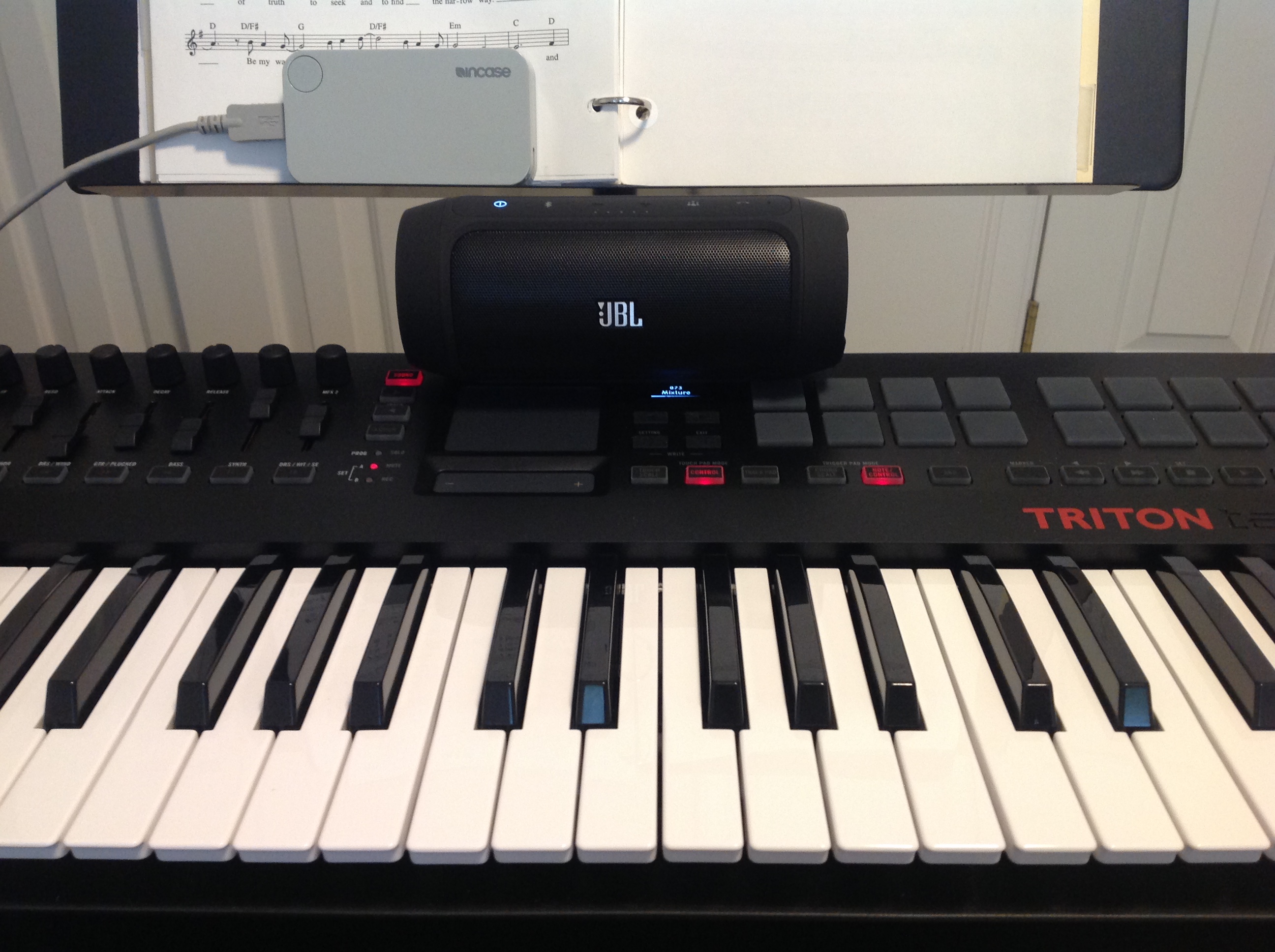
The picture below shows the whole rig: the gray Incase power brick, the TRITON Taktile, and the JBL speaker resting on top of the TT. The TT does not have much clear room on top. Most of the top is taken by buttons, switches, sliders, pads, etc. The JBL’s perch is rather precarious. I would feel better having the JBL on the floor or a stable resting place nearby.

TT_and_Charge2

The entire rig fits into a Kaces 49-key gig bag and weighs 12 pounds. Finally, a self-powered rig that is as easy to handle and move as an acoustic guitar!

Triton Taktile: A few more thoughts

A quick follow-up to my earlier snap review about the Korg Triton Taktile.

I’ve spent more time playing the Triton Taktile and generally remain pleased with many of the on-board preset sounds and the keyboard feel. The only major disappointment is a way to toggle the rotary speaker speed for B-3 organ sounds. Speed changes are an important part of B-3 playing style and I sorely miss this capability. I hope that Korg can find a way to add speed change in a future update. Unfortunately, the Leslie effect seems to be sampled into many of the sounds, so an update of this kind may not be possible technically.

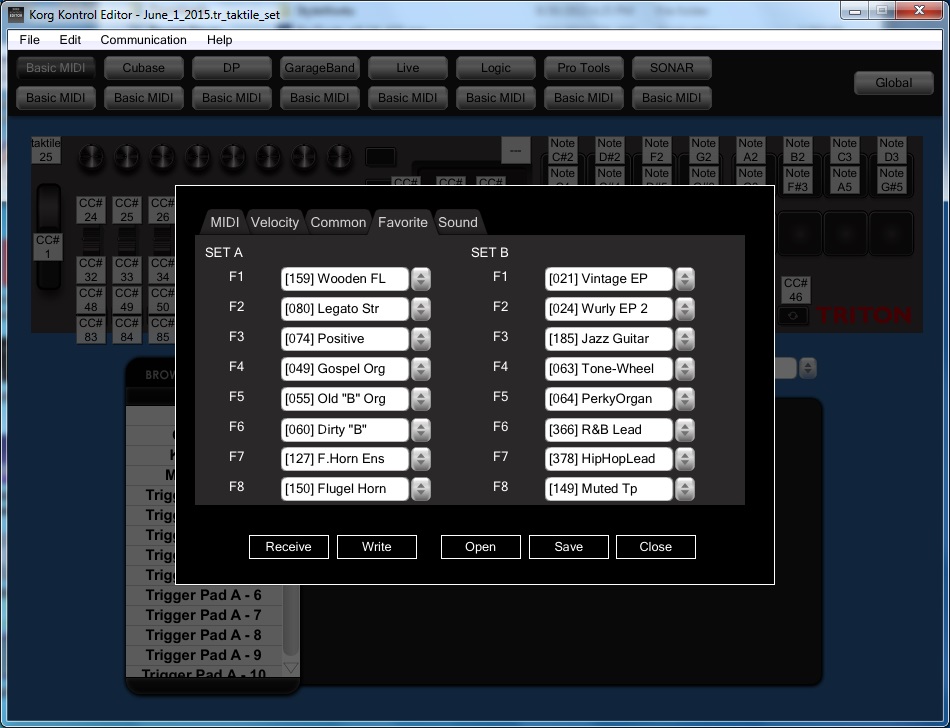
I wanted to register my favorite patches, so I decided to download and install the Korg Kontrol Editor. The front panel procedure for registering favorites is not particularly fiddly, but the Kontrol Editor allows entry in one go and presents a WYSIWYG view on the contents of favorites Set A and Set B. I like to see how the patches are laid out across the buttons and to juggle their order. The Kontrol Editor does the business as you can see in the screen below. The Kontrol Editor leaves tool/keyboard synchronization up to you. When you have something worth writing then you click a button to transfer the edits to the keyboard. When you want to read something back from the keyboard into the editor, then click the appropriate button.

KontrolEditor

The screenshot shows my favorite sixteen patches. Set A is my “church” group consisting of voices that I am most likely to use at rehearsals with the music ministry. Set B is my “jazz/pop” group of voices that are fun for jamming with MP3 backing tracks or even PSR-S950 styles.

If you ever go to use Korg Kontrol Editor on Windows, please note that you must install the Korg USB-MIDI driver first. The install documentation has a small hiccup and doesn’t mention the need for the driver right up front. No biggee, but you will need the driver.

The Korg part of the installation is smooth. The Windows part, however, became a learning experience. A-hem. I had plugged the Triton Taktile (TT) into a USB port before installing the Korg driver. Windows installed some default driver of its own. This is not surprising. However, the Kontrol Editor did not recognize the TT after installing the Korg USB-MIDI driver. The editor has a means of manually selecting MIDI ports and the TT did not appear in the editor’s list of available (connected) ports.

Time for the usual Windows driver-Hell troubleshooting. Before doing anything else, I uninstalled the Korg driver and rebooted.

While searching the Web for a solution, I found several references to the notorious Windows XP MIDI limit. Windows installs a separate driver for not only each different MIDI device (keyboard), but each unique combination of device and physical USB port. Yep, this means that you get two instances of the same driver if you plug your TT (or whatever) into physical USB port A today and into physical USB port B tomorrow! Windows XP remembers up to ten MIDI drivers and if you tend to move your MIDI devices around USB ports, the ten slots get filled up. Then, no more.

There is some debate as to whether this limitation is present in Windows 7 or not. (I’m using Windows 7.) One solution to the problem is to manually remove registry entries for unused (inactive) MIDI devices. Tromping around inside the Windows registry, however, is not a particularly safe or fun activity.

There are two better and safer methods for removing inactive MIDI drivers:

  1. A method suggested by Craig Anderton on Harmony Central. (Search on “windows midi limit”.
  2. The Korg USB driver uninstall utility.

Craig’s method is clear, but requires a little Device Manager knowledge. Basically, you need to execute these two commands as Administrator:

    set devmgr\_show\_nonpresent\_devices=1
    start Devmgmt.msc

Windows launches the Device Manager where you can navigate to the “Sound, video and game controllers” part of the device tree. There, inactive drivers are shown with a greyed out speaker. Right click on each unwanted inactive driver and select “Uninstall” from the contextual menu. Once slots are freed up, you should be good to go.

Or, better yet, try the Korg USB driver utility. This utility program is installed along with the Korg USB driver itself. The uninstall utility displays the unconnected (inactive) MIDI devices and lets you uninstall the associated driver. I installed the Korg USB driver (leaving the TT unattached) and ran this utility on my machine. I selected and removed all of the inactive devices/drivers. Then, I plugged in the TT and voila, the KORG driver and editor recognized the Triton Taktile. All was then good with the world.

Even if you don’t own or use a Korg keyboard, I recommend this utility as a way to work around the Windows MIDI driver divot. Korg really should be commended for writing this utility and making it freely available. As to Windows, I really don’t need any more learning experiences of this type…

Another minor issue is dealing with the 3.5mm (1/8″) stereo output. This output is fine when connecting in stereo to either a 3.5mm or 1/4″ stereo phone input or connecting to two 3.5mm or 1/4″ phone mono inputs — just use the appropriate cable (i.e., TRS to TRS or an insert cable). Connecting from 3.5mm stereo to 1/4″ mono is more troublesome as the right and left channels need to mix down to mono. I received the following reply from Korg USA product support:

You should be ok to connect the Triton Taktile to a mono input by using an 1/8” stereo to a (1/4” or 1/8”) mono cable. I don’t think there are any programs that have sounds panned hard right so all the programs should sound fine.

The HOSA (Livewire) CMP-105 is such a cable. Properly, one should mix down the right and left signals, passing each side through a 1K ohm resistor into a common electrical node (the mono output). You might also want to check out the advice and circuits at Why not wye?

I’m happy to use the CMP-105 as long as there aren’t any long term reliability issues on the Triton Taktile side. The stereo to mono cable does work as suggested by Korg. I will mainly use this solution when driving a mono-only effect like a guitar pedal. Otherwise, there are usually enough available inputs to do a more proper mix down.

Finally, I was curious about the MIDI bank select and program change messages that are needed to select Triton Taktile programs. The TT follows the typical Korg convention: Bank Select MSB is 121 (decimal) for regular voices and Bank select MSB is 120 for drum kits.

The program layout is somewhat schizoid. Korg did not collect all of the drum kits at the end of program list (as Mr. Spock would expect). The drum kits are interspersed with regular voices in the final quartile. Normal voices are assigned banks and program change numbers in the expected fashion up to program number 399, which is the first drum kit. Program number 1 has bank select MSB 121, bank select LSB 0 and program change 0. The program change numbers increase to 127 when the bank select LSB increases to 1 and the program change number rolls over to 0. This continues in an orderly fashion until program number 299 and the first drum kit. After that, the assignment is difficult to enumerate. (Please see the table below.)

I determined the bank select and program change values by monitoring the TT’s MIDI OUT while changing programs through the front panel. If you want to fill out the rest of the table, grab a copy of MIDI OX and monitor the MIDI OUT. Yeah, I’m lazy. 🙂

Program# MSB LSB PC# Program name
1 121 000 000 A. Piano
127 121 000 126 F.Horn Ens
128 121 000 127 Flute
129 121 001 000 Sax Ens
255 121 001 126 Hybrid Brass
256 121 001 127 Blind Brass
257 121 002 000 Reso Brass
383 121 002 126 Brass/Lead
384 121 002 127 PWM Lead
385 121 003 000 Glide Lead
415 121 003 030 Monster
399 120 000 007 Std Kit 1
400 120 000 011 House Kit
401 120 000 015 Psycho Kit
402 120 000 017 Orch&Ethno
403 121 003 018 Velo Hit
404 121 003 019 Gtr Hit
416 120 000 120 Std Kit 2
417 120 000 010 Brush Kit
418 120 000 009 Power Kit

Korg Triton Taktile: Snap Review

The Korg Triton Taktile has a double personality. On one hand, the Triton Taktile (TT) is a MIDI controller with eight knobs, eight sliders, eight buttons, sixteen pads and a set of DAW function buttons. (These are the specs for the 49-key model, the model that I’m using.) On the other hand, it is a synthesizer with the Korg Triton classic sound engine. Right now, I’m playing the TT as a synth and I will be concentrating on the synth features.

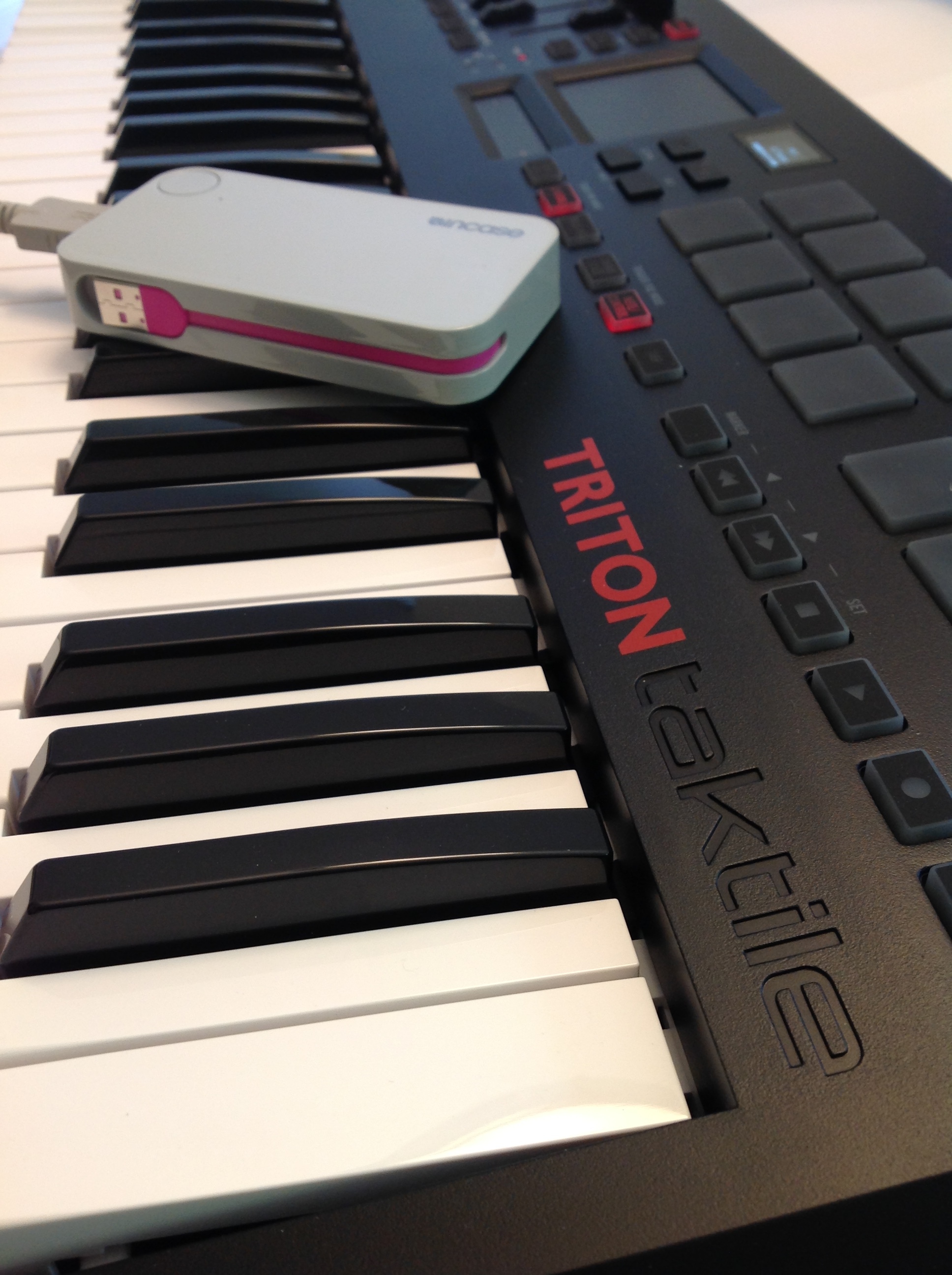
The Sound On Sound review of the Korg Taktile controller (the model without the sound engine) is very well-written and I recommend reading the SoS article for more information about the TT’s control capabilities. I will say that Korg hit my major checkmarks for a controller: a 49-key keyboard with a good action, expression pedal input, sustain pedal input, and TA-DA, a 5-pin MIDI output in addition to the USB-B connector for power and computer/tablet communications. The TT will operate on a portable, rechargeable USB power pack (minimum 5V 1A output) and that is in fact how I’m using it in the studio. The picture below shows the Triton Taktile under battery power. The TT weighs just a little bit over 8 pounds (3.8kg) and is easy on the eyes as well as the back.

TT_with_battery

The TT connects to either headphones or external amp through a 3.5mm stereo jack. All of the connections are made through a panel on the right side of the TT. The output level is sufficient for comfortable listening on Roland RH-A7 headphones, my current choice for head gear.

As you might be aware already, you don’t get a full Triton classic. The TT is not multi-timbral and it does not have combinations (“combis” or layers) and insert effects. However, you can bring up one of 512 classic programs (voices) and play your heart out! There are two system-level master effects (MFX1 and MFX2) that are appropriate for the preset voice, e.g., chorus and reverb on electric piano. The TT is strictly a preset machine as program edits cannot be stored. This hasn’t cramped my act so far, but like any of the TT’s limitations, it could be a deal-breaker. You can save your favorite preset programs into two sets of favorites (set A and set B, each set with eight slots) for quick patch selection.

Hit the dedicated SOUND button to leave controller mode and go to synth mode. The current patch number and name are shown on the nice bright OLED display. Even though the OLED display is small, it is very readable. There are three ways to select a program:

  1. Press one of the program category buttons (assignable buttons F1 to F8). The TT selects the first program in the category or the last selected program in the category. It remembers the last selected program until power-off.
  2. Use the value slider (ribbon) to scroll through the programs. Tap the “+” or “-” at either end of the slider to increment/decrement, or slide your finger along the ribbon to move quickly to a new patch.
  3. Select one of your favorite programs from either set A or set B.

It takes a little practice to get the hang of the slider. Do not take this ax to a gig and expect to select patches on the fly! I recommend setting up favorites and getting the general layout of the patches before hand. Otherwise, an embarrassing epic fail will ensue.

The keyboard feels very good for a controller in this price range. It has a little more resistance than the Yamaha MOX series, for example. I find it quite comfortable to play — it does not feel like a toy. Korg claim that it is the same action as the Krome and I have no reason to doubt them. The pitch bend and modulation wheel also have a satisfying feel. The knobs and sliders are a little bit “light” to me. I don’t have an opinion on the pads as yet.

I enjoy playing this instrument! The knobs and sliders control eight parameters: volume, cutoff, resonance, attack, delay, release, MFX1 and MFX2. Cranking the cutoff and resonance is a real visceral thrill. The two master effects, unfortunately, are very subtle and understated. The TT cries out for a multi-effects unit with distortion and other sonic manglers.

My favorite sounds are the electric pianos, drawbar organs, church organs (!), strings, and acoustic guitar. Korg strings have always had a wonderfully expressive depth and these patches do not disappoint. The electric pianos are very clean. I threw a cheap Danelectro overdrive on the output in order to realize the EP’s full funked-up potential. Oh, for a multi-effects unit, Korg!

The brass isn’t too bad, especially the horns, cornet and flugelhorn. The TT’s woodwinds are pretty naff — yuck. My musical personality is split between liturgical church music and jazz/funk/60s rock. On the church side, I’m disappointed with the oboe, clarinet and other reeds. On the pop side, I don’t often venture into synth territory. However, the HipHopLead patch is great when you feel the urge for Herbie. There are a lot of lead and pad sounds to explore and I’m sure that I’ll find a few other useful patches.

The handbook in the box is helpful, but not sufficient. Be sure to download the parameter guide and the Triton Taktile-specific MIDI implementation chart. Korg could be a little more forthcoming about the MIDI implementation considering that the Taktile series are MIDI controllers for heaven’s sake. The full list of programs is at the absolute end of the parameter guide. I always look through the list of patches for a synth/workstation when considering a purchase and this list is somewhat hidden away at the end of the parameter guide.

Bottom line, I’m happy with the Triton Taktile even when its limitations are taken into consideration. It could be the heart of a light-weight, portable, battery-powered rig and I’m exploring that potential right now.

Polyphonic Arduino synthesizer

If you’re interested in building an Arduino-based ROM-pler, this next project is for you!

One of my long term dreams is to build a low-cost 60s-style combo organ. My latest project uses an Arduino UNO as a sample playback, sound synthesis engine. Although the waveforms are taken from the old VOX Continental and Farfisa Mini Compact organs, the design and code could easily use single cycle waveforms from a vintage synth, a string machine, your first born child, whatever! The 60s combo organ project is essentially a software ROM-pler that plays back up to five waveforms at a 22,050Hz sampling rate.

The project hardware consists of an Arduino UNO and a Narbotic Instruments MidiVOX shield. The MidiVOX shield has a Microchip Technologies MCP4921 12-bit digital to analog converter (DAC) and an opto-isolated MIDI input. Although the MidiVOX is no longer in production, it’s basic circuitry is easy to recreate; several other popular audio shields use the MCP4921.

Waveforms are stored in the Arduino’s program memory (PROGMEM), just like code. Program memory is non-volatile and the waveforms are ready to go just like a pre-loaded sketch. The combo organ sketch sets up TIMER1 to generate interrupts at a 22,050Hz sample playback rate. The interrupt handler reads the next sample for each of five virtual tone generators, sums the samples together, and writes the next aggregate sample to the DAC.

MIDI communication is performed through the standard Arduino MIDI library (version 4.2). The sketch registers two callback functions via the library: a note ON handler and a note OFF handler. The MIDI note handlers configure the five virtual tone generators. The sketch’s loop() function is trivial — it merely calls the MIDI library read() function and checks a reset button on the MidiVOX shield.

We all know that Direct Digital Synthesis (DDS) — the usual approach for sample playback — is a compute intensive technique for sound synthesis. DDS dynamically shifts the pitch of a stored waveform from its root pitch (the frequency of the sampled note) to the target pitch (the frequency of the MIDI note played by the musician). DDS performs waveform pitch-shifting through phase accumulation and interpolation. Floating point arithmetic is too slow and most DDS implementations use fixed point arithmetic. Even then, the computational load is heavy.

So, how did I achieve five note polyphony? Instead of storing a single waveform at a single root pitch, my approach stores twelve waveforms — one waveform for each basic pitch in the chromatic scale. The algorithm uses integer phase increments, thereby eliminating floating or fixed point arithmetic and interpolation entirely. The approach requires more space, but is quite fast. Each sampled instrument occupies 20% of program memory, allowing up to four different instruments before running out of PROGMEM.

Here are two quick MP3 demo files: a Farfisa-type sound and a and a VOX-type sound. I created the vibrato by routing the audio signal through an inexpensive Behringer UV300 vibrato pedal.

As usual, we always publish code. Need a cheap ROM-pler? Now you’ve got one!

Update 22 July 2016: If you’re into retro, be sure to check out the Arduino lo-fi beat box project. Filled with lo-fi TR-808 goodness!

MidiVOX: An appreciation and review

They just don’t make ’em like they used to. In the case, of the Narbotic Instruments MidiVOX shield for Arduino, I really mean it!

The MidiVox is a bit of a blast from the past as Narbotic no longer manufacture and sell the MidiVOX shield kit. Major bummer. Luckily, I purchased one of these little gems from the MakerShed when the shields were available a few years ago. Narbotic kindly maintain the design information and code on their Web site.

To me, the MidiVox is a most logical combination of a MIDI IN port and a 12-bit digital-to-analog converter (DAC). The MIDI port incorporates a 6N138 optocoupler for electrical isolation and a 5-pin DIN connector. The port is connected through a “PGM/MIDI” switch to Arduino digital pin D0, also known as the serial receive (RX) pin. The PGM position connects the serial pin the usual way in order to download to the Arduino. The MIDI position connects the Arduino serial RX pin to the MIDI IN circuitry. The switch component is robust and is easily accessible when the MidiVOX is on top of the Arduino and/or other shields.

The 12-bit DAC is a Microchip Technology MCP4921. This DAC is used in several other audio shield designs including the Adafruit Wave Shield and the Nootropic Design Audio Hacker Kit. The MCP4921 connects to the Arduino SPI port through digital pins D13 (SCK), D11 (MOSI), and D9 (chip select/slave select). Conventional practice recommends using D10 as slave select (SS), but it isn’t a big deal to use D9 instead as this is mainly a software issue. Slave Select (called “chip select” in the MCP4921) chooses and enables communication with the slave device. This capability is essential when more than one device is connected to the same SPI interface as in the case of the Nootropic Audio Hacker shield.

Although it seems like a no-brainer to connect all SPI devices to the Arduino SPI pins, the Adafruit Wave Shield does not follow this approach. It connects the SD card interface to the SPI pins, but connects its MCP4921 to three ordinary digital pins. The Wave shield software bit-bangs the digital pins to transfer data to its DAC. I’m not a fan of this approach, preferring to use standard libraries instead of possibly buggy, poorly documented bit twiddling code.

The MidiVOX shield implements a 2-stage, passive filter following the DAC output. The MidiVOX sends a mono signal through an on-board trim pot into a 3.5mm audio output jack. Trim pots are usually rated for a relatively small number of operating cycles, so it’s best to set this level once and make volume adjusts at an external mixer, preamp, or whatever.

The MidiVOX shield provides a DATA LED controlled by digital pin D7. The shield also has a RESET button (momentary contact switch) connected to digital pin D6. This button is ACTIVE LOW, meaning that the button pulls D6 to ground when it is pressed. Therefore, the pin mode should be configured as INPUT_PULLUP such that D6 is pulled up internally when the button is not pressed (i.e., the momentary contact switch is open).

Construction was easy. The resistors have five color bands, but don’t let this throw you off. The construction directions give the correct color code and you can (and should!) always check resistor values with a meter before insertion and soldering. I replaced the basic header pins with “stackable headers” (two 8-pin and two 6-pin). Stackable headers provide a way to make easy external connections to the shield stack from a breadboard, etc.

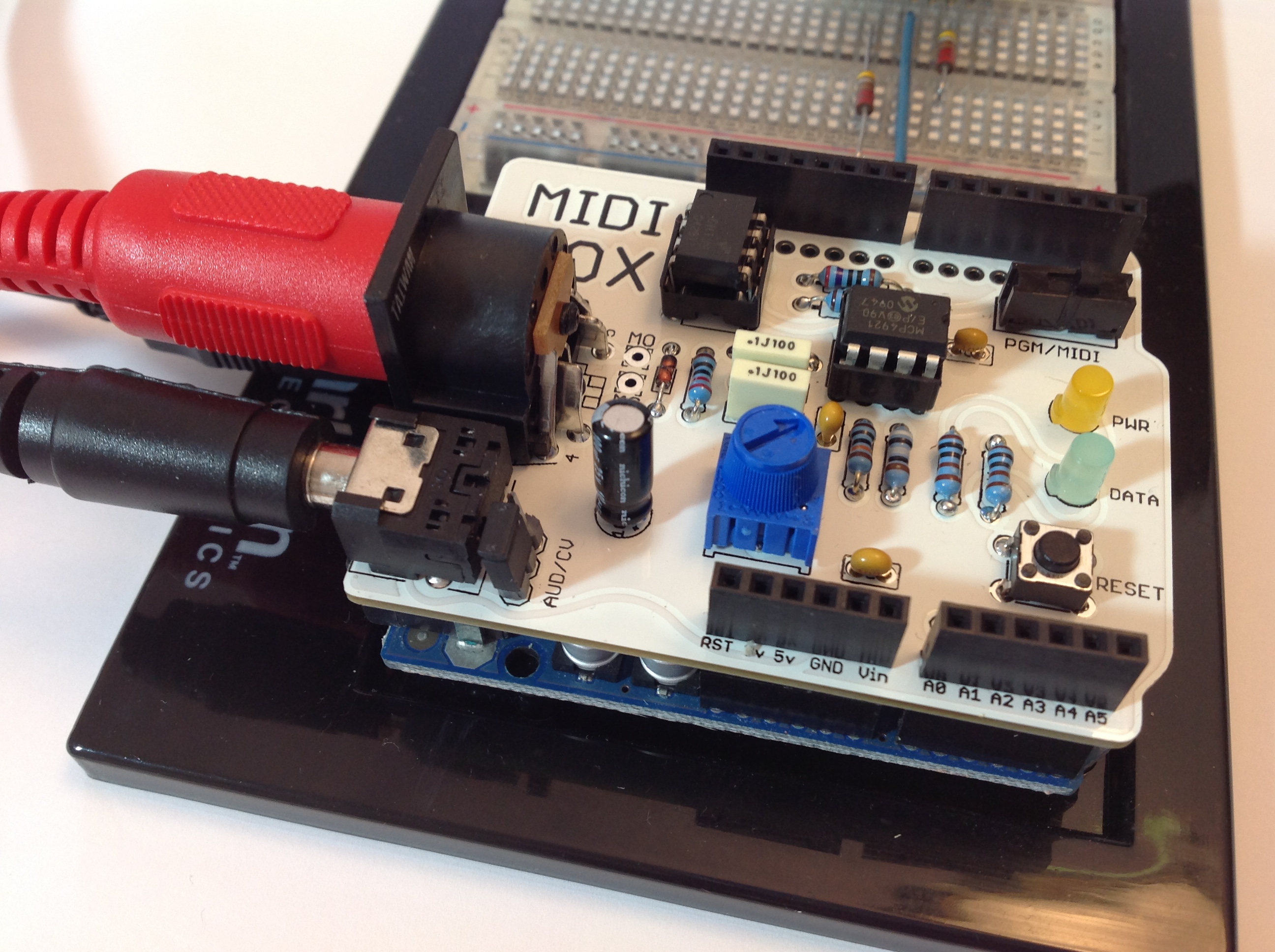
The completed board is shown in the photo below. The MidiVOX is stacked on an Arduino UNO with the USB, audio and MIDI cables, and is ready to go.

MidiVox

I wrote a diagnostic sketch to check out the different parts of the MidiVOX. I wish manufacturers would provide check-out sketches instead of relying on somebody’s possibly flaky application sketch for smoke testing. If something is busted, it’s important to find it early through a directed test that isolates the failure. Fortunately, everything checked out OK the first time!

The MidiVOX diagnostic program is an Arduino sketch to check out parts of a Narbotic Instruments MidiVOX shield. Rename the “loop” functions and rebuild in order to test a particular section of the shield.

Since the MidiVOX is discontinued, we’re all out of luck if we want to get (another) one. However, I strongly recommend studying the MidiVOX design. When I first got started with Arduino and MIDI, I borrowed the MIDI IN circuitry and the low pass filter design. These are simple, solid circuits and are good basic building blocks for other designs and applications.

Where to next? My dream is to build a low-cost 60s combo organ with the era-appropriate look and sound. The organ would look like a Vox Continental with a Z-shaped chrome stand and bright red Tolex covering. It would sound like either a Farfisa or a Vox — nothing too nuanced with all of the drawbars or tabs turned on. I’d like to use a cheap and lightweight MIDI controller as the keyboard. The controller would drive a low-cost (Arduino-based?) sound generator. I’m hacking out a prototype using an Arduino UNO and the MidiVOX shield. More to come…

PERF tutorial part 3 is now on-line

Just wrapped up Part 3 of the Linux-tools PERF tutorial.

The tutorial now consists of three parts. Part 1 covers the most basic PERF commands and shows how to find program hot-spots using software performance events. Part 2 discusses hardware performance events and performance counters, and demonstrates how to measure hardware performance events using PERF counting mode. Part 2 introduces several derived performance metrics like instructions per second (IPC) and applies these metrics to the sample application programs.

Part 3 is the newest addition to the tutorial series. It builds on parts 1 and 2, showing how to use hardware performance events and counter sampling to profile an application program. Part 3 discusses sampling period and frequency, the sampling process, overhead, statistical accuracy/confidence and other practical concerns.

I hope you find the PERF tutorial to be useful in your work! Although I produced the example data on the ARM-based Raspberry Pi, the commands and techniques will also work on x86.

PERF tutorial part 2 now available

Part 2 of a three part tutorial about Linux-tools PERF is now available.

Part 1 of the series shows how to find hot execution spots in an application program. It demonstrates the basic PERF commands using software performance events such as CPU clock ticks and page faults.

Part 2 of the series — just released — introduces hardware performance counters and events. I show how to count hardware events with PERF and how to compute and apply a few basic derived measurements (e.g., instructions per cycle, cache miss rate) for analysis. Part 3 is in development and will show how to use sampling to profile a program and to isolate performance issues in code.

All three parts of the series use the same simple, easy to understand example: matrix multiplication. One version of the matrix multiplication program illustrates the impact of severe performance issues and what to look for in PERF measurements. The issues are mitigated in the second, improved version of the program. PERF measurements for the improved program are presented for comparison.

The test platform is the latest second generation Raspberry Pi 2 running Raspbian Wheezy 3.18.9-v7+. The Raspberry Pi 2 has a 900MHz quad-core ARM Cortex-A7 (ARMv7) processor with 1GByte of primary memory. Although the tutorial series demonstrates PERF on Cortex-A7, the same PERF commands and analytical techniques can be employed on other architectures like x86.

A special note for Raspberry Pi users. The current stable distribution of Raspbian Wheezy — 3.18.7-v7+ February 2015 — does not support PERF hardware events. Full PERF support was enabled in a later, intermediate release and full PERF support should be available in the next stable release of Raspbian Wheezy. In the meantime, Raspberry Pi 2 users may profile their programs using PERF software events as shown in Part 1 of the tutorial. First generation Raspberry Pi users are also restricted to software performance events.

Brave souls may try rpi-update to upgrade to the latest and possibly unstable release. I recommend waiting for the next stable release unless you really, really know what you are doing and are willing to chance an unstable kernel with potentially catastrophic consequences.

RPi2: Work in progress 1

Here’s a quick status update on working with Raspberry Pi gen 2. The installed operating system is Raspbian Wheezy 3.18.7-v7+ built on 16 February 2015.

I’m happy to report that I could profile programs using PERF software events. I’m disappointed to report that PERF does not recognize any hardware (performance counter) events. This distro has Linux-tools-3.2 installed. I uninstalled 3.2 and installed 3.18 which matches the kernel:

sudo apt-get remove Linux-tools-3.2
sudo apt-get install Linux-tools-3.18

Still no joy when attempting to use hardware events. If you want to profile your program using PERF software events, please see my current PERF tutorial about finding execution hot-spots. I tried all of the commands and, with the exception of one typo, everything still works!

I’m in the process of troubleshooting my loadable kernel module for user-space performance counter events. I’ve encountered many of the same old stumbling blocks (e.g., finding the correct headers and Module.symvers file). At the present time, the kernel will attempt to load the module, then die. I cannot tell at this stage if there is a problem in the module itself or if there is a bug in Raspbian Wheezy. In case you want to dive into module development yourself, I’ve started a permanent page for building kernel modules on RPi2.

Once again, after two+ years, I want to make a public plea for more open information about the underlying hardware and for guidance and support for end-user device driver development. Quite frankly, Broadcom plays this situation too close to the chest, especially for a computer that’s advertised as a vehicle for learning and education. The dearth of information is stifling. People still struggle to identify and download essential information (e.g., Module.symvers) for device driver development. This is not true of other major Linux distros and the Raspbian folks really need to take note! Broadcom, in particular, runs the risk of killing off the goose laying the golden eggs.

Before signing off, here is a quick PERF command cheat sheet. I recommend reading the tutorial, but if you really must peck away at the keyboard… All the best!

perf help
perf list
perf stat -e cpu-clock ./program
perf record -e cpu-clock ./program
perf record -e cpu-clock,faults .program
perf report
perf report --stdio --sort comm,dso --header
perf report --stdio --dsos=program,libc-2.13.so
perf annotate --stdio --dsos=program --symbol=function
perf annotate --stdio --dsos=program --symbol=function --no-source
perf record -e cpu-clock --freq=8000 ./program
perf evlist -F

Replace “program” with the name of your application program and replace “function” with the name of a function in your program.

Second generation RPi is here

The second generation Raspberry Pi (RPi2) is now shipping in large quantities! Given the excitement on the Web, this machine should be at least as popular as its first generation parents. Although the RPi2 model B has the same overall form factor as the first generation model B+, the designers made two substantial improvements which make the RPi2 a contender for your desktop:

  1. The single core Broadcom BCM2835 is replaced by the quad core BCM2836.
  2. Primary memory is increased to 1GByte of LPDDR2 RAM.

That’s just the face of it. Not only does the BCM2836 have four processor cores instead of one core, the cores are based on the ARMv7 architecture (Coretx-A7) including the NEON single instruction, multiple data (SIMD) instructions. The clock frequency is increased to 900MHz (from 700MHz). I’ve already begun to explore the ARMv7 micro-architecture and plan to write up a short, concise summary of its performance-related characteristics.

The BCM2836 has a different memory controller. Primary memory is no longer implemented using the Package on Package (PoP) approach. The Elpida (Micron) B8132C4PB-8D-F memory chip is mounted on the bottom of the RPi2 board (instead of the PoP piggyback).

The RPi2 sold out at Sparkfun almost immediately. Fortunately, Canakit, Element14 and Microcenter have received shipments, too. Amazon advertised the Canakit Raspberry Pi 2 Ultimate Starter Kit at a very attractive price and I immediately bought a kit. Microcenter in Cambridge had a mound of RPi2s and impatience took the best of me — I bought one. Yes, after getting the mail, I now have two.

I copied the latest Raspbian Wheezy release (16 February 2015) to a 16MByte microSD card using Win32DiskImager. The Canakit ships with NOOBS on an 8GByte card and I hope to try and report about NOOBS later. There was a little drama while bringing up Raspbian Wheezy as some relatively small, but annoying problems did crop up. Once I got past the sand traps, the new RPi2 proved to be an able performer.

Today, I copied my test software over to the RPi2. Here is a quick comparison between the older RPi model B and the new RPi2.

Platform Naïve MM Interchange MM
RPi model B gen 1 18.67 sec 6.75 sec
RPi gen 2 3.15 sec 2.42 sec

The two test cases are the naïve matrix multiplication program and the loop nest interchange matrix multiplication program. (Get the code in the source section of the web site.) Yes, that is a 6x improvement in performance for the naïve case. It’ll be fun to explore and find the reasons behind the speed-up. Fast matrix multiplication depends upon memory bandwidth and there must be some significant improvements in the memory subsystem. Naïve matrix multiplication incurs a lot of translation lookaside buffer (TLB) misses, so improvements in TLB miss handling could also contribute to the speed-up in the naïve test case.

I ditched the Epiphany Web browser as it seems to have significant bugs. The browser crashed repeatedly when loading the New York Times front page. This is unacceptable. I installed Midori, which came with the initial release of Raspbian Wheezy. The New York Times front page is a bit of a torture test. Midori loaded the page in less time than the RPi gen 1, but still felt slow and logy. I suspect that many applications will need to be compiled for ARMv7 before we end-users get the full benefit of the BCM2836. The initial result, however, is encouraging.

Well, I’ve started to reorganize the site’s menu structure in order to get ready for new content about the RPi2. I intend to retain the older articles as they remain quite relevant. More to come!