Montage review: Yes, I’ve played one!

The Yamaha Montage synthesizer is now hitting stores in North America. One of the local retailers (GC in Natick) have a Montage set up for demo. Let’s go!

The demo unit is a Montage8 with the 88-key balanced hammer effect keyboard. I have always liked Yamaha’s upper-end “piano” actions and the Montage8 is no exception. I primarily play lighter “synth” action keyboards like the MOX and the PSR-S950. Fortunately, I spent the previous week working out on the Nord Elecro 2 waterfall keyboard, which requires a slightly heavier touch. I played the Montage8 for a little bit more than an hour without my hands wilting — a good sign.

First off, the demo unit was plugged into two Yamaha HS7 monitors and a Yamaha HS8S subwoofer. GC usually patches keyboards through grotty keyboard amplifiers, so I suspect that Yamaha provided the monitors in order to create the best impression of the Montage. I was dismayed when I started off with a few B-3 organ patches and could not contain the low end. The front panel EQ simply didn’t do the job. Time to check the monitor settings. The HS7s were flat, but the HS8S subwoofer level was cranked. After backing off the sub, all was right with the world.

Yes, some people like to simulate small earthquakes with subsonic frequencies. This, however, is not conducive for acoustic music. It’s not conducive for peaceful co-existence with your bass player either. If you encounter a Montage in the wild, check the EQ before proceeding!

So, as you may have gathered already, this is not a review of Montage for EDM. I took along my church audition folder (covering gospel to contemporary Christian to traditional and semi-classical music) and a small binder of rock, jazz, soul and everything in between. I’d like to think that this is the first time anyone has played “Jesu, Joy of Man’s Desiring” on the Montage, however poorly.

The electric pianos are terrific. I had a fine old time playing soul jazz and what not. Great connection between keys and sound. Comparing against Nord Stage, I would say that the Montage is top notch in this department and definitely a cut above the old Nord Electro 2. Yamaha did not put the Reface CP (Spectral Component Modeling) technology into Montage; they didn’t need to.

Tonewheel organ is still Yamaha’s Achilles’ heel. There is some modest improvement, but the Montage is not in clone territory. In this area, I would say, “Advantage Nord.” If I can cover B-3 with the MOX on Sunday, I’m sure that the Montage is up for medium duty. However, the tonewheel organs lack the visceral thrill of the EPs. I will say that the 88-key action did not inhibit my playing style too much. (If I was going to buy a Montage, tho’, it would be a 6.)

The pipe organs got some tweaks, mainly by enhancing the Motif pipe organ sounds via FM. There are a few lovely patches, but I will still look to the Tyros (and the PSR expansion pack) for true realism. The Nord Electro 5d has modeled principal organ pipes where the drawbars change the registration. Ummm, here, I would give the edge to Nord. Plus, the pipe organs in the Nord sample library are more on par with the Tyros and PSR expansion pack. Hate to say it: Montage pipe organs are good “synthesizer pipe organs,” and that ain’t entirely a compliment.

The new strings are wonderfully realistic, especially for solo/melody lines. I really enjoyed bringing sections in and out dynamically. (The expression pedal was sync’ed to the SuperKnob.) With the changes in our music ministry group, I’ve been playing more melodic and exposed parts. I could really dig playing a reflective improvisation for meditation using the strings and woodwinds under Motion Control.

The classical woodwinds got a boost in Montage, too. The woodwinds are all excellent although the sonic delta above Motif XF (MOXF and MOX, too) was not as “Wow” as the strings. Most likely, my ears were getting tired at that point…

Since I was losing objectivity, I just briefly touched on brass. I need good French horns and Montage did not disappoint. I wish that I had spent time with the solo trumpets and trombones, but my ears were telling me to knock it off.

The new Telecaster (TC) is quite a treat. The “Real Distortion” effects (Motif XF update 1.50) are now standard and the programmers made good use of them. I wish that the Montage had the voice INFO screen from the PSR/Tyros series. The INFO screen displays playing tips and articulations for each voice. This makes it a lot easier to find and exploit the sonic “Easter eggs” in the patches. (“Play AF1 to get a slide. Play AF2 to get a hammer on.”)

Fortunately, it was a rainy Saturday afternoon and the store was empty — disturbed only by the occasional uncontrolled rugrat pounding on some poor defenseless keyboard. Overall, I felt like I really heard the Montage and could make a fair evaluation.

I did not dive into editing, arpeggios, motion sequencing, recording, etc., so this is surely not a comprehensive review. Anyone spending less than one month with this ax cannot claim “comprehensive.” It just ain’t possible, so I would call my initial opinion, “first impressions.” That said, I can see why the Live Sets are important. I mainly dove in through Category Search where some of the touch buttons are a wee too small. Punching up a sound in full combat requires BIG buttons.

Montage looks, feels and sounds like a luxury good. Montage is also priced like a luxury good. The Montage8 MAP is $4000 USD. It is quite a beast physically and I would most likely go for the Montage6 at a “mere” 33 pounds and $3000 USD. None of the Montage line would be an easy schlep, especially when I have to buzz in and out of my church gig fast.

Would I buy one? Tough call. On the same field trip, I got to sit in a Tesla Model S ($71,000 USD) — a luxury car built around a computer monitor or two. I just recently bought a Scion iM (AKA Toyota Auris, Levin, Blade, whatever) for about $20,000 USD. Both cars could get me to the gym and back. I like my iM. What does that say about me as a customer? Do you think I would buy a Montage? Enigmatic.

See the list of new waveforms in the Montage. Also, check out the latest blog posts! Update: May 10, 2016.

Explicit Sax

Hope you got your Motif XF. The current stock is gone, gone, gone.

Comparing waveforms (Montage vs. XF) got me interested in the tenor sax samples and voices. The Yamaha MOX has the basic tenor sax samples (Med, Hard, Growl) while the Motif XF rounds out the set with Soft dynamic samples and falls. The XF (and MOXF) showcase the tenor sax in the “Tenor Max” preset voice.

Since I was curious to discover “what I’m missing,” I deconstructed four tenor sax patches on the MOX. Also, I compared the MOX voices against the Super Articulation tenor sax voices on the PSR-S950 arranger workstation in a listening test. The A/B test was enlightening as the MOX and S950 use the same waveforms — at least to my aging ears! The S950 triggers the samples using Super Articulation (SA) rules while the MOX triggers the samples using Expanded Articulation (XA) rules. Rules aside, you get to the same sonic place.

With XA, there are three main ways that samples are selected and triggered:

  1. Normal: Triggered when keys are played in the regular way.
  2. Legato: Triggered when Mono/Poly mode is Mono and keys are played in a legato manner, i.e. one or more keys are held while a new key is struck.
  3. AF1 and AF2: Triggered when either AF1 is ON, AF2 is ON or AF1/AF2 are both OFF and a key is struck. (The switch states are exclusive.)

See the Yamaha Synthesizer Paramater Manual for all the gory details. XA and SA differ in the amount of automated decision making made by the control software. SA is more automated and XA is more manual, giving the player more explicit control over articulations.

First up is the PRE5:008(A08)Tenor Dynamic AF1 voice. The AF1 and AF2 buttons are assigned in the following way:

    AF1: Mono/Poly mode
    AF2: FEG-D1

The AF1 and AF2 buttons do not affect sample selection in this voice other than putting the keyboard into Mono mode or Poly mode. Thanks to this simplification, it’s a good place to start ‘splaining.

The table below gives the waveform, key range, velocity range and volume level for each element in the patch.

    Elem#  Waveform            XA      Notes   Veloc  Level
    -----  ------------------  ------  ------  ------ -----
      1    Tenor Sax2 Med      Normal  C-2 G8  1   60   110
      2    Tenor Sax2 Med      Normal  C-2 G8  61  90   110
      3    Tenor Sax2 Med Of   Legato  C-2 G8  1   90    86
      4    Tenor Sax2 Hard     Normal  C-2 G8  91 127   120
      5    Tenor Sax2 Hard Of  Legato  C-2 G8  91 127    95
      6    Small Tabla Dom     Legato  C4  G8  1  127    52
      7    Small Tabla Dom     Legato  C-2 B3  1  127    78
      8    Sine                Legato  C-2 G8  1  127    78

The element levels are programmed to even out the perceived loudness across waveforms. Of course, there are many parameters for each element beyond what is shown in the table. For example, each dynamic level (velocity range) has its own filter and amplitude characteristics. There may even by a little velocity-sensitive pitch scoop at the beginning of a note!

The tenor sax waveforms (elements 1 to 5) cover the entire key range: C-2 to G8. The waveforms are assigned to different velocity ranges and are selected (and triggered) depending upon Normal or Legato playing gestures. The first element is triggered when a Normal (detached) gesture is detected and the key velocity (i.e., how hard the key is struck) is between 1 and 60 inclusive. The second element is triggered under the same conditions except the key velocity is between 61 and 90 inclusive. The AF1 button toggles between Mono and Poly mode — whether a legato gesture triggers a Legato element or Normal element.

You can see that only one of the first 5 elements is triggered at a time depending upon the combination of gesture, note range and velocity range. The Tenor Sax2 Med waveforms are played for quieter dynamic levels and the Tenor Sax2 Hard waveforms are played for the louder dynamic levels.

The Tenor Sax2 Med Of and Tenor Sax2 Hard Of waveforms are triggered by a Legato playing gesture. The “Of” in the waveform name means “Offset” and sample playback starts later in the waveform data, that is, skipping the attack part of the waveform. This eliminates the initial attack which is characteric of a sax playing detached notes.

Elements 6 to 8 are triggered only for Legato notes. These elements add a low-level “pop” at the beginning of each note. Think of this sound as a “connective tone” between notes. Tyros’s Super Articulation 2 technology (also known as “Articulated Element Modeling”) blends actual connective tones between notes, producing realistic articulations. The blending requires considerably more samples and processing power than the MOX or the S950.

The PRE5:009(A09) Tenor Soft Legato voice is a simplified version of the first patch. AF1 selects Mono and Poly modes. (AF2 is unassigned.) The patches use only the “Med” waveforms to achieve an overall softer timbre.

    Elem#  Waveform            XA      Notes   Veloc  Level
    -----  ------------------  ------  ------  ------ -----
      1    Tenor Sax2 Med      Normal  C-2 G8  1   70   110
      2    Tenor Sax2 Med Of   Legato  C-2 G8  1   80    99
      3    Tenor Sax2 Med      Normal  C-2 G8  71 127   110
      4    Tenor Sax2 Med Of   Legato  C-2 G8  81 127    99
      6    Small Tabla Dom     Legato  C4  G8  1  127    46
      7    Small Tabla Dom     Legato  C-2 B3  1  127    75
      8    Sine                Legato  C-2 G8  1  127    59

There are two dynamic levels (lower and higher velocity ranges) and two playing gestures (Normal and Legato) forming four combinations of dynamic level and gesture. Elements 6 to 8 implement a connective tone as previously described.

Life gets more interesting in the PRE5:0010(A10) Velo Growl Legato patch. AF1, again, selects Mono and Poly modes. (AF2 is unassigned.)

    Elem#  Waveform            XA      Notes   Veloc   Level
    -----  ------------------  ------  ------  ------- -----
      1    Tenor Sax2 Hard     Normal  C-2 G8  1    60   119
      2    Tenor Sax2 Med Of   Legato  C-2 G8  1    60    86
      3    Tenor Sax2 Growl    Normal  C-2 G8  61  127   125
      4    Tenor Sax2 Hard Of  Legato  C-2 G8  61  100   102
      5    Tenor Sax2 Growl Of Legato  C-2 G8  101 127    94
      6    Small Tabla Dom     Legato  C4  G8  1   127    52
      7    Small Tabla Dom     Legato  C-2 B3  1   127    78
      8    Sine                Legato  C-2 G8  1   127    78

There are roughly three dynamic levels:

  • Velocity 1 to 60: A hard attack is triggered for Normal notes and a soft attack, medium sax is triggered for Legato notes.
  • Velocity 61 to 100: A growl sax is triggered for Normal notes (up to velocity 127) and a soft attack, hard sax is triggered for Legato notes.
  • Velocity 101 to 127: A soft attack, growl sax is triggered for Legato notes.

This programming allows interesting one-hand control. Play soft to get a pure sax tone and play hard to get a growl. Play detached to get a harder attack and play legato to get a softer note attack (when Mono mode is selected via AF1).

The fourth and final patch is PRE5:011(A11) Tenor Growl AF1. The buttons are assigned in the following way:

    AF1: Mono/Poly mode and growl waveform
    AF2: Tenor Sax1 waveform

As you’ll see in the table below, the AF2 button selects the original Motif Tenor Sax1 waveform.

We again have two dynamic levels triggered by velocity ranges 1 to 100 and 101 to 127. Here, the assignable function buttons really come into play.

    Elem#  Waveform            XA        Notes   Veloc   Level
    -----  ------------------  --------  ------  ------- -----
      1    Tenor Sax2 Med      AllAFOff  C-2 G8  1   100   120
      2    Tenor Sax2 Hard     AllAFOff  C-2 G8  101 127   125
      3    Tenor Sax2 Growl    AF1 On    C-2 G8  1   127   127
      4    Tenor Sax2 Hard Of  Legato    C-2 G8  101 127   102
      5    Tenor Sax2 Hard Of  Legato    C-2 G8  1   100   102
      6    Tenor Sax1          AF2 On    C-2 G8  1   127   119

AF1 brings in a growl waveform (element 3) when it is turned ON. AF2 brings in an entirely different tenor sax waveform and tone (element 6) when it is turned ON. The first two elements play a pure tenor sax tone when all AF buttons are OFF. Elements 4 and 5 play a hard sax tone with a softer attack for legato playing gestures. You would be hard pressed to think about these combinations when actually playing — you just have to “go for it” intuitively, knowing that AF1 kicks in the growl.

Turning OFF AF1 while holding the key cuts off the note. Whether this is a bug or a feature is your’s to decide!

The effect programming in these four presets is not very adventurous. The effects are appropriate for a laid-back, mellow sound. Here’s a quick breakdown:

    Preset voice        Insert A   FX preset    Insert B    Dry/Wet
    -----------------  ----------  ---------  ------------  -------
    Tenor Dynamic AF1  VCM EQ 501    Flat     TempoCrosDly   D63>W
    Tenor Soft Legato  VCM EQ 501    Flat     TempoCrosDly   D59>W
    Velo Growl Legato  VCM EQ 501    Flat     TempoCrosDly   D54>W
    Tenor Growl AF1    VCM EQ 501    Flat     TempoCrosDly   D63>W

The Insert A effect is the VCM multi-band EQ. The EQ curve is flat, so the EQ is not coloring the sound at all. The Insert B effect is a tempo cross delay. The dry/wet mix is set conservatively (D54>W) or just plain off (D63>W). The system CHORUS effect is not applied and the system REVERB is a nice REV-X reverb.

The effect programming on the PSR-S950 is a little more exciting and adds a grittier sound for rock and R&B. The RockSax voice employs a distortion plus delay effect algorithm:

    PSR effect: DISTORTION+ > DST+DELAY1

    Parameter       Value
    --------------  --------
    LCH Delay       250.0 ms
    RCH Delay       300.0 ms
    Delay FB Time   375.0 ms
    Delay FB Level  +16
    Delay Mix       50
    Dist Drive      10
    Dist Output     110
    Dist EQ Low     +3 dB
    Dist EQ Mid     +1 dB
    Dry/Wet         D40>W

Transporting this effect to the MOX, you could assign AMP SIMULATOR 2 to insert A. For insert B, you could stick with the tempo cross delay or you could program a fixed delay instead (e.g., DELAY L,R (STEREO)) using the parameters above. A third possibility is to use the MOX’s COMP DISTORTION DELAY algorithm which combines the distortion and delay into a single effect block.

The S950 GrowlSax voice uses a different distortion plus delay algorithm:

    PSR effect: DISTORTION+ > V_DST S+DLY

    Parameter       Value
    --------------  --------
    Overdrive       14%
    Device          Dist2
    Speaker         Combo
    Presence        6
    Output Level    98%
    Delay Time L    250.0 ms
    Delay Time R    250.0 ms
    Delay FB Time   500.0 ms
    Delay FB Level  +12
    Dry/Wet         D32>W
    Delay Mix       44
    FB High Dump    1.0

Programming options are similar. Set MOX insert A to AMP SIMULATOR 1 and either stay with the tempo cross delay for insert B, or set insert B to a fixed delay algorithm. Or, run everything through the MOX’s COMP DISTORTION DELAY algorithm. Tune the Dry/Wet mix to taste.

Hey, here’s a bonus — the effects for the S950 slapback guitar. This might sound good with a sax, too.

    PSR effect: DISTORTION > V_DIST ROCA

    Parameter       Value
    --------------  --------
    Overdrive       20%
    Device          Vintage
    Speaker         Twin
    Presence        14
    Output Level    66%
    Delay Time      16th/3
    Delay FB Level  +3
    L/R Diffusion   +10ms
    Lag             +0ms
    Dry/Wet         D<W63
    Delay Mix       127
    FB High Dump    1.0

In this case, go with AMP SIMULATOR 1 for MOX insert A. Use either the tempo cross delay for insert B or change insert B to the TEMPO DELAY STEREO algorithm.

Even though I’ve discussed voice and effects programming in the context of the MOX, these techniques all apply to the Motif XS, XF and MOXF, too.

If you would like to know more about Super Articulation voices, then please check out: SA and SA2: Is Motif up to the task? I also saved two informative posts from the Motifator forum about Super Articulation and Expanded Articulation.

Read about Motif XF (MOXF) “Tenor MAX” voice programming. Update: 18 May 2016.

Montage: New waveforms

Well, well. Interesting times, again. Yamaha have now released the Montage Reference Manual and the Data List Manual. Download them from your local support site.

At the same time, the Motif XF is being blown out. Not only have retailers dropped prices, Yamaha itself is saying “Sayonara” with a promotional rebate of its own. If you want a Motif XF, now is a terrific time to buy!

I started the decision making process last weekend by comparing the MOX waveforms against the Motif XF waveforms. To me, new waveforms represent true value — true sonic potential — over a keyboard’s predecessor. Unless MOXF owners want all of the bells and whistles of the Motif XF (e.g., big color display, on-borad sampling, sliders, version 1.5 Real Distortion effects, etc.), they already have the XF waveforms. MOX owners have the older Motif XS factory set, so they might be interested in upgrading to Motif XF. Here is a list of Motif XF waveforms that are not in the MOX:

    CF3 4 layer (vs. MOX 3 layer)
    S6
    Clav4
    Harpsichord2
    Farfisa (Fr)
    Vox (Vx)
    Accordion2
    Accordion3
    Tango Accordian2
    Mussete Accordion
    Steirisch Accordion
    1Coil
    Jazz Guitar
    Pick Rndwound2
    Pick FlatWound
    Finger Rndwound
    Sect Strngs
    Tremolo Strings
    Live Pizzct
    Soft Trumpet
    Trumpet Vib
    Trumpet Shake
    Flugelhorn2
    French Horn Sft
    French Horn Med
    Soprano Sax3
    Alto Sax3
    Tenor Sax2 Soft
    Tenor Sax2 Falls
    Sax Breath
    Piccolo2

After looking over the list, frankly, I’m not motivated (bad pun) to buy an XF. My PSR-S950 does a great job covering these sounds. Plus, at 33.3 pounds (XF) vs. 15.4 pounds (MOX), a Motif XF is likely to remain in the studio, not at the gig.

The Yamaha Montage offers a bigger upgrade thanks to the large built-in waveform memory. Here is my first pass list of new Montage waveforms. I’ll leave it to you to comb through synth and percussion waveforms.

    CFX 9 layer
    S700 3 layer
    EP4 5 layer
    Rd Soft 5 layer
    Rd Hard 4 layer
    Rd73 5 layer
    Rd78 5 layer
    Rd KeyNoise
    Wr1 3 layer
    Wr2 4 layer
    Wr3 5 layer
    Wr KeyNoise
    Clav5 3 layer
    Clav KeyNoise
    CP80 5 layer
    CP80 KeyOff
    Vibraphone3
    Motor Vibes
    Tonewheel1 Fast/Slow
    Tonewheel2 Fast/Slow
    Tonewheel3 Fast/Slow St
    Tonewheel4 Fast
    Tonewheel5 Fast
    Tonewheel6 Fast
    SctAcc Mussete
    SctAcc
    Acc Key On/Off
    Nylon2
    Flamenco
    Steel2
    Steel3
    TC Cln Pick
    TC Cln Fing
    Acoustic2 (bass)
    Violin2 1st St
    Violin2 2nd St
    Viola2 St
    Cello2 St
    Celtic Violin
    US Strings
    Violins 1st
    Violins 2nd
    Violas
    Cellos
    ContBasses
    CelticHarp
    Trumpet 3
    Piccolo Tp
    Trombone 3
    Bass Trombone
    French Horn2
    Euphonium
    BrassSect3
    BrassSect3 Acc/Doits/Shake/Falls
    Trumpets1
    Trumpets2
    Trombones1
    Trombones2
    FrHorns2
    FrHorns3
    Clarinet2
    Clarinet3
    Oboe3
    Oboe4 NV/Stac
    Bassoon2
    Bassoon3
    Flute3
    Flute4 NV/Stac/Flutter
    Piccolo3
    Piccolo4 NV/Stac
    Low Whistle
    High Whistle
    Boys Choir
    Gospel Choir
    Syllables
    ScatCycle
    LatinCycle

Yamaha really upped the ante with new acoustic and electric piano samples. Yamaha have been promoting these improvements and rightfully so. I can’t wait to try these out. Jazzers will be glad to see the new vibraphone samples, too.

Tonewheel organ got a modest upgrade. I’ll reserve judgement until I can hear and play the Montage. The tonewheel samples have fast and slow variants, so the Leslie is probably sampled in. Not always a good sign, but, hey, I’m listening. A couple of more accordions round out the keyboard additions.

Guitars also got a modest upgrade. There are a few more acoustic guitars and two Telecaster variants (pick and finger). At this point, I must mention that all of the new waveforms have 3, 4, 5 or more layers and many articulations. So, even if the list looks short, the new voices should be quite rich and appealing.

Orchestral instruments got a major, major upgrade. As a liturgical musician who relies on these voices heavily, I’m excited. I called out only a few of the available articulations. Musicians who mock up orchestral scores or cover orchestral parts live should definitely take note of the Montage! Surprisingly, there aren’t new pipe organ waveforms. (Is an expansion pack in the works?)

Finally, there are a slew of choir and vocal samples from the Tyros 5. “Syllables” in the list above are all of the zillion duhs, doos, etc. ScatCycle includes the (infamous) scat syllables, but cycles through the syllables for variety. This is already a feature of the Tyros 5.

Given the boost in the orchestra department, I’m interested. I just wish that the Montage weighed about 20 pounds or less. Perhaps I need to wait for the MOXF follow-on in the light weight, mid-price category.

That’s it for now. I might have missed something during the first pass and will correct the list as I learn more about the Montage. At some point, I’ll take a look at Montage effects, too.

Read my initial review of the Montage8. Update: May 10, 2016.

All site content is Copyright © Paul J. Drongowski unless indicated otherwise.

We need “code-able” MIDI controllers!

All MIDI controllers for sale are rubbish!

Eh?

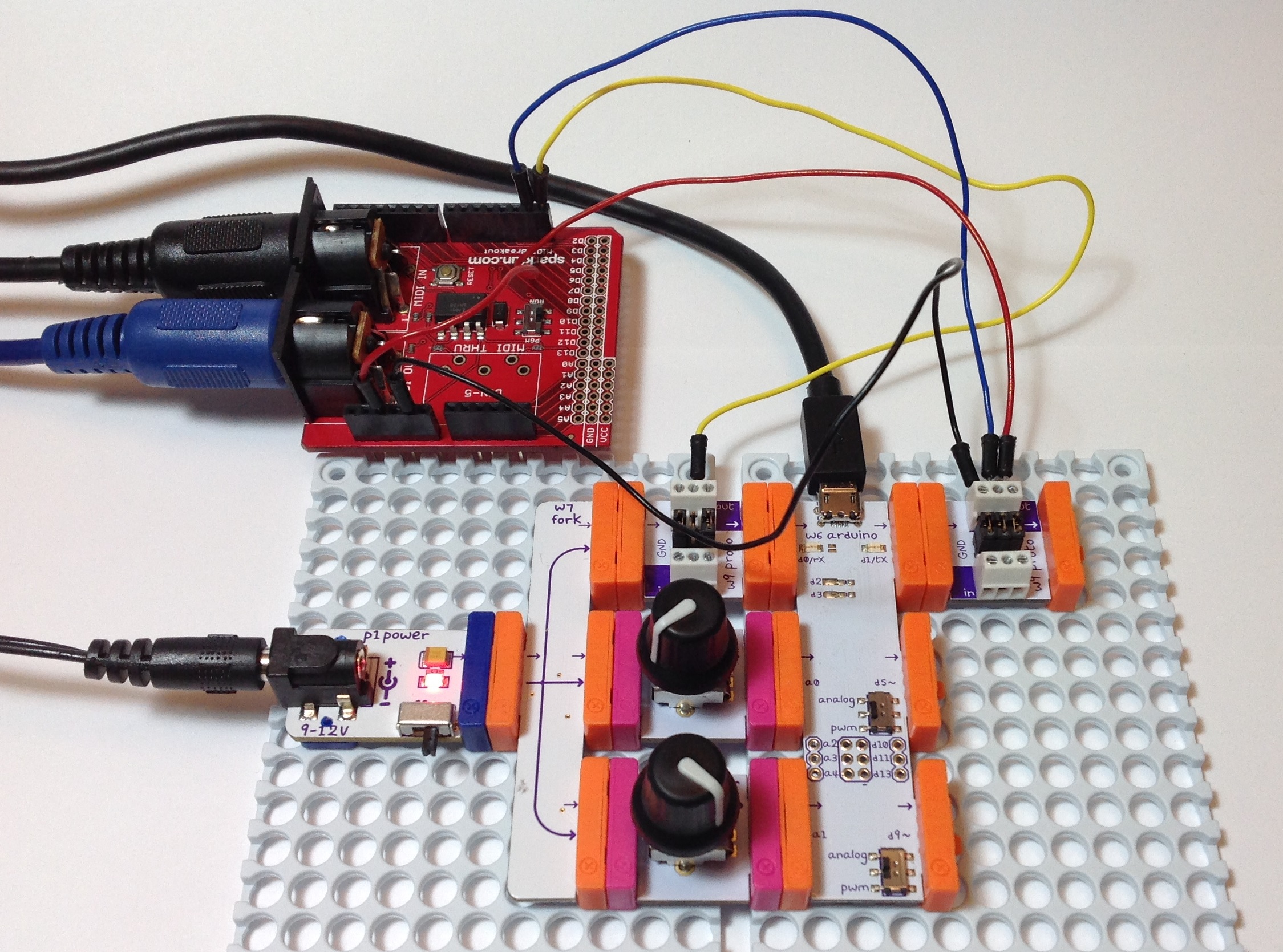
OK, here comes a rant. I’ve been working on two Arduino-based MIDI controllers in order to try out a few ideas for real time control. I’m using homebrew microcontrollers because I need the flexibility offered by code in order to prototype these ideas.

None of the commercial available MIDI controllers from Novation, Korg, AKAI, Alesis and the rest of the usual suspects support user coding or true executable scripts. Nada. I would love it if one of these vendors made a MIDI controller with an Arduino-compatible development interface. Connect the MIDI controller to a Mac or PC running the Arduino IDE, write your code, download it, and use it in real time control heaven! Fatal coding mistakes are inevitable, so provide an “Oops” button that automatically resets program memory and returns the unit to its factory-fresh state.

Commercial MIDI controllers have a few substantial advantages over home-brew. Commercial controllers are nicely packaged, are physically robust and do a good job of integrating keyboard, knob, slider, LED, display, etc. hardware resources into a compact space. Do I need to mention that they look good? Your average punter (like me) stinks at hole drilling and chassis building.

Commercial controllers, on the other hand, stink at flexibility and extensibility. Sure, the current crop of controllers support easy assignment of standard MIDI messages — usually control change (CC), program change (PC), and note ON/OFF. Maybe (non-)registered parameter number messages (RPN or NRPN messages) are supported. System exclusive (SysEx) most certainly is not supported other than maybe a fixed string of HEX — if you’re incredibly fortunate to have it.

The old JL Cooper FaderMaster knew how to insert control values into simple SysEx messages. This is now lost art.

Here are a few use cases for a fully user-programmable MIDI controller.

The first use case is drawbar control. Most tone-wheel clones use MIDI CC messages for drawbar control, but not all. The Yamaha Tyros/PSR “Organ Flutes” are controlled by a single SysEx message. That SysEx message sets everything at once: all the drawbar levels, percussion parameters and vibrato. Drawbar control requires sensing and sending all of the controller’s knob and switch settings in one fell swoop. None of the commercially available MIDI controllers can handle this.

If you’re interested in this project, check out these links: Dangershield Drawbars, design and code.

The second use case is to fix what shouldn’t have been broken in the first place. The Korg Triton Taktile is a good MIDI controller. I like it and enjoy playing it. However, it’s brain-damaged in crazy ways. The function buttons cannot send program change messages! Even worse, the Taktile cannot send a full program change: bank select MSB followed by bank select LSB followed by program change. This makes the Taktile useless as a stage instrument in control of a modern, multi-bank synthesizer or tone module. If the Taktile allowed user scripting, I would have fixed this nonsense in a minute.

The third use case is sending a pre-determined sequence of pitch bend messages to a tone generator. Yes, for example, you can twiddle a controller’s pitch bender wheel (or whatever) to send pitch bend. However, you cannot hit a button and send a long sequence of pitch bend messages to automatically bend a virtual guitar string or to play a convincing guitar vibrato. Punters (like me) have trouble playing good guitar articulations, but we do know how to hit buttons at the right time. Why not store and send decent sounding pitch bend and controller values in real time as the result of a simple button press?

The fourth use case is an example of the “heavy lifting” potential of user code. Many sample players and libraries (like the Vienna Symphonic Library) assign a range of keys to articulations or other methods of dynamically altering the sound of a notes played elsewhere on the keyboard (i.e., the actual melody or chord). I claim that it’s a more natural gesture to control articulations through the keyboard than to reach for a special function button on the front panel. User coding would allow the redefinition of key presses to articulations — possibly playing a different sample or sending a sequence of controller messages.

Let me give you a more specific example, which is an experiment that I have in progress. Yamaha instruments have Megavoices. A Megavoice is selected as a single patch. However, different samples are mapped to different velocity ranges and different key ranges. As such, Megavoices are nearly impossible to play through the keyboard. Nobody can be that precise consistently in their playing.

I’m prototyping a MIDI controller that implements articulation keys to control the mapping of melody notes to the individual Megavoice samples. This involves mapping MIDI notes and velocities according to a somewhat complicated set of rules. Code and scripting is made for this kind of work!

Finally, the Yamaha Montage demonstrates how today’s MIDI controllers are functionally limited. Yamaha have created excitement promoting the “Superknob” macro control. Basically, the Superknob is a single knob that — among other things — spins the parameters which have been assigned to individual small knobs. Please note “parameters” is plural in that last sentence.

Today’s MIDI controllers and their limited configuration paradigm typically allow only one MIDI message to be assigned to a knob at a time. The target VST or whatever must route that incoming MIDI value to one or more parameters. (The controllers’ engineers have shifted the mapping problem to the software developers at the other end.) Wouldn’t it be cool if you could configure a controller knob to send multiple MIDI messages at once from the source? Then, wouldn’t it be cool if you could yoke two or more knobs together into a single macro knob?

If you had user coding, you would be there already.

All site content Copyright © Paul J. Drongowski unless otherwise indicated

Inside the DGX digital pianos

Thanks to SeaGtGruff in the PSR Tutorial Forum, I took a chance to deep dive a few members of the Yamaha DGX portable grand family. The DGX is a “value” line of electronic keyboards offering a digital piano experience at affordable prices.

Polyphony depends on the available processing power and memory bandwidth (i.e., the ability to transfer samples from wave memory to the processing elements).

Here is a small table for some models in the DGX product line. I took a look at the service manual for models with distinctive features, e.g., DSP effects or no DSP effects. The analysis came out rather nice, so I decided to post it here, too.

           Poly Panel XGlite Kits REV CHO DSP IntMem  Processor
           ---- ----- ------ ---- --- --- --- ------  ------------------
DGX-200     32   108   480    12    8   4   0  352KB
DGX-300     32   122   480    12    8   4  38
DGX-500     32   122   480    12    8   4  38         HG73C205AFD SWX00B
DGX-520     32   127   361    12    9   4   0  875KB
DGX-530     32   127   361    12    9   4   0  875KB  YMW767-VTZ  SWL01T
DGX-620     32   127   361    12    9   4   0  875KB
DGX-630     64   130   361    12   29  24 182 1895KB
DGX-640     64   142   381    12   35  44 238 1895KB  R8A02032BG  SWX02
DGX-650    128   147   381    15   35  44 237  1.7MB  R8A02042BG  SWX08
DGX-660    192   151   388    15   41  44 237  1.7MB

Yamaha has several proprietary processors. The least powerful are the SWLs, which are normally used in the entry-level portables. The SWL does not have DSP support for variation/insert effects. Samples are transfered on the same bus as CPU instructions — low bandwidth. SWLs make for inexpensive products, but no DSP effects and relatively low polyphony.

The PSR E-series typically uses SWL01 variants such as the SWL01U in the PSR-E443. It’s interesting that the DGX members using the same SWL01 processor do not have DSP effects. The SWX processors have integrated DSP capability; the SWLs do not.

The SWX family of processors have dedicated buses/memories and a hardware digital signal processor for effects. (I deliberately avoided the acronym “DSP” here to avoid confusion with the way “DSP” is used in arranger terminology.) The SWX08 has three dedicated buses and memories:

  • SHA2 CPU bus and memory (CPU program and data)
  • Wave ROM bus and memory (voice samples)
  • DSP RAM bus and memory (working memory for digital signal processing)

The extra memory and external connections increase cost. However, this is a lot more processing power and memory bandwidth than the lowly SWL!

The SWX00 and SWX02 are earlier members of the family and aren’t used in new designs anymore. It’s too soon to see a service manual for the DGX-660, so any further comment is an educated guess. I suspect an SWX08 operating at a higher clock rate.

The SWX08 is used in the PSR-S750 and the SWX02 is used in the MOX. In both of these cases, the SWX is the main CPU and tone generation is handled by a single SWP51L tone generator chip, not the SWX. Because Yamaha had its own internal IC fab then these products were designed, Yamaha incorporated its own proprietary processor instead of an off-the-shelf Renesas R8. This is an effort to increase Yamaha’s own fab volume. Yamaha may even be using SWX chips in which the processor is good and the DSP is faulty and fused out!

Analysis isn’t complete without looking at wave memory size:

Model   Wave memory                Size         Description
------- -------------------------- ------------ ------------------------
DGX-500 K3N7V402GB-DC10            64Mbit  8MB  Mask ROM 64Mbit (wave)
DGX-530 Lapis Semi MR27V12852L     128Mbit 16MB 8Mx16b P2ROM (prog+wave)
DGX-640 Lapis Semi MR27V12852L     128Mbit 16MB 8Mx16b P2ROM (wave)
DGX-650 Spansion S29GL256S90TFI020 256Mbit 32MB 16Mx16b NOR flash (wave)

Memory size affects the number and quality of the voices. More memory allows more voices, more samples per voice, longer samples per voice, etc. Pianos are especially memory hungry. So, improvements in piano voices usually require significantly more wave memory. SWX wave memory is 16-bits, data parallel.

Now that Yamaha have sold off their IC fabrication capability, they aren’t under the same pressure to use proprietary processors. It’ll be interesting to see if Yamaha adopt ARM for tone generation and/or effects in value product lines. In the Reface line, they have adopted ARM for user interface and control. Yamaha’s Mobile Music Sequencer on iPad has a fairly completely XG engine, so Yamaha certainly aren’t strangers to tone generation on ARM!

If you enjoyed this article, you might also like this overview of the Tyros/PSR arranger family architecture.

Tutorial: Soft synths on Linux and Raspberry Pi

Stepping back a little bit, I realized that my recent series of articles add up to a “Getting started with soft synths on Linux” tutorial. Here are the links:

I hope these articles help you, too. They are a great memory refresher for me.

Eventually, I want to turn the Raspberry Pi into a low cost, stomp box-sized, stand-alone soft synth host — kind of a cheap MIDI-driven tone module that does virtual analog synthesis. I want to run a headless Raspberry Pi — no monitor, no QWERTY keyboard, no mouse. With some clever scripting, I think it should be possible to start up the JACK audio server and a soft synth like amsynth at boot time. The soft synth would listen to a MIDI IN connected to the RPi through a standard USB MIDI interface. One possible option is to add a small touch panel (e.g., Adafruit PiTFT Plus 320×240) for simple user interaction, including system shutdown.

Qsynth and FluidSynth on Raspberry Pi: The basics

The first four articles in this series are a quick guide to getting started with audio and MIDI on Raspberry Pi 2:

  1. Get started with Raspbian Jessie and Raspberry Pi 2
  2. Get started: Linux ALSA and JACK
  3. Raspberry Pi soft synthesizer: Get started
  4. USB audio for Raspberry Pi

Although the articles address Raspbian JESSIE, the HOW-TOs should be able to get you started with pretty much any version of Linux.

I showed how to use a simple monophonic soft synthesizer (amsynth) in part 3. Now, it’s time to move on to a multi-timbral synth: FluidSynth. FluidSynth has a graphical front-end, Qsynth, and I’ll demonstrate Qsynth, too. This tutorial assumes that JACK (and/or ALSA) is properly configured. The second and third articles will help you with configuration.

The Web sites for FluidSynth and Qsynth are:

Please visit these sites to learn about the advanced capacilities that are offered by these programs. You can always consult manual pages while you are working:

    man fluidsynth
    man qsynth
    man qjackctl
    man aplay

or you can request help directly, e.g., fluidsynth --help.

Installation

Installation is a breeze:

    sudo apt-get install fluidsynth
    sudo apt-get install qsynth

These commands should automatically download and install the General MIDI SoundFont. The path name for the GM SoundFont is:

    /usr/share/sounds/sf2/FluidR3_GM.sf2

If you did not get the GM SoundFont by installing Qsynth or FluidSynth, then enter the command:

    sudo apt-get install fluid-soundfont-gm

to install it. If you want a Roland GS-compatible SoundFont, install it with the command:

    sudo apt-get install fluid-soundfont-gs

The General MIDI SoundFont file is about 140MBytes and the GS-compatible SoundFont file is about 32MBytes in size.

FluidSynth

Although you’re most likely to use FluidSynth via Qsynth, it’s worth discussing FluidSynth’s unique capabilities first. Some things can be done quite handily from the command line. The number of FluidSynth’s command line options can be overwhelming, so if you skip to Qsynth, that’s understandable.

FluidSynth is a multi-timbral software synthesizer based on SoundFont 2 specifications. It is a command line application program that accepts MIDI input from either a MIDI controller keyboard or a software MIDI sequencer. FluidSynth needs a SoundFont file containing instrument definitions and samples. It plays the incoming notes using the selected SoundFont instruments. FluidSynth supports sixteen MIDI channels (default). It provides chorus and reverb effects.

There are many SoundFonts available for download from the Web. Two of the best known and widely used SoundFonts are:

  • FluidR3_GM.sf2: A General MIDI sound set
  • FluidR3_GS.sf2: A Roland GS-compatible sound set

The General MIDI sound set is pretty good; don’t let the “General MIDI” label drive you away!

FluidSynth has three main usage modes:

  1. Interactive command mode.
  2. One-liner mode. “One-liner” is my name for this mode of operation.
  3. Server mode.

If you just type fluidsynth on the command line, FluidSynth launches into its interactive mode, i.e., FluidSynth accepts and interpets commands of its own. I won’t go into interactive mode here, but suffice it to say, that you can set parameters, load SoundFont files, etc. using FluidSynth commands. Enter help when you are in interactive mode in order to get information about commands and parameters. Interactive mode is a good way to explore FluidSynth configuration such that you can write out complicated combinations of FluidSynth command line options.

“One-liner mode” (option -i) launches FluidSynth without dropping into its interactive mode. You’re mostly likely to use this mode when launching FluidSynth from a shell script or if you just have a simple job to do from the command line.

One-liner mode means that you need to dive into FluidSynth’s command line options. There are many command line options including:

  • -C, --chorus: Turn chorus ON or OFF
  • -R, --reverb: Turn reverb ON or OFF
  • -K, --midi-channels: Set the number of MIDI channels
  • -j, --connect-jack-outputs: Connect JACK outputs
  • -F, --fast-render: Render MIDI to an audio file
  • -O, --audio-file-format: Audio file format for fast rendering
  • -r, --sample-rate: Set the sample rate
  • -T, --audio-file-type: Audio file type for fast rendering
  • -i, --no-shell: Don’t run in interative mode
  • -S, --server: Start FluidSynth as a server process

A full list of command line parameters is given in the FluidSynth User Manual.

One-liner mode handles two everyday tasks without a lot of GUI hoopla:

  1. Play back MIDI given a list of MIDI files on the command line.
  2. Render a MIDI file to an audio file (fast render).

FluidSynth looks for command line options, followed by a SoundFont file, followed by a list of MIDI files. Enter the following command to play back a MIDI file (“EvilWays.mid” in these examples) through the ALSA audio port such as the 3.5mm stereo jack on the Raspberry Pi 2:

fluidsynth -a alsa -n -i /usr/share/sounds/sf2/FluidR3_GM.sf2 EvilWays.mid

The -a option selects the ALSA audio device, -n suppresses MIDI input, and -i suppresses interactive mode. ALSA should be configured to use the 3.5mm audio jack. (See the second article in this series about ALSA and JACK.)

If you prefer to use JACK instead of vanilla ALSA, start the JACK server running via qjackctl. (See the third article in this series about using JACK with a soft synth.) Then, enter the following command:

fluidsynth -a jack -j -n -i /usr/share/sounds/sf2/FluidR3_GM.sf2 EvilWays.mid

The -a option selects JACK and the -j option tells JACK to connect the audio output of FluidSynth to the system audio output. If you leave out the -j option, JACK will not make the audio connection and you will be left wondering why there isn’t any sound coming from your speakers! You can also make this connection in the qjackctl Connections or Patchbay windows. In practice, if you aren’t getting audio output or MIDI, check your connections in JACK — audio or MIDI connections may be missing.

The image below shows the audio connection from FluidSynth to JACK. (Click on the image to enlarge it to full resolution.) This is a snapshot of the qjackctl Connections window while FluidSynth is playing a MIDI file. The audio connection is broken when FluidSynth is done with playback (i.e., when FluidSynth exits).

qjackctl_fluidsynth

Fluidsynth provides a way to fast render a MIDI file to a digital audio file. “Fast” is a relatively term. Perhaps “non-realtime render” may be a more accurate description. The following command:

fluidsynth -T wav -F EvilWays.wav /usr/share/sounds/sf2/FluidR3_GM.sf2 EvilWays.mid

converts a MIDI file (“EvilWays.mid”) to a WAV format audio file (“EvilWays.wav”). The -T option specifies the file format and the -F option specifies the name of the output file. The rendering process grinds on for a little while, so please be patient. Once you have the audio file, play it back using the ALSA aplay program:

    aplay -D hw:CODEC,0 EvilWays.wav

This example command sends digital audio to the CODEC audio device. Of course, you may use the built-in audio port or some other device. (See part 2 of this series for more examples. These tutorial articles build on each other!)

The way to get a list of audio types (-T) and audio file formats (-O) is confusing. You need to pass “help” to the appropriate command line option. (Grrrrrr.) The command:

    fluidsynth -O help

produces the following output on Raspbian JESSIE:

-O options (audio file format):
   'double','float','s16','s24','s32','s8','u8'

s8, s16, s24, s32: Signed PCM audio of the given number of bits
float, double: 32 bit and 64 bit floating point audio

The command:

    fluidsynth -T help

produces the output:

-T options (audio file type):
  'aiff','au','auto','avr','caf','flac','htk','iff','mat','mpc','oga',
  'paf','pvf','raw','rf64','sd2','sds','sf','voc','w64','wav','wve','xi'

auto: Determine type from file name extension, defaults to "wav"

Finally, server mode is needed when you want to run FluidSynth as a stand-alone server process. Qsynth is more convenient, so I won’t discuss server mode here just to keep things short.

I have to warn you, working with FluidSynth in either interactive mode or one-liner mode is not always smooth. Feedback is limited and you often have to work through rather cryptic error messages. Qsynth makes life much easier and interesting.

Qsynth

Qsynth is a graphical user interface (GUI) for FluidSynth. Qsynth is based on the Qt framework and toolset for user interface design and implementation.

Qsynth is the way to go if you want to use it as a soft synth with a MIDI controller or sequencer. It pairs up rather nicely with QJackControl, too.

We intend to demonstrate Qsynth using an M-Audio Keystation Mini 32 controller. If you’re working along with me, plug a MIDI keyboard controller into an available Raspberry Pi 2 USB port. Launch qjackctl:

    qjackctl &

and start the JACK server by clicking the Start button in the QJackCtl control panel. JACK routes the audio to the selected audio output port. Then, launch qsynth:

    qsynth

Qsynth automatically searches for the JACK server and connects audio to it. Qsynth displays a control panel which resembles an old school MIDI module. The panel knobs control master gain and the reverb and chorus effects. There are also buttons to Restart FluidSynth, to stop stuck notes (Panic), to Reset settings and to view/edit MIDI channel settings (Channels).

qsynth_panel

At this point, you need a MIDI connection from the Keystation (or other MIDI controller) to Qsynth. In the demo, I clicked the Connect button on the QJackCtl panel and made the MIDI connection using the Connections window. (See the image below. Click on the image for full resolution.)

qjackctl_qsynth

Select the Keystation entry on the left and select the FluidSynth entry on the right. Click the Connect button to make the MIDI connection. “FluidSynth” appears as a destination in the right hand column instead of “Qsynth.” Remember, Qsynth is a graphical front-end for a FluidSynth running in the background. The MIDI controller needs to communicate with the soft synth.

Play a few notes on the MIDI controller to make sure that audio and MIDI are working. Then, click the Setup button on the Qsynth front panel. Qsynth displays its Setup window which has four tabs: MIDI, Audio, Soundfonts and Settings. Click SoundFonts to go to the Soundfonts tab.

qsynth_setup

The SoundFonts tab displays the SoundFont files that are currently loaded into Qsynth (FluidSynth). Click on the Open button to load a SoundFont file like:

    /usr/share/sounds/sf2/FluidR3_GS.sf2

Use the Remove button to unload a SoundFont. Click the OK button when you are finished making changes.

If you start Qsynth with the General MIDI SoundFont and play notes on MIDI channel 1, you hear a grand piano voice. Click the Channels button on the front panel in order to change voices. With the Channels window open, double click on a row in the MIDI channel table. Should you prefer contextual menus instead, right click on a row and select Edit in the pop-up menu. This action gets you to the same place: the channel edit window (below).

qsynth_edit_channel

The channel edit window displays a list of available SoundFont voices. Voices are organized and selected in the conventional way, namely, banks and individual programs (voices). Choose a different voice like Strings (General MIDI bank 0, program 48). Qsynth does not change the voice until you click the OK button to confirm the change. If you would like to browse and try voices, check the Preview box. When Preview is enabled, Qsynth temporarily changes the voice, letting you plink away on the controller and hear the voice before changing it (or perhaps just leaving things alone by cancelling).

Click the Quit button on the Qsynth front panel when you’re finished. Then, stop the JACK server using the QJackCtl control panel.

That’s all there is to it!

Copyright © 2016 Paul J. Drongowski
USB audio for Raspberry Pi

In the first few articles of this series:

Get started with Raspbian Jessie and RPi2
Get started: Linux ALSA and JACK
Raspberry Pi soft synthesizer: Get started

we used the built-in, 3.5mm audio output from the Raspberry Pi 2 (RPi2) to produce sound through powered monitors. If you tried this with your own RPi2, you realize that the sound quality is good enough for initial experiments, but not good enough for production — unless you’re into lo-fi.

This article starts with background information about the built-in audio circuit and why it is lo-fi. Then, I briefly mention a few alternative approaches for high quality audio output and audio input. Finally, I describe my experience bringing up the Behringer UCA-202 USB audio interface on RPi2 and Raspbian JESSIE.

Built-in audio

The Raspberry Pi Foundation has not yet published a schematic for the Raspberry Pi 2. However, Adafruit (and others) claim that the audio circuit is the same as the earlier, first generation Raspberry Pi. Let’s take a look at that.

The Raspberry Pi drives a pulse width modulated (PWM) signal into a passive low pass audio filter. (See the schematic below. Click on images to enlarge and get full resolution.)

rpi_audio_schematic

The PWM technique produces OK audio, but not good, clean audio. The software performs RPDF dithering and noise shaping to improve quality. Later RPi models (like the B+ and generation 2) have better power regulation and produce less digital noise at the audio output. There is much on-line debate about further improvements, but the PWM technique seems is limited by the 11-bit quantization. (This latter point alone is subject to debate!)

JACK seems to modify the audio sample stream as well. I can hear a loud hiss from my speakers when JACK is running and sending audio through the built-in DAC circuit. Ideally, the speaker should be completely silent.

Raspberry Pi 2 does not have an audio input. Thud!

Alternatives to built-in audio

If you want better audio quality or need to record an external audio signal, there are two approaches:

  1. Buy and install an audio board.
  2. Buy and install a USB audio interface.

With respect to the first approach, I briefly explored two of the available Raspberry Pi add-on audio boards:

  1. Cirrus Logic Audio Card
  2. HiFiBerry DAC Pro+

The Cirrus Logic board is well-specified with a WM5102 audio hub, WM8804 S/PDIF transceiver, and two WM7220 digital microphone integrated circuits. Those in the know will recognize these parts as Wolfson designs. The HiFiBerry DAC+ Pro is output only and uses an equally well-respected Burr Brown digital-to-audio converter (DAC).

Potential users are advised to be careful and to check compatibility with their particular model of Raspberry Pi. Adafruit cautions that the Cirrus Logic board may not be compatible with Raspberry Pi 2.

Both boards have drivers. However, both vendors eshew device configuration and prefer to distribute full OS images that include the requisite drivers. This approach puts existing users at a disadvantage. Now that I have Raspbian JESSIE installed and running, I would like to build and install the driver by itself, not write another micro SD card and go through the bring up process again.

With these issues in mind, I decided to go the USB audio interface route. It’s also the lowest cost option for me because I already have a Behringer USB audio interface in hand.

Behringer UCA-202 audio interface

The Behringer UCA-202 is an inexpensive ($30 USD) USB audio input/output interface. Analog signals are transfered on RCA connectors (left/right IN and left/right OUT). The UCA-202 also has a headphone output and an S/PDIF optical output. The UCA-202 is bus-powered and class-compliant. Conversion is 16-bit at 32kHz, 44.1kHz or 48kHz. The UCA-202 has a sister, the UCA-222, with the same spec.

I have used the UCA-202 as a plug-and-play audio interface with both Windows and Mac OS X. Now, I can claim success with Raspbian JESSIE Linux, too. This thing is the “pocket knife” of low-cost USB audio interfaces.

Even though I’m using a Behringer UCA-202, the directions below should also apply to other class-compliant USB audio interfaces. It never hurts to search the Web for directions, problems and tips for your particular audio interface. Just sayin’.

Before plugging in the UCA-202, run aplay -l and aplay -L to see a list of the sound cards (-l) and PCMs (-L) that are installed on your machine.

Next, plug the UCA-202 into one of the USB ports. Run the aplay commands, again, and look for a new audio device. On my machine, a new sound card appears in the aplay -l output:

    card 1: CODEC [USB Audio CODEC], device 0: USB Audio [USB Audio]
      Subdevices: 1/1
      Subdevice #0: subdevice #0

The new sound card is named “CODEC”, it is ALSA card number 1, and it has one subdevice (number 0). The aplay -L output lists a whole slew of new PCMs:

    sysdefault:CARD=CODEC
        USB Audio CODEC, USB Audio
        Default Audio Device
    front:CARD=CODEC,DEV=0
        USB Audio CODEC, USB Audio
        Front speakers
    surround21:CARD=CODEC,DEV=0
        USB Audio CODEC, USB Audio
        2.1 Surround output to Front and Subwoofer speakers
    surround40:CARD=CODEC,DEV=0
        USB Audio CODEC, USB Audio
        4.0 Surround output to Front and Rear speakers
    surround41:CARD=CODEC,DEV=0
        USB Audio CODEC, USB Audio
        4.1 Surround output to Front, Rear and Subwoofer speakers
    surround50:CARD=CODEC,DEV=0
        USB Audio CODEC, USB Audio
        5.0 Surround output to Front, Center and Rear speakers
    surround51:CARD=CODEC,DEV=0
        USB Audio CODEC, USB Audio
        5.1 Surround output to Front, Center, Rear and Subwoofer speakers
    surround71:CARD=CODEC,DEV=0
        USB Audio CODEC, USB Audio
        7.1 Surround output to Front, Center, Side, Rear and Woofer speakers
    iec958:CARD=CODEC,DEV=0
        USB Audio CODEC, USB Audio
        IEC958 (S/PDIF) Digital Audio Output
    dmix:CARD=CODEC,DEV=0
        USB Audio CODEC, USB Audio
        Direct sample mixing device
    dsnoop:CARD=CODEC,DEV=0
        USB Audio CODEC, USB Audio
        Direct sample snooping device
    hw:CARD=CODEC,DEV=0
        USB Audio CODEC, USB Audio
        Direct hardware device without any conversions
    plughw:CARD=CODEC,DEV=0
        USB Audio CODEC, USB Audio
        Hardware device with all software conversions

Not all of these PCMs are defined and configured by the way. Take note of the PCM named “hw:CARD=CODEC,DEV=0”. This is essentially the raw interface to the UCA-202. This PCM, at the very least, is defined.

Connect the audio outputs of the UCA-202 to powered monitors. Test the audio output interface by playing an audio (WAV) file:

    aplay -D hw:1,0 HoldingBackTheYearsDb.wav

or:

    aplay -D hw:CARD=ALSA,DEV=0 HoldingBackTheYearsDb.wav

Please note that you need to pass in the entire PCM name “hw:CARD=CODEC,DEV=0“.

Connect an audio source to the inputs of the UCA-202. Test the audio input interface by recording to an audio (WAV) file:

    arecord -D hw:CARD=ALSA,DEV=0 -f cd test.wav

I had trouble with the duration (-d) option. YMMV. Type Control-C to stop recording. Then, play back the test audio file through the UCA-202.

That’s all there is to it! The UCA-202 is truly plug and play.

Configure JACK and other applications

You need to tell the JACK audio server to use the UCA-202 instead of the RPi’s built-in audio device. Run qjackctl and click the Settings button. Select “hw:CODEC” as the Input Device and Output Device. (See the image below.) Click OK to return to the main control panel and start the JACK server. The server routes digital audio to and from the UCA-202 and JACK clients. Launch amsynth and click its Audition button. You should hear sound from the powered monitors that are connected to the UCA-202.

qjackctl_codec

ALSA’s aplay and arecord commands are OK for testing, but are clunky for practical use. Let’s install Audacity:

    sudo apt-get install audacity

Audacity is the well-known cross-platform, open source, audio editing tool.

Edit Audacity’s preferences to set the audio interface. (See the following image.) If you want to use ALSA directly, set the interface Host to ALSA. Then set the Playback and Recording Devices to “USB Audio CODEC”. Audacity should now be able to play and record through the UCA-202.

audacity_alsa

If you prefer to use JACK instead, once again edit Audacity’s preferences. (See the following image.) Set the interface Host to “JACK Audio Connection Kit”. Set the Playback and Recording Device to “system”. Make sure the JACK audio server is running. You may need to restart Audacity at this point. Play back an audio file or try recording a new file. JACK should serve the UCA-202 audio to/from Audacity.

audacity_jack

Raspberry Pi soft synthesizer: Get started

Now let’s make some noise!

This article shows how to install, configure and play a simple software synthesizer (amsynth) on Raspberry Pi 2. The first part in this series is a quick installation and configuration guide for Raspbian Jessie Linux. The second part is an introduction to the Linux audio infrastructure (ALSA and JACK). Please consult these articles for background information. I assume that you know a little about JACK and ALSA aconnect in this article.

amsynth

amsynth is a basic virtual analog (i.e., analog modeling) synthesizer for Linux. It is polyphonic (16 voices max). Each voice has two oscillators, a 12 or 24dB per octave resonant filter and dual ADSR envelope generators. All can be modulated using a low frequency oscillator (LFO). The synth also has distortion and reverb effects. Read more about amsynth at the amsynth web site.

amsynth is a good starting point for exploration since it is easy to set up and use. It can operate standalone (JACK, ALSA or OSS) or as a plug-in (DSSI, LV2, VST). When amsynth launches, it automatically searches for a JACK audio server. If it cannot find a JACK server, it switches to ALSA audio.

Run the following command to install amsynth:

    sudo apt-get install amsynth

The package manager fetches amsynth and the libraries, etc. that amsynth needs.

I’m going to show amsynth running on ALSA and JACK in this tutorial. I had the most success running on JACK and I recommend that approach for practical work. My goal is to play amsynth from an external MIDI keyboard — an M-Audio Keystation Mini 32 in this demonstration.

amsynth running on ALSA

ALSA seemed like the fastest way to test amsynth. Indeed, it came right up and I was able to play amsynth using the Keystation once I connected the ALSA MIDI ports for amsynth and the Keystation.

To repeat my initial experiment, start two terminal windows on the desktop. In the first window, run amsynth:

    amsynth

Simple, huh? No command line arguments to mess with. You should see the amsynth front panel as shown in the image below. Notice the status at the bottom of the amsynth front panel. The synth expects to use ALSA for both MIDI and audio.

amsynth_alsa

With the Keystation plugged in, run aconnect in the second window to identify the available ALSA MIDI ports:

    > aconnect -o
    client 0: 'System' [type=kernel]
        0 'Timer           '
        1 'Announce        '
    client 14: 'Midi Through' [type=kernel]
        0 'Midi Through Port-0'
    client 20: 'Keystation Mini 32' [type=kernel]
        0 'Keystation Mini 32 MIDI 1'
    client 128: 'amsynth' [type=user]
        1 'MIDI OUT        '
    > aconnect -o
    client 14: 'Midi Through' [type=kernel]
        0 'Midi Through Port-0'
    client 20: 'Keystation Mini 32' [type=kernel]
        0 'Keystation Mini 32 MIDI 1'
    client 128: 'amsynth' [type=user]
        0 'MIDI IN         '

The aconnect -i command displays ALSA MIDI sender ports including the MIDI coming in from the Keystation. The aconnect -o command displays the ALSA MIDI receiver ports that accept MIDI data including the MIDI IN port belonging to amsynth.

Use aconnect, again, to patch the Keystation to amsynth:

    aconnect 20:0 128:0

ALSA ports are identified by client and client-specific port number. The first port in the command line above is the sender port and the second port is the receiver port.

Enter aconnect -l to display port and connection status. Here is what I saw after connecting the Keystation to amsynth:

    client 0: 'System' [type=kernel]
        0 'Timer           '
        1 'Announce        '
    client 14: 'Midi Through' [type=kernel]
        0 'Midi Through Port-0'
    client 20: 'Keystation Mini 32' [type=kernel]
        0 'Keystation Mini 32 MIDI 1'
            Connecting To: 128:0
    client 128: 'amsynth' [type=user]
        0 'MIDI IN         '
            Connected From: 20:0
        1 'MIDI OUT        '

Click the Audition button on the front panel. amsynth plays a sound. Hit the keys on the Keystation and amsynth plays the notes.

Now that you’re in business, here are a few things to do:

  • Try different presets.
  • Turn the virtual knobs while holding a note.
  • Twist MIDI controller knobs and watch amsynth track the changes.
  • Explore amsynth’s menus.

You probably noticed a few greyed out items in the Utils menu:

  • MIDI (ALSA) connections
  • Audio (JACK) connections

These items refer to utility programs that make MIDI and audio connections (kaconnect, alsa-patch-bay, qjackconnect). I couldn’t locate pre-built versions of these programs for Raspbian. This isn’t a big deal, since we’re going with JACK anyway.

If you followed these directions and played amsynth with a MIDI keyboard of your own, you probably noticed the latency (lag) between striking a key and hearing a sound. The lag under ALSA alone is unacceptable — another reason to go with JACK.

Should you need a virtual keyboard, here are two Linux applications for ya:

    vkeybd         Virtual MIDI Keyboard
    vmpk           Virtual MIDI Piano Keyboard

Install these with the sudo apt-get install command.

amsynth running on JACK

Let’s run amsynth along-side JACK for audio.

JACK is a server that runs as a separate Linux process. A process running a system service like JACK is called a “daemon” in Linux terminology. (Just in case you see this term when reading supplementary articles on the Web.) We need to start JACK running before amsynth so that amsynth can discover the JACK server and connect to it.

Here is the general flow of things when getting down to work:

  1. Plug in your MIDI controller.
  2. Launch qjackctl.
  3. Change JACK settings, if necessary.
  4. Start the JACK server.
  5. Launch amsynth or other JACK-aware application.
  6. Make connections in qjackctl or ALSA.

Full disclosure, I first started JACK from the command line using a variety of suggested options and had only limited success. I got a few runtime errors along the way and the latency was unacceptably long.

These first experiments produced one useful tip: Add yourself to the Linux audio group. The notion of a group in Linux is similar to the different classes of users that you find on a different operating system, e.g., the group of Administrator users on Windows. Users belonging to the audio group have special rights which improve the performance of realtime applications like a soft synthesizer. These rights include the ability to reserve and lock down memory and to run time-critical operations at a higher priority.

The Raspbian Jessie image comes equipped with the audio group. The following command checks to see if the audio group is already defined (just in case you’re working on a different version of Linux):

    grep audio /etc/group

If this command doesn’t display anything, then you need to create the audio group yourself. The command:

    sudo groupadd audio

adds the audio group. You will need to define the rights and privileges for the audio group — an expert task that I will not explain here. See the references at the bottom of this page for more details.

Run the following command to display your group membership:

    groups

If “audio” is not listed in the output, then you need to add yourself to the audio group:

    sudo usermod -a -G audio XXX

where XXX is your user name. The next step is vital to your sanity. Log out. Log all the way out. If you logged in from the text shell and started the X Windows system, then leave X Windows and log out from the text shell. Then, log back in. Run groups and the system should now show you as a member of the audio group. Group membership is established and inherited when you log in.

Finally, it’s time to start JACK. Fortunately, JACK has a graphical control panel called qjackctl. The control panel uses the cross-platform Qt graphical user interface (GUI) package which supplies all of the buttons, drop-down lists and so forth. Start the control panel with the following command:

    qjackctl &

The ampersand at the end of the command line is not accidental. It tells the Linux shell to run qjackctl and detach the control panel from the terminal window. This leave the terminal window live and ready to accept new commands.

The qjackctl control panel is shown in the following image.

qjackctl

Click the Setup button in order to make a few small changes. Change the Sample Rate parameter to 44100Hz, which is the rate prefered by amsynth. Set the Periods/Buffer parameter to 4. If the number of periods is less than 4, you will probably hear noisy, glitchy audio. JACK and amsynth work just fine when the Output Device is set to “(default)”. I decided to set the Output Device parameter by hand to “hw:ALSA,0” as a way of testing the ALSA settings. Please see the settings that I used in the following image. (Click images to get full resolution.)

qjackctl_setup

Now launch amsynth:

    amsynth

The soft synth will search for the JACK audio server and should connect to it.

You could follow the procedure in the ALSA section (above) to connect the Keystation to the MIDI IN belonging to amsynth. However, qjackctl has two convenient ways to make MIDI connections:

  1. Connections
  2. Patchbay

These features reside behind the Connect and Patchbay buttons. They each have similar capabilities and allow you to make connections between MIDI and audio ports. The main difference is persistence or lack thereof. Connections are temporary and are broken when a client is terminated. Connections are forgotten when the JACK server is terminated, too. The Patchbay lets you define, save and load port-to-port connections in a file. JACK is also pretty good about restoring the active patchbay even if you haven’t started applications, soft synths, etc. in an orderly way. (JACK needs to be running first, of course.)

I made connections using both techniques just for fun. The image below is a snapshot of the Connections dialog box. There are three tabs — one for each type of connection (port). I made MIDI connections using the ALSA tab because the Keystation MIDI ports were not registered with JACK. (They did not appear on the MIDI tab even though the MIDI tab did show amsynth‘s MIDI ports.) To make a connection, just select a sender in the left column and a receiver in the right column. Then click the “Connect” button. If you terminate amsynth or JACK, the connection is lost and forgotten.

qjackctl_alsa_midi

The Connections dialog is a good place to experiment while you’re getting your virtual, in-the-box studio together. When you have a set-up that you like, it’s time to capture the set-up in the Patchbay. First, click the “Patchbay” button on the qjackctl control panel. Click the New button. Use the appropriate Add button to add output sockets to the left column or to add input sockets to the right column. Then, choose two ports and click the Connect button. After making connections, save the set-up to a file. The interface is intuitive. You can save and load as many different set-ups as you would like (as long as there is free drive space!)

qjackctl_patchbay

When you quit JACK, it remembers the last active Patchbay set-up. JACK recalls this set-up when you launch JACK, again. In case you’re wondering, qjackctl saves its configuration (settings) in:

    /home/XXX/.config/rncbc.org/QjackCtl.conf

where “XXX” is your Linux user name. The “.” character at the beginning of “.config” hides the “.config” file. Use ls -a to show all files in a directory including the hidden ones. The JACK daemon saves its configuration in:

    /home/XXX/.jackdrc

where “XXX” is your linux user name. This, by the way, is your home directory. Linux applications typically store configurations in hidden files within your home directory. The “.jackdrc” file contains the command that was last used to launch JACK, e.g.,

    /usr/bin/jackd -dalsa -dhw:0 -r44100 -p1024 -n4 -D -Phw:ALSA,0

This is good to know when you want to find out the initial launch conditions for the JACK daemon.

The one aspect that qjackctl does not handle well is the deletion of Patchbay set-up files. qjackctl stores a Patchbay set-up in an XML file. If you delete or move the XML file, then you will get a warning message like:

    Could not load active patchbay definition. Disabled.

You will need to delete the reference to the missing file from the “QjackCtl.conf” file.

At this point, you should be able to play amsynth from an external MIDI controller with acceptable latency. Have fun!

Finally, I found three well-written guides to JACK, qjackctl, and the JACK patchbay. Here are the links. If you read my introduction to ALSA and JACK and this articles, then you have sufficient background to dive into the finer points.

Demystifying JACK – A Beginner’s Guide to Getting Started with JACK
HOW-TO QjackCtl Connections
QjackCtl and the Patchbay

If you enjoyed this article, then be sure to check out:

Qsynth and FluidSynth on Raspberry Pi: The basics

Copyright © 2016 Paul J. Drongowski
Get started: Linux ALSA and JACK

Before we dive into specific music applications, I need to provide a little background information about audio and MIDI support on Linux.

If you’re coming from Mac OS X or Windows, you may not have heard very much about the Linux way of doing audio and MIDI. Seems like the “mainstream media” don’t want to have much to do with Linux. Linux has a very well-developed infrastructure for audio and MIDI. Linux audio is a “stack” (a layer cake) with audio/MIDI applications on top:

  • Audio applications
  • JACK (Jack Audio Connection Kit)
  • ALSA (Advanced Linux Sound Architecture)
  • Linux kernel

You probably haven’t heard about JACK and ALSA before, so a little explaining is in order.

The Advanced Linux Sound Architecture (ALSA) uses the kernel to implement low-level — but extremely powerful — audio and MIDI features. ALSA provides several useful applications, but I like to think of ALSA as a tool to build higher level tools. ALSA is the layer that supports “soundcards,” which is the Linux catch-all term for hardware audio interfaces, MIDI interfaces, and more. Go to the ALSA project homepage to get more information from the developer’s perspective.

You are far more likely to interact with the Jack Audio Connection Kit (JACK) than ALSA. JACK is an audio/MIDI server that provides audio and MIDI services to JACK-based applications (i.e., applications using the JACK API). The list of JACK-enabled applications is impressive. In fact, this list is a rather good summary of the audio and MIDI applications that are available on Linux! Check out the JACK project page to get more information from the developer’s point of view. End-users (us normal people) should read the JACK FAQ which covers some of the finer points about JACK.

ALSA utils

The ALSA utility applications are collectively known as “ALSA utils.” Use the apt-get command to download and install the ALSA utils:

    sudo apt-get install alsa-utils

Here is a list of the ALSA utility applications:

    alsactl    Change and save settings for an audio device
    amixer     Adjust volume and sound controls (ncurses version)
    alsamixer  Adjust volume and sound controls (ncurses version)
    aconnect   Make MIDI connections
    aseqview   Display ALSA sequencer events (e.g., note ON, note OFF)
    aplay      Play back an audio file from the command line
    arecord    Record an audio file from the command line

Let’s take a look at a few of these applications in action.

Test speaker output

Although not strictly part of ALSA utils, speaker-test is a quick way to make sure that the built-in Raspberry Pi audio output is properly connected and configured.

First, connect the RPi2 audio output to your powered monitors using a 3.5mm to whatever patch cable. The Raspberry Pi built-in audio can be routed to either the 3.5mm audio jack (“analog”) or to the the HDMI port. Enter the command:

    amixer cset numid=3 N

to route the built-in audio. Replace “N” with one of the following choices:

    0: auto   1:analog   2:HDMI

In this case, use N=1 to route the audio to the 3.5mm audio jack. Then, run the command:

    speaker-test -t sine -f 440 -c 2

to send a 440Hz tone to the audio output. You should hear a test tone from your speakers.

If you don’t hear a test tone, double check your connections. You may need to add the current user to the audio group: sudo adduser XXX audio, where “XXX” is the user’s name. (I don’t believe this is strictly necessary.)

Play an audio file

Once speaker output is working, why not play an audio file? The aplay program plays an audio file. It supports just a handful of audio formats: voc, wav, raw or au. The default format is WAV.

    aplay -c 2 HoldingBackTheYearsDb.wav

The -c option specifies two channels. (The default is one channel of audio.)

If you listen carefully, you’ll notice that the built-in audio is a little bit noisy. I’ll get into the issue of audio quality in a future blog entry.

The command aplay -l displays a list of all sound cards and digital audio devices.

ALSA mixing

There are two ALSA utility mixer applications: amixer and alsamixer. amixer is a command line tool that controls one or more soundcards. The command (which does not have any command line arguments):

    amixer

displays the current mixer settings for the default soundcard and device as shown below:

    Simple mixer control 'PCM',0
      Capabilities: pvolume pvolume-joined pswitch pswitch-joined
      Playback channels: Mono
      Limits: Playback -10239 - 400
      Mono: Playback -2000 [77%] [-20.00dB] [on]

The output shows a list of the simple mixer controls at your disposal.

The alsamixer application is a bit more visual. alsamixer turns the terminal window into a visual mixer. Try:

    alsamixer

and see. Start alsamixer in one window and play an audio file in different window. Use the UP and DOWN arrows to control the playback gain (volume). Use the escape key (ESC) to exit alsamixer.

MIDI patch-bay

ALSA provides a virtual MIDI patch-bay that lets you interconnect MIDI senders and receivers. MIDI data is communicated from sender ports to receiver ports. A port may belong to either a MIDI hardware interface or a software application. The virtual patch-bay allows for very flexible, powerful MIDI data routing.

The aconnect utility application both displays the status of the virtual patch-bay and makes connections. First off, we need to know the available sender and receiver ports. The command:

    aconnect -i

displays a list of the sender ports including external MIDI input ports. External MIDI input ports (-i) are ALSA sender ports because they send MIDI data to ALSA receiver ports. I connected a Roland UM-2ex MIDI interface to one of the RPi’s USB ports and got the following output with aconnect -i:

client 0: 'System' [type=kernel]
    0 'Timer           '
    1 'Announce        '
client 14: 'Midi Through' [type=kernel]
    0 'Midi Through Port-0'
client 20: 'UM-2' [type=kernel]
    0 'UM-2 MIDI 1     '

The UM-2ex has one 5-pin MIDI IN (client 20, port 0).

Likewise, the command:

    aconnect -o

displays a list of the receiver ports including external MIDI output ports. External MIDI output ports (-o) are ALSA receiver ports because they receive MIDI data from ALSA sender ports. Here is the output when the UM-2ex is connected:

client 14: 'Midi Through' [type=kernel]
    0 'Midi Through Port-0'
client 20: 'UM-2' [type=kernel]
    0 'UM-2 MIDI 1     '
    1 'UM-2 MIDI 2     '

The UM-2ex has two 5-pin MIDI OUTs (client 20, port 0 and port 1).

The notions of sender and receiver may seem a little confusing especially in the context of external MIDI INs and OUTs. Please keep in mind that “send” and “receive” are defined with respect to ALSA itself (and ALSA objects).

Now, I want to really blow your mind. Let’s connect both the Roland UM-2ex and an M-Audio Keystation Mini 32 to the RPi2. Here is the output generated by aconnect -i:

client 0: 'System' [type=kernel]
    0 'Timer           '
    1 'Announce        '
client 14: 'Midi Through' [type=kernel]
    0 'Midi Through Port-0'
client 20: 'UM-2' [type=kernel]
    0 'UM-2 MIDI 1     '
client 24: 'Keystation Mini 32' [type=kernel]
    0 'Keystation Mini 32 MIDI 1'

We can see the MIDI IN for the UM-2 and the Keystation.

Here is the output generated by aconnect -o:

client 14: 'Midi Through' [type=kernel]
    0 'Midi Through Port-0'
client 20: 'UM-2' [type=kernel]
    0 'UM-2 MIDI 1     '
    1 'UM-2 MIDI 2     '
client 24: 'Keystation Mini 32' [type=kernel]
    0 'Keystation Mini 32 MIDI 1'

We see the MIDI OUTs for the UM-2 and the Keystation.

Let’s patch the Keystation (client 24, port 0) to the MIDI OUT of the UM-2ex (client 20, port 0):

    aconnect 24:0 20:0

The sender port is (24:0) and the receiver port is (20:0). MIDI messages are sent from the Keystation to the MIDI OUT of the UM-2ex. If you physically connect the MIDI IN of a tone module or synthesizer to the UM-2’s MIDI OUT, you can now play the tone module or synth using the Keystation. Guess what we just built? A USB MIDI to 5-pin MIDI bridge. Ever need to control an old school 5-pin MIDI synth using a new school USB-only MIDI controller? Now you can with Raspberry Pi and ALSA!

Run aconnect -l to display the connection status. Here is the output for the virtual patch bay:

client 0: 'System' [type=kernel]
    0 'Timer           '
    1 'Announce        '
client 14: 'Midi Through' [type=kernel]
    0 'Midi Through Port-0'
client 20: 'UM-2' [type=kernel]
    0 'UM-2 MIDI 1     '
	Connected From: 24:0
    1 'UM-2 MIDI 2     '
client 24: 'Keystation Mini 32' [type=kernel]
    0 'Keystation Mini 32 MIDI 1'
	Connecting To: 20:0

The output shows the connection from the Keystation to the UM-2ex.

To break the connection, run the command:

    aconnect -d 24:0 20:0

Run aconnect -l, again, and you’ll see that the connection has been removed.

More resources

If you’re a long-time reader of my site, you know that I blogged about the USB to 5-pin MIDI bridge technique before. If you have a Raspberry Pi and know how to run aconnect, you have a bridge!

The Ardour folks have two good articles about JACK on Linux (here and here).

New to Linux (Raspbian Jessie) on Rapsberry Pi? Then be sure to check out my article about getting started with Raspbian Jessie and Raspberry Pi.