Crumar D9U: Slip slidin’ (day 2)

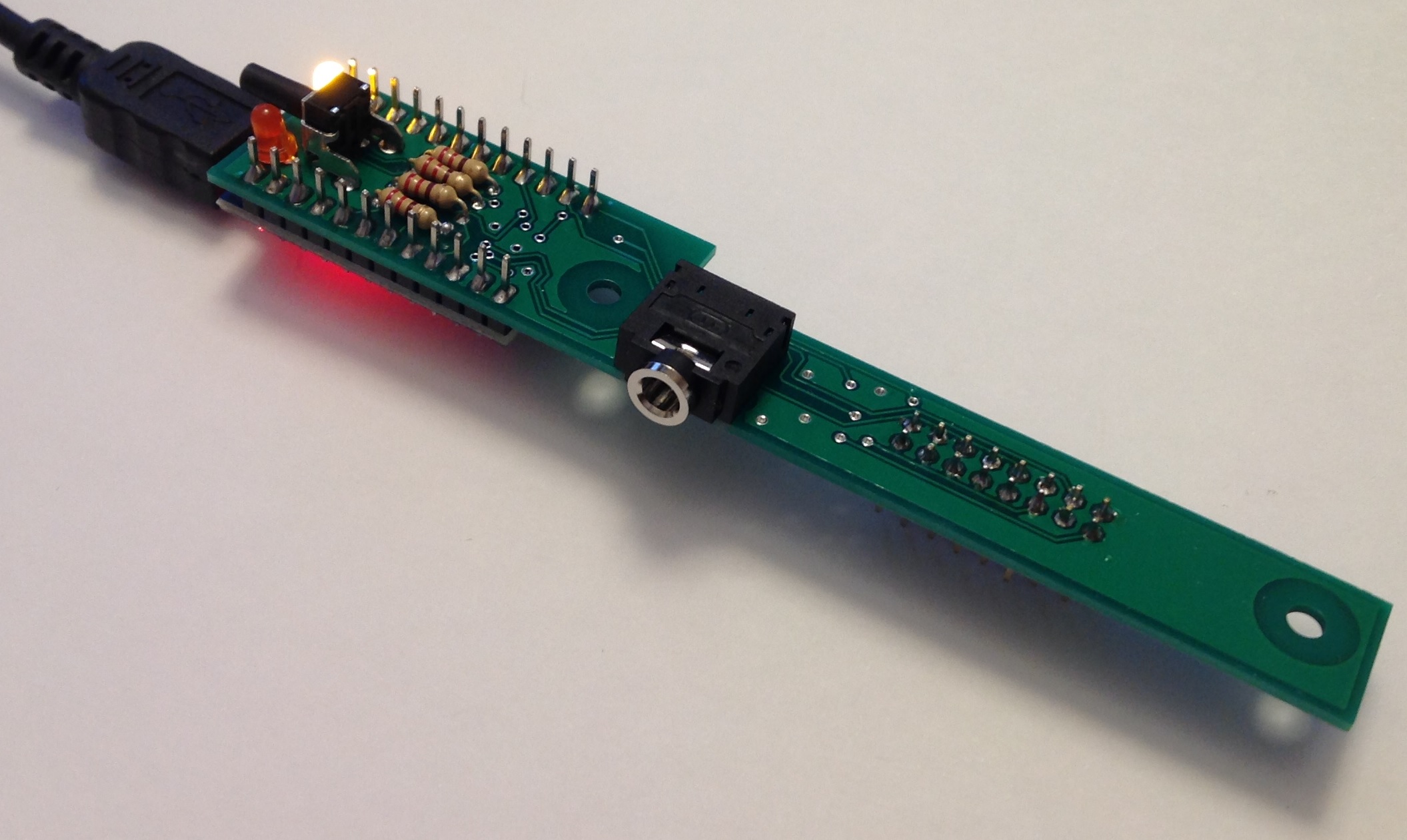
Today I completed most of the remaining assembly of the Crumar D9U Drawbar Controller. The work entailed:

  1. Combining the Arduino control board and the main PCB.
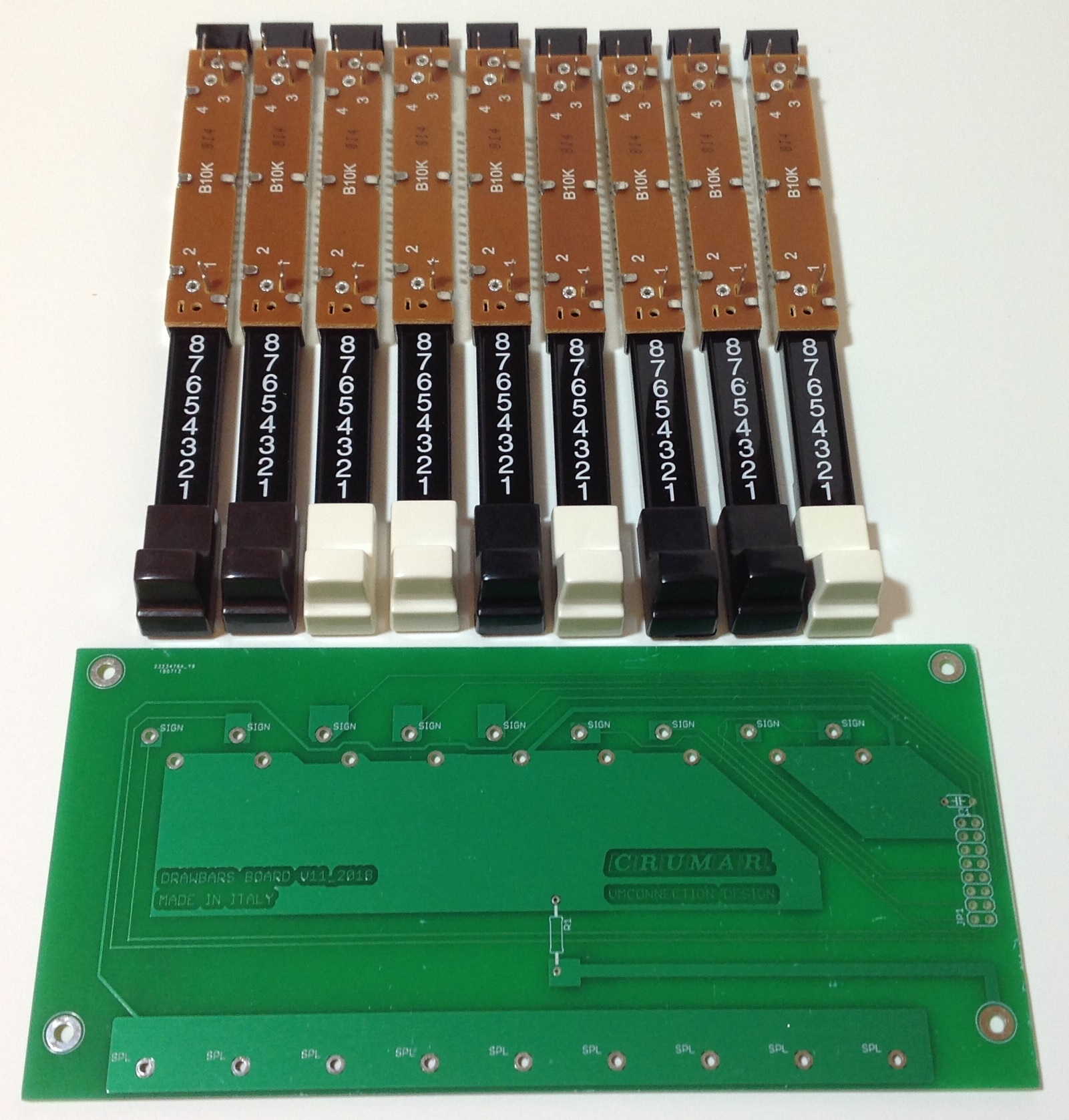
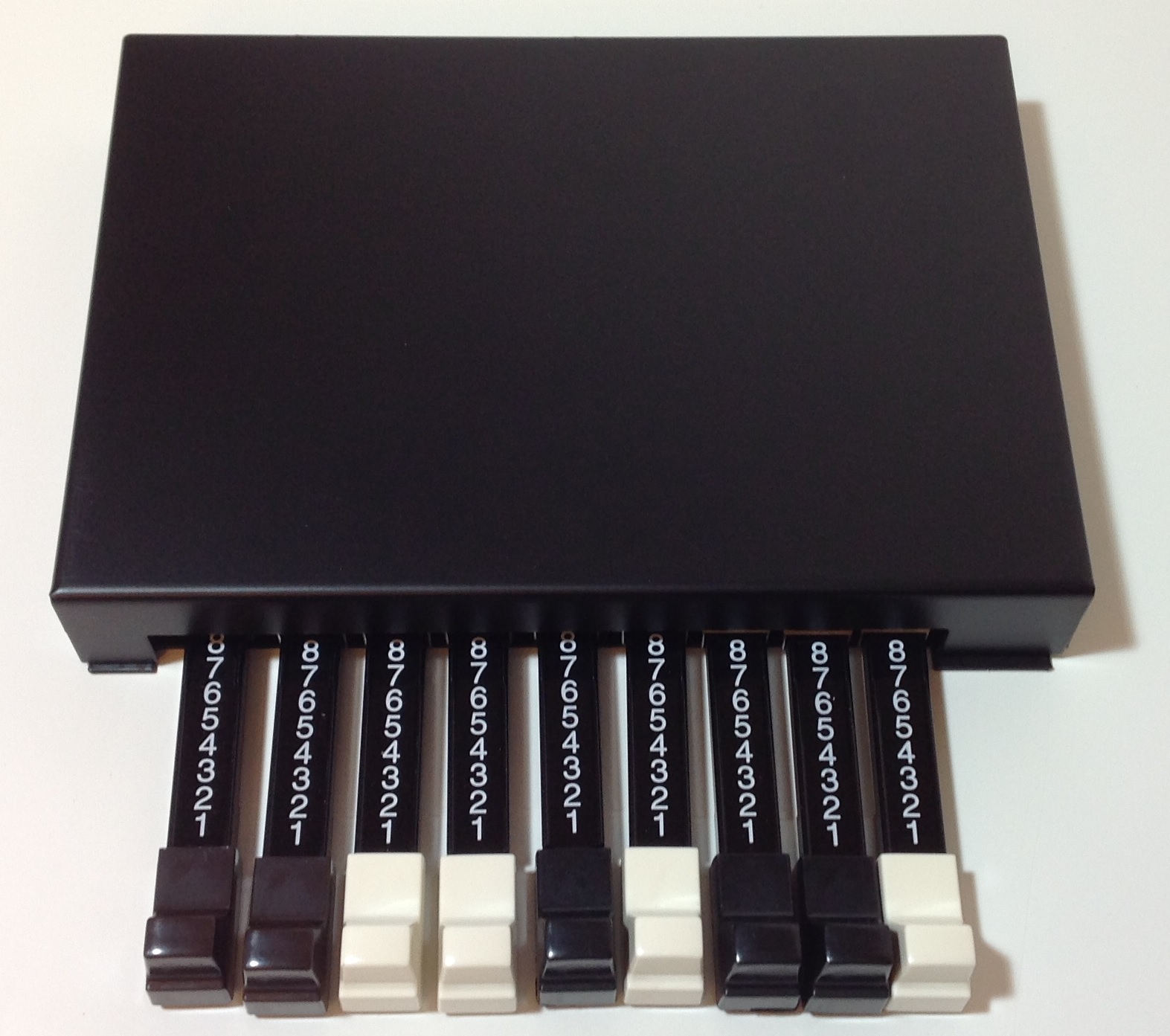
  2. Installing the drawbar slide pots on the bottom of the chassis.
  3. Soldering the main PCB to the slide pots and soldering the DIL connections to the Arduino control board.
  4. Installing colored plastic caps on the drawbars.

Overall, the work went well. Here’s a few observations and tips.

  • When the instructions say make the DIL flat and straight on the control board, they really mean it! The receiving holes on the main PCB are quite small and if that DIL isn’t straight, good luck. Even with a straight DIL, it took some finagling to pass the pins through the holes.
  • The control board and main PCB are joined by two long-ish bolts with spacers between the boards. The nuts are really tight. You will not be able to hold the nuts in place with fingers alone. I used needle nose pliers to hold the nuts while turning the bolts. Be careful not to damage the Arduino when using the pliers. I did bend a pin.
  • Experience with the main PCB and the slider pins was similar although these holes are larger and more accommodating. Gently straighten any bent pins.
  • Speaking of large holes, crimp the pot leads against the main PCB pads to make good electrical contact. These holes eat solder like crazy. You should rely on the solder to maintain electrical contact, not to be the electrical bridge itself.
  • The colored caps fit OK, but you will need to use a far bit of force to drive the screws into the caps for a firm result. The white knobs still have a tiny amount of play, but I was afraid to over-tighten the screws and strip the plastic.

The D9U is built like a warship although the tight fit of nuts and screws makes for a slightly stressful assembly job.

I forget to suggest one tip in yesterday’s blog post. If you have a breadboard available, it makes a nice jig for installing DILs and other components that you need to keep straight. Push the DIL into the breadboard, lay the board on top, and then solder away. I usually try to tack one or two corners first and then check for straightness, etc. If the DIL ain’t straight, it’s a lot easier to remove the tack from two pins (using a solder sucker or braided copper tape) than to remove solder from all 16 pins!

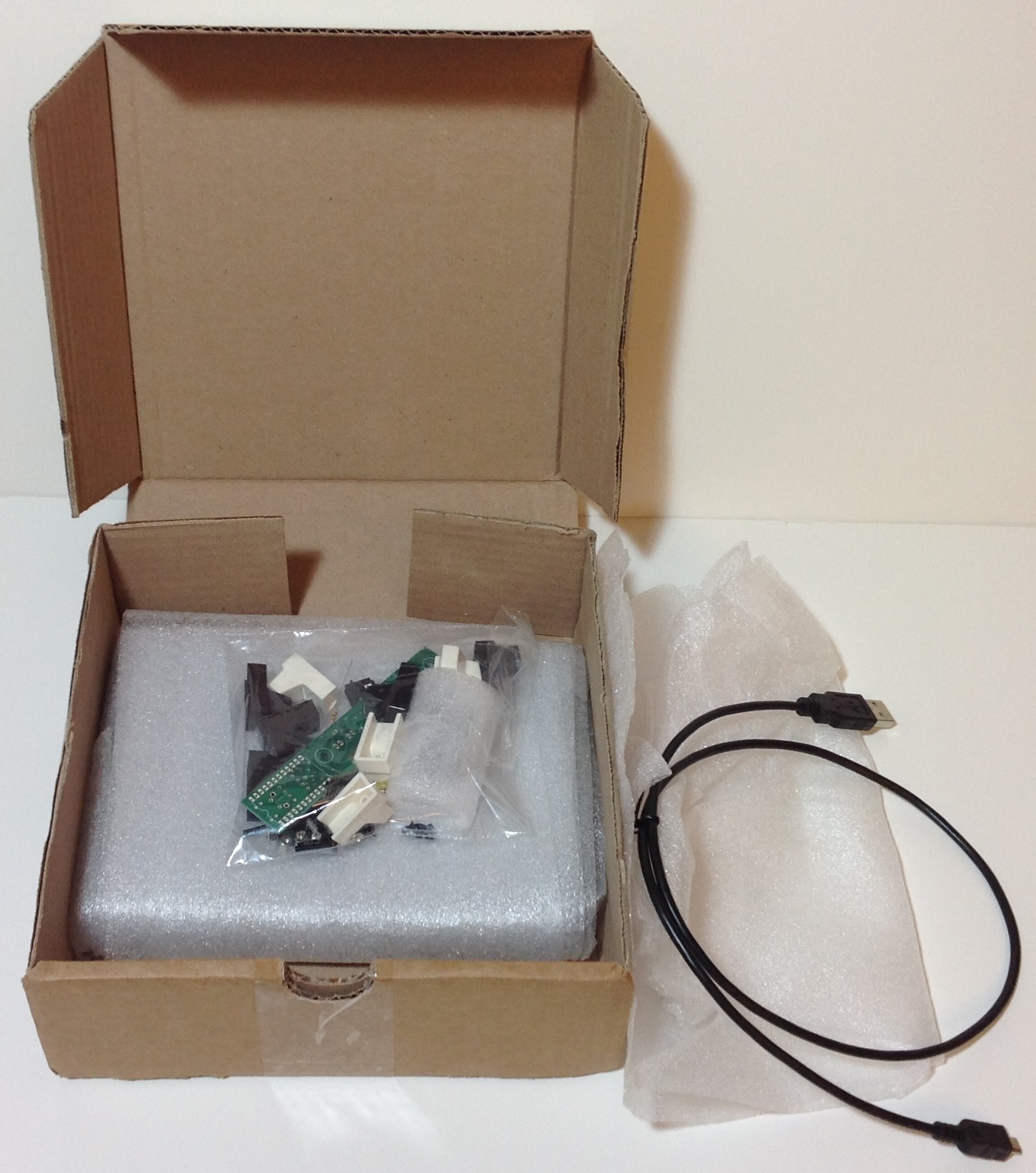
See my first blog post about the D9U for pictures of the pieces and parts in the kit.

Slider test sketch

Here is the code for a quick slider test. It prints the slider values to the Arduino IDE’s Serial Monitor. This sketch is already earning its keep — the second drawbar slider is not changing. The other eight sliders are changing just fine. I have some hardware debugging to do!

/*
 * SliderTest.ino: Crumar D9U initial test
 */

/*
 * Author:  P.J. Drongowski
 * Address: http://sandsoftwaresound.net/
 * Date:    7 December 2018
 * Version: 1.0
 *
 * This test reads the current slider values. If there is a
 * change, it prints the current slider values to the Arduino
 * serial port. Watch the values change in the IDE's Serial
 * Monitor.
 */

// Pin definitions
#define LED_RED    15
#define LED_GREEN  16
#define BUTTON     5

// Analog pin map
#define NUMBER_OF_SLIDERS 9
int AnalogPinMap[NUMBER_OF_SLIDERS] = {
  A0, A1, A2, A3, A6, A7, A8, A9, A10
} ;

// Global variables
int colorMode = 0 ;
int sliders[NUMBER_OF_SLIDERS] ;

void changeColors() {
  if (colorMode) {
    digitalWrite(LED_RED, LOW) ;
    digitalWrite(LED_GREEN, HIGH) ;
  } else {
    digitalWrite(LED_RED, HIGH) ;
    digitalWrite(LED_GREEN, LOW) ;
  }
}

void printSliders() {
  for (int i = 0 ; i < NUMBER_OF_SLIDERS ; i++) {
    Serial.print(sliders[i]) ;
    Serial.print(" ") ;
  }
  Serial.println("") ;
}

void checkSliders() {
  int changeFlag = 0 ;
  int newValue = 0 ;
  for (int i = 0 ; i < NUMBER_OF_SLIDERS ; i++) {
    newValue = analogRead(AnalogPinMap[i]) / 128 ;
    if (sliders[i] != newValue) {
      changeFlag = 1 ; 
      sliders[i] = newValue ;
    }
  }
  if (changeFlag != 0) {
    // If a change was made, print current slider values
    printSliders() ;
  }
}
 
void setup() {
  // Set up pins
  pinMode(BUTTON, INPUT_PULLUP) ;
  pinMode(LED_RED, OUTPUT) ;
  pinMode(LED_GREEN, OUTPUT) ;

  colorMode = 0 ;

  for (int i = 0 ; i < NUMBER_OF_SLIDERS ; i++) {
    sliders[i] = -1 ;
  }
}

void loop() {
  if (digitalRead(BUTTON) == LOW)
  {
    colorMode = 0 ;
  } else {
    colorMode = 1 ;
  }

  delay(100) ;
  changeColors() ;
  checkSliders() ;
}

Copyright © 2018 Paul J. Drongowski

Crumar D9U: Day one

This time of year, the Sun is low in the sky and its morning rays shine bright in the dining room, AKA my downstairs work area. The morning sunlight is perfect for close-in soldering.

I started to assemble the Crumar D9U Drawbar Controller today. Wow, the pads are small, so if you’re following my lead and building the D9U kit, be sure to use a small soldering tip and low wattage iron.

Assembly instructions and schematic are available on the Crumar D9U Web page.

Here’s a few quick observations.

  • One needs to bend the resistor leads quite close to the resistor body in order to fit them to the PCB holes. Be prepared for close work. Snip the leads as you go; don’t try to snip everything at the end. The pad spacing is that small.
  • The assembly instructions note the correct placement (polarity) of the LEDs. Please also note that the short lead is also denoted by a flat edge along the side of the LED plastic. Be double sure of polarity.
  • The DIL strip as shipped is actually two 1×8 strips. I prefer DIL when possible, so I substituted a 2×8 DIL from my component larder. It is much easier to mount a DIL than two 1x8s. I use a small bit of masking tape (painter’s tape) to hold the DIL in place until I can tack one or two pins.
  • Fortunately, the SIL terminals were pre-installed on the Arduino Pro Micro. Sometimes ya lose and sometimes ya win!
  • Crimp component leads to hold components against the PCB before soldering. This helps electrical contact between the leads and the PCB as well as holding the components in place while soldering.

Check the solder joints using a magnifying glass. Each joint should be nice and shiny. The morning sun helps — a lot.

DIY coders: Read this!

If you intend to write your own code, be sure to read the description of the sample Arduino script. You’ll find this info at the end of the assembly instructions. Be sure to read the fine print!

The sample script uses the USBMidi library and turns the D9U into a MIDI class-compliant USB controller.If you compile and download the script to the Arduino, Windows (or MacOS) will henceforth recognize the D9U as a MIDI device, not an Arduino.

Further complicating things, that tactile switch is not a reset switch. In order to reset the Arduino, you must short the reset pin to ground as shown in the instructions. Reset gives you a short window in which to download a new Arduino script.

Man, I’m glad that I read this now. I do not intend to use the D9U as a MIDI class-compliant device. I want to use it as a 5-pin MIDI controller. Plus, I know that I need to construct custom scripts for the Yamaha Genos/PSR and MODX. Development always involves trial and error (AKA “implementation and testing”). I don’t want to constantly reset the Arduino just to download a new script.

The lights are on

Once I assembled the Arduino control board, I downloaded the latest Arduino Integrated Development Environment (IDE v1.8.8) and wrote a quick test script. (See code below.) The script toggles the LEDs on and off using the tactile switch. Yep, the Arduino is an “Arduino Leonardo” board.

Next stop: Mounting the control board and the drawbars.

BTW, I’m not sure about the description of the MIDI 3.5mm jack cable wiring (“Type B”) as described in the instructions. Clearly, I’ll have to come to grips with the pin-out RSN.

Copyright © 2018 Paul J. Drongowski

/*
 * InitialTest.ino: Crumar D9U initial test
 */

/*
 * Author:  P.J. Drongowski
 * Address: http://sandsoftwaresound.net/
 * Date:    6 December 2018
 * Version: 1.0
 */

// Pin definitions
#define LED_RED    15
#define LED_GREEN  16
#define BUTTON     5

// Global variables
int colorMode = 0 ;

void changeColors()
{
  if (colorMode) {
    digitalWrite(LED_RED, LOW) ;
    digitalWrite(LED_GREEN, HIGH) ;
  } else {
    digitalWrite(LED_RED, HIGH) ;
    digitalWrite(LED_GREEN, LOW) ;
  }
}
 
 void setup() {
  // Set up pins
  pinMode(BUTTON, INPUT_PULLUP) ;
  pinMode(LED_RED, OUTPUT) ;
  pinMode(LED_GREEN, OUTPUT) ;

  colorMode = 0 ;
}

void loop() {
  if (digitalRead(BUTTON) == LOW)
  {
    colorMode = 0 ;
  } else {
    colorMode = 1 ;
  }

  delay(1000) ;
  changeColors() ;
}

Crumar D9U in the house!

When I saw the Crumar D9U Drawbar Controller, I knew “Man, I have got to get one of these.” Und, I did.

In short, the D9U is an Arduino-based drawbar controller done right. It has nine real drawbars, a MIDI OUT mini-jack and is USB powered through the Arduino Pro Micro which provides the brains. Because it’s Arduino, it’s programmable. Yes, you can, will and should write your own sketches.

If you’re interested, I recommend downloading the ZIP file on the Crumar D9U page. The ZIP file contains assembly instructions, a sketch to get your coding started, and a schematic. The assembly instructions are top-notch.

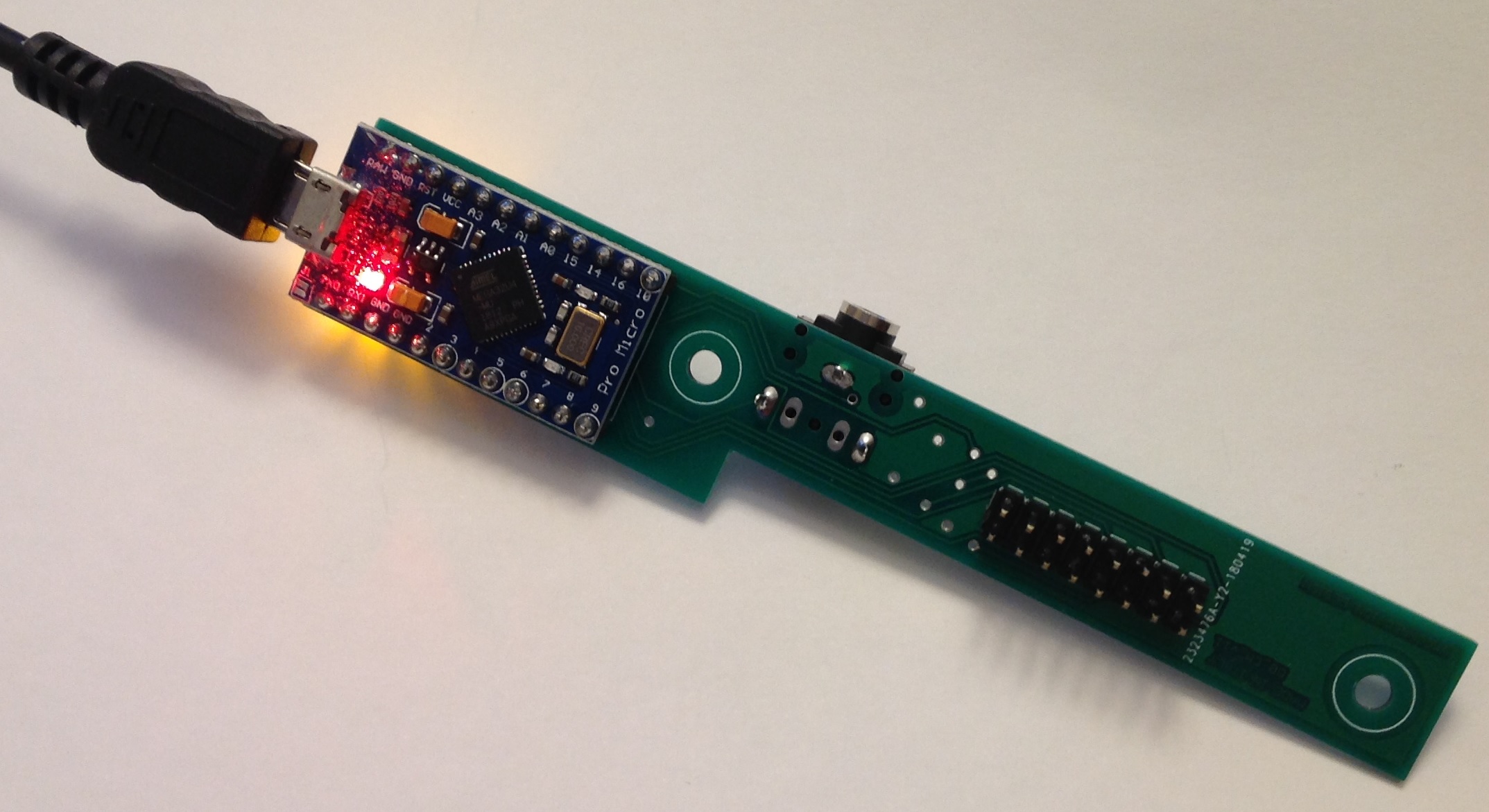
I haven’t assembled the D9U yet, but here is a mock-up to show you what it will eventually look like. [Click on images to enlarge.]

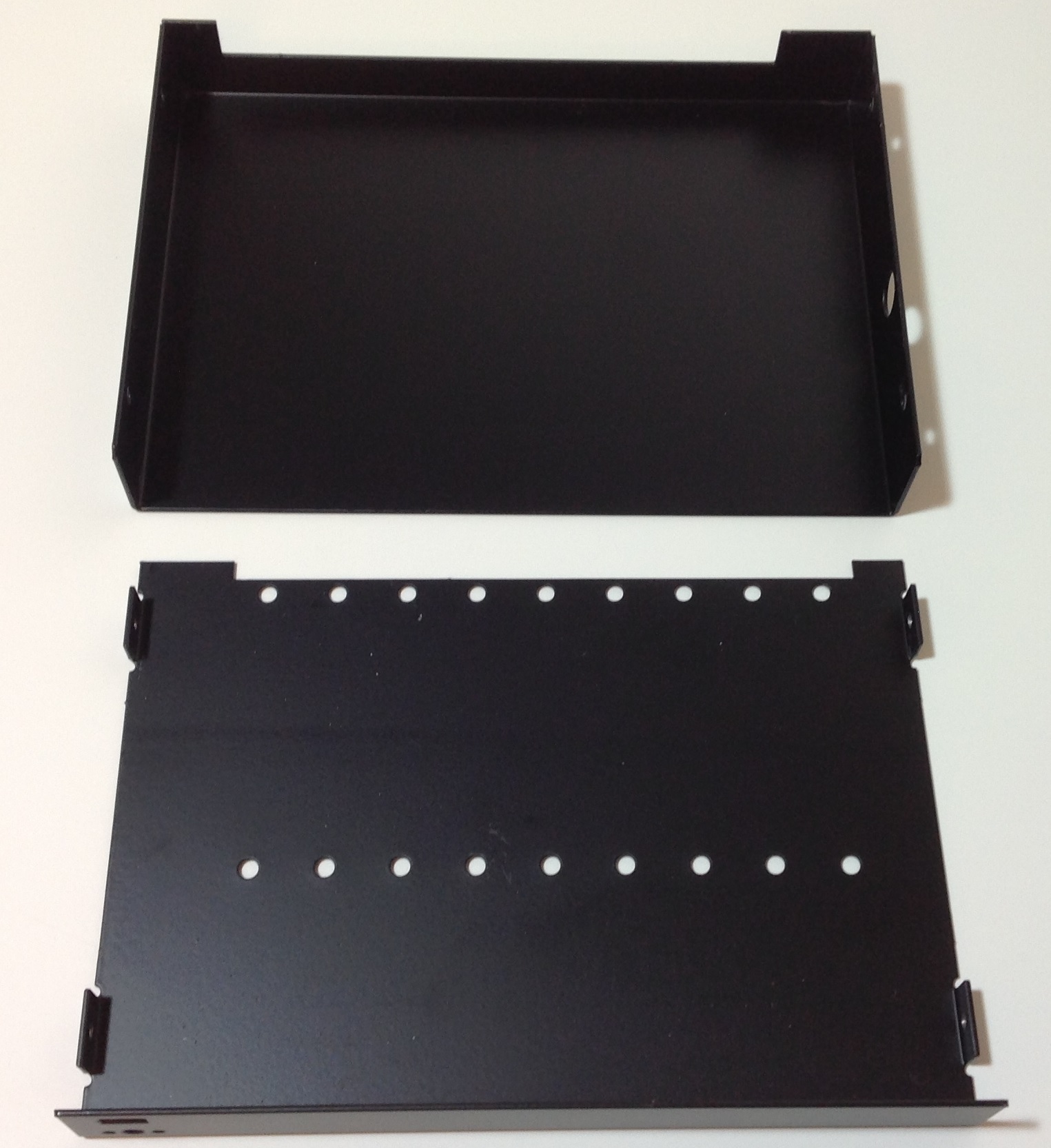
Best yet, the entire unit is housed in a very sturdy metal case.

One of the biggest challenges in DIY is building or finding a suitable case for the finished project. The D9U case is hefty and gig-worthy. Honest to goodness, the case, the drawbars and the knobs are enough to justify an order (and the price).

I placed my order through My Rig Shop, which is located in Italy. Not to worry, fulfillment was excellent and took only a few days — quite good for an international order.

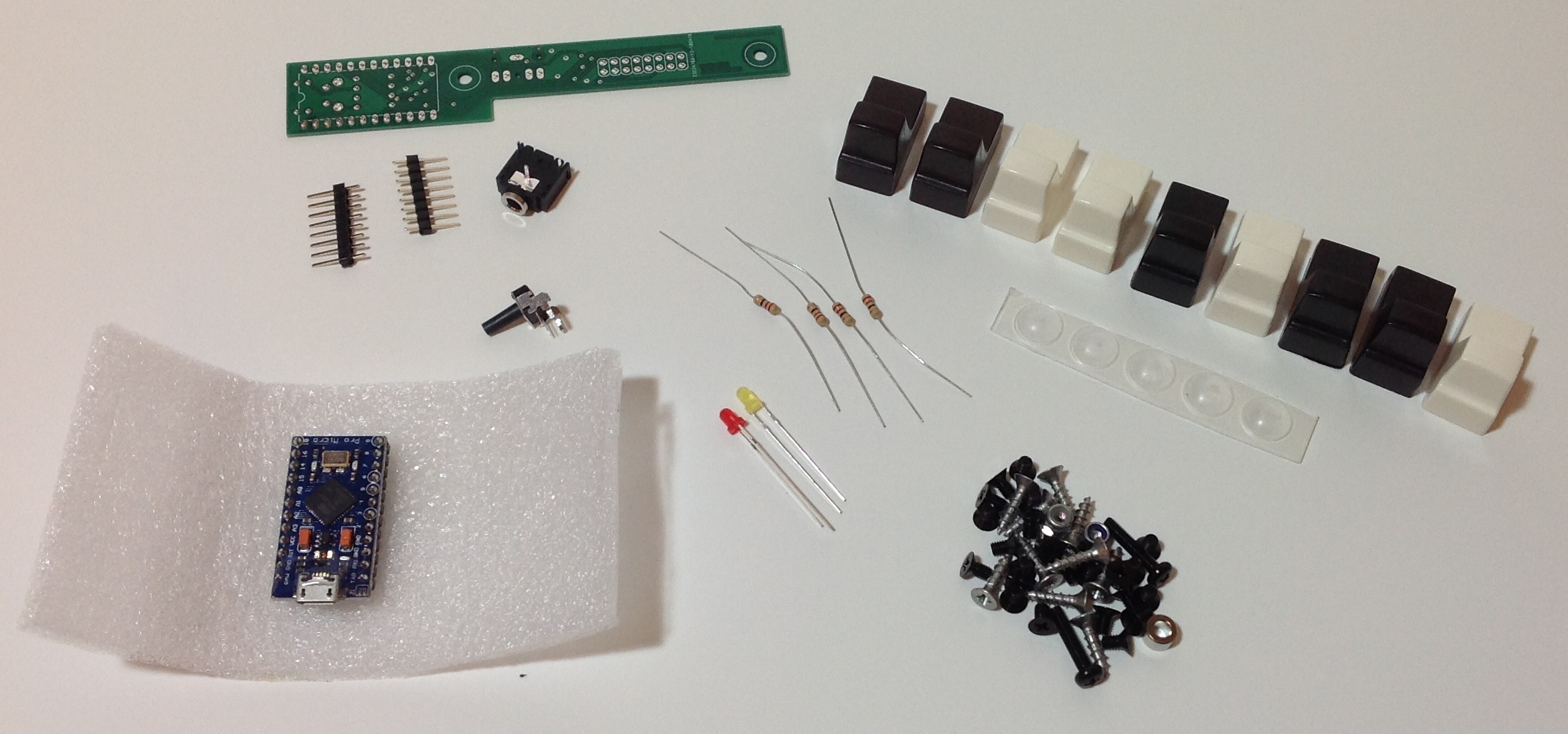
The pictures below show you just what you’ll get if you order the D9U kit.

If you don’t feel up to assembling the D9U, My Rig Shop also sells a fully assembled unit (at a higher price, of course).

Please stay tuned! I’ve been itching to build and the D9U arrived at just the right moment. Yamaha Genos™/PSR and Yamaha MODX will require custom sketches, but that is still far down the road. First, I need an up-and-running D9U.

The other big questions is “Where am I going to put the D9U when I play?” First things first.

Copyright © 2018 Paul J. Drongowski

MODX: Quick thoughts

The Yamaha synth folks recently posted an IdeaScale appeal for people willing to participate in a phone interview concerning Montage and synths. Fortunately, I was able to snag an interview slot.

Here’s just a few thoughts that are on my mind. I’m quite happy with both the MODX sound and user interface (UI) although I think there are a few ideas that they could take from the Yamaha Genos™ workstation.

First biggie. Both the Montage/MODX and Genos/PSR instruments would benefit from tighter integration and better direct support from Cubase, and especially, Cubasis. Quite a few users were upset when Yamaha dropped the relatively full featured Motif/MODX sequencer in favor of the Performance Recorder. The likely presumption is that most musicians will use a DAW instead of a built-in sequencer. Well, maybe Yamaha went to far for some users.

I’m not quite so bummed out about the Performance Recorder. But, I often get the impression that Steinberg and Cubase are marching in their own direction. When I spoke with Nithin Cherian at Music Expo Boston, he explained how Yamaha product groups need to come to Steinberg with requests in order to create the overall customer experience with a product. Perhaps it’s a matter of making requests to Steinberg? Yamaha have quite a good asset in Cubase and I’m surprised that it isn’t exploited more strategically across product lines.

Seems like Cubasis (yes, Cubasis) could be an important part of the solution for both synths and arrangers. [The arranger sequencer is showing its age and is sometimes difficult to work with.] Tight coupling with Montage/MODX could eliminate the need for a full-featured built-in sequencer. At the very least, users should be able to select Performances easily and to configure effects from Cubasis. It should be special to use a Yamaha synth or arranger via Cubasis (or Cubase, for that matter). The existing Montage/MODX UI covers much of the same territory as the old Motif/MOX iPad apps and that functionality doesn’t need to be duplicated.

Speaking of iPad (tablet-based) apps, Yamaha app development seems to be stalled. This is just a personal, subjective impression, of course. Mobile Music Sequencer has not been updated for Montage/MODX or Genos, for example. I understand that development resources (e.g., engineers) are limited, so maybe Cubasis is the right platform to invest in going forward?

BTW, when it comes to apps, I feel like there are too many islands and not enough bridges between islands. For example, I should be able to transfer a MIDI file developed in Cubasis to some other app without making a trip through iTunes or Dropbox.

Second biggie. The Montage/MODX Live Set concept, Scenes and Motion Control are wonderful tools for live performance. In a few cases, however, the flow on Genos is smoother than the synths. Here’s an example. Many musicians play in a single or duo with backing tracks. Currently, it takes several steps to select a Performance, load a WAV file, set the audio volume level, and start play back. This is a very streamlined flow on an arranger thanks to the arranger registration concept. I’d love to see Live Set buttons be extended in a similar way. [Arranger registrations get to be a dumping ground for parameters that rightfully belong in a Performance, so a careful separation of concerns/features is appropriate here.] Perhaps Live Set buttons can be extended to remember the path to an audio file on a USB flash drive and the initial volume setting? Then, a user can select a Performance and load an audio file in one button touch.

I prefer WAV audio for backing tracks. For the past 3 to 4 years, I produce the backing track on an arranger and then record (freeze) the track to WAV. It simply is soooooo much easier to massage commercial tracks on an XG-based arranger. Yamaha Musicsoft is my favorite source for commercial tracks.

Here are several smaller suggestions.

  1. The MODX doesn’t have the big bank of front panel selection buttons like Montage. The Live Set buttons are too small and sometimes the touch screen isn’t responsive enough during live performance. I’ve got to switch Performances in a hurry when I play. (Please don’t suggest a foot switch. 🙂 )
  2. The front panel buttons have a nice positive feel. I may experient with Live Set button layout such that I can use cursor buttons to change Performance on the fly.
  3. I compensate for the loss of selection buttons (somewhat) by using Scenes. The sound cuts out when switching scenes. [Maybe this is something I need to fix in my Scene programming.] I would love to have Scene titles (i.e., a text name in a 24-point font) that is displayed on the screen — positive visual feedback that I’ve selected the correct Scene.
  4. The placement of some fields on control assignment pages is confusing. Usually I think of source first sending to a destination. Plus, I always mistake the control filter fields for actual parameter fields.
  5. Control Assign makes it very easy to set up new control relationships. However, it takes a lot of effort to deconstruct (reverse engineer) existing control relationships and edit them.
  6. In Live Set, SHIFT+INC and SHIFT+DEC change the Live Set page. This is a little awkward when making fast changes. Perhaps a way to change the page which doesn’t require SHIFT?

Third biggie. Sound.

Montage/MODX sound quality is excellent. What can be done to make it better?

It would be great if the Montage/MODX adopted Articulation Element Modeling (AKA Super Articulation 2). I realize that it may be difficult to fully edit AEM through the synth UI. Maybe a computer-based application? I love AEM/SArt2 on Genos.

With respect to articulations (and control), here’s two wild ideas:

  1. In addition to assignable buttons for articulation control, add key switching similar to what’s found in VST-land.
  2. Allow user scripting. What else is a synth, but a MIDI controller and a tone generator. Why not make MIDI control programmable through user scripts?

To my ears, Yamaha have clearly invested effort in B-3 organ and rotary speaker emulation. However, musicians on both synth and arranger forums still regard the Neo Instruments Vent II as the “gold standard” for rotary speaker emulation. If the next Montage is to be a clone-killer, it needs to beat the Vent II. [Will Yamaha exploit U.S. Patent 9,899,016?]

I would love to take a MODX Performance and automatically turn it into a Genos voice. Yeah, probably isn’t a problem for the synth people to solve. However, the voice editing in Yamaha Expansion Manager (YEM) really, really lags.

Fourth biggie. Sequencing multi-part Performances via MIDI.

I’m sure you’ve heard this one before. 🙂 I haven’t deep dived MODX sequencing (yet), but I understand there is an issue with sequencing multi-part Performances from a DAW. Perhaps the solution is a map from MIDI channel to one-or-more Parts? This solution breaks the hard binding between MIDI channel and Part.

Final Biggie. People love getting updates! Updates are truly a hit with the user base — including me. 🙂 Social media forums always chatter about the next update and updates are a great way to create continuing interest in Montage/MODX. Please keep the updates coming!

Whew! A longer and discussion than I thought! None-the-less, I really enjoy the MODX. It’s light weight and sound make it a terrific gig machine.

P.S. The last time I participated in an interview, I wrote an MOX retrospective. It describes some of my use cases, flow and general concerns.

MODX: Sampling Genos pipe organ

Sample Robot for Montage (SRM) is a very useful addition to the Yamaha MODX (Montage) product ecosystem. After my initial start-up experience:

I went on to produce two sampled pipe organ voices: Organ Prinzipal and Organ Pleno.

Prinzipal and Pleno

Anyone who sees a pipe organ — especially a cathedral-sized instrument — is immediately impressed by its large array of pipes. The open metal pipes are the principal pipes which give a pipe organ its distinctive sound. Pipes are arranged in ranks, kind of like the individual drawbars on a Hammond B3 organ (vice versa, really!) Hammond-ites know that the length of a pipe determines its pitch and that each rank has a reference pitch (measured in feet) that specifies the rank’s harmonic character when blended with other ranks.

I generally use pipe organ to lead congregational singing. Conventional wisdom for hymn accompaniment is simple: Use principal pipes with simple, foundational pitch: 8′, 4′ and 2′. Although this sounds plain vanilla, the sound is not cluttered by harmonics that may confuse the congregational ear. This kind of organ registration is often called a “principal chorus.” Due to the deep history of pipe organ in Western Europe, a French, German or Italian name may be used instead, e.g., “Prinzipal.”

Old school players understood the need to built energy and drama during a tune, too. Thus, an organist might add non-fundamental harmonics during the final verse and chorus. Think, Hammand organ “whistle”, 1 3/5′, 1 2/3′, etc. Often, a group of such ranks is brought in, a “mixture.” If the mixture consist of principal pipes, then the resulting registration is called a “full principal chorus.” This registration has many names, too, such as “Organo Pleno” or “Plein Jeu.”

In case you’re wondering, reed stops are rarely used for hymn accompaniment, if ever. Flute pipes are occasionally added for quiet meditative hymns. Principals are the real work horses.

Yamaha Musicsoft offers a terrific PSR expansion pack: Church Organ. Someone put a lot of love and care into this pack! I bought a PSR-S950 based upon the strength of the Church Organ pack. Fortunately, the PSR-S970 version of the pack also loads on Yamaha Genos™ and I’ve been able to take advantage of its sounds for practice and live play.

My goal here is to sample the Organ Prinzipal and Organ Pleno voices on Genos and to use those voices on MODX.

Sample, test, repeat

Sampling with SRM is reasonably straightforward. If you read my previous blog posts, then you already have the general drift. I recommend reading the SRM manual, too.

I liked the sampling strategy and key layout used in the Apple Symphony Orchestra pipe organs and arrived at a planned layout of keybanks:

KB#  Low  High  Center
---  ---  ----  ------
 1    C-2  C#0      C0
 2    D0    E0     D#0
 3    F0    G0     F#0
 4   G#0   A#0      A0
 5    B0   C#1      C1
 6    D1    E1     D#1
 7    F1    G1     F#1
 8   G#1   A#1      A1
 9    B1   C#2      C2
10    D2    E2     D#2
11    F2    G2     F#2
12   G#2   A#2      A2
13    B2   C#3      C3
14    D3    E3     D#3
15    F3    G3     F#3
16   G#3   A#3      A3
17    B3   C#4      C4
18    D4    E4     D#4
19    F4    G4     F#4
20   G#4   A#4      A4
21    B4   C#5      C5
22    D5    E5     D#5
23    F5    G8     F#5

In Sample Robot concepts, this means starting at C0 (MIDI note number 24) and sampling every three semi-tone steps up to C5 (MIDI note number 84). With the exception of the lowest and highest note, a sample is never transposed (pitch shifted) more than a single semi-tone. I also liked the long sample time in the Apple approach and settled on a 12 second capture time plus 0.5 seconds release (12.5 seconds total of capture). I didn’t use the release samples, but I wanted to see and hear them as a learning experience.

If you change the MIDI note range or step number in SRM, be sure to click the Step button! I got hung up and couldn’t figure out why SRM didn’t “see” new note range limits. This really should be mentioned prominently in the SRM manual. I assumed that SRM would simply take what it was given…

These basic sampling parameters can be set using the SRM project wizard. Or, you can set them individually on the various property tabs. I went through the wizard first, then fine tuned individual parameters later.

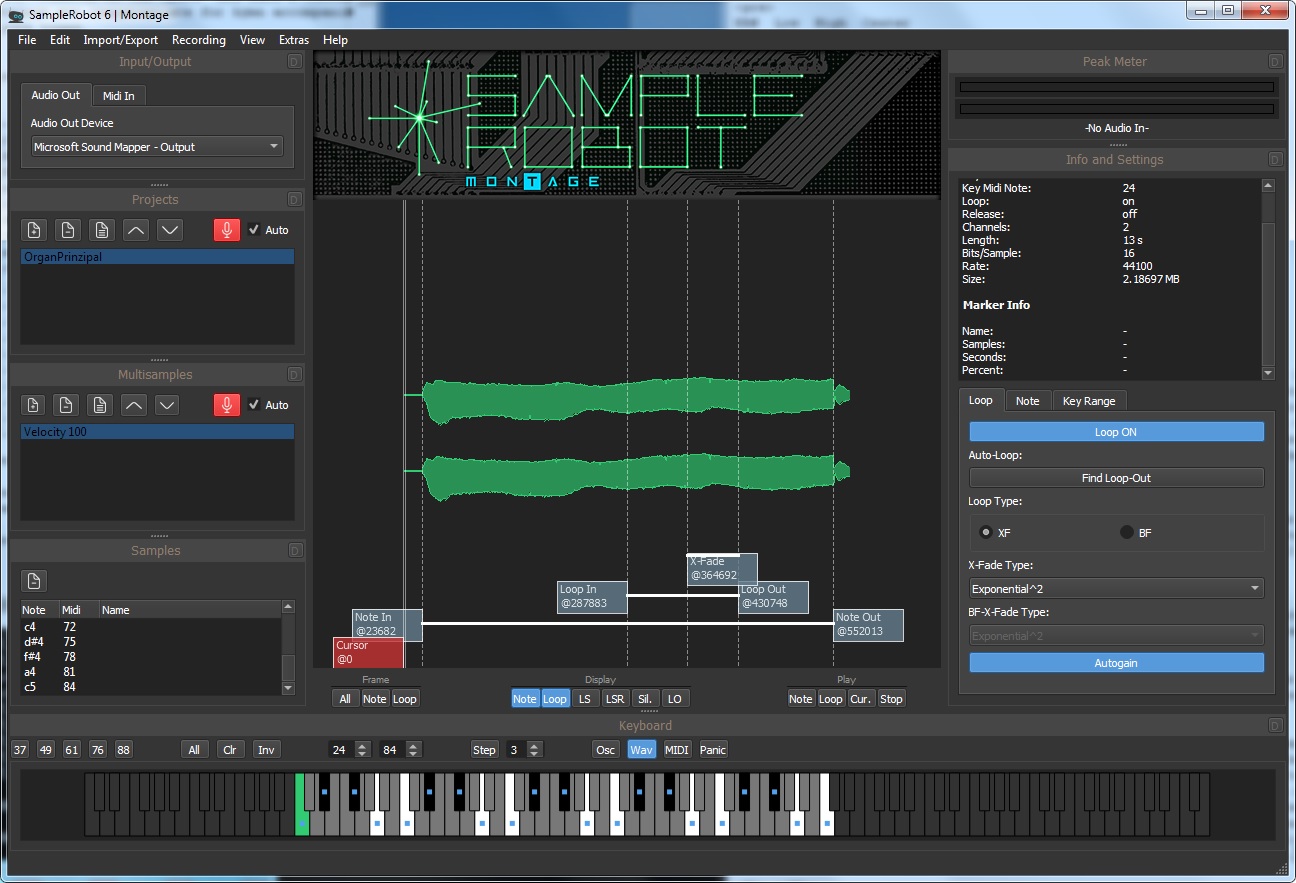
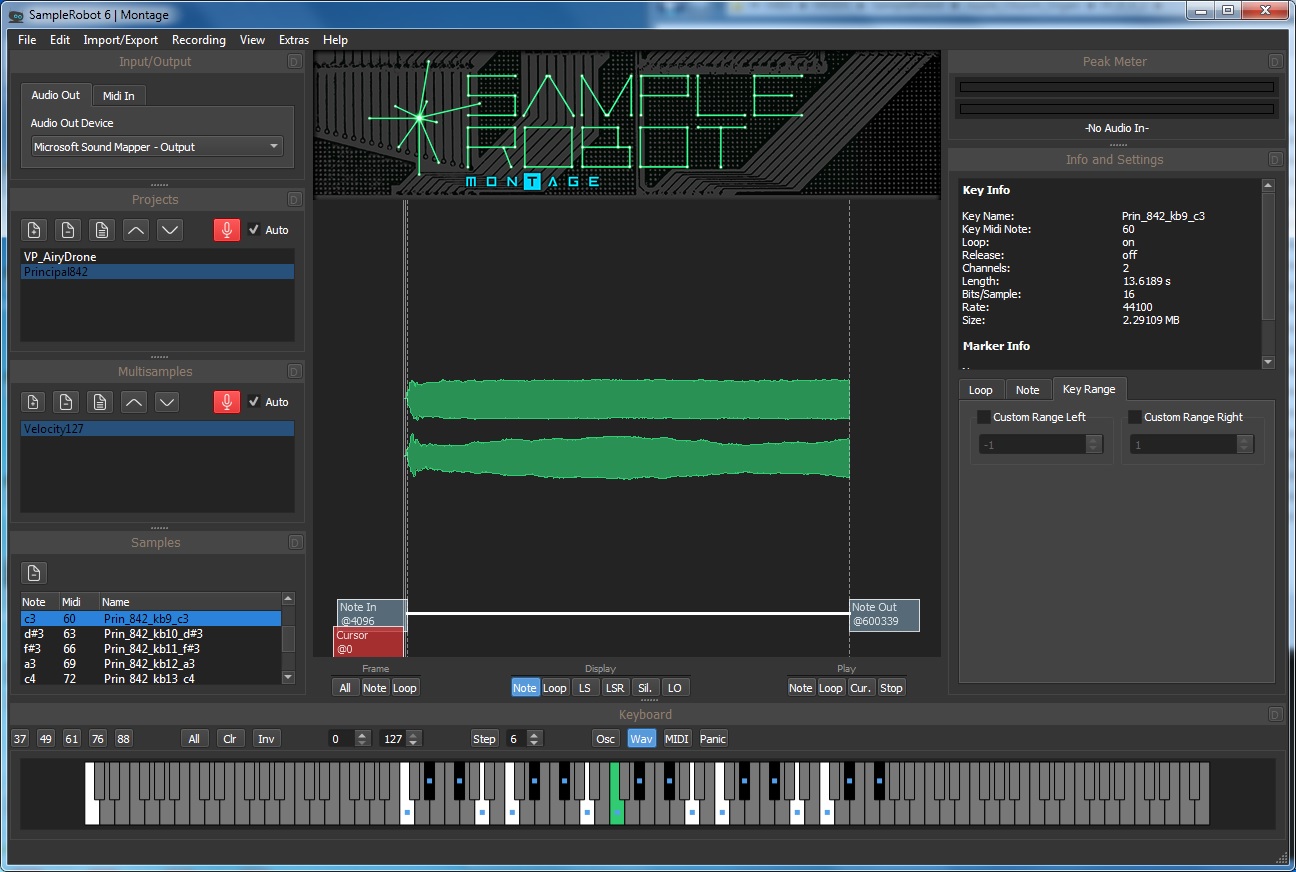
The virtual keyboard at the bottom of the screen shows the notes to be sampled (black and white) and the notes for which samples have been taken (notes with a blue square). The dark grey notes are not sampled. [Click on images to enlarge.]
Before going further, I must state that I made several attempts at sampling each voice. I decided to retain the volume differences (level nuances) across the multisample. I turned Auto-gain OFF and set the audio input level manually. Thanks to the waveform display, I could find any obviously clipped sample. I also did a spot check of questionable samples in Sound Forge Studio. I eventually arrived at a set of samples for each voice in which one (or a few samples) were max’ed and the rest of the samples in the set fell in line as synthesized by Genos. I believe this strategy preserved the natural levels across the pipe organ key range.

Loop quality

I let SRM do the looping. I know from experience that looping pipe organ samples is not easy and is very time consuming. Plus, I wanted to see how well SRM would do.

The Display buttons below the waveform pane control waveform annotations. Enable the Loop button and SRM shows the loop in (start) and loop out (end) points for a sample. I used the default cross-fade loop settings as shown in the screenshot.

SRM’s loops sound decent. There are a few samples where a bit of a surge could be heard, but no obvious bumps or clicks. SRM’s loops are shorter than the Apple loops and that is a little disappointing. However, there aren’t any short cycle loops that lose the dynamic timbral quality of a pipe organ. I think they are all useable as they are without any manual tweaking. My opinion is based upon what I auditioned in SRM and what I heard at the MODX keyboard itself.

Normalization and gain change

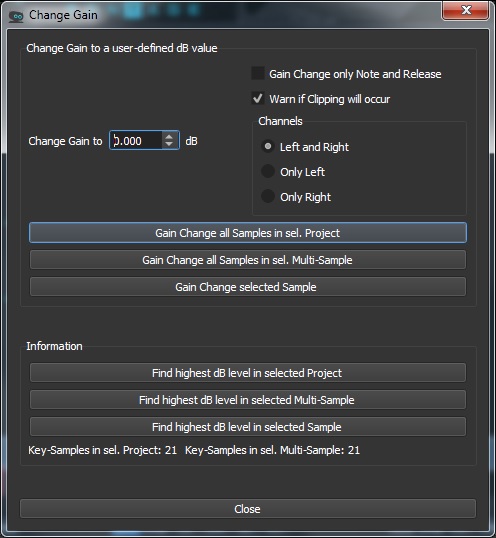
Really good thinking went into this part of SRM. SRM gives you several options for normalizing or applying a gain factor across one or all of the samples in a project. (Please see the manual for details.)
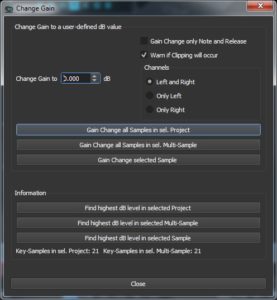
Normalization works as expected. It applies a gain factor that brings up the an entire sample such that the peak is 0dB or a custom peak level which you set.

Gain change is just what I needed for this project. I wanted to maintain the relative difference in level between samples — just make everything uniformly louder without introducing clipping distortion. In order to do this, I needed to know the highest dB level for a group of samples then apply a gain factor everywhere to pull all samples up. SRM provides a few different options for finding the overall peak level, e.g., “Find highest dB Level in selected Project”. Suggested improvement to SRM: After analyzing the samples, SRM should display the peak level for each sample in the property pane along with the sample’s other properties.

I like the option “Warn if clipping will occur.” Features like normalization and gain change would make SRM quite useful and necessary even when starting out with old samples borrowed from a VST software instrument. 🙂

Export and import

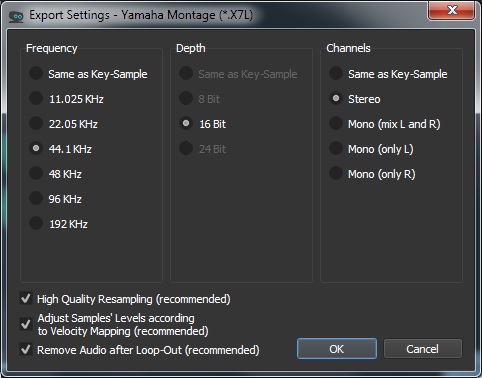
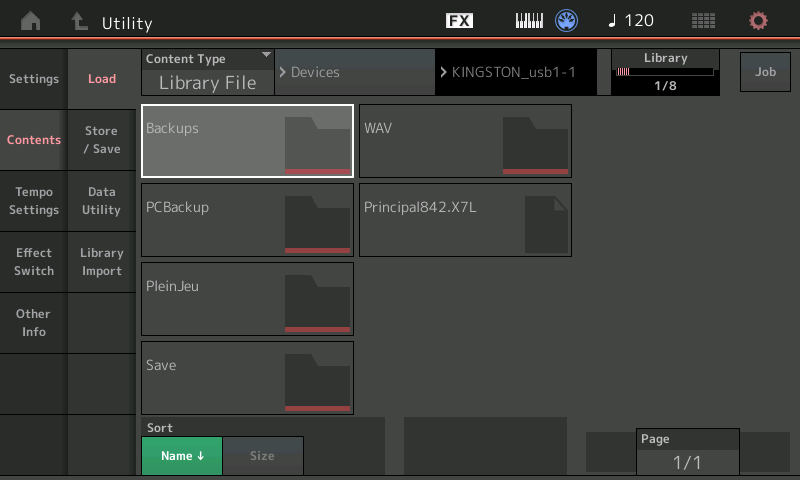
I exported each voice as a Montage LIBRARY file (X7L) and loaded each LIBRARY file into MODX. One nice MODX feature is the ability to audition Performances in a Library. This is a quick way to sanity check new waveforms (and underlying samples) on MODX.

There were several iterations at this stage, too. It took a few iterations to get the desired key range for sampling. The initial key range was one octave too high. I like to have three octaves in the left hand and two octaves in the right hand for hymn accompaniment as I’m faking organ pedals in the left hand. I used MIDI OX to check the high and low MIDI note numbers, then I reset the lower and upper note sampling limits in SRM.

Thankfully, any and all iterations are fast. SRM can sample the entire key range in about 5 to 6 minutes with the chosen capture time for each sample (12.5 seconds). This is welcome and needed time to get a cup and give my ears a rest!

Finishing and sanding

The new waveform needs to be incorporated into a finished MODX Performance because the SRM-generated Performance in the Library file is very, very basic. (Actually basic is a good thing for quality assurance and auditioning.)

In one of my earlier experiments, I had fashioned a pipe organ Performance (Plein Jeu). I repurposed the Performance even though I had long since blown away the Plein Jeu waveform.

My process has (roughly) the following steps:

  1. Load the LIBRARY file generated by SRM.
  2. Audition the generated Performance in the Library.
  3. Import the generated Performance and its waveform into USER memory.
  4. Select and edit an existing Performance, hopefully one which is close to the desired result.
  5. Save the new Performance under a new name.
  6. Edit the effects or any other Performance Common parameters.
  7. Edit the Part information within the Performance.
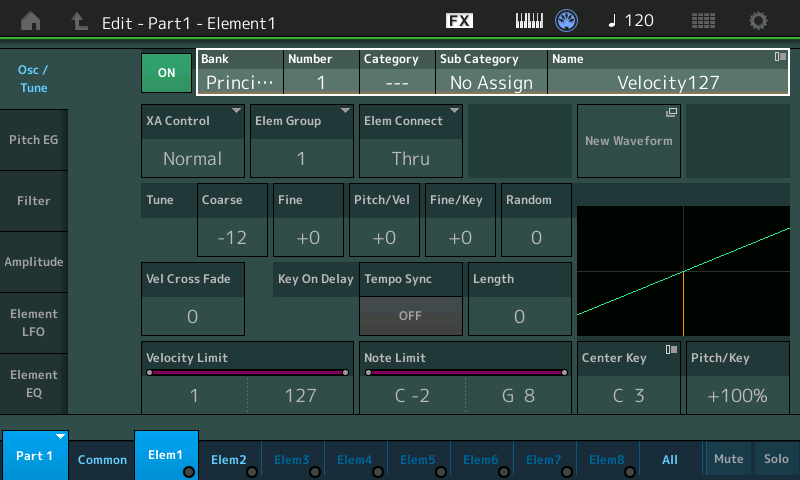
  8. Edit the elements in the new Performance to use the new waveform.
  9. Edit the new waveform to change its name (category and subcategory), to extend the lower note limit of the lowest key bank, and to extend the upper note limit of the highest key bank.
  10. Make any other necessary tweaks to the new waveform.
  11. Make tweaks to the Element programming or effects.
  12. Save the new Performance.

Clearly, prior experience with Performance and Part editing is a real plus at this stage. Ramp up slowly! Gain experience. Rome wasn’t built in a day.

OK, get ready for TMI. When you load a library, MODX seems to load incoming waveforms into wave memory on a contingency basis. This is why you can audition new Performance waveforms in a library. You can even make a contingent waveform part of a USER Performance. If you haven’t explicitly imported the Library Performance and its (contingent) waveform from the Library and you delete the Library, kiss the waveform good-bye; it’s deleted, too.

When you’re ready to commit to a new waveform, you must explicitly import the parent Performance and the new waveform within to USER Memory via the Data Utility.

A few comments for the developers

Nice work! Here are a few refinements.

Please add the ability to directly monitor the incoming sample stream. It would greatly aid set up and we can listen for audible clipping distortion when setting levels.

Display the peak level in sample properties. This will make it easy to find samples which are (potentially) clipped.

The Project Datapath in the Preferences dialog does not seem to apply everywhere and it isn’t persistent i.e., it is reset to the path “C\Users\xxx\Documents\SKYLIFE\SampleRobot6\Data.” This file path should be used consistently.

A native English speaker should take a quick pass through the manual, which is already pretty darned good. There are occasional spelling and simple grammatical errors (e.g., possessive versus plural). The same reviewer should check the application for spelling errors; there are misspelled words.

The manual should inform the user to press the Step button after changing the MIDI note limits for sampling.

What’s next?

When I A/B’ed the expansion pack organs against the Apple Symphony Orchestra pipe organ, I had to give the quality edge to Apple. I’ve already snagged another voice from the Symphony Orchestra Jam Pack. At the very least, I’ll use Sample Robot for Montage to change gain, to layout the key banks and to generate a Montage LIBRARY file. It shines at these operations and really speeds up the work.

Copyright © 2018 Paul J. Drongowski

MODX: Going to the library

After resolving yesterday’s Sample Robot teething issues, I pulled together two new sampled pipe organ voices. Each voice is stored into its own MODX Library file as exported by Sample Robot for Montage (SRM).

At this point, I realized that libraries and voices are going to stack up quickly. So, I dipped into a few on-line resources:

Essentially, a MODX (or Montage) Library is a way to bundle up related Performances, waveforms, arpeggios and other data into a single package. Bundling makes it easy to save, distribute, and load Performance-related data.

Page 23 of the MODX Reference Manual contains a diagram depicting the contents of USER Memory and the relationship of USER Memory to USB flash drive file types like USER files and LIBRARY files. This diagram and its accompanying text is meaningful to engineers, but is somewhat confusing to a regular user who wants to get a job done! Diagram aside, it’s worth noting that there are two main file types that are important to our data management: USER files and LIBRARY files. Each file type has its own file name extension:

                  Montage  MODX
                  -------  ----
    USER file        .X7U  .X8U
    LIBRARY file     .X7L  .X8L

Yamaha have continued their practice of bumping the file format version number with each new generation of synth. Thus, the MODX USER file extension is “.X8U” versus Montage’s “.X7U”. I won’t distract you with compatibility details except to note that MODX can load Montage USER and LIBRARY files. Good thing since Sample Robot exports Montage USER and LIBRARY files (.X7U and .X7L).

There are two primary file operations:

    LOAD: [UTILITY] → [Contents] → [Load]
    STORE/SAVE: Press [STORE] button, or 
                [UTILITY] → [Contents] → [Store/Save]

I think of USER Memory as working storage that holds my most frequently used Performances (and other stuff). It’s important to stay backed up, especially when working with a new keyboard. I back up daily, writing USER memory to a USER file. It’s not that the data is so important — I can’t afford lost time. Lost data is lost time.

A USER file contains:

    User Performance (640 max)
    User Arpeggio (256 max)
    User Motion Sequence
    User Curve
    User Live Set
    User Micro Tuning
    User Waveform
    Utility Settings
    Quick Setup
    User Audition Phrase

That’s pretty much the whole ball of wax from USER Memory — a complete snapshot.

A LIBRARY file is similar to a USER file. A LIBRARY file contains:

    Performance (640 max)
    Arpeggio (256 max)
    Motion Sequence
    Curve
    Live Set
    Micro Tuning
    Waveform
    Audition Phrase

A Library doesn’t contain Utility Settings or Quick Setup data. You wouldn’t want a Library to disturb these settings when it’s loaded.

What’s a little confusing about the USER Memory diagram is that it shows (eight) Libraries as part of USER Memory. Maybe it’s better to think of USER Memory as “Internal Memory”. By the way, some writers refer to this memory as “read only,” kind of, sort of. The correct term is “non-volatile,” i.e., memory contents aren’t lost when power is turned off. This terminology gets around writer-ly semantic problems. Internal memory can be read and written. It just doesn’t lose its mind when power is removed.

A LIBRARY file, since it’s a file, can be loaded and saved. During a load operation, the contents of a library is written (stored) into one of the eight available library slots in USER Memory. The contents of the USER Performances, etc. in USER Memory are not over-written. From my point of view, this is great because I don’t want anything messing with my work! We can, however, save User data to a LIBRARY file.

The final piece of the puzzle is how to bring selected pieces of a memory-resident Library into USER Memory. That’s where Library import comes into play:

    [UTILITY] → [Contents] → [Library Import]

The Import to User Bank operation:

Copies the selected Performance in the User Bank. User Waveforms and User Arpeggio which are used in the selected Performance are copied to the User Bank as well. This button is displayed only when any of the Performances is selected.

Reading this last sentence from the MODX Reference Manual rang a bell in my head.

When I auditioned my first attempt at a pipe organ voice, I loaded the library generated by Sample Robot, but did not import the Performance. I even created a User Performance that referred to the new waveform and it played perfectly. However, was the new waveform really in USER Memory? No. I deleted the Library from USER Memory and the waveform disappeared, too. The User Performance which once referred to the waveform did not sound anymore. Edit revealed an empty space in the voice Element which once referred to the new waveform.

Actually, this is quite good behavior. In order to quickly audition new waveforms produced by Sample Robot, I just need to load the Library file with the new waveform. If I don’t like the sound, I can easily destroy the evidence by deleting the library from its slot in USER Memory. If I like the sound, then I can import the performance from the library to the USER Bank and build on top of the new waveform.

I’m glad that I undertook this experiment before going further. I want to keep the Principal 8′, 4′, 2′ waveform and Performance, and I want to audition any new waveforms without disturbing my earlier work. With load, save and import in mind, I think I see the way forward.

Copyright © 2018 Paul J. Drongowski
Here are a few helpful notes from the YamahaSynth.com site. Special thanks for to Phil Clendeninn and Jason!

A Library file can be loaded without overwriting your USER AREA. A Library file can install data into one of eight LIBRARY locations in your Montage/MODX.

When you place something in a Library location it’s there with everything it needs to be played (just like your Preset data always has everything it needs). But, you can rewrite this, later, if you change your mind or wish to add to it!

To create a LIBRARY you must assemble what you wish to place in that Library into your USER area. From the USER area you can SAVE as a “Library File” — this creates a .X7L file on your USB stick. Once you have that file, you can then install it to one of 8 Library locations.

You can then audition the sounds, decide which ones you think are “keepers”. The ones you want to keep you can IMPORT to USER. Why would you want to import them into USER? Because you assemble the data that you want to keep and then create your own custom library.

You can delete unwanted Libraries by entering the Library folder, select an item, tap “Delete”.

You can assemble data from a Library by using the “Import Library” function (Montage version 1.10 and later): UTILITY → Contents → Library Import

Each library can only be changed in its entirety. You cannot delete individual performances within a library – you can only delete the
entire library. You cannot add one Performance to an existing library. Libraries can only be installed, deleted, or created. Libraries cannot be edited on MODX.

The Library Banks contain the Performances you have added as Libraries. The Library Banks are initially empty. (A Library can be added by importing a library file.)

  1. Install library to a library slot (the one you want to add to)
  2. Backup then clear the user area so it is empty
  3. Create the one user Performance you want to add to the library (eventually) in the user area. The user area now has one Performance you want to add to the installed library.
  4. Import the entire Library you installed in step 1 to the user area. The act of “import” does not overwrite the user area. It will make sure all necessary content in the library, including custom waveforms, are copied (imported) into the user area.
  5. Create a new library from the user area. This new library will be the original one plus the one (in this example) user Performance you wanted to add.
  6. Delete the previous library
  7. Install the new library

MODX: Get started with Sample Robot

In my last post, I created a new Yamaha MODX Performance from a handful of WAV files. The new Performance had shortcomings, mainly due to short loops in the samples themselves. I tossed the first one away. What the heck — it’s only bits. 🙂

Last time, I did all of the work on the MODX itself through its user interface (UI). My experience was generally good, but I had to enter a lot of detail directly into the UI. Today, I’m moving on to Sample Robot for Montage with hopes of making the job easier.

Sample Robot by SKYLIFE is a spiffy tool for copping sounds from old keyboards or any other sound source. Yamaha formed a parnership with SKYLIFE resulting in Sample Robot for Montage, a version of Sample Robot that is tailor-made for Montage (and MODX).

Even though Sample Robot for Montage — which I will refer to as “SRM” — has the ability to capture multisamples automatically from MIDI keyboards, it has two other capabilities of immediate interest and purpose:

  1. SRM can import WAV/AIFF files into a multisample.
  2. SRM exports the finished result as a Montage User file (X7U) or a Montage Library file (X7L). MODX loads both of these file types.

Thus, SRM looks to be and is a promising path for creating new MODX Performances from existing WAV/AIFF files.

At this point, I must admit that I’m still getting my head around the Montage/MODX library concept. [This subject receives scant space in the documentation, unfortunately.] Thanks to Phil’s tutorials on YamahaSynth.com, I grok their basic purpose — to bundle related Performances, waveforms, arpeggios, etc. into an easily distributed and imported package. I have much to learn about this subject especially how to exploit Montage/MODX libraries for data management during sound development. More about this some day.

Sample Robot for Montage: Set-up

I downloaded SRM from the Yamaha Musicsoft site. SRM is free to Montage (and, apparently, MODX owners) until March 2019. I can’t argue with the price!

The download is a ZIP file containing both the Windows and Macintosh versions of SRM. The Musicsoft site provides a Yamaha code number and a serial number, both of which are required for activation. Rikki don’t lose that number. 🙂

Install is easy — just click through the installation wizard. The Windows installer is about 200MBytes, the bulk of which are example projects.

You will be asked to activate after launching SRM for the first time. Enter all of the magic numbers. SRM starts up with a preloaded example. I peeked and poked at the example for a little while and quickly discovered that an audio device wasn’t assigned. I eventually settled on “Microsoft Sound Mapper – Output”. Unfortunately, Windows 7 ran that damnable audiodg (Audio Device Graph Isolation) process, taking a long time to complete. Further, I had to restart SRM before getting audio through the monitors. I can’t fault SRM for this. Microsoft? Hello, it’s 2018?

Upon start-up, SRM displays a wizard leading you through the task of setting essential project characteristics like sample rate and such. In a moment of hubris, I cancelled the wizard the first time through and found the app to be somewhat inert. Me-thinks SRM needs to initialize its environment and clicking through the start-up wizard at least once does the trick.

SRM: The warm-up

I strongly recommend a quick read through the SRM manual for no other reason than to become familiar with its concepts and terminology. The terminology is fairly standard, but it differs a bit from Montage/MODX terminology. For example, it appears that your SRM “multisamples” will become Yamaha waveforms and inherit multisample names. This is where familiarity will breed expertise, I expect.

I also suggest taking a tour around the SRM user interface. The “Info and Settings” pane is a property inspector that shows important properties for the selected project, multisample or sample. Then, check out the virtual keyboard. With a two button mouse, left clicking/holding a key plays the sample associated with the note. (Notes with a blue box marker have a sample assigned.) Right clicking a key selects the sample associated with the key.

The Osc, Wav, MIDI and Panic radio buttons seem to choose what the virtual keyboard sends and does. Try Osc and you’ll hear a pure reference tone at the selected pitch — a good feature when working with pitched multisamples. I don’t know about you, but my sense of pitch goes all whack after 30 minutes or so of intense work.

Today’s protein on the plate

I dug another old chestnut out of my hoard of pipe organ samples. Apple’s Symphony Orchestra Jam Pack (a blast from the past, eh?) has several mighty fine church organ patches. Even though it’s Garageband, the church organ is an EXS24 virtual instrument. If you know where to look, you can find the samples and you can play/inspect the virtual instrument in Logic via EXS24.

Apple licensed pretty decent samples. I once tried to determine their original source and vaguely remember Sonic Reality. Others thought VSL lite (circa 2003). Association with Garageband unfairly cheapened their reputation.

The samples are taken from three principal ranks (8′, 4′ and 2′) in unison. Without deep diving organ registration, a voice consisting of principals is good for hymn accompaniment. [Principals, BTW, are the metal pipes that give a pipe organ its distinctive timbre.] Thanks to the even footages, there aren’t a lot of weird harmonics to clutter up the sound.

A Dave Stewart moment. Many synthesizer pipe organ patches are reedy. They want to impress the buyer with bombast (i.e., “Phantom of the Opera” AKA Bach’s Toccata and Fugue in D minor). Reeds and strings are inappropriate for hymn accompaniment. Flutes, sometimes. Pure tones, pure tones.

Here is a table summarizing the sample files:

KB#  Low  High  Center  File
---  ---  ----  ------  -----------------------
 1   C-2   C#1      C1  Prin_842_kb1_c1.aif
 2    D1    E1     D#1  Prin_842_kb2_d#1.aif
 3    F1    G1     F#1  Prin_842_kb3_f#1.aif
 4   G#1   A#1      A1  Prin_842_kb4_a1.aif
 5    B1   C#2      C2  Prin_842_kb5_c2.aif
 6    D2    E2     D#2  Prin_842_kb6_d#2.aif
 7    F2    G2     F#2  Prin_842_kb7_f#2.aif
 8   G#2   A#2      A2  Prin_842_kb8_a2.aif
 9    B2   C#3      C3  Prin_842_kb9_c3.aif
10    D3    E3     D#3  Prin_842_kb10_d#3.aif
11    F3    G3     F#3  Prin_842_kb11_f#3.aif
12   G#3   A#3      A3  Prin_842_kb12_a3.aif
13    B3   C#4      C4  Prin_842_kb13_c4.aif
14    D4    E4     D#4  Prin_842_kb14_d#4.aif
15    F4    G4     F#4  Prin_842_kb15_f#4.aif
16   G#4   A#4      A4  Prin_842_kb16_a4.aif
17    B4   C#5      C5  Prin_842_kb17_c5.aif
18    D5    E5     D#5  Prin_842_kb18_d#5.aif
19    F5    G8     F#5  Prin_842_kb19_f#5.aif

The note names (numbers) follow the Yamaha convention. This information was taken from Logic EXS24.

I did a little bit of prep work. I renamed the AIF files, putting the center note into standard form. I checked the samples in Yamaha Tiny Wave Editor (TWE) to see if they were looped. (They were.) I normalized the samples using TWE. Turns out, SRM can normalize and I could have accomplished this task in SRM instead.

The Apple samples are decent:

  • Stereo, 44100Hz, 16-bit
  • Nice long samples (12 to 19 seconds each)
  • Long loops, no audible bumps

This one has the potential to be a keeper.

SRM: Doing the business

Time to get down to business. I created a new project named “Principal842”. Please see the screenshot below. [Click images to enlarge.] I like SRM’s “Battle Zone” visual theme; it’s one of the few games that I still relate to.

Drop into the “Import/Export” menu, select the AIF files, click the Import button, and what the?

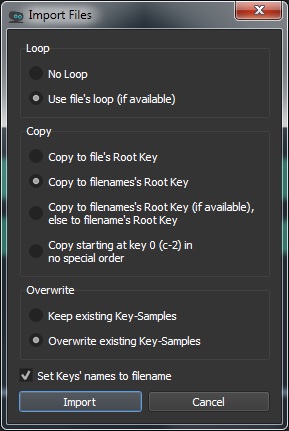
Admittedly, what came next were my most frustrating moments. I either imported one individual sample file or just the last sample file in the selected list. Arg! Long story short, it came down to finding the right combination of import settings.

The default Copy setting is “Copy to filenames’s Root Key (if available), else to filename’s Root Key”. Grammar issue aside (“filenames'” is grammatically correct), I tried “Copy to filenames’s Root Key” with success.

The first screenshot shows the state of the project after a successful import. The samples are laid out correctly across the keyboard as derived from the sample file names. Further, SRM did a smashing job with the keybank ranges.

With everything in order, dive into import/export and select Montage Library (X7L) format for export. I went with X7L instead of X7U (User format) because I didn’t want to overwrite my User area. Yes, I’m thoroughly backed up, but why take a chance. I also wanted to get my feet wet with libraries.

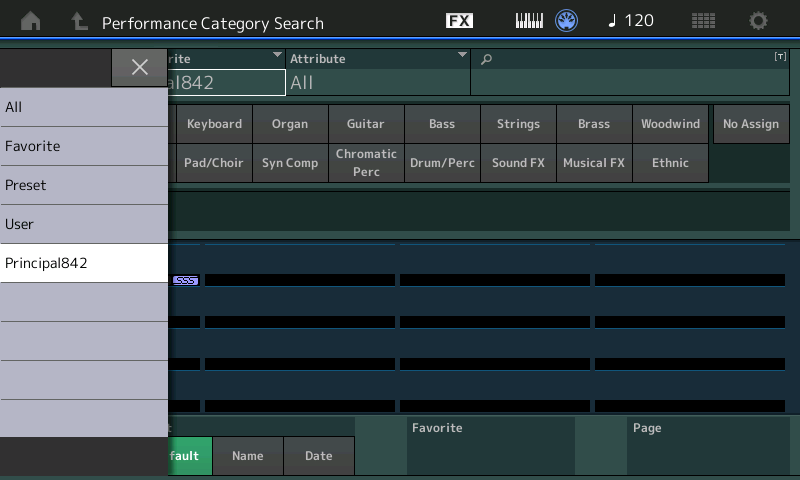
I copied the X7L file to a USB flash drive, inserted the flash drive into MODX and loaded the library file. The X7L Library file is sizeable due to the waveform inside. The library file has the name “Principal842”, same as the SRM project. The Library appears in Category Search under that name. SRM generated a basic Performance, too.

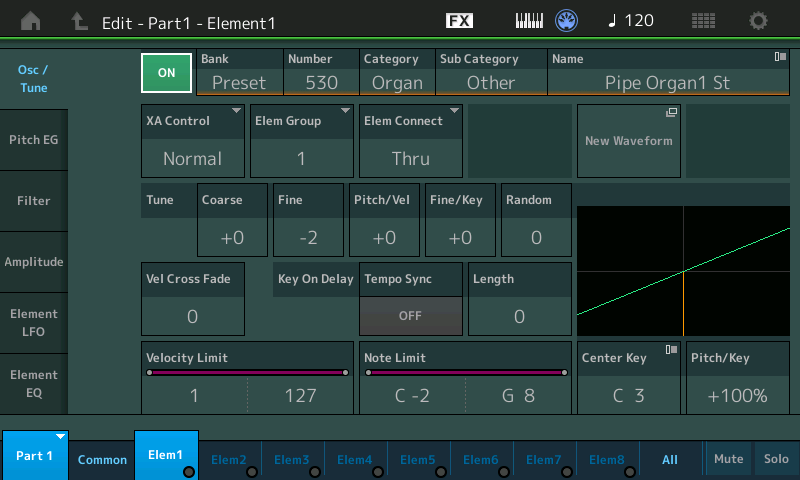
I tried the basic Performance and was satisfied with the raw material. I then dove into the left-over husk of yesterday’s abandoned experiment. The husk (Performance) began life as the “Church Organ” preset voice. I changed its waveform to the new one and made a few tweaks here and there. Voila! A decent pipe organ voice suitable for hymn accompaniment.

Sometimes a new waveform requires polish. The sample levels may be uneven across the keyboard or a sample may be out of tune. The MODX UI is well up to the job allowing tweaks for level and fine pitch.

I wanted to post the finished project. However, given the commercial origin of the samples (Apple), I don’t want to violate intellectual property (IP) rights. Instead, here’s a quick MPEG-4 demo (m4a).

Copyright © 2018 Paul J. Drongowski
MODX: Creating a new waveform

Whether it’s scientific papers or Web how-to’s, you would think that no one ever made a mistake or tried something and failed. The path to success is really crooked.

So, here is a blog post about an experiment that almost worked out.

I’ve been hoarding pipe organ samples for decades (literally). For example, some of my collected samples are from the venerable Yamaha TX16W. The TX16W samples are small enough to fit into the 1MByte expansion waveform of my TG-500. Yes, 1MByte. The 1GByte MODX expansion waveform memory looks positively enormous in comparison.

The scenario that I describe here creates a new waveform using nothing more than the Yamaha MODX user interface (UI). Back in the day, I created voices through the TG-500’s 24×2 line character display. The MODX UI is heaven in comparison. Yeah, I’m going to give Sample Robot for Montage a spin eventually. Not today.

Where to start? I started with the free “CMS Classic Organ” samples distributed by CSM Sounddesign. Thank goodness I picked up a little German years ago because the English CMS pages are under construction…

The samples are part of the “CMS Classic Organ” expansion pack (PPF) for Yamaha Genos™ — not the typical place where one would start. The samples are relatively small, the demos sounded OK, and the price was right. Four steps are needed to extract the samples:

  1. Find the sample files and the UVF (XML) voice description files in the Yamaha Expansion Manager pack database.
  2. Extract keybank information from the UVF file.
  3. Rename the sample files to meaningful names, e.g., “Plein_kb0_C1.raw”.
  4. Convert the sample files to Microsoft WAV format.

Admittedly, this is more work than the average Jane or Joe would do. But, hey, this is a learning exercise, plus a chance to dink around with Genos stuff, too.

The next preparation step is important no matter how you obtain your sample files. Make a table summarizing the keybank information:

KB#  Low High  Center  Size  LoopStart LoopEnd  WAV file
---  --- ----  ------  ----- --------- ------- ------------------
 0   C-2  D#1    C1    27627     25594   27623 Plein_kb0_C1.wav
 1    E1   B1    E1    31332     29717   31328 Plein_kb1_E1.wav
 2    C2  D#2    C2    31816     31136   31812 Plein_kb2_C2.wav
 3    E2   G2    E2    25030     24757   25026 Plein_kb3_E2.wav
 4   G#2   B2   G#2    30869     30652   30865 Plein_kb4_G#2.wav
 5    C3  D#3    C3    30744     30571   30740 Plein_kb5_C3.wav
 6    E3   G3    E3    24084     23812   24080 Plein_kb6_E3.wav
 7   G#3   B3   G#3    17917     15783   17913 Plein_kb7_G#3.wav
 8    C4  D#4    C4    20514     20172   20510 Plein_kb8_C4.wav
 9    E4   G4    E4    22128     21655   22124 Plein_kb9_CE4.wav
10   G#4   B4   G#4    24853     24424   24849 Plein_kb10_G#4.wav
11    C5  D#5    C5    26788     26615   26784 Plein_kb11_C5.wav
12    E5   G8    E5    27574     27368   27570 Plein_kb12_E5.wav

You’re gonna need this. Trust me, once you get into the guts of waveform construction, you don’t want to be puzzling out the center note, etc. The CMS samples are 41000Hz, 16-bit, mono, LINEAR16.

MODX needs looped samples. I’ve run into this issue before when creating PSR/Genos voices via Yamaha Expansion Manager (YEM). You would think that loop point data is standard in WAV. It isn’t. Good old Yamaha Tiny Wave Editor (TWE) worked for PSR/Genos, so I reached for TWE. Fortunately, TWE let’s you enter loop points numerically and I entered the loop start and end points extracted from the UVF file. [Not so crazy as I may seem after all.]

I transfered the looped sample files to a USB flash drive and inserted the flash drive into the MODX. I brought up a simple existing pipe organ Performance, Church Organ, which has two voice elements. I silenced the second element since it won’t be needed. Select the first element. Take a deep breath and touch the New Waveform button.

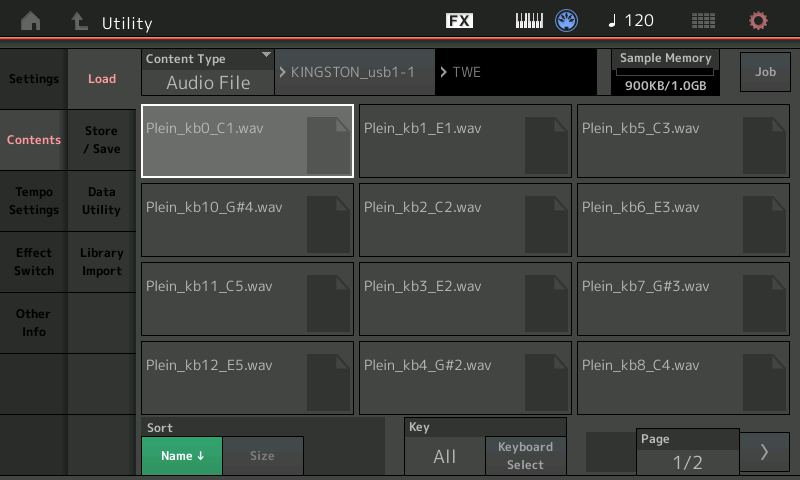
MODX displays a screen allowing you to select and load the WAV file for the first keybank. As you can see in the screenshot, you can easily get into the weeds if you haven’t come prepared with a table like the one shown above. [Click images to enlarge.]

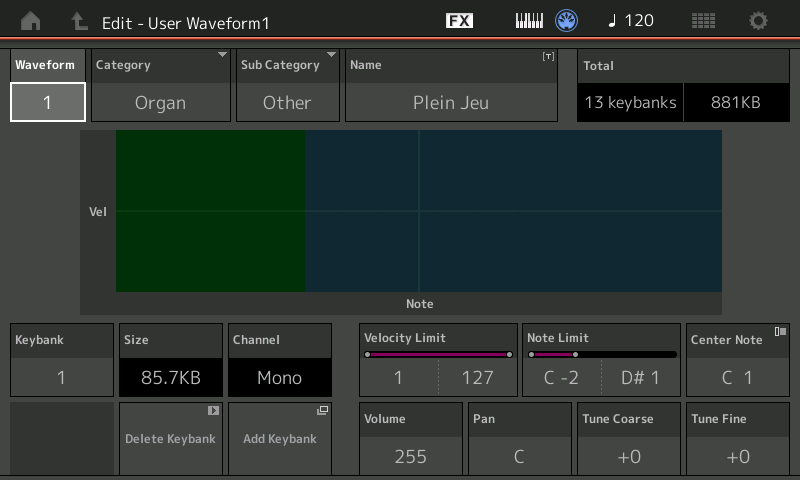
After loading the correct file, MODX displays the keybank editing screen. Now, it’s time to enter the key range and center note information from the first row in the table. Then, touch Add Keybank, rinse and repeat twelve more times. If you make a mistake, touch the Keybank number field and scroll the existing keybanks. When all looks correct, press the EXIT button.

When MODX creates the waveform, it gives the new waveform the same name as the first sample file. I recommend renaming the waveform and specifying the waveform Category and Subcategory using the appropriate fields. I named the waveform “Plein Jeu,” the French name for an organ registration consisting of principal pipes. Good naming and data management will eventually pay off.

OK, so what went wrong?

  1. In my quest for CMS samples, I extracted voice information for a few other voices. Then, stupidly, when entering keybank information, I started with the wrong freakin’ table. I quickly realized my mistake because the center note information and what I was hearing were whack. Thank goodness for the ability to scroll through keybanks.
  2. The CMS loops are très short. Short pipe organ loops lose all of the nice shifting harmonic stuff that we hear from the real deal.
  3. The split points between keybanks are sonically rocky. This may be due to the unorthodox key layout. The center note is supposed to be the middle of the key range, not the lowest note in a range. Layout can be fixed and uneven levels can be fixed. But, I hear differences in basic tonality, too. Not good, not fixable.
  4. The organ voice plays back too quietly even with all of the levels max’ed out. I forgot to normalize the samples.

Lack of normalization I can fix. TWE (or any other DAW) performs normalization. The short loops, however, are a deal breaker and further effort with the CMS pipe organ samples is not worth it. I’ve got better candidates in the treasure hoard.

Throw the first pancake away

When you flop on your kiester, what do you do next?

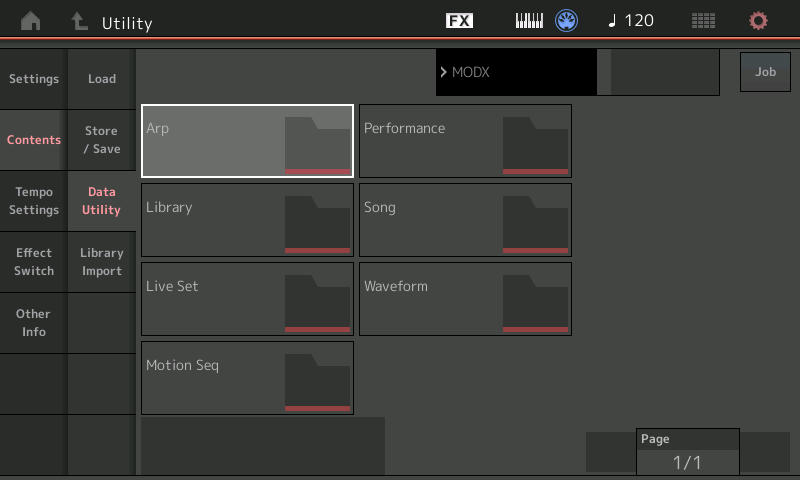
In this case, delete the waveform. Press the UTILITY front panel button and touch the Waveform folder.

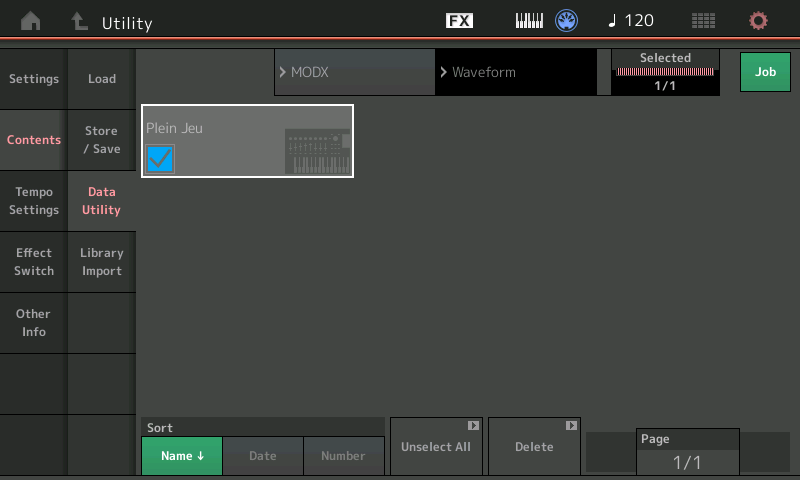
MODX displays the waveforms that you’ve created. In this example, it shows the “Plein Jeu” waveform. Touch the on-screen Job button and select the waveform to be deleted. Then, touch the Delete button.

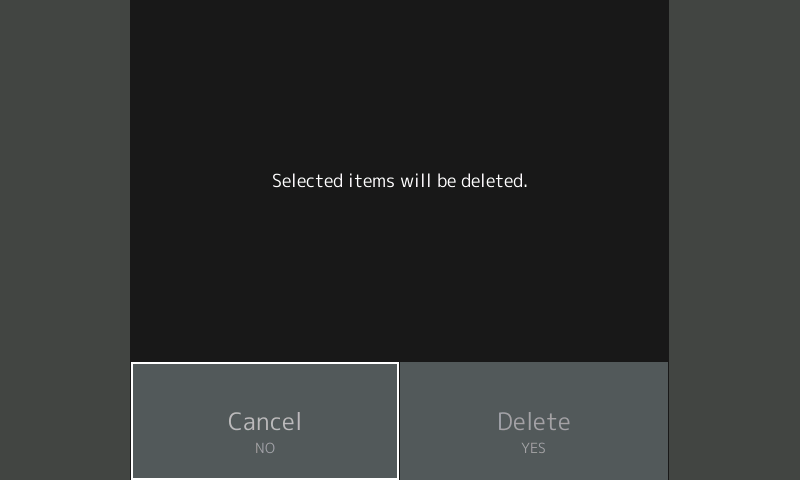
MODX display a dialog box requesting confirmation. Touch Delete and wait for the delete operation to complete.

When it’s gone, it’s gone. If you edit the parent Performance, the waveform field is empty.

Now, let’s try this again with feeling. Or at least, normalized waveforms. 🙂 Stay tuned.

Copyright © 2018 Paul J. Drongowski
Yamaha MODX: Creating a split

Yesterday, we learned how to make a two voice layer and how to control one of the Parts using the Super Knob.

Today, I go over the steps to create a two Part split:

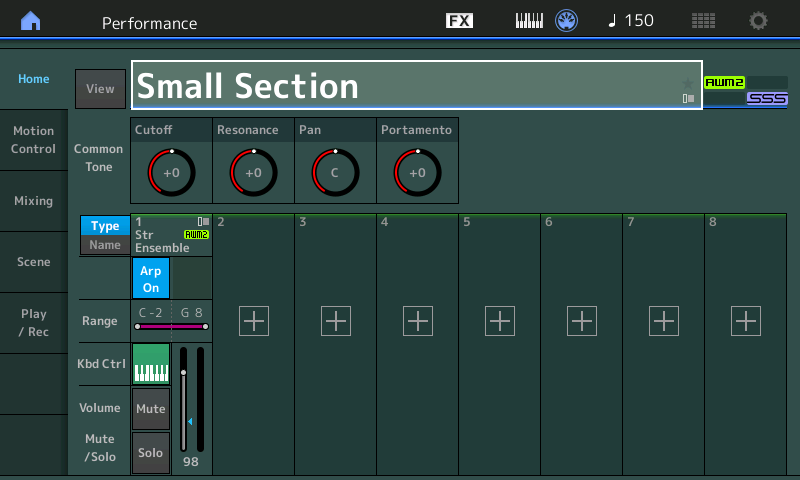
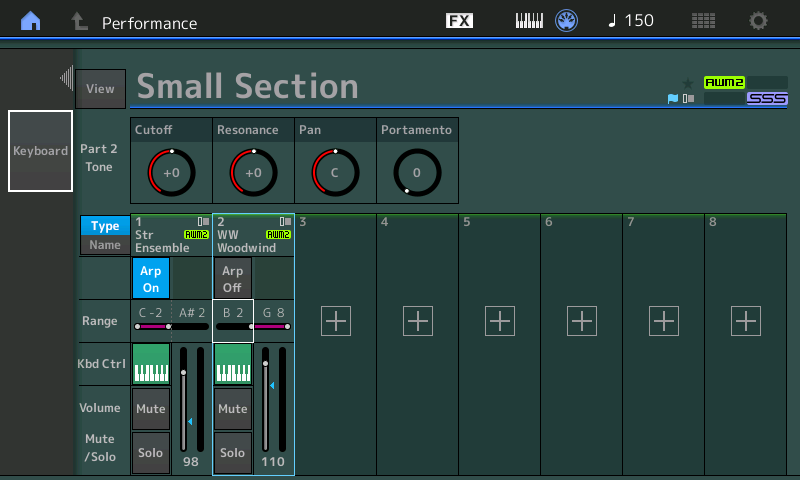
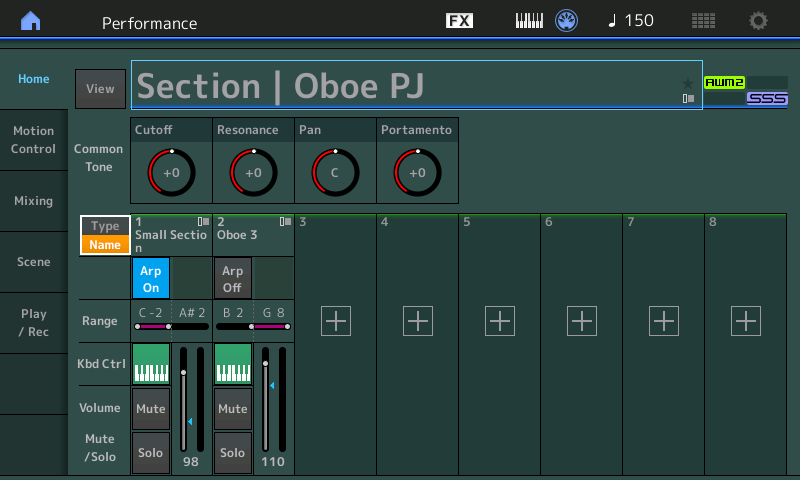
1. Press the CATEGORY button and find the Performance that will be used as the left hand voice. For this example, I chose a single-Part Performance, Small Section, from the Strings category. Press PERFORMANCE (HOME).

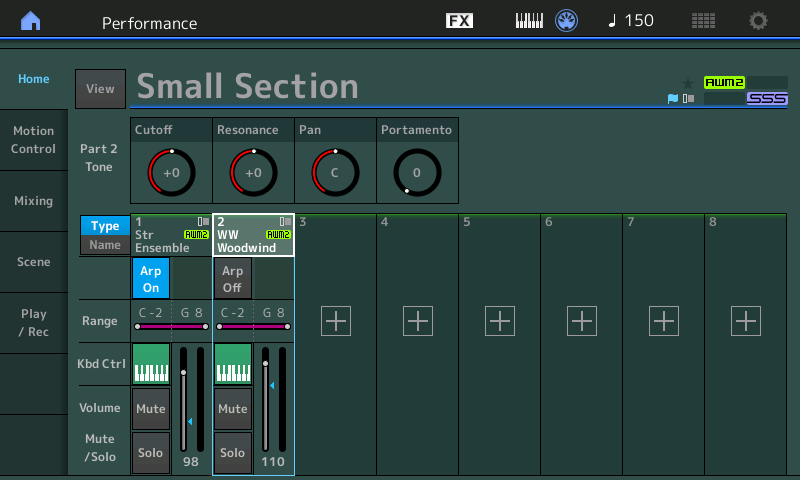
2. Touch the on-screen plus box button to add the second Part which will be used as the right hand voice. I chose Oboe 3 from the Woodwind category. Press ENTER to confirm your selection.

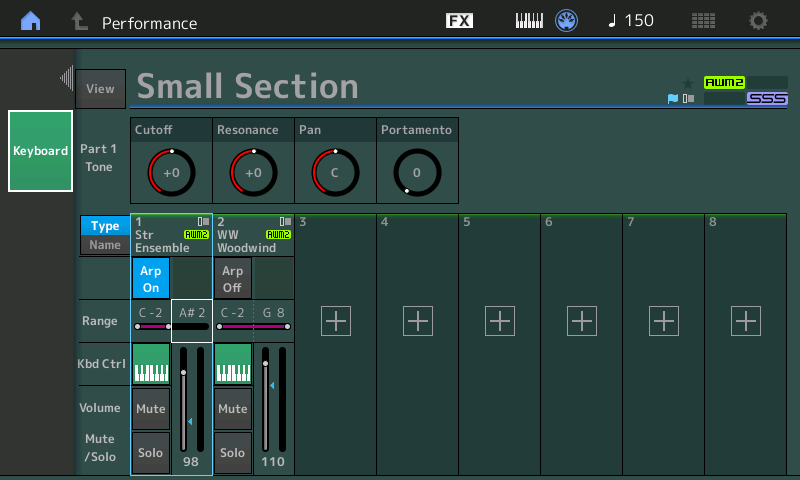
3. Now it’s time to set the split point. Touch the upper note limit in Part 1. MODX displays a contextual menu on the left-hand side of the screen. Touch the Keyboard menu item, which turns green when selected. Now, play the keyboard key which is the top-most key in the desired left hand zone. If you make a mistake, toch a different key. Press EXIT when finished.

4. Notice that the upper note limit for Part 1 has been changed. The upper note limit in the example is A#2.

By the way, instead of touch the Keyboard menu item, you can set a note limit by spinning the data dial. It’s you choice.

5. Now touch the lower note limit for Part 2. MODX, again, displays a contextual menu with one menu item, Keyboard. Touch the Keyboard item, turning it green (highlighted). Play the keyboard key which is the bottom-most key in the right hand zone (B2 in this example). Press exit when finished.

Play the finished Performance. You should hear the instrument change from Part 1 to Part 2 (or vice verse) as you play across the split point.

If you like the result, press the STORE button and save your new Performance.

While we’re here, let’s change the reverb algorithm. The system-level reverb parameters belong to the Performance as a whole. Thus, we need to make changes in Performance edit mode.

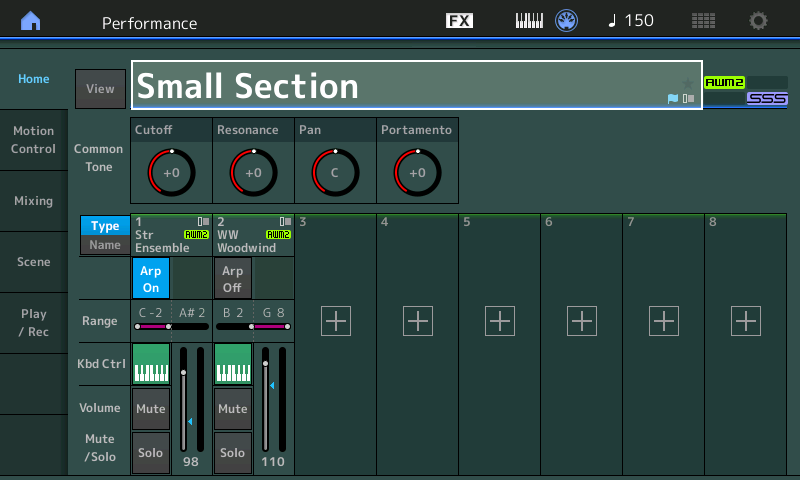
1. Touch the Performance name to select the entire Performance. MODX highlights the box around the Performance name to indicate that the Performane is selected.

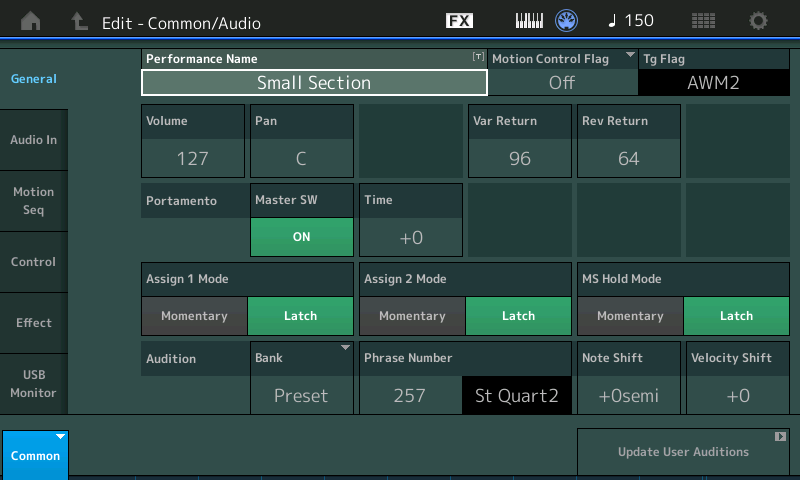
2. Press the EDIT front panel button. You should see “Edit – Common/Audio” in the upper left corner of the screen. When you see this, you’re in Performance edit mode.

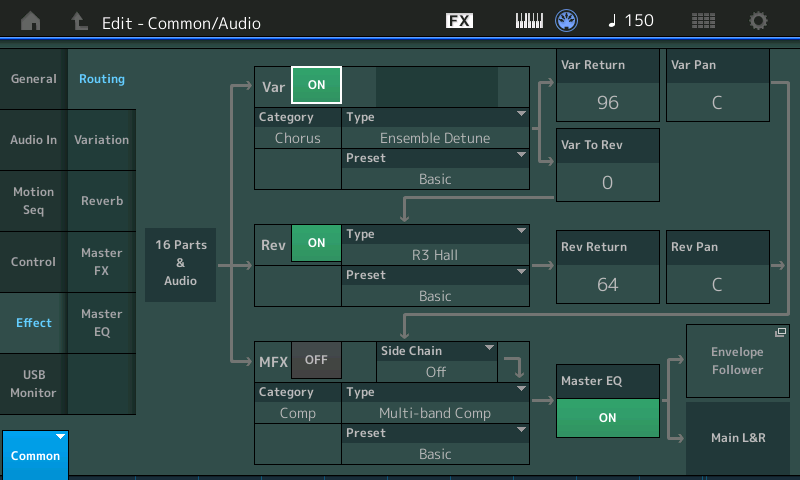
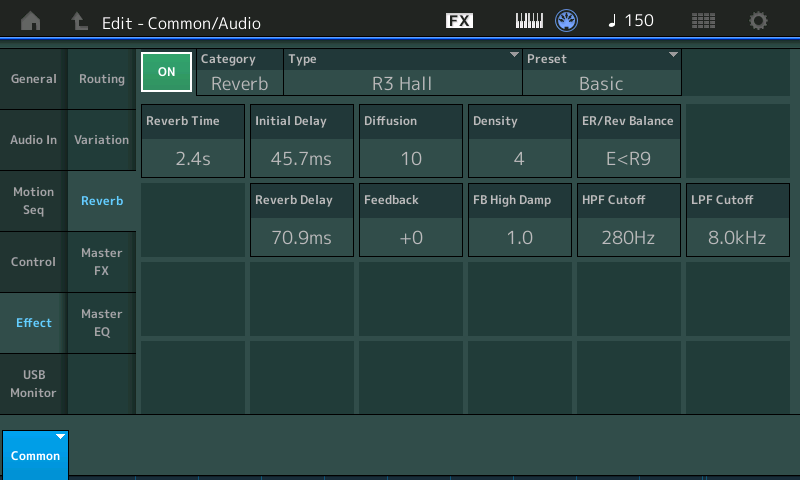
3. MODX displays six tabs starting with “General,” “Audio In,” etc. Touch the Effect button. MODX displays the effect routing. The diagram is an overview of the system-level effects. If you start with the same example voices, the reverb algorithm is R3 Hall.

4. Touch the Reverb tab in the second column. MODX displays the chosen effect algorithm and the effect parameters.

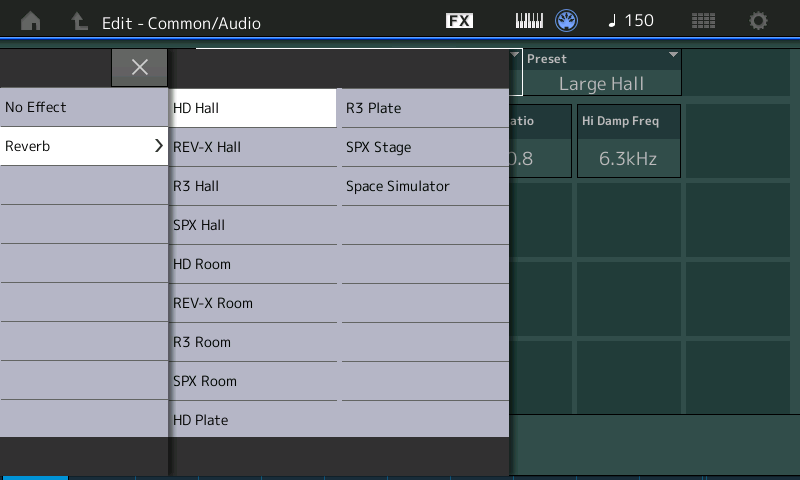
5. Touch the effect type box. MODX displays a menu of reverb algorithms. Touch HD Hall (or one of the other reverb types) to change the effect algorithm. Press the EXIT button to dismiss the menu.

6. MODX updates the display with the newly selected reverb type and its associated effect parameters. Try a different effect preset just for fun.

7. Press the front panel EXIT button to return to Performance play mode.

If you’re really ambitious, add a layer behind the left and right hand parts. Follow my last step-by-step tutorial and control the background layer using the Super Knob.

One or two final tips. Rename your new performances. I suggest adding one or two characters that identify the performance as one of yours versus the zillions of preset performances. (I use my initials, “PJ”.) I also recommend trying the on-screen “Type” and “Name” buttons just to the left of the Parts. These buttons choose the legend displayed at the top of each Part:

  • Type (highlighted in blue): Performance type (e.g., “Str Ensemble”)
  • Name (highlighted in yellow): Performance name (e.g., “Small Section:

Identifying information should help you keep the Part information mentally sorted. It’s easy to get confused when building a multi-Part Performance where every part is a woodwind (i.e., the same type).

With splits and layers, you’re ready to move mountains. 🙂

ICYMI: MODX screen capture

Like Montage, the MODX has a double-secret Easter egg for capturing screen shots.

  1. Insert a USB flash drive into the USB TO DEVICE port.
  2. Press and hold the A/D INPUT ON/OFF button.
  3. Press and release the AUDITION button.
  4. Release the A/D INPUT ON/OFF button.

The MODX writes screen shots to the USB flash drive with names such as “DSNAP_0.png”.

Here’s two tips. 1. To save wear and tear on the USB TO DEVICE port, I plug a short extender cable into the port and then plug the USB flash drive into the extender cable. The cable brings the port to a place where I can easily reach it and it reduces wear on the port connector. 2. The screen capture procedure doesn’t provide any visual indication that the capture was successful or complete. Use a USB flash drive with an activity LED (e.g., the Kingston Data Traveler Elite G2). You should see the drive’s LED flash when the PNG file is written. Naturally, do not remove the drive when it is active!

Copyright © 2018 Paul J. Drongowski
MODX Performance: Latin Flutist

To better understand voice programming, you’ll need to know a few of the abbreviations which appear in waveform names:

Abbreviation Meaning
Stac Staccato (detached)
Of Offset (start after attack)
St Stereo
L Left
R Right
Sw Velocity switched
NV No vibrato

Yamaha have never published an official key for their waveform naming convention, so this is my best educated guess. (Thanks to Phil at YamahaSynth.com for his insights.)

A MODX waveform contains one or more samples laid out in one or more keybanks. The keybanks specify basic trigger conditions for a sample: what range of notes (e.g., C-2 to G8) and what velocity range (e.g., 1 to 127). “Switched” waveforms implement two or more velocity ranges. The Flute4 family of waveforms, for example, offers four different levels: pp, mp, mf, and ff. The switched Flute4 Sw St waveform combines these individual variants into one velocity switched waveform.

Stereo waveforms are so marked (“St”); assume a mono waveform unless explicitly identified as stereo. The left (“L”) and right (“R”) waveforms are the left and right channels of a single sound. In old gear (pre-Montage and pre-Genos), tone generation (TG) channels are mono and two elements (TG channels) are needed to play back stereo. The new tone generator in Montage, MODX and Genos has stereo tone generation channels.

Acoustic instrument samples usually start with the attack portion of the sound followed by the body (and possibly, release). “Offset” means that playback is started at some offset from the beginning, usually after the attack portion. When a musician plays a legato line, the individual note attacks are de-emphasized. Offset waveforms are normally used to simulate legato.

Staccato (and pizzicato) are short samples with a strong attack. These waveforms sound like one-shots without much sustain (i.e., a long body).

Musicians playing real acoustic instruments often add vibrato in the same way that a vocalist adds vibrato. Waveforms for acoustic instruments often have the vibrato “sampled in,” i.e., the player added vibrato when the sound was digitally sampled. Non-vibrato waveforms are marked “NV.”

Finally, you’ll sometimes see “+” and “-” waveforms. These are variants which are slightly detuned sharp and flat, respectively.

Performance: Latin Flutist

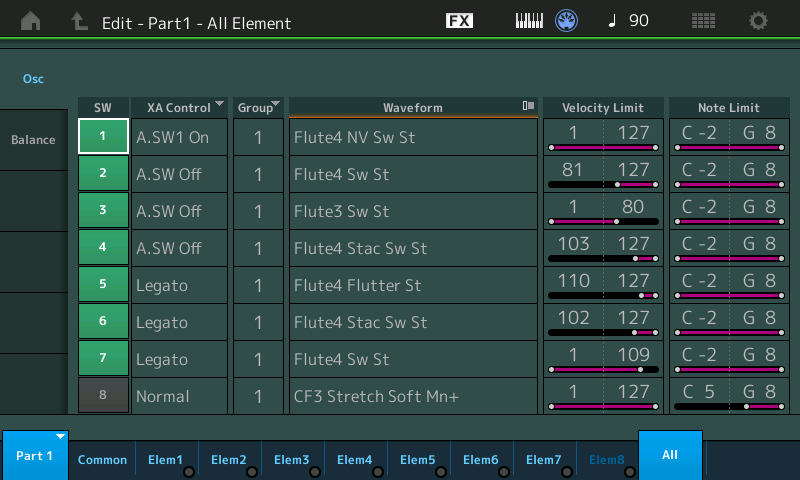
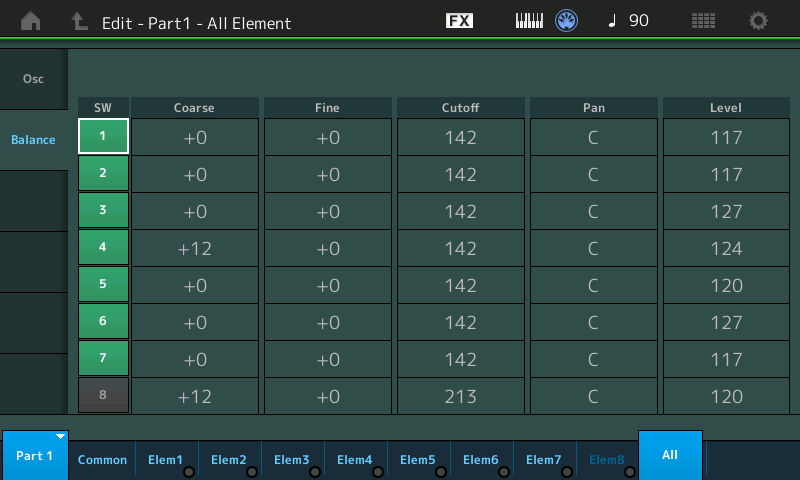
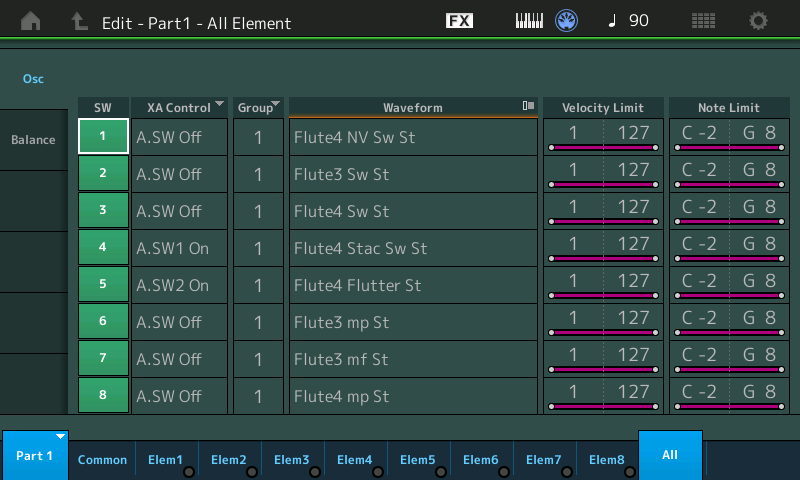
All of this may seem like a lot to keep in mind, but in practice, it’s pretty simple. Let’s take a look at the voice programming for Latin Flutist. First, select Latin Flutist, tap the first Part (WW Flute) and hit the Edit button. You’ll see the Common voice parameters. Tap the “All” button in the lower right corner of the screen. MODX displays a table summarizes the active voice elements. (Don’t be a afraid to check out the “Balance” tab, too.)

The “Osc” tab provides much valuable information about the voice elements and how the voice behaves when it is played. The first four elements handle regular (non-legato) notes while the elements 5 through 7 handle the legato case. (Element 8 is not used and is turned off.)

Let’s take the regular (non-legato) case first. The first four elements depend upon the state of the assignable switches in addition to velocity and note range. Note range is not so important here because all elements respond across the full range of the keyboard (C-2 to G8). Elements 2 to 4 are potentially active when both assignable switches are off (A.SW Off). Element 3 triggers when the velocity of the incoming note is between 1 and 80, inclusively. Element 2 triggers when the velocity is between 81 and 127. Each element plays a different waveform giving the intended note a different character depending upon its velocity. Element 4 is a sweetener, triggering when a note is struck hard (velocity between 103 and 127, inclusively). Element 4 adds a stacatto “spit” to hard struck notes.

Whew, this is much harder to say than it is to actually understand or play. 🙂

Elements 5 to 7 handle legato notes. XA control is Legato. If you experiment with Latin Flutist, you’ll notice that the A.SW 1 On case (element 1) takes precedence over Element 7.

Legato notes with velocity 1 to 109 trigger element 7. Element 6 adds a staccato spit for hard struck legato notes. Element 5 is really fun because it adds a flutter tongue for hard struck legato notes. Try to trigger this case. You’ll notice that the second note in the legato sequence must be struck firmly in order to get the spit and flutter tongue. This last case is very similar to one of the Genos Jazz Flute articulations.

The Genos Jazz Flute is a Super Articulation 2 (SArt2) voice. In addition to legato and flutter, the Jazz Flute has wonderful scoop (bend up) and fall (bend down) articulations. One negative. The legato gesture needed to trigger the flutter articulation requires a firm, very deliberate strike on the second key in the legato sequence. I just about have to drill the key through the keybed when touch is set to NORMAL! On Genos, the only recourse is to set touch response to SOFT or EASY; you cannot reprogram the voice’s velocity threshold.

At this point, I hope you can see that the Osc table gives valuable clues about how the Performance can be played, i.e., how to invoke certain specific articulations. Also, if you have trouble hitting keys hard enough to trigger certain articulations, you could lower the velocity threshold for hard struck notes. (A quick fix, of course, is to use the “Soft” or “Wide” Velocity Curves — no edits required.)

Long-time readers know that I often create and post tables like:

El# Waveform          VLow VHigh  NLow NHigh  Level  XA
--- ----------------- ---- -----  ---- -----  -----  ---------
 1  Flute4 NV Sw St      1   127   C-2    G8    117  A.SW1 On
 2  Flute4 Sw St        81   127   C-2    G8    117  A.SW1 Off
 3  Flute3 Sw St         1    80   C-2    G8    127  A.SW1 Off
 4  Flute4 Stac Sw St  103   127   C-2    G8    124  A.SW1 Off
 5  Flute4 Flutter Sw  110   127   C-2    G8    120  Legato
 6  Flute4 Stac Sw St  102   127   C-2    G8    127  Legato
 7  Flute4 Sw St         1   109   C-2    G8    117  Legato

Usually I have to dig for this voice data. The MODX Osc and Balance tables put this critical information right up front. Thank you!

Performance: Concert Flute

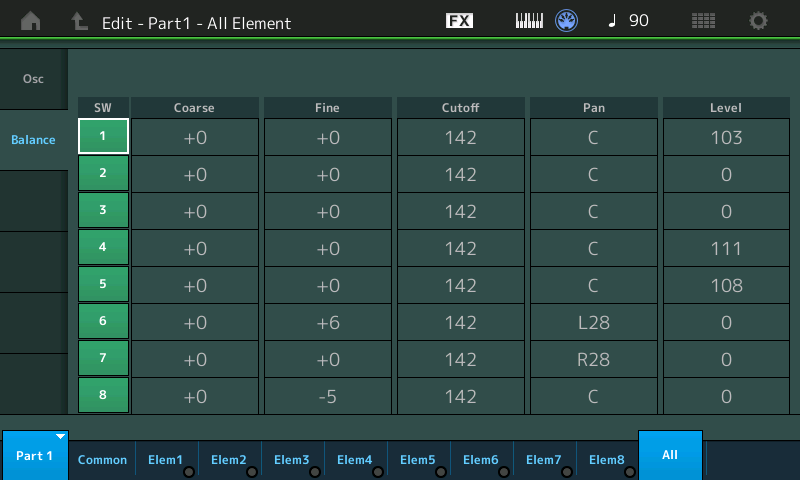
Quickly, here is the basic programming information for the MODX Concert Flute Performance. [Click images to enlarge.]

Please note the element 5, 6 and 7 amplitude levels — zero! These element levels are under Super Knob control. Give this Performance a try and you’ll see and hear what I mean.

El# Waveform          VLow VHigh  NLow NHigh  Level Pan  XA
--- ----------------- ---- -----  ---- -----  ----- ---  ---------
 1  Flute4 NV Sw St      1   127   C-2    G8    103  C   A.SW Off
 2  Flute3 Sw St         1   127   C-2    G8      0  C   A.SW Off
 3  Flute4 Sw St         1   127   C-2    G8      0  C   A.SW Off
 4  Flute4 Stac Sw St    1   127   C-2    G8    111  C   A.SW1 On
 5  Flute4 Flutter Sw    1   127   C-2    G8    108  C   A.SW2 On
 6  Flute3 mp St         1   127   C-2    G8      0 L28  A.SW Off
 7  Flute3 mf St         1   127   C-2    G8      0 R28  A.SW Off
 8  Flute4 mp St         1   127   C-2    G8      0  C   A.SW Off

The Super Knob dials up the level for elements 6, 7, and 8 via assignable knobs 2, 3, and 4. The Super Knob also increases the reverb send level via assignable knob 1. Watch the on-screen assignable knobs while turning the Super Knob. You’ll see what it means when people call the Super Knob a “macro control knob.”

The assignable knob and Super Knob programming is a bit complicated and I’ll save further deconstruction of Concert Flute for a future blog post.

Copyright © 2018 Paul J. Drongowski