Everybody likes new stuff

Everybody likes new stuff. Unfortunately, the pickins have been slim as of late. I suspect that the global tariff situation has made manufacturers cautious. It’s tough to price products in a dynamic, uncertain business climate.

Here’s a couple of new products that caught my attention.

Boss RT-2 Rotary Ensemble

Boss (Roland) have announced the Boss RT-2 Rotary Ensemble — “authentic spinning speaker effect” in a compact pedal. It has three tones (modes): 1. vintage (warm Leslie 122), 2. wide frequency response, and 3. aggressive spin (presence) with increased drive. Sample rate is 48kHz and conversion is 24 bits.

Boss RT-2 Rotary speaker pedal

The RT-2 has a few cool features. In addition to concentric level and drive knobs, concentric knobs control SLOW to FAST and FAST to SLOW transition times. There is a SPEED jack which takes either a foot switch or an expression pedal (e.g., EV-30 or EV-5). The treadle switch is over-loaded with four different kinds of effect ON/OFF and SPEED control configurations. Switches on the back further tune the transition time and drive balance.

Visual feedback (animation) is provided by a multi-color LED-based display, AKA the “Virtual Rotor”. The red LED animates the treble/horn while the blue LED animates the bass/drum.

The pedal has stereo INs and OUTs with the usual one lead mix-down to MONO. The RT-2 can send Wet and Dry independently (phase-corrected) to outputs A and B, respectively. Having independent Wet and Dry can be handy.

You can power the RT-2 with a standard 9V battery! Access to the battery compartment is reminiscent of Behringer’s low-end, plastic fantastic pedal line. Current draw is 115mA and alkaline battery life is approximately 2.5 hours.

No doubt, Roland want to sell this pedal to guitar players. But, hold on! The promotional video shows the RT-2 in use with a Fantom 07. Will miracles ever cease? Check the Boss article about effect pedals for keyboards.

If you want the inside dope, Boss/Roland published an interview with the RT-2 development lead, Takeshi Mitsuhashi. The RT-2 supersedes the 2005 RT-20.

To enhance the RT-2’s three-dimensional stereo sound, we modeled a Leslie 122 in our anechoic chamber at the Roland headquarters using a pair of high-quality, flat-response microphones. We experimented with various angles and set them at the position that captured the best dynamics. [Takeshi Mitsuhashi]

The Boss RT-2 is available for pre-order at $239.99 USD. At that price, if the sound is truly “authentic,” the RT-2 will give the Neo Instruments Vent a run for the money.

Sonicware Liven Evoke

The Sonicware Liven Evoke mines the ambient music space. The Evoke complements its sister, the Liven Ambient 0, with more natural, acoustically-rooted sounds. The Ambient 0 tilts synthetic. Between the pair, I’d choose the Liven Evoke.

Sonicware Liven Evoke

It features the Back to the Future Acoustronic Flux Oscillator. Check out Dr. Endo at the controls: EXPR Residue, RISE Again, Tear, and his how to make cinematic ambient music video.

And, it looks like I am not alone in liking the Evoke. [I have friends everywhere.] Sonicware has sold out the third production run!

Quite frankly, I don’t know how Dr. Endo and company can develop and manufacture a nifty box like the Liven Evoke for $239 USD. The hardware is made in Malaysia and I don’t know how the USA tariff situation will affect the price or the import duty.

It’s not just a groove box, it’s a relaxation machine.

Copyright © Paul J. Drongowski

Adafruit Feather: Megavoice key switching

More experiments and I have the initial cut of a simple key switching program for Yamaha MODX and Genos/PSR guitar Megavoices. The program is written in CircuitPython and runs on an AdaFruit Feather M4 Express. Here is a link to the ZIP file with the code.

Megavoice: Background information

MODX, Genos and mid-range PSR keyboards have Yamaha Megavoices. Megavoices combine several waveforms into a single voice (assigned to a single MIDI channel). They are intended mainly for arpeggios (Montage/MODX) and styles (Genos and PSR).

Generally, a Megavoice uses velocity switching to trigger waveforms. Some of the waveforms play ordinary notes, some play articulation notes, and others plays special instrument effects. Let’s take a look at the Nylon Guitar voice, which is implemented on both MODX and Genos. [Megavoice technology dates back to the early Motif and Tyros era, so I won’t be listing all of the models with Megavoice!] Many other guitar Megavoices (e.g., Concert Guitar, Clean Guitar) have the same velocity layout. Megavoice Nylon Guitar has the following velocity layers:

    Vel Lo  Vel Hi  Waveform      Key range
    ------  ------  ------------  -------------
       1      20    Open soft     C6 and below
      21      40    Open medium   C6 and below
      41      60    Open hard     C6 and below
      61      75    Dead          C6 and below
      76      90    Mute          C6 and below
      91     105    Hammer        C6 and below
     106     120    Slide         C6 and below
     121     127    Harmonics     C6 and below
       1     127    Strum noise   Above C6
       1     127    Fret noise    Above C8

MIDI note numbers 0 (C-2) to 96 (C6) comprise “playable” notes. Note numbers above 96 are instrumental effects: strum and fret noise. The strum and fret noises include the sound of a pick crossing the strings, body knocks, and sleeve noise (fingers sliding on strings).

As you can tell from the layout, if you try to play a Megavoice from the keyboard, you’ll have an interesting and maybe frustrating experience. No one really has the skill to control their key touch to reliably play an open hard note versus a dead note, etc. However, a sound designer can program different sounds into a MIDI track with precision, thereby making an expressive, realistic guitar part in a style or arpeggio. [Historical note: Many of the Motif ES/XS arpeggios were taken from PSR Megavoice styles!]

Genos, Tyros and PSR have a way of making the base waveforms playable: Super Articulation (SArt). The SArt engine monitors the incoming key strikes and, in real-time, chooses a destination waveform for each note. If you play in a detached manner, SArt triggers one of the open string waveforms (depending upon your strike velocity). If a second note occurs within a fourth with a slightly higher velocity, SArt plays a slide (up). SArt plays a body knock in response to the ART.1 and ART.2 buttons.

Clavinova CSP and CVP do not have articulation buttons. However, you can still join the fun. Select an S.Art guitar voice and tromp on the foot pedals!

Montage and MODX have Expanded Articulation (XA). It plays open notes as expected and relies on the ASSIGN 1 and ASSIGN 2 buttons to bring in an articulation like Slide or Harmonics. (Element programming allows more flexibility than this simple example, BTW.)

Feather MIDI event processor

In order to implement key switching, we need to break into the path from keyboard to tone generator. We want a chance to respond to incoming notes (key strokes) before the notes go to the tone generator (TG).

We can’t hack the hardware in MODX or Genos, but we can send MIDI messages from the keyboard (e.g., MODX MIDI OUT) to an external MIDI event processor which sends a modified MIDI message stream back to the instrument (e.g., MODX MIDI IN).

I described the hardware for an AdaFruit Feather-based MIDI event processor in an earlier post. The event processor consists of an AdaFruit M4 Express processor, MIDI I/O FeatherWing, OLED FeatherWing and Joystick FeatherWing. Up to this point, I haven’t exploited the OLED or joystick, so you could get away with a very tiny Processor plus MIDI I/O combination. It’s small and efficient enough to be powered by a LiPo battery!

The hook-up looks like this:

    ----------------         --------------       --------------
   |                |       |              |     |              |
   |         MIDI OUT ----> MIDI IN        ----> RX             |
   | MODX6          |       |  FeatherWing |     |  Feather M4  |
   |          MIDI IN ----> MIDI OUT       ----> TX             |
   |                |       |              |     |              |
    ----------------         --------------       --------------

The MIDI FeatherWing communicates with the Feather M4 Express over the serial I/O RX and TX ports. The Feather M4 Express communicates with the Mu editor and development environment on a Windows PC (not shown). Code is written in CircuitPython which is loaded into the Feather M4 from the PC over a USB communication link. The code can print status information via USB to the Mu environment — very handy when debugging.

Since this is a prototype, I’m trying to keep things simple. The MODX6 requires a little bit of manual configuration:

  • MIDI I/O directed to/from the 5-pin DIN connectors
  • MIDI LOCAL OFF (i.e., key events are not sent directly to the TG)
  • Nylon Guitar or other compatible guitar Megavoice selected on Part 1

That’s not too much to ask.

Key switching

It may be said that neither SArt or XA bring together all of the available articulation waveforms in a factory preset single voice (part). That’s where key switching can play a role.

Basically, I want to assign a range of keys to switch between articulations and sounds. For my initial experiments, I assigned MIDI notes 36 to 47 to key switching duties. On MODX6 (61 keys), this key range covers the lowest octave of physical keys (the power-up default, without internal octave switching enabled). Articulations are assigned to keys as shown below.

Assigned key switch articulations

For now, I’m holding the black keys and B1 in reserve. One possibility, for example, is to assign body knocks to F#1, G#1 and A#1. We’ll see!

The articulation keys enable the assigned articulation. All keys from C2 and above play notes using the selected articulation. The articulation keys latch. So, if I strike E1 (Mute) and then strike a key in the play range, a muted guitar note will sound. All subsequent notes will be mute notes until I strike C1 (Open) and return to playing open strings.

I spent some time experimenting with Genos SArt voices in order to get ideas for enhancements. I will summarize my notes in a future post. Suffice it to say, Yamaha have some good ideas! It’s all a matter of code. 🙂

Copyright © 2025 Paul J. Drongowski

MIDI Event Processor — Round 2

I’ve got a stable MIDI event framework up and running. Time to summarize a few lessons learned.

CircuitPython

The CircuitPython libraries are pretty decent overall. AdaFruit did a good job with on-line documentation and I can usually find a helpful example to copy, paste and modify.

Python itself is a PITA. I don’t know why or how anyone calls it a “beginner’s language”. Three big bug-a-boos jump out:

  • Spacing. Zealots say, “Oh, you don’t need brackets; indentation handles everything.” I haven’t seen such idiotic enforcement of spacing rules since 1960s FORTRAN. Give me brackets, give me free-form layout.
  • Run-time type checking. Python does not do a lot of compile-time type checking. So, you’ll get a clean compile and then stumble on a type compatibility issue during the first run.
  • Type conversion. Type conversion can be very weird. Thanks to run-time type checking, it might take several runs to get conversion right.

I’m going to finish the job in CircuitPython out of a spirit of self-discipline. Please teachers, do not inflict this language on new programmers.

AdaFruit hardware

The AdaFruit Feather hardware is solid. No complaints. The AdaFruit Feather M4 Express is a speedy little bugger compared to Arduino UNO! The OLED display is bright and clear. The MIDI ports work. Other than testing, the joystick FeatherWing hasn’t gotten much use yet.

MIDI library

I wanted to love the MIDI library. It offers pre-defined MIDI message types (classes) and necessary send/receive operations. All good.

Unfortunately, I don’t think the MIDI library was tested with a real-world synth. I’m using Yamaha MODX6 for testing. Yamaha uses MIDI running status extensively. Hit and release a key, and MODX sends a NOTE ON status byte followed by two key/velocity pairs:

    0x90 0x48 0x73 0x48 0x00

The first pair is NOTE ON and the second pair is effectively NOTE OFF (i.e., velocity is 0x00).

That’s not so bad in itself. However, MODX sends real-time Active Sensing messages (MIDI status byte 0xFE) and Active Sensing may appear in the middle of a MIDI message, running status or not.

Using the MIDI library, notes and controller events were getting dropped everywhere. At first, I thought CircuitPython was too slow to keep up with the incoming MIDI. Nope. When I switched to reading and dispatching bytes from the UART, I could handle everything without straining processor resources.

Bottom line: Bag the MIDI library as it could have bugs with running status.

OLED display and REPL

The OLED display and CircuitPython REPL have been very handy for debugging. The UART implements the MIDI IN/OUT ports leaving USB serial I/O available for debugging. (You need Arduino Leonardo to get separate UART and USB serial I/O.) I like to drop in the occasional “print” statement until I’m sure of the control flow and internal values.

Example: Knowing what the MODX is sending. It is easy to whip up a MIDI monitor sending byte values to either the OLED or the Mu Editor REPL. Knowing that I had to handle Active Sensing and running status together, made the task clear.

The task

Now I realize that the event processing application needs to map note ON/OFF events and to echo all other events (messages) unmodified. My current message processing framework reflects this simplicity. It took a few experiments to get here.

Initial code

If you need a quick start for your own Feather-based MIDI event processor, here is a ZIP file with my initial CircuitPython code. It doesn’t handle complete SysEx messages. The code framework will probably change in the next version.

Copyright © 2025 Paul J. Drongowski
AdaFruit Feather: MIDI Event Processor

Just want to report about a work in progress.

My favorite bugaboo is the lack of scripting in MIDI controllers and devices. Yeah, they’re OK for 90 percent of the common use cases. However, you’ll eventually run into the need for System Exclusive (SysEx) message support or some other MIDI functionality which doesn’t fit the fixed, built-in usage model.

I’ve wanted a flexible, scriptable MIDI event processor for quite some time. The MIDI Solutions Event Processor Plus handles the most common filter and mapping use cases, but lacks scripting. In particular, I want to build a MIDI event processor that handles key switching like a VST software instrument. I want to be able to invent my own “Super Articulation” voices that use key switching, for example. [More about this idea another day.]

Arduino-based solutions are sort of OK. The Sparkfun MIDI shield coupled with a standard Arduino UNO is a good start. However, if you want to stack a display on top of the MIDI shield, you’re out of luck (the MIDI connectors prevent stacking).

Feather-based MIDI event processor (front)

The AdaFruit Feather family of boards is feeling like a good solution. The Feather form factor is very small. The Feather M4 Express processor board (ID: 3857), by itself, is much smaller than Arduino UNO. There’s a lot packed on that tiny board: a 120MHz ARM Cortex-M4 processor (ATSAMD51), a Neopixel, the usual micro USB connector, a JST connector with LiPo charge support, and all the usual ins/outs (digital, analog, I2C, SPI, etc.)

Feather-based MIDI event processor (rear)

The FeatherWing expansion boards have the same small, stackable form factor and the range is staggering. I have the following FeatherWings at hand:

  • FeatherWing 128×64 OLED display (ID: 4650)
  • MIDI FeatherWing (ID: 4740)
  • Joy(stick) FeatherWing (ID: 3632)
  • FeatherWing NeoKey mechanical key switches (ID: 4879)

The whole lot can be had for less than $100 USD. Together with the M4 Express, the FeatherWings make for a powerful MIDI processing platform.

Of course, a vertical stack of Feather boards would be quite unweildy. AdaFruit offer three “motherboards” for arranging Feather boards horizontally:

  • FeatherWing Doubler (ID: 2890)
  • FeatherWing Tripler (ID: 3417)
  • FeatherWing Quad (ID: 4253)

The horizontal layout provides convenient access/visibility to the joystick, display and 5-pin MIDI ports. This is so much better than vertical stacking.

Feather MIDI event processor (top)

I have the Doubler and Quad, and intend to use the Quad for my MIDI event processor. Even though I used the word “motherboard”, the Doubler and Quad are completely passive and merely route the Feather signals across two or four slots, respectively.

Software is, of course, an important ingredient. The Feather M4 Express supports both the Arduino IDE (C programmeing) or CircuitPython. I decided to try CircuitPython in order to learn something new. The best and fastest way to go is the Mu Editor (environment). The Mu workflow is a bit quirky if you’re accustomed to the Arduino IDE or Java environments. Once you get with its flow, you’re good.

The FeatherWings are all supported by one or more CircuitPython libraries. You’ll need to chase down the libraries and copy them to the M4’s internal flash memory. Fortunately, the M4 presents itself as a flash drive, so it’s simple to copy the libraries to the M4 Express from a Windows PC or Mac.

As to project status, the headers are soldered on, Mu and the libraries are installed, and I’ve run example code for the OLED display, joystick, and MIDI ports. AdaFruit has quite a bit of development information on-line — all well-written with downloadable PDFs. Still, you should expect to modify the example code for your specific boards and use cases (e.g., SH1107 display, 5-pin MIDI instead of USB MIDI).

I haven’t done much Python programming, so that is another learning curve. Given Python’s formatting requirements and syntax, I don’t really see how Python is an easy beginner’s language. Somebody is smokin’ somethin’. I’m going to stick with CircuitPython unless I run into execution speed issues. Take your medicine, boy. 🙂

Copyright © 2025 Paul J. Drongowski
Steinberg Etude vs. CSP-170: Quick demo

This post is a quick comparison between the main Yamaha CSP-170 grand pianos (CFX and Bösendorfer) and two patches from the new Steinberg Etude grand (Concert Grand and Gospel presets).

Please pardon my under-caffeinated playing. You can tell that my fingers and brain got warmer from CFX to Gospel. 🙂 Simple set-up — plug the CSP-170 into a Roland Micro-BR, set levels and go. Tune is the old classic “Jesus Is On the Mainline”.

The Gospel preset came through a little hotter than the CSP-170 CFX and Bösendorfer. I apologize for the slight clipping grit in the right channel.

I hope this brief comparison demonstrates the difference in tone between the pianos.

Copyright © 2025 Paul J. Drongowski

Free stuff from Steinberg

I’m looking into the new Steinberg Etude (sampled Yamaha C3X) piano VST instrument. As usual, I’m trying to keep costs low and found a few free Steinberg downloads that may help you out.

First, there is the free Steinberg Halion Sonic player. Like Halion Sonic, the player can run stand-alone. I don’t feel like diving into Cubase simply to host a piano VST instrument. The Halion Sonic player can run as a stand-alone VST host that does the business.

Next, you need pianos. 🙂 Steinberg offers three free pianos: Lo-Fi, Taped Vibes, and Sonic Atoms Novel. Each piano has its own character and potential uses. Lo-Fi is a messed up lo-fi upright piano for chillhop, cozy or retro. Taped Vibes follows in a similar vein, but it’s a sampled Wurli 200A. Novel is an upright piano from Sonic Atoms suitable for effected cinematic or straight piano.

While you’re at it, you might as well scan the VST instruments for other free instruments (including synths).

If you need or want conventional instruments, download and install the free Steinberg Dorico SE notation program. Dorico SE comes with a 3GByte library including a General MIDI (GM) sound set. Plus, you get to try Dorico.

One frequently asked forum question is “Are there any free notation programs?” Obviously, the answer is “Yes, Dorico SE”. I spent a few minutes with Dorico SE and it is highly featured for a free application. It makes me want to try the Dorico app for IOS, too.

Wow, that’s a lot of high-quality, free content!

Copyright © 2025 Paul J. Drongowski
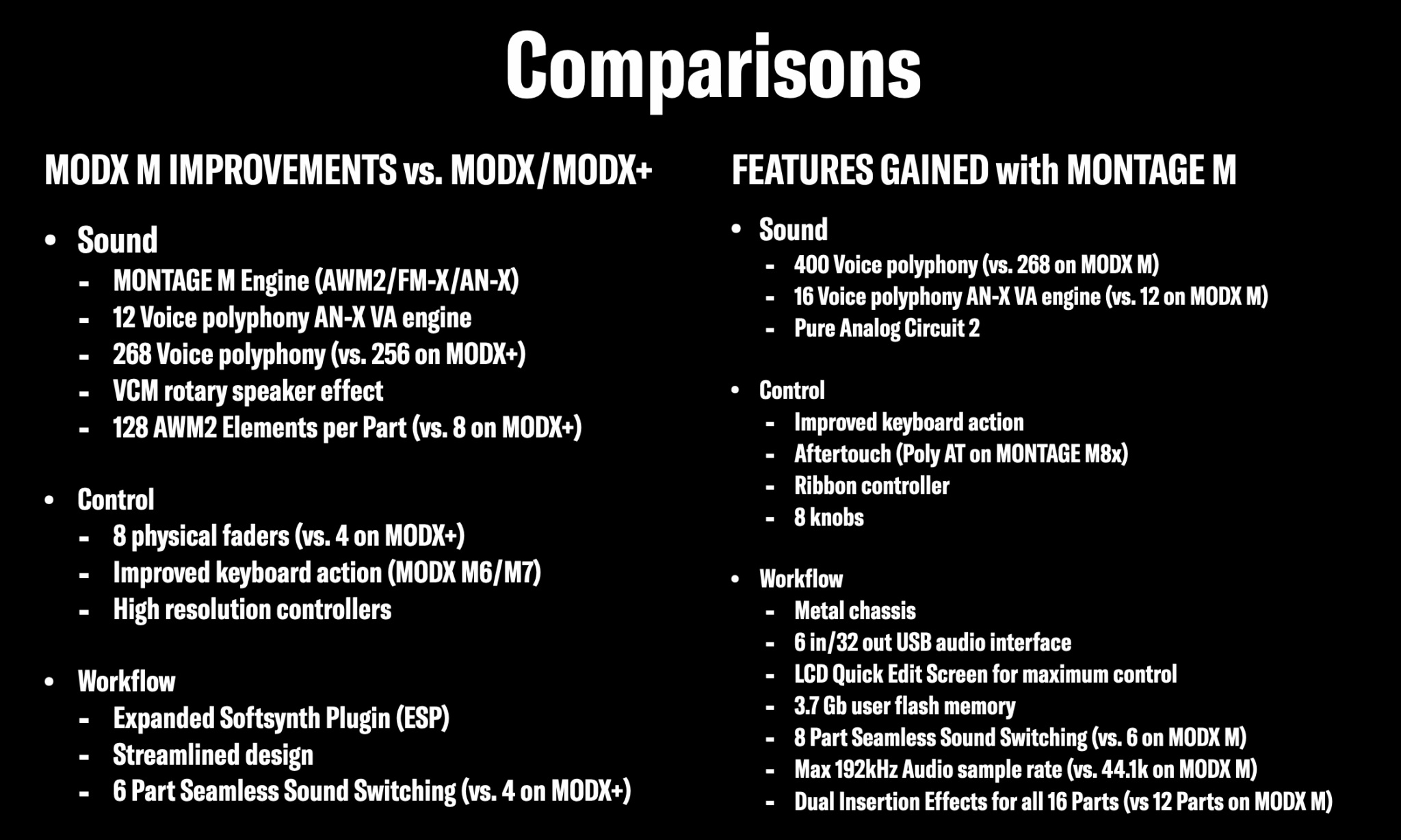
Yamaha Montage M OS 3.0 update

The Yamaha Montage M series is getting another update:

  • New Waveforms “ClavD6”, sampled with different pickup positions
  • New VCM Effect “GS1 Ensemble & Tremolo” from the Yamaha GS1
  • New VCM Effect “CS Ring Modulator” from the Yamaha CS80
  • New VCM Effect “Mid/Side EQ Compressor”
  • Extension of the Scenes with the parameters “Note Limit” and “Note Shift”
  • Scene parameters can also be saved for Parts in “External” Mode
  • Additional Effect parameters accessible via Quick Edit
  • Parameters from the AN-X and FM-X Engines as Destinations in the Part LFO
  • “Insert” function in the Live Set
  • “Delete & Move” function in the Live Set
  • DAW Remote extended to include ESP control
  • New “SSS Time” parameter for seamless switching of sounds
  • Maximum number of Libraries increased from 16 to 24
  • New “Ribbon View” Display variant
  • Sixty new Performances featuring new OS 3.0 functions

I’m happy to see Yamaha releasing updates for their major platforms. Hope your Ideascale suggestion made the cut! Availability is “Summer 2025”. [Engineers do not like being pegged down.]

You’ll find all of the details in the latest Music Production Guide (March 2025, from Easy Sounds). Overall, there are some nice, small enhancements unless you’ve been pining for a new Clav and specialist vintage effects. The Mid/Side compressor and parametric equalizer add to Montage M’s “studio in a box.”

The description of the Seamless Sound Switching (SSS) time parameter is interesting on a few different levels:

Seamless Switching (SSS) allows you to switch Performances without interruption. In particular, Release Times and Effect components (Reverb, Delay) of the last Performance played are retained throughout the change and decay natural afterwards. The remaining signals of the first Performance played are only interrupted when switching to a further, third Performance. Permanent signals that do not have an ending Release Time, e.g. from special Effects such as “Digital Turntable” or the “Noise Level” of the VCM Rotary Speaker, remain active beyond the first Performance change. The “SSS Time” can now be set for such or similar cases.

The first sentence helps clarify why SSS is needed on SWP70 architecture Yamaha synths (and arrangers, if they ever add it). Pushing release and other aspects of synthesis into the chorus/reverb stages reduces latency through the rather long synthesis pipeline.

If you want to play a cruel joke on your sound guy, engage the Digital Turntable effect. I never saw a board engineer dive for faders as when they heard this effect over the PA. 🙂

Gosh, OS 3.0 and I’ve barely read up about OS 2.0. OS 2.0 included new CFX Grand Piano waveforms, new CP80 waveforms, and AN-X Smart Morph. The new CFX grand is a 200MByte (compressed) package. The CP80 waveforms are taken from the Stage YC series keyboards.

All that aside, OS 2.0 added a new Shimmer Reverb effect type:

  • New high quality Reverb that already sounds great without using the Shimmer feature
  • Numerous parameters integrated in the Control Assignment
  • Low and High-Pass Filters for the feedback signal
  • Two finely tunable Pitch Shift parameters, each spanning four octaves, that can interact
  • Panorama and Balance of the Pitch Shift signals can be set separately
  • Comprehensive modulation options
  • “Color” parameter for “coloring” the overall signal [Duh!]

I heard a few Shimmer Reverb demos and it sounds fabulous. I want to try to create a similar effect on MODX and possible Genos (gen 1).

Copyright © 2025 Paul J. Drongowski
Yamaha P-525: Mini review

Yes, I played one! I want to thank Kennelly Keys in Everett, WA who let me bang away at their floor model ($1,600 USD).

Previously, I reviewed the P-515, CSP-170 and several other Yamaha digitals. I own and play the CSP-170 which has several features in common with the P-515: NWX keybed, 2017-era CFX and Bösendorfer pianos, and first generation VRM. The CSP-170 (and related P-S500) have many more sounds and features including auto-accompaniment and unlocked Smart Pianist functionality.

Thus, it’s interesting to return to the P-525 monolith after playing CSP-170 for a year and a half. I liked the P-515 when I reviewed it and I’m positive about the P-525 in its form factor at its price point. Please keep in mind that I could not A/B/C 515, 525 and 170 in the same room at the same time.

Yamaha P-525 digital slab piano

The P-525 has the Yamaha Grandtouch-S action. It’s not a step back from the NWX and it has a weightiness that I like without causing fatigue. Grandtouch-S seems well-built — tight — while the NWX is a bit thunky in comparison. Yamaha must have redesigned the key shape as I felt a bit more “cut” into my hands than NWX. I would not perform a lot of palm-swipes on Grandtouch-S.

Gratefully, Grandtouch-S is playable. The new Graded Hammer Compact (GHC) action in the P-225 is a hand-killer. Pass. The DGX-670 is an option if you want GHS in a quasi-portable form factor.

P-525 has an improved piano engine versus P-515 and CSP-170. You now get Grand Expression Modeling. The acoustic and electric pianos sound familiar (the same?), but it’s difficult to say more without an A/B/C comparison. I will say — the P-525 has a nice, playable dynamic response. I could definitely go from ppp to ff without thinking too hard about it. I’m happy with CSP-170, but I would be happier if it had Grand Expression Modeling.

The electric piano and organ offerings are familiar with respect to P-515. 525 adds a (very) few EP variants — the same basic Rhodes EP with different DSP effects applied.

Moving on to strings, pads and XG sounds, the 525 is similar as 515. However, this is where I miss the CSP-170 and its range of high quality voices. The CSP offers more EP and organ variations, too. I honestly don’t think I could go back to P-525 in this regard.

The P-525 has rhythms and a bass that will follow the harmony implied by your hands. Again, I can’t go back from CSP’s auto-accompaniment. If you want a richer experience, pass the P-525 by and go to the P-S500. It’s a CSP in a slab.

Of course, P-S500 and CSP need the Yamaha Smart Pianist (SP) app for full access and functions. SP with P-525 gives you:

  • Absolute rule and control over the acoustic pianos in Piano Room.
  • Easy access to secondary sounds and XG voices.
  • Chord Tracker song analysis and playback from audio songs.
  • PDF score analysis and playback.
  • An attempt at MIDI file playback.

“Attempt” because the P-525 displayed an error message and gave up when loading a Standard MIDI File (SMF). The SMF plays just fine through CSP. As mentioned, you don’t get Styles or auto-accompaniment. Just drum and bass is, well, kind of weak.

Certain Smart Pianist functions seemed slower than CSP. In a senior moment, I forgot to check the P-525 USB spec: USB Type C. So, I connected by 5-pin MIDI instead. Perhaps it’s unfair to criticize P-525 for being slow when I should have brought the appropriate cable.

    Model       Amplification                Speakers
    -------   -----------------   -----------------------------
    P-515     (15 W + 5 W) × 2    ((12 cm × 6 cm) + 2.5 cm) × 2
    P-525     (20 W + 6 W) × 2    ((12 cm × 6 cm) + 2.5 cm) × 2
    CSP-170   (45 W + 45 W) × 2   (16 cm + 8 cm) × 2

The P-525 sound system got a small bump in power. The speaker box is redesigned. Volume is adequate for practice and home use, and would be adequate for personal monitoring when playing with a small acoustic group. To me, the P-525 seemed brighter than the P-515.

Redesigned Yamaha P-525 speaker box

In comparison, the CSP-170 is robust and much louder. Upper-end Clavinovas and CSPs exceed the (discontinued) CSP-170 sound system. In retrospect, I’m glad that I purchased the higher priced CSP-170 for home versus P-515. The CSP-170 is furniture, though, and not portable. If you want quasi-portability for home use and need more voices, try the P-S500 or DGX-670. Unfortunately, the P-S500 loses the Grandtouch-S and has a GHS action instead. Trade-offs, trade-offs, trade-offs!

P-525 weighs 22.0 kg (48 lb, 8 oz). P-S500 weighs 21.8 kg (48 lb, 1 oz). At 48 pounds, the P-525 and P-S500 are quasi-portable.

I recommend giving the Yamaha P-525 a spin. If you like the action, sound, form factor and price, you may be digging out your credit card.

Copyright © 2025 Paul J. Drongowski
Review: Behringer Dual-Phase

I was a Mu-Tron enthusiast back in the day, and I still am an enthusiast today. More so, after buying a Behringer Dual-Phase.

I didn’t have the bucks for a Mu-Tron Bi-phase in the 1970s and I sure as heck cannot afford a vintage original. Mu-Tron offer their own re-issue at an affordable $479 USD. The Behringer Dual-Phase set me back $100 — almost an impulse purchase.

Vintage Mu-Tron units are $2,000 and up. I have two vintage Mu-Tron pedals — Micro V and C-200 Volume/Wah. Frankly, I’m scared to turn them on, especially the AC-powered Volume/Wah. I don’t want to see money go up in smoke!

The Dual-Phase has a bit of a checkered past for a young product. Behringer called it the “Behringer Bi-Phase”, ran into difficulty with the name, and paused the product. Eventually, it was released with the “Dual-Phase” moniker. No doubt there was a legal tussle somewhere.

Used Behringer units with the “Bi-Phase” graphic are commanding a premium — like a collectable penny with a misprint. The Behringer Dual-Phase is the same electronics and low selling price, so I don’t care if they call it “Uli’s phaser” or whatever.

When my Sweetwater sales engineer warned me that the Dual-Phase is discontinued, I bought one from Perfect Circuit. If you want a Dual-Phase, act immediately.

After hearing the Behringer Dual-Phase, I’m more than happy. Here are a few quick observations.

Behringer preserved the overall aesthetic and layout of a vintage Bi-Phase. I guess Behringer naming their thing “Bi-Phase” was one step too far. I always dug the look of Mu-Tron products. Even though I couldn’t afford an original Bi-Phase, I bought a Mu-Tron T-shirt, which I still have with the rest of my 70s memorabilia and Halloween attire. 🙂

Behringer gets a bad rap for reliability and quality. Yeah, some Behringer gear is priced super-low with quality to match. I’m thinking of their plastic fantastic guitar pedals.

However, Behringer do make some rugged, well-priced products and the Dual-Phase is one of them. The Dual-Phase has a solid, heavy metal chassis with 1/4″ jacks affixed by metal hex nuts. The controls feel reliable and the foot switches are sturdy. My only niggle concerning build is the ON/OFF switch. It’s just a bit retro-flimsy.

Speaking of power, the Dual-Phase does not come with an AC power adapter (even though the spec sheet says there should be one). Stated current consumption is a beefy 700mA. Fortunately, I have an adapter for every occasion and a 1SPOT 9V power adapter does the business.

Behringer Dual-Phase (Yamaha MODX6 background)

The original Bi-Phase is an enormous beast: 13¾”W X 10¾”D X 4¼”H. The Behringer is much smaller: 7.87″W x 6.87″D x 2.48″H. The image above shows the Dual-Phase perched on the upper right corner of a Yamaha MODX6.

Since I don’t have an original Bi-Phase for A/B comparison, I cannot make claims about authenticity. The Dual-Phase does sound very good and is in the right sonic territory. I’ve seen and heard reviews which give the Dual-Phase good marks for authenticity although settings do not line up one-for-one. I’m OK with that because the Dual-Phase is meant to be tweaked and played by ear.

This is a fun hands-on effect unit. I haven’t explored the expression pedal (CV IN) input as yet.

Most on-line reviews cover use with guitar. We play keys, here. Dual-Phase adds musical, dynamic motion to electric piano and organ.

One of my first experiments is putting the Dual-Phase on a dry Hammand organ sound. I pulled up an every day MODX6 organ patch and disabled the internal rotary speaker effect. The fun really began when dialing up a Leslie-ish effect. The picture shows the settings with Phasor A feeding Phasor B in series. Sweep Generator 1 drives Phasor A and Sweep Generator 2 drives Phasor B independently. Rate, Depth and Feedback are set separately for each A and B stage.

Here is a hastily thrown together demo — put up the Roland R-07 and hit RECORD. You’ll hear me hit the pedal switches after each line:

  • First, totally dry organ.
  • Next, Phasor A alone.
  • Next, both Phasor A and Phasor B.
  • Finally, Phasor B alone.

The decrease in volume at the very end is due to the R-07 gain control kicking in.

The result isn’t half bad. Is it a Leslie? Oh, hell no! If this is the droid you’re looking for, you found it. More interesting than dry? Yes!

There you have it. If you can snap up a Behringer Dual-Phase before they are sold out, by all means, do it. Otherwise, consider the Mu-Tron Bi-Phase re-issue. You will be rewarded.

Copyright © 2025 Paul J. Drongowski
Smart Pianist: Sheet music tutorial

Whew! We’ve come a long way on our trip through the Yamaha Smart Pianist™ app. So far, I’ve covered three ways to play along with your favorite music:

Today I’m going to discuss another way: playing along with PDF sheet music.

And, guess what? I finally found and tried “Backing Conductor“!

PDF scores

Interpreting PDF sheet music is a really cool capability and learning aid. However, you need to keep in mind that Smart Pianist is a work in progress. There are gaps and limitations. I’ll mention these issues as I go along.

The biggest limitation — Smart Pianist does not handle scanned sheet music. Yamaha is upfront about this limitation. So, if you’re hoping to use your own scanned sheets, forget about it.

Yamaha recommends “commercially available PDF scores.” Unfortunately, this description is pretty vague and hard to apply in practice, that is, when you’re buying a sheet music PDF from an on-line site. Quoting the Smart Pianist manual:

“Commercially available PDF score” refers to score data that is sold commercially as data in PDF format. It does not include data such as scanned or photographed printed scores that have been saved in PDF format.

In some cases, you may not be able to playback the corresponding Song even if you import a commercially available PDF score. For these cases, the playback button will not be shown. Even when you can playback the corresponding Song, the playback may not match that of the PDF score.

Give Yamaha credit for transparency; they are quite aware of SP’s current limitations.

So, I did some experiments. I did a lot of experiments. I had the best luck with true piano scores having at least right- and left-hand parts. I buy most of my sheet music from Sheet Music Direct (SMD). Their service is good although their PDFs are price-y. [Wait for a sale or subscribe to PASS in order to save money.] In SMD’s terminology, you should look for the following kinds of arrangements:

  • Piano, Vocal & Guitar Chords (Right-Hand Melody)
  • Piano, Vocal & Guitar Chords
  • Piano Solo
  • Piano & Vocal
  • Easy Piano
  • Very Easy Piano

Uh, yeah, you get the idea. Avoid guitar TAB, guitar chords/lyrics, lead sheet/fake book, and Real Book.

Skirting Real Book is a major bummer because I like Hal Leonard’s Real Book series (e.g., Real Rock Book, Real Pop Book, Real R&B Book, etc.) The Real Book lead sheets are scanned.

Here’s the sixty-four dollar question, “How do I know if a PDF contains scanned music?” If the notation or text obviously looks hand-drawn or furry, it’s a scan. High resolution scans can fool you. I inadvertently purchased a scanned version of Pink Floyd’s “Us and Them”, for example.

If you can, magnify a PDF page 600 percent. If the text and notation look smooth, you should be good. If you see jaggies, small gaps or fuzz, pass it by. Not all on-line sheet music retailers support zoom capability, which is how I got fooled.

I would avoid lead sheets in general even if they are not scanned. Usually, Smart Pianist will play the melody and will not play the chords. At this point in time, I believe Smart Pianist needs a full right- and left-hand arrangement for chord analysis. SP doesn’t seem to interpret chord symbols above the staves. I hope Yamaha is working on this problem; it would be totally cool to drive auto-accompaniment from the chord symbols alone.

Let’s get playing

Assuming that we have a suitable sheet music PDF, let’s get going. PDF songs are stored in the “User Songs” category. Tap the four-leaf clover icon at the top of the screen and go to the top-level menu. Tap the big Song button in the top-level menu. [Click images to enlarge.]

Select a sheet music PDF song

Smart Pianist displays the now-familiar song selection page. Tap “User Songs” and scroll to the song that you want to load. In this case, I’m using a PDF for Carole King’s “It’s Too Late”. Tap the PDF song and hit the Done button in the upper right corner of the screen.

Tap the Import icon at the top of the screen to import a PDF into the “User Songs” directory. Tap the Edit icon if you want to select a PDF song from “User Songs”.

Score display for “It’s Too Late” PDF

SP analyzes the sheet music PDF and then displays the sheet music score. SP displays a minimized control panel at the top of the screen. You have instant access to seven functions:

  • Clover icon: Tap to go to the top-level menu
  • Song name: Tap to return to song selection
  • Record button: Record your performance
  • Play button: Play the sheet music score
  • Metronome button: Start/stop the metronome
  • A-B button: Loop a portion of the score
  • Guide button: Turn on the Guide function

Tap the triple-dot icon to see even more options!

Full size sheet music control panel

Tap the triple-dot and SP displays a much bigger control panel. You get the functions that I just mentioned plus more:

  • Song position slider: Go to any measure in the score
  • Tempo: Change the playback tempo
  • Part: Turn parts on and off
  • Style name: Choose an auto-accompaniment style for Backing
  • Registration icon: Save or recall a registration
  • Balance Mixer icon: Balance playback and performance levels
  • Settings icon: Change Song Settings

That’s a lot of stuff. Usually, you will change a few settings and minimize the control panel for serious playback and performance. Otherwise, that big old panel hides the score!

Control panel occasionally hides chord symbols

Unfortunately, even the minimized control panel occasionally hides chord symbols and other parts of the score. I hope Yamaha fixes this behavior in a future update. It’s a drag to be playing along and, whoops, what are those mystery chords? It’s like having a musical pop-quiz right in the middle of a song. Not good.

You might decide that certain Parts are annoying. The Part buttons in the expanded control panel let you turn Parts ON and OFF. Left and Right are self-explanatory. The Others Part refers to a melody line that may (or may not) appear in the score. The Backing Part is Backing Conductor! More about Backing Conductor in a minute.

Set Part levels in the Balance Mixer

You may decide that certain Parts are too loud or too soft. Tap the balance Mixer icon in order to set Part levels. Maybe you want to make your own performance louder or make the backing quieter? The Balance Mixer is the place to set Part levels.

Goods and bads

As I said, Smart Pianist is a work in progress. It does some things very well:

  1. Analyze a piano score and play back the right and left hand parts.
  2. Play the melody (Others) staff correctly.
  3. Follow repeat symbols.
  4. Follow brackets such as first ending, second ending and so forth.

A standard repeat will be taken only once. Pop music (like “It’s Too Late”) has instrumentals which are usually marked with a repeat. The performer is expected to improvise as much as they want (or the audience can tolerate). Forget extended solos, SP repeats only once.

Beware! One giant leap past a score marking

Smart Pianist ignores score markings such as “D.S. al Coda”. If you see a textual song structure marking, prepare for surprises. SP occasionally blows through a coda marking and you’re suddenly flying through hyperspace to the next grand staff, wherever that may be musically.

I don’t think Smart Pianist does much of anything with textual markings and symbols above the staves, including chord symbols. Yamaha have much work left to do.

The A-B repeat button lets you mark a section of music for practice. SP’s A-B repeat has the same quirks as Yamaha arranger keyboards. Playback does not smoothly loop, that is, you get a pause between B and A when the repeat is taken. I suppose this behavior is OK for practice, but you won’t be able to loop a section and jam.

Backing Conductor

As you might expect, sheet music (PDF) score playback sounds stiff and mechanical. The music feels like an over-quantized MIDI file with life squeezed out of it.

The so-called “Backing Conductor” feature may be more to your liking. Backing Conductor turns on auto-accompaniment and feels more musical.

Use Backing Conductor for auto-accompaniment

Expand the control panel to its full size by tapping the three dots icon. Smart Pianist offers four Parts: Backing, Others, Left and Right. The buttons turn their respective Parts ON and OFF. Turn on “Backing” and Smart Pianist enables the Style selection button.

Select an auto-accompaniment style

Tap the Style selection button and choose a style. I like to use “Cool 8Beat” for “It’s Too Late”. This is where you can express your creativity, so feel free to try different styles and tempos.

With Backing Conductor enabled, the Play button starts auto-accompaniment. If a Part is too loud or too soft, tap the Mixer icon at the bottom of the expanded control panel. Then move the sliders to adjust the mix.

Song Settings mixer

Song Settings offers a mixer of its own. Tap the Song Settings icon in the lower right corner of the expanded control panel. SP displays the Song Settings page. Tap “Mixer” to bring up the Mixer tab. The Song Settings mixer gives you detailed control over individual parts: Pan, Reverb Type, Reverb Level and Volume. There are Master controls on the right-hand side of the screen. The buttons across the top of the mixer turn individual parts ON and OFF.

One important oversight by either Yamaha or me — you can’t change the instrument assigned to Others Part (channel 3, above). Those strings drive me crazy!

Smart Pianist deep dives

At this point, I hope you have learned more about Smart Pianist than your average YouTube video. 🙂 Smart Pianist is a surprisingly deep application when it is paired with a CSP-series digital piano (series 100 or series 200).

Here are links to a few related deep dive articles:

Copyright © 2025 Paul J. Drongowski