Rainy day ramblings

A rainy New England day and the leaves and pine needles are piling up. Can’t do much of anything outdoors today, so off to GC. (Not that I really want to do yard work.)

No real agenda. I’ve been thinking about Yamaha Montage vs. Tyros 5++ vs. Nord Stage 2 ex vs. Electro 5d. That’s all “long term” as I’m having a lot of fun and staying busy with the S950 and MOX.

I really could use a “lap piano” for rehearsals. (A distant relative of “floor melodica?”) My body ached so much last Wednesday before rehearsal that even an eight pound Korg Triton Taktile was too much to schlep. So, I sang with the group, hoping to internalize the melodies of the new music for the week. This isn’t such a bad idea in any case, since it’s good form to sing along in one’s head while playing — improvisationally or not. A good reminder that, yes, hymns actually have words.

So, the issue of mini-keys rises from the grave like Joan Crawford. About one month ago, I sought and found a Yamaha Reface to try again. As it seems for most interesting music tech, one needs to drive a zillion miles or take two or more trains to find and play Reface, Montage, Korg Arp Odyssey and so forth. And thus it was to play a Reface DX. I had a fair chance to plink away and the DX provided a wide range of solid sounds. But, still, no love for the Reface mini-keys. I simply cannot imagine playing a Reface at rehearsals and even remotely enjoying the experience.

Today’s journey was inspired by a favorable review of the new Korg MicroKorg S in Sound On Sound magazine. What a pretty picture it is; Korg’s industrial design may ape Arturia, but they took the best! The review mentioned the larger mini-keys (what an oxymoron!) of the Microkorg XL+ and I decided to find a comparably equipped Korg.

Happily, today’s trial was the Minilogue, which proved to be a fun time indeed. It’s got a pretty sweet sound for an inexpensive polyphonic analog synth. With the right programming, I could even warp the Minilogue into a “lap piano” good enough for rehearsals. A built-in speaker a la the new Microkorg S would be nice. However, I could easily run it into the JBL Charge 2 that serves as the battery-powered amplifier for the Triton Taktile 49 (my usual rehearsal ax). It’s a shame that the Minilogue isn’t battery powered, too, as it would make a terrific portable instrument.

The Minilogue’s oscilloscope is a real treat and is totally entertaining. It’s also a reminder that I need to add a mini-/micro-oscilloscope to the dining room lab one of these days. The oscilloscope display is a small OLED screen much like the screen in the Triton Taktile.

The Minilogue’s keys are far more playable than the Reface. The keys are longer than typical mini-keys and the black keys (sharps and flats) are narrow. This combination makes for a surprisingly effective keyboard design. I wouldn’t want to play a gig with these, but they are suitable for plinking out melodies and such at rehearsal. (See this article at Synthtopia for a good analysis of the Minilogue’s key size.) Several other Korgs have the same key design: the Korg Arp Odyssey and the “Natural Touch” microKEY, to name two.

I’ll say this for Korg. They may miss the mark sometimes, but these folks are actively innovating at a fast pace!

After messing with the Minilogue, I revisited the Nord Stage 2 ex. This is a fine instrument and is in the same premium range as the Yamaha Montage. Having also revisited the Montage in recent weeks, the Nord’s string and woodwind voices just don’t come up to the same level as Montage. The Montage voices live and breath. Although the Nord is quite good, these voices sound like “sample playback.” Kudos to Yamaha.

I will have more to say about Montage in a forthcoming post. In short, is it time to spring for Montage or wait for the successor to the Tyros 5 (“Tyros++”)?

Time for a cuppa…

Dr. Synth and the SC-33: An appreciation

Every now and again, we poke around in the closet and rediscover a lost gem.

So it is with the Boss DS-330 Dr. Synth. The DS-330 dates back to 1994 (!) and is an almost (maybe) GS-compatible Sound Canvas. It is the smaller brother to the Roland SC-33 Sound Canvas which is GS-compatible. The SC-33 has the same sound set as the SC-55mkII (226 tones) while the DS-330 has a subset (156 tones depending on who is counting.)

I fell so hard for the DS-330, again, that I bought a second hand SC-33. The SC-33 is little bit beat, but I intend to use it with my Nord Electro 2. I won’t have any qualms about dropping it into my gig bag.

roland_sc33_e2

Neither the DS-330 or SC-33 will win any awards for sound quality based on modern standards. The sample format is 16-bit 32KHz and the wave ROM size is 2MBytes. That’s right, 2MBytes. However, both machines are good General MIDI playback devices and quite a few of the preset voices are decent enough to play live, especially when they are layered and tweaked.

With old gear, there are always a few compatibility issues. When I drive the modules from a Triton Taktile 49, I get the occasional “MIDI Off Line” error. From the circumstances, I think this is due to incorrect handling of MIDI running status. No problems with Cubase, a Roland SK88Pro or the Nord, however.

The DS-330 and SC-33 share a common physical package and user interface design. And therein are the jewels.

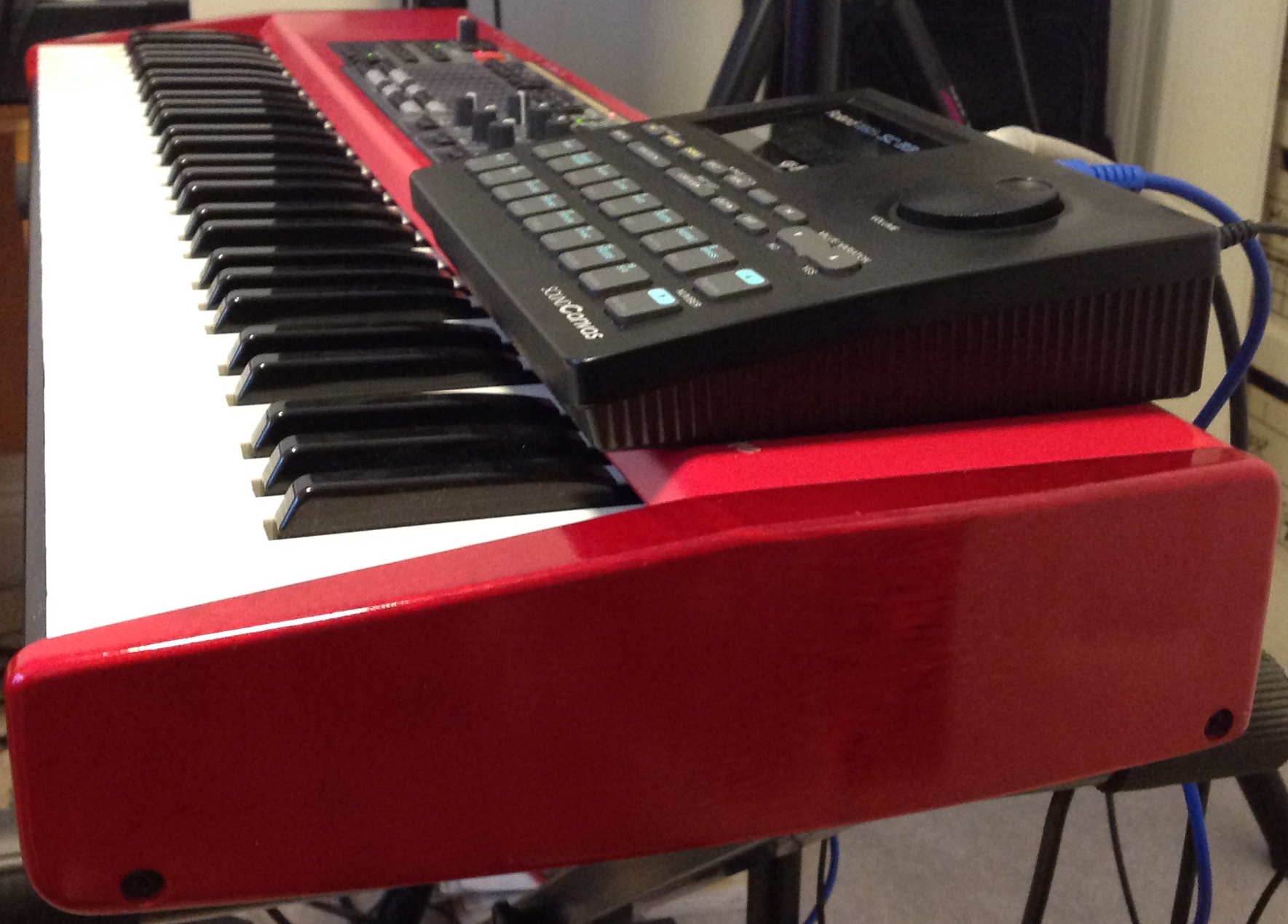
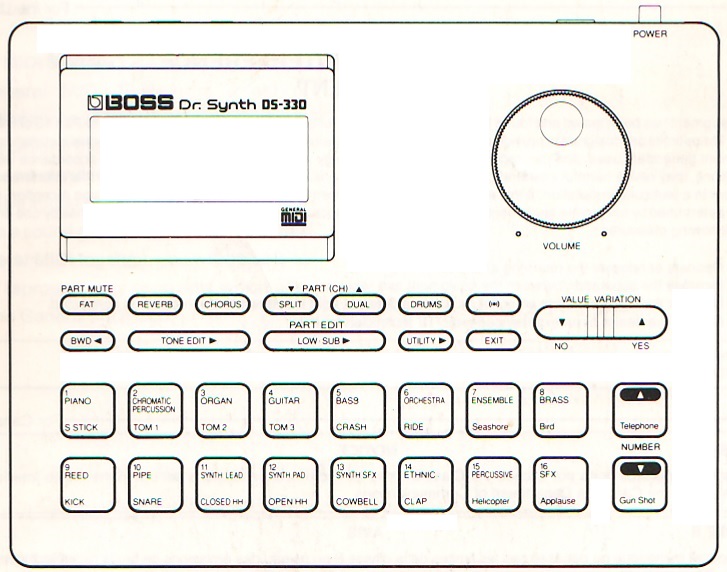
Both units are about 8.5 inches wide and 6.5 inches deep. They sit flat with the display, buttons and volume control on the top, unlike the half-rack form factor and mounting style of virtually all other tone modules. This means that you can set the DS-330 or SC-33 on an open spot on a keyboard (controller) and easily hit the buttons while performing. (Please click on images to get higher resolution.)

roland_ds330

Good Golly, how I wish that manufacturers would adopt this form factor again! I’d love to see a Reface in this physical package. I would also love to see a decent ROMpler in this format, too, as an expansion module for digital pianos and B-3 clones.

Software-wise, the user interface has two major modes: single play mode and multi mode. Multi mode is for sequencing and since I’m pitching the module for live performance, I’ll concentrate on single play mode.

Once you’re in single play mode, navigation is a breeze. Menus are triggered by dedicated buttons and the menus are not super deep or long. Roland also thoughtfully provided a BWD button to move backwards within a menu. Ever skip over the menu item you wanted and had to do a “go round?”

The best part of the overall UI design is the sixteen buttons/pads that select tones. A button selects a tone category and a favorite tone within the category which the user has “registered.” That may sound complicated, but it is very natural. All you need to do to register a tone is to hit the catgeory button after selecting the tone. There isn’t any explicit WRITE or STORE operation; the software automatically captures any changes and updates the internal parameter memory. (Like many devices from that era, parameter memory is battery powered, not flash.) The closest thing to WRITE or STORE is the simple act of leaving a menu by way of the EXIT button. That’s it.

Tones can be layered (DUAL) or split (SPLIT). Splits and layers are insanely easy to create and edit. All editable parameters, split status/level, dual status/level and more are saved with each of the tones. You never have to think about the separate concept of a user performance memory or whatever. The parameters are just part of the tone and selecting a tone recalls the last saved edit.

Single play mode has a DRUM submode. When in this mode, the 16 buttons are now pads that play drum sounds from the selected kit. Sorry, no velocity sensitivity since this is 1994!

These little boxes were thought out very well. If you’re a manufacturer and looking to build and sell a piano-top (clone-top, whatever) module, here’s your exemplar!

Motif styles for your arranger!

I’m pleased to announce my collection of Motif performance styles for the Yamaha PSR-S950 arranger and its close cousins: Tyros 5, PSR-S770 and PSR-S970.

Motif and MOX are great song-writing machines with thousands of built-in musical phrases. In Motif-speak, these phrases are called “arpeggios.” Motif/MOX also have built-in “Performances” which combine these musical phrases into jam-along song starters. Although Motif-series workstations are not arranger keyboards, the Performances are fun for live jams, covering many modern genres (contemporary jazz, funk and R&B) which are underserved by arranger workstations.

To fill this gap, I translated 23 Motif performances to PSR/Tyros styles. In keeping with the original source material, these styles are stripped down and lean. No orchestration to get in the way! Some styles use only bass and drum. INTROs and ENDINGs are short and basic. Depending upon the source performance, a translated style may have only three MAIN sections. However, all styles bring the groove.

Many of the styles use Megavoice bass and guitar. Plus, I’ve added appropriate OTS voices. Of course, you’re welcome to ditch the OTS voices and replace them with your own.

Here is the link to the ZIP file: perf_for_s950.zip. The file unzips into a directory named “PERF_for_S950”. The ZIP file includes a short READ ME file with more information.

If you would like to know how I translate a Motif/MOX performance to a PSR/Tyros style, please read the following articles:

Montage: The hardware platform

The Yamaha Montage is one heck of a fine keyboard! Let’s take a quick look inside.

The Montage hardware is a new platform. Sure, there are a few things borrowed from older products, but that’s like blaming Apple for reusing a USB controller. The digital and analog electronics are all new.

There are several printed circuit boards and I will only cover the main PCBs.

  • PNL/PNR: Handles the front panel buttons, knobs, sliders, master volume and gain.
  • LCD: Bridge between the LCD controller in the main CPU and the 7inch TFT WVGA LCD touch panel.
  • DJK: Digital jacks (foot controllers, foot switch, sustain, MIDI)
  • AJK: Analog electronics and jacks (DACs, ADC, balanced/unbalanced outputs, analog input, phones).
  • DM: Digital electronics (main CPU, tone generators, external USB and Ethernet interfaces).

A few ports and connections are “Debug only” and are not populated or used in normal operation. The Ethernet port to the main CPU is debug only, for example.

The separation of the digital and analog electronics and jacks is significant. When the Montage was first introduced, I mentioned that “Pure Analog Circuit (PAC)” appeared to be an exercise in old school engineering that pays careful attention to board layout, component selection and clean power. The AJK board bears this out. The AJK board contains the stereo DAC and ADC components:

  • Audio ADC: Asahi Kasei AK5381VT-E2 24-bit ADC (96KHz max)
  • Audio DAC assignable output: Asahi Kasei AK4393VM-E2 24-bit DAC (96KHz max)
  • Audio DAC main output and phones: Asahi Kasei AK4393VM-E2 24-bit DAC

The ADC and DACs communicate with the DM board over an audio backbone. Physical separation keeps digital circuits (with fast rise/fall times) away from analog signal paths. The AJK board also has its own voltage regulators. They ain’t kiddin’ about PAC!

Yamaha adopted ARM architecture processors for the first time in the Reface series. (See my article about the Reface CS and Reface DX internals). Montage continues this trend.

  • The PNL board contains an MB9AF141NA ARM microcontroller with a 40MHz internal clock. The ARM microcontroller is assisted by a Toshiba TMP89FW24AFG microcontroller (SOC) operating at 10MHz. In Yamaha’s terminology, this ARM is a “sub CPU.”
  • The main CPU is an AM3352BZCZ80 ARM microprocessor with an 800MHz CPU clock. It is a Texas Instruments Sitara ARM Cortex-A8 single core MPU.

The ARM Cortex-A8 is a major departure from the Motif line which employed MIPS architecture microprocessors (such as the Toshiba TX4939C) as the main CPU.

We first saw the new SWP70 tone generator in the Yamaha PSR-S970 arranger workstation. The SWP70 replaces the SWP51L which has been the mainstay in mid- to upper-tier Yamaha products for several years. Top-tier products (e.g., Motif XF and Tyros 5) have two SWP51L tone generator chips which together share a common wave memory. The two SWP51Ls split AWM2 voice and DSP duties.

So, it isn’t any surprise to see two SWP70s in the Montage. What is suprising, however, is how the Montage’s two SWP70s are deployed. The two SWP70s are not connected in the “classic” structure. Instead, the microarchitecture is assymetric.

  • TG Master: The TG Master is connected to wave ROM (flash), wave RAM (SDRAM), and DSP RAM (SDRAM).
  • TG Slave: The TG Slave is connected to DSP RAM (SDRAM) and an SSP2 processor (through an ASIC gate array bridge).

I’ll have more to say about the SSP2 in a moment. The bridge connects the TG Slave’s serial audio interface to the SSP2 and the bridge carries several channels of digital audio (I2S format) to/from the TG Slave and the SSP2.

Of course, one’s first thought is to presume that the TG Master handles AWM2 voices and the TG Slave handles FM-X voices. There’s a lot of generation and DSP resources within an SWP70, so I doubt if they are left idle in the TG Slave even though the TG Slave does not have memory memory! There is a sixteen bit wide bus between the TG Master and Slave — not really sufficient to carry the sample bandwidth needed for AWM2 tone generation, however.

Each SWP70 has 16MBytes of SDRAM for DSP working memory. The TG Master has 32MB of Wave RAM. The Wave RAM is a cache for samples that are read from wave flash. (See my earlier article about the SWP70 and U.S. Patent 9,040,800.) Commodity NAND flash (as one would find in an SSD) favors sequential access; random access is horribly slow. The Wave RAM caches samples that are read from NAND flash.

Now, the big question: How much wave memory? The Montage wave memory consists of four Spansion (Cypress) S34ML08G101TFI000 8Gbit, ONFI-compliant devices with a total physical capacity of 4GBytes. In classic fashion, the memory is separated into upper and lower bytes. The Yamaha specifications state wave size as, “Preset: 5.67 GB (when converted to 16 bit linear format), User: 1.75 GB.” Assuming a 2.52 aggregate compression factor, the arithmetic works out in the following way:

    4GB physical = (5.67GB / 2.52) preset + 1.75GB user

The Motif series has an aggregate compression factor in this ballpark.

The Montage has a common multi-channel serial audio bus (I2S format) that interconnects the main CPU, TG Master, TG Slave, SSP2, ADC and audio DACs. This is the digital audio backbone. The bus conveys digital audio from the generators and effects on the DM board to (from) the converters on the AJK board.

The SSP2 is a Yamaha proprietary processor which is used in many products: Reface CS, Reface DX, PSR-S950 workstation, etc. The SSP2 integrates signal processing, USB, serial audio, and more. It is the “designated hitter” for Yamaha designs. When Yamaha needs a flexible chip with DSP and interfacing skills, it calls on the SSP2. (Roland have a similar jack of all trades called the “ESC2.”)

The Montage’s SSP2 has only 2MBytes of NOR flash memory on its CPU bus. That’s not a lot of program space! The SSP2’s USB port is connected to the external “USB TO HOST” interface. The SSP’s other interfaces convey digital audio to/from the digital audio backbone and the TG Slave. Thus, the SSP2’s main role is to route digital audio. The Montage can send 16 channels and receive 3 channels of stereo 24 bit/44.1 kHz digital audio to/from an external computer or iOS device

Commentary and opinion

I hope you find this quick overview to be informative and helpful. I try to present the system structure objectively without too much speculation.

Please discuss the Montage responsibly! Yamaha have a definite design style which exploits their expertise in very large scale integration (VLSI) as a strategic advantage. When Yamaha specify maximum polyphony as “128 AWM2 and 128 FM-X”, that’s 128 each all day long without any dependencies on the number of effects in use, etc. Some people lament this approach and wish that Yamaha would base their systems on x86 even though x86 is not always the best choice for embedded systems. Yamaha are no strangers to x86 having obtained many patents covering x86-based tone generation back in the 1990s and early 2000s.

Before anyone carries on about SSDs and SATA, please study the design of the SWP70. The SWP70 memory interface has all of the power, flexibility and Open NAND Flash Interface (ONFI) compatibility as an SSD without the need for SATA bus protocol.

Users may rightfully be disappointed at the lack of user-installable expansion memory. Yamaha are not evil; they simply do not have a convenient way to provide user-installable memory at the chip level. I think users should lobby for more built-in expansion memory, but they shouldn’t delve into conspiracy theories about Yamaha’s engineering or managerial practice.

Some wag will undoubtably complain about “memory parts cost only $10,” “my jump drive is 32GBytes,” “the need to stream 100s of gigabytes,” etc. Fine. But, an instrument design is a just one design. It is what it is is. One should listen to the Montage with their ears, then question whether gobs of samples would improve the playability, sound or expression of the Montage. Also, if you really believe that you can build a better instrument at the same price point, by all means, line up the VCs and engineers, go to work, and compete.

The final result is what we hear with our ears. The hardware is important, but it is simply a platform for the “soft content” — the algorithms, code, waveforms and sound design. In the long run, the soft content is the biggest development expense and is the most important element in a successful digital musical instrument product.

Perspective. Chill. Peace.

Here are links to related articles on this site:

All site content is Copyright © Paul J. Drongowski

Add SPI to littleBits Arduino 2

Music makers working with littleBits Arduino will almost certainly want to add a high(er) resolution digital-to-analog converter (DAC) to their Arduino. Part 1 shows how to add an ICSP header to your littleBits Arduino module. The ICSP header is where you find the SPI signals — MISO, MOSI, and SCK — along with Vcc (+5 Volts) and ground. The ICSP header pin layout is:

         GND ---O  O--- RESET
    MOSI/D16 ---O  O--- SCK/D15
         VCC ---O  O--- MISO/D14

This is the layout when viewing the top of the Arduino module with the USB connector at the top (i.e., away from you, “north” on a map).

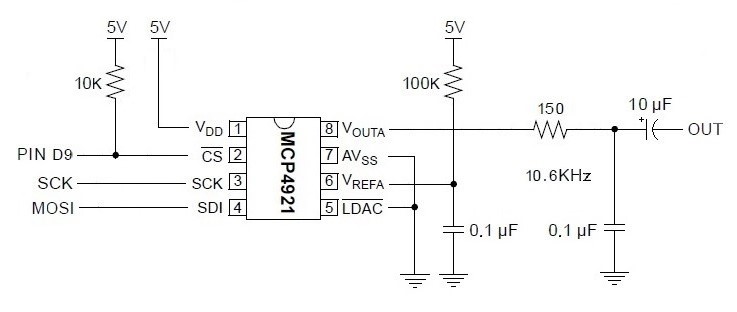
Now let’s take a look at a simple circuit using the Microchips MCP4921 12-bit DAC. (Click on images to get higher resolution.)

spi_dac_schematic

Three signals control the DAC: Slave Select (SS/Pin D9), Master Out Slave In (MOSI) and Serial Clock (SCK). Data is sent to the DAC through SPI’s bit serial protocol. First, SS is driven LOW, then 16 bits are sent one at a time to the DAC. SCK synchronizes the data bits sent via MOSI. The first byte consists of a 4-bit “command” and the top 4 bits of the 12-bit value to be converted. The second byte is the lower 8 bits of the value to be converted. After sending 16 bits, the SPI master drives SS HIGH. If you’re curious about all of the signaling details, please see the MCP4921 data sheet.

The rest of the DAC circuit consists of a voltage reference for the converter and a post-conversion (reconstruction) filter. The filter is a simple, one stage passive low pass filter with a 10,600Hz corner frequency.

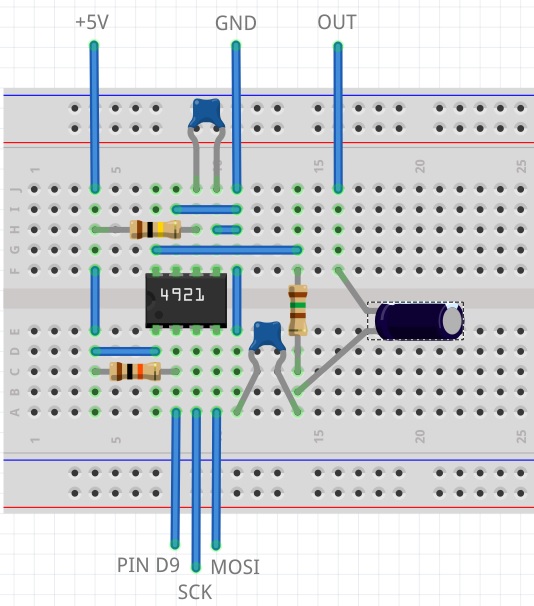
I built the DAC circuit on a small solderless breadboard. Here’s the layout.

spi_dac_breadboard

I connected MOSI, SCK, +5V and ground to the appropriate ICSP pins on the Arduino module. Slave Select is sourced by Arduino pin D9. I connected a littleBits Proto module to D9 and routed the input signal to the breadboard. If you want to postprocess the DAC’s audio output with littleBits modules, then route the DAC output to the Proto module’s output snap. Be sure to remove the shorting block (jumper) between the middle two pins on the Proto module. This approach provides power and ground to the audio postprocessing modules connected to the output snap of the Proto module — an important side-benefit.

The choice of pin D9 for Slave Select was the beginning of a long, hard journey in debugging. To make a long story short, pins D5 and D9 are buffered and the output buffer introduces additional delay on the Slave Select signal. The delay is long enough such that the DAC does not see a low Slave Select signal before data bits start arriving.

Here’s the code that writes the DAC:

#define NOP asm volatile ("nop\n\t")
void busyWait(uint8_t count) { 
  for(uint8_t i = count; i > 0 ; i--) { NOP ; } 
}

void writeDac(int16_t dacValue) {
  byte data ;
  SPI.beginTransaction(SPISettings(20000000,MSBFIRST,SPI_MODE0)); 
  digitalWrite(SlaveSelect, LOW) ;
  busyWait(25) ;
  data = highByte(dacValue) ;
  data = 0x0F & data ;
  data = 0x30 | data ;
  SPI.transfer(data) ;
  data = lowByte(dacValue) ;
  SPI.transfer(data) ;
  digitalWrite(SlaveSelect, HIGH) ;
  SPI.endTransaction() ;
}

The busy wait effectively stops the sketch for a little while after driving Slave Select LOW. This gives the Slave Select more time to reach the DAC before the sketch transfers the first data byte to the DAC. If you use an unbuffered pin like D1, you don’t need the busy wait.

It took a long time to eliminate all of the other possible issues that could have caused a failure: bad solder joints, wiring mistakes, etc. Fortunately, I have a similar DAC — the MidiVox — which works correctly. I also tested the hardware with Arduino UNO where all digital pins are unbuffered. It was frustrating to get everything working with the UNO, but not the littleBits Arduino module! Persistence wins the day.

In closing, I want to warn developers who interface high speed logic to littleBits Arduino. Beware of the delay through those buffered outputs! The delay may be long enough to throw off critical timing.

Add SPI to the littleBits Arduino

As Moe Szyslak might say, “He ain’t pretty no more!”

Last time through, I mentioned that I wanted to add a SPI digital-to-analog converter (DAC) to the littleBits Arduino module. The Microchips MCP4921 is a good candidate. It is a 12-bit DAC which communicates via the Small Peripheral Interface (SPI) bus or “SPI.”

The littleBits Arduino module is essentially an Arduino Leonardo. As such, its SPI port is available through the module’s ICSP pads. (“ICSP” stands for “in-circuit serial programming,” by the way.) The ICSP pads are the group of pads (two rows of three pads) between the D5 and D9 bitSnaps.

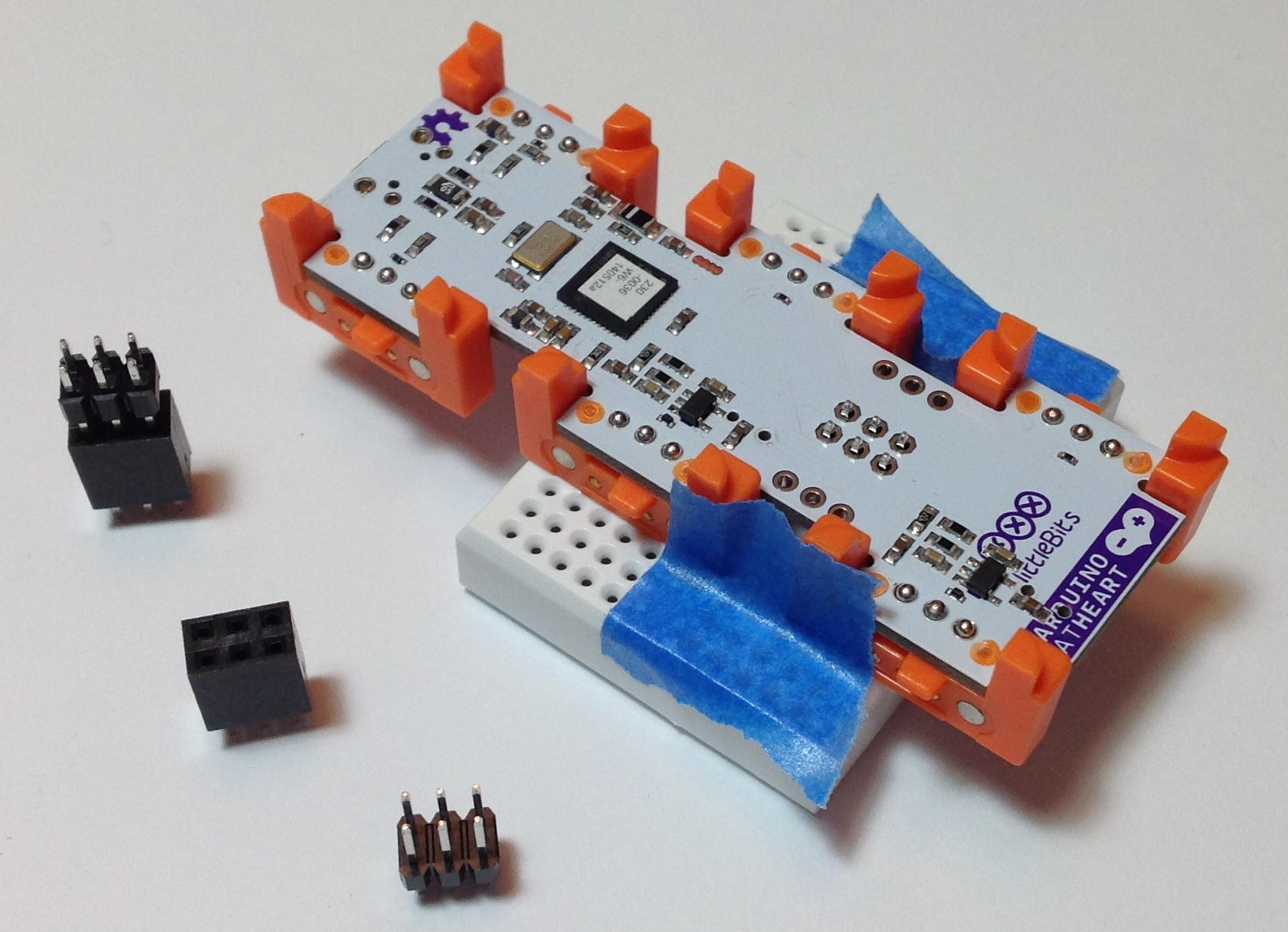
I soldered a 2×3 vertical pin header to the ICSP pads using a very simple jig. The image below is a “before and after” picture. (Click images for higher resolution.) The jig is a solderless breadboard that holds the header in place. I pushed the header into the breadboard just enough to hold the header and then placed the Arduino module over the header and pressed down. The idea is to get the black base of the header in contact and properly aligned with the module printed circuit board (PCB). The blue strips of masking (painter’s) tape keep the assembly together. The “after” part of the image shows the module with the header soldered in place.

icsp_solder_after

The jig really makes the soldering job easy. I have used other methods like trying to tape the header pins in place, but this approach was a piece of cake and frustration free.

The image below shows the header, module and jig just before soldering. The picture also shows the 2×3 vertical pin header and a compatible 2×3 female header block. You could install the female header block instead. I went with the male header because most ICSP cables expect a male header on the PCB to be programmed.

icsp_solder_jig

I ordered the parts from Mouser Electronics. Mouser and Jameco are my usual “go to” sources for components and tools. Here are the part numbers:

  • Harwin M20-9980346 03+03 DIL VERTICAL male header 2.54mm
  • Harwin M20-7830342 03+03 DIL VERTICAL female header 2.54mm
  • BPS BB170-WH White 170 point solderless breadboard
  • BPS ZW-MF-20 ZIPWIRE Female-Male 20cm
  • BPS ZW-MM-20 ZIPWIRE Male-Male 20cm

The “2.54mm” refers to the pin spacing (AKA “0.1 inch”). The female header is $1.19 and the male header is $.24. Buy at least ten of each and the price goes down a little. The contacts are tin; gold is a little more expensive.

I plan to make (eventually) little PCB “hats” using the female header blocks. The idea is to build a small, single-purpose circuit that plug onto the ICSP header or littleBits Proto module header like a hat. This approach would eliminate point-to-point connections using jumper wires. I may experiment with this approach once I get the basic DAC circuit ironed out and tested.

I really like Busboard Prototype System (BPS) products. BPS has the most useful prototyping board patterns. They also have these nifty ZIPWIRE ribbon cables. The wires terminate with individual male pins or female receptacles. Let’s say you need to make six connections from the ICSP header to a solderless breadboard. Then tear off a group of six wires and associated terminations. Push the receptacles onto the male header and push the pins into the solderless breadboard. The individual wires are color-coded in order to make the correct point-to-point connections at both ends. I’ll use ZIPWIRE to connect the Arduino SPI port (ICSP) to a solderless breadboard with the SPI DAC circuit.

If you have a littleBits Arduino module and want to make the most of it, it’s time to break out the soldering iron. Best of luck!

Inside Reface DX and Reface CS

With so much to do and learn, it’s been a long while since I’ve taken a peek below the hood of an electronic musical instrument.

Yamaha caught the world by surprise with its Reface series of portable keyboards. So far, there are four models in the series: Reface YC (organ), Reface CP (electric piano), Reface CS (analog modeling synthesizer), and Reface DX (4-op FM synthesizer).

Before I get to the DX and CS, here’s a few thoughts about the YC and CP. According to Yamaha specifications, the Reface YC tone generation engine is “AWM (Organ Flutes)”. This suggests to me that the YC uses a standard AWM tone generation integrated circuit (IC) like the SWP70. Hammond-like “Organ Flutes” have been part of the mid- and upper-tier arranger workstations like Tyros for a very long time. Thus, I suspect that the YC implementation is an updated implementation of the arranger technology.

The Reface CP tone generation engine is specified as “SCM + AWM2”. SCM or “Spectral Component Modeling” is the modeling technique first employed in the flagship CP-1 stage piano. SCM and AWM2 are also used in the CP-4 and CP-40 models. The CP-1 uses three tried-and-true SWP51L tone generation ICs: master, slave and effects. The master and slave generate the base piano tones and the two ICs share the same WAVE ROM. Total WAVE ROM size is 1024Mbits or 128MBytes (organized as 16-bit words) which is a ridiculously small amount of memory for a top quality piano. Such is the power of SCM!

The CP-1’s samples are stored in two Lapis Semiconductor MR26V51252R devices (32M by 16-bit words each). The processor is a Yamaha SWX02 (SH-2A CPU core operating at 135.4752MHz). There’s not much to the CP-1 user interface, so a relatively light-weight, low-cost processor is enough for the job. The SWP51Ls handle all of the heavy computation.

Thus, the Reface YC and Reface CP are relatively uninteresting from a technologist’s point of view. The YC and CP use proven technology from other Yamaha products. That leaves the Reface CS and Reface DX.

Although the CS and DX implement two different tone generation techniques — analog physical modeling vs. frequency modulation (FM) — they are fraternal twins at the hardware level. They share much of the same base hardware design with a few variations to handle their unique user interface requirements.

The CS and DX both use a Fujitsu MB9AF141LAPMC1 processor to handle key and panel scanning. Here’s a quick summary of its characteristics:

    CPU                 Cortex-M3
    CPU Frequency       40MHz

    On-chip flash memory   Main area   64KBytes
    On-chip flash memory   Work area   32KBytes
    On-chip SRAM           SRAM0        8KBytes
    On-chip SRAM           SRAM1        8KBytes

    Peripheral interfaces:
        DMAC            8 channel
        Serial I/F      8 channel
        Base timer      8 channel
        Dual timer      1
        Realtime clock  1
        Watch counter   1
        12-bit A/D      12 channel

This processor is a good choice for embedded control applications where low power and low cost are important. To my knowledge, this is the first product line using an ARM embedded microcontroller.

The Reface CS and Reface DX both use the proprietary Yamaha SSP2 (uPD800500F1-011-KN9-A) for tone generation. The SSP2 is Yamaha’s designated hitter for DSP tasks and is incorporated into many products. The SSP2 has an SH-2A CPU core operating at an internal clock speed of 135.4752MHz. The SSP2 has its own ADC, GPIO, UART, USB and serial audio interfaces. The SSP2 UART handles 5-pin MIDI communications. The SSP2 USB interface handles external USB communications.

The SSP2 has two memory interfaces:

  • DSP RAM: Connecting to 8MBytes of DSP SDRAM.
  • CPU bus: Connecting to 8MBytes of program ROM and 16MBytes of SDRAM.

Memory sizes and devices are the same in both products.

The AUX IN and audio out hardware design is also the same across the two products:

  • PCM1803ADBR ADC: AUX IN analog-to-digital converstion
  • AK4396: Digital-to-analog conversion for OUTPUT L/R and PHONES OUT
  • YDA176 D-Amp: DAC and amplification for internal speakers

This shouldn’t be any surprise. All of the Reface series products ahare the same external jack, power and key switch boards.

Digital audio is transfered serially between the SSP2, the ADC, the DAC and the digital amplifier. The SSP2 generates the master clock (MCLK) and bit clock (BCLK) to synchronize data transfers. MCLK and BCLK are derived from the SSP2 clock, in case you’re wondering about those odd-looking CPU clock frequencies. MCLK is 256*fs and BCLK is 64*fs, where fs is the sampling frequency, 44.1KHz. MCLK operates the AK4396’s digital interpolation filter and delta signal modulator. Data format is I2S and is probably 24-bit as it is in workstation products.

Aside from the other front panel controls, the Reface DX has two major additions: Capacitive sensors for the front panel touch strips and the LCD panel display. The printed circuit board positions for the LCD interface are not populated (i.e., no mount) in the Reface CS as it has no LCD display.

There you have it — two more examples of solid and conservative Yamaha hardware design.

Now, you may find the SSP2 to be incredibly boring. It is, however, a good choice for a low-cost, compact product. The Reface CS and DX need a metal shield over the SSP2, perhaps to control RF emissions, perhaps to radiate heat, or maybe both purposes together. Low power is a vital concern throughout the Reface series due to battery power concerns.

I’m a little hesitant to draw any inferences about future products. The Yamaha Montage supports 128 note, 8 operator FM polyphony. The Reface DX provides a relatively meager 8 note, 4 operator FM polyphony. Thus, there must be considerable hardware resources at work in the Montage. Well-worth the price, one hopes! And speaking of hopes, many people would like an analog modeling extension to the Montage. That would depend, of course, on the availability of spare computational horsepower.

Copyright © 2016 Paul J. Drongowski

Audio via Arduino 16-bit PWM

Most of my project postings described a project in a completed state with full code, electronic design, etc. This post covers some things that I’ve learned during my current open investigation. Think of it as a “breather” before the next push.

Audio folks who get into Arduino often ask, “Gee, why not use PWM to produce audio — a poor man’s DAC?” 8-bit PWM resolution is the default supported PWM mode. The resolution and the bandwidth is not sufficient to support decent audio. First off, the PWM stream must be converted to an analog signal using a low pass filter, with a typical corner frequency of 150Hz or so. The default mode is really intended to control servos and such.

The littleBits Arduino is a good example implementation. The PWM outputs have a filter to convert the PWM bit stream to an analog voltage. The filter can be switched off if you want access to the raw digital data or PWM bit stream, making the Arduino’s outputs quite versatile. Depending upon your perspective, the littleBits filter is quite good for low bandwidth applications, not so good for audio. In fairness, littleBits never claim to support audio via their PCM hardware.

The PWM signals are generated by the Arduino’s timer/counter hardware. The Arduino UNO and Leonardo, for example, have three timers which can generate a PWM signal:

  1. TIMER0: 8-bit PWM, pins D5 and D6, delay()
  2. TIMER1: 8-bit and 16-bit PWM, pins D9 and D10
  3. TIMER2: 8-bit PWM, pins D3 and D11, tone()

Timers 0 and 2 are used by the Arduino delay() and tone() functions, respectively. So, you cannot use these functions and expect to generate PWM at the same time.

All appears lost for audio until one discovers TIMER1’s 16-bit PWM mode. I decided to try 16-bit PWM on the littleBits Arduino with the hope that the pre-existing filter would successfully convert the PWM bit stream to audio.

Long story short, the littleBits filter is too good at its job! The filter looks to be an active Sallen-Key low-pass filter with a corner frequency of 49 Hertz. Through much of my experimentation, I sent percussive samples (e.g., open high hat and cymbal) through TIMER1’s PWM channel. The littleBits filter neatly removes all of the high frequency signal resulting in a low frequency thud like a kick drum or low tom.

So, instead, I decided to switch off the littleBits filter and convert the PWM bit stream through a passive, low-pass filter of my own. The following table summarizes the RC components and filter characteristics that I tried:

    Resistor                  Capacitor  Corner frequency
    ------------------------  ---------  ----------------
    100 (Brown Black Brown)     0.1uF     15915 Hertz
  * 150 (Brown Green Brown)     0.1uF     10610 Hertz *
    220 (Red Red Brown)         0.1uF      7234 Hertz
    330 (Orange Orange Brown)   0.1uF      4822 Hertz
     1K (Brown Black Red)       0.1uF      1592 Hertz
    10K (Brown Black Orange)    0.1uF       159 Hertz

I held the capacitance constant in order to find the best resistance for the filter. The 150 ohm resistor worked best. It produced the best quality audio with the least artifacts although I still need to tame a high pitched whine. I may have to add another filter stage (a so-called “2-pole” or “second order” filter). The corner frequency is roughly the Nyquist frequency — no accident.

At this point, it probably appears that it was a smooth ride from start to finish. Nothing could be further from the truth! Here are a few “learning moments” from the journey.

First, be sure your power is clean. I started out with a switching power supply that successfully drives Arduinos big and small. The output signal had a raunchy buzz that I could not extinguish with the filter. Turns out, the switching supply is noisier than heck and the noise gets into the audio. I replaced the switching power supply with a clunky, old, heavy Yamaha PA-3B and the raunchy buzz went away.

Next, don’t trust code that you find on the Web. I started with timer configuration code from what appears to be a reputable site. After hours of frustration, I read up on the TIMER1 hardware and rewrote the code. The original code simply could not have worked as it set non-existent bits in the timer control registers! Here is my timer configuration code and interrupt service routine (ISR).

    //
    // TIMER1 PWM. Single PWM, phase correct, 22050KHz.
    // PWM_FREQ = 16,000,000 / 22,050 =  726 = 0x2D5
    // PWM_FREQ = 16,000,000 / 11,025 = 1451 = 0x5AB
    //
    #define PWM_FREQ   363

    void PwmSetup() {
      // Clear OC1 on compare match, 8-bit PWM
      //TCCR1A = _BV(COM1A1) | _BV(WGM10) ;
      TCCR1A = _BV(COM1A1) ;
      // PWM TOP is OCR1A,  No prescaler
      TCCR1B = _BV(WGM13) | _BV(CS10) ;
      // Generate interrupt on input capture
      TIMSK1 = _BV(ICIE1) ;
      // Set input capture register to sampling frequency
      ICR1H = (PWM_FREQ >> 8) ;
      ICR1L = (PWM_FREQ & 0xff) ;
      // Turn on the output pin D9
      DDRB |= _BV(5) ;
      sei() ;
    }

    //
    // Interrupt service routine (ISR)
    //
    ISR(TIMER1_CAPT_vect) {
      if (sampleCount > 0) {
        sample = (int8_t)pgm_read_byte_near(sampleArray+sampleIndex) ;
        dacValue = sample  ;

         // Output through OC1A
        dacValue += 127 ;
        OCR1AH = (uint8_t) (dacValue >> 8) & 0xFF ;
        OCR1AL = (uint8_t) dacValue & 0xFF ;
  
        sampleCount-- ;
        sampleIndex++ ;
        TXLED1 ;
      } else {
        TXLED0 ;
      }
    }

TIMER1 implements a bit capture capability along with the PWM generation stuff. The bit capture counter is configured to generate sampling interrupts, i.e., the PWM side is fed at a 20,050 samples per second rate. The output compare register controls generation of the PWM signal. It’s the place where a sample is fed.

If you go to use this code, the samples are stored in program memory (PROGMEM) and are 22,050Hz, 8-bit, mono. The sampleArray contains the samples. The two global variables sampleCount and sampleIndex control sample selection from the array. The sampleCount is preloaded with the number of samples in the array by the loop() function. The TXLED macros only work on Leonardo and indicate when samples are being played or not. These macros could be removed in production code.

Third, get the sampling frequency right. Corollary: Use a pitched sound like a sine wave of known frequency to make sure that the sampling frequency is correctly configured. The PWM generation in this design is configured to be phase correct, which halves the frequency. High frequency content becomes even more “thud-like” at a lower frequency making it difficult to sort out other configuration and filter issues. I got around this barrier by feeding a digitized 440 Hertz sine wave into the PWM conversion. When the tone sounded an octave lower than expected, I realized that I needed to double the configured sampling frequency.

Trust me, the road was not straight and smooth. I didn’t make progress on filter design until these issues were resolved. Science and engineering ain’t so simple, but the challenge is both fun and rewarding.

Update 18 July 2016: Take a sneak peek at the source code for the Arduino Beat Box (TR-808 lo-fi drum machine). The source code contains the final TIMER1 set-up and interrupt service routines.

Connect a MIDI shield to littleBits Arduino

My do-it-yourself MIDI interface for littleBits Arduino probably isn’t for everyone. Constructing the DIY interface requires circuit layout skills and not everyone wants to whip up a board from scratch and a schematic.

Fortunately, there are a couple of alternatives: the Olimex SHIELD-MIDI and the Sparkfun MIDI Shield. I don’t have any direct experience with the Olimex, but I have built and used the Sparkfun MIDI Shield (Sparkfun product number DEV-12898) and the now retired MIDI Breakout Board. The Olimex SHIELD-MIDI is very similar to the retired breakout board. In this post, I show how to hookup the Sparkfun MIDI Breakout Board to the littleBits Arduino. The wiring is the same for the Sparkfun MIDI Shield. That’s the neat thing about the standard Arduino form factor.

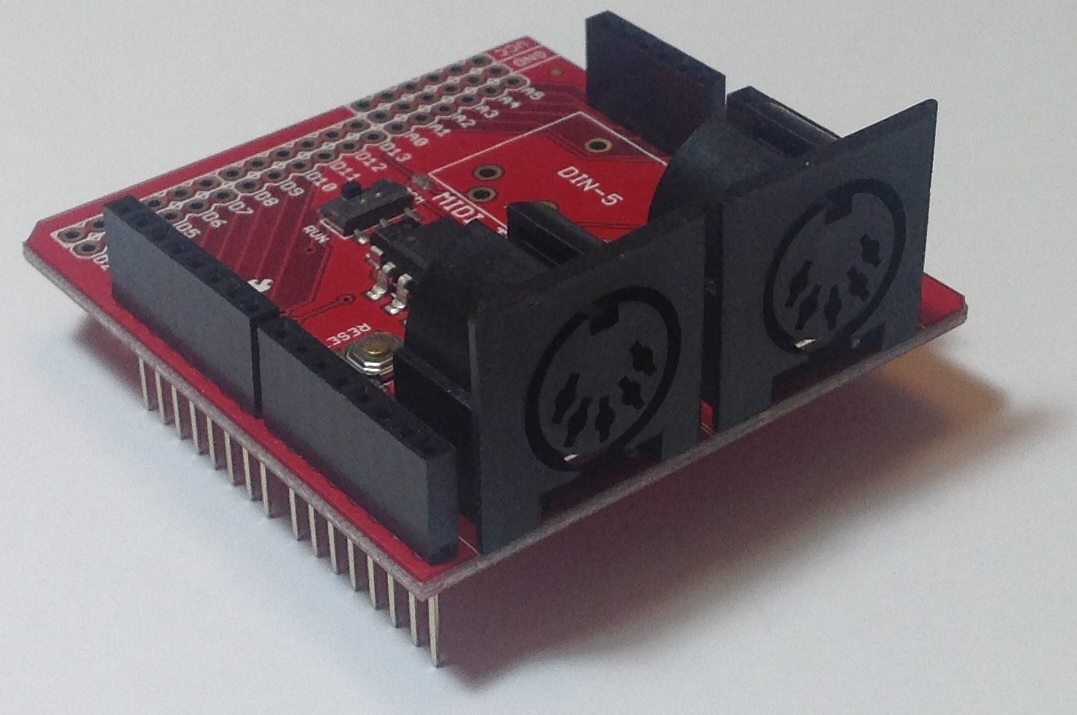
I would demonstrate with a Sparkfun MIDI Shield, but all of my MIDI Shields are customized in some way! The Sparkfun MIDI Breakout Board is basically the same as the MIDI Shield except that it doesn’t have the potentiometers and tactile switches. The image below is a picture of the Sparkfun MIDI Breakout board. (Click on the image to get higher resolution.) The two 5-pin DIN connectors are the MIDI IN and MIDI OUT ports. The long pins extending below the breakout board plug into a standard Arduino like an UNO or Leonardo.

sparkfun_midi_breakout

The Sparkfun MIDI breakout board (or shield) arrives as a kit, so you still need to do some assembly. Sparkfun has already installed and soldered the tough stuff like the optoisolator, resistors and so forth. The MIDI Shield is a good beginner’s kit because the components to be installed are large and easy to solder. If you skip installing the potentiometers and tactile switches, the job is even easier!

You might want to add an Arduino Stackable Header Kit (PRT-10007), however. With the header kit, you’ll be able to interconnect using standard jumper wires. Once the headers are installed, no further soldering is necessary. Just plug the jumpers into the headers and play. Mistakes are easier to correct with jumper wires, too.

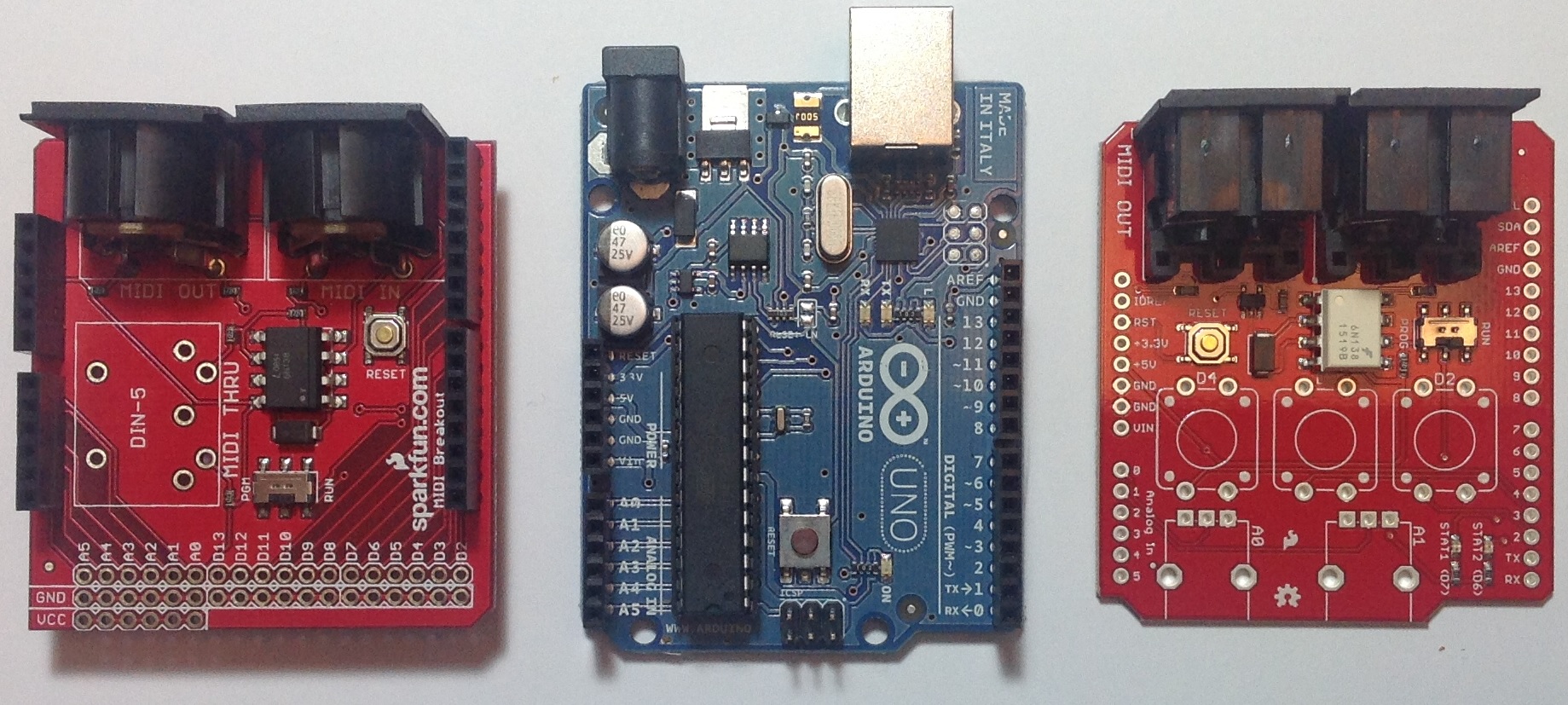
Here is the top-view of the MIDI breakout board, an Arduino UNO processor board and a Sparkfun MIDI Shield. Click the image for higher resolution. You’ll want to take a closer look at the three boards in order to see the signal name associated with each header pin. (You can really zoom in if you download the image and load it into a paint program.)

midi_bob_uno_shield

The breakout board has a position for a MIDI THRU connector. This position is empty as the headers would block the opening of the 5-pin DIN connector. We don’t need the THRU port, so this isn’t a deal-breaker.

As I mentioned before, the long pins extending below the headers normally plug into a standard Arduino processor board (e.g., UNO or Leonardo). Each header pin effectively mirrors the electrical signals of the underlying Arduino board. So, in order to hookup to the littleBits Arduino, we just need to connect the appropriate Arduino board signals to the corresponding bitSnaps on the littleBits Arduino. That’s why you really want to zoom in and see the signal names. The board labels tell us where to plug in jumper wires.

We need four connections:

  • +5 Volts: Red wire
  • Ground: Black wire
  • RX (digital pin D0): Yellow wire
  • TX (digital pin D1): Blue wire

Our old high school shop teacher would yell at us if we didn’t use the right color wire for power, ground, etc. I will say, different wire colors make it easier to check and debug wiring!

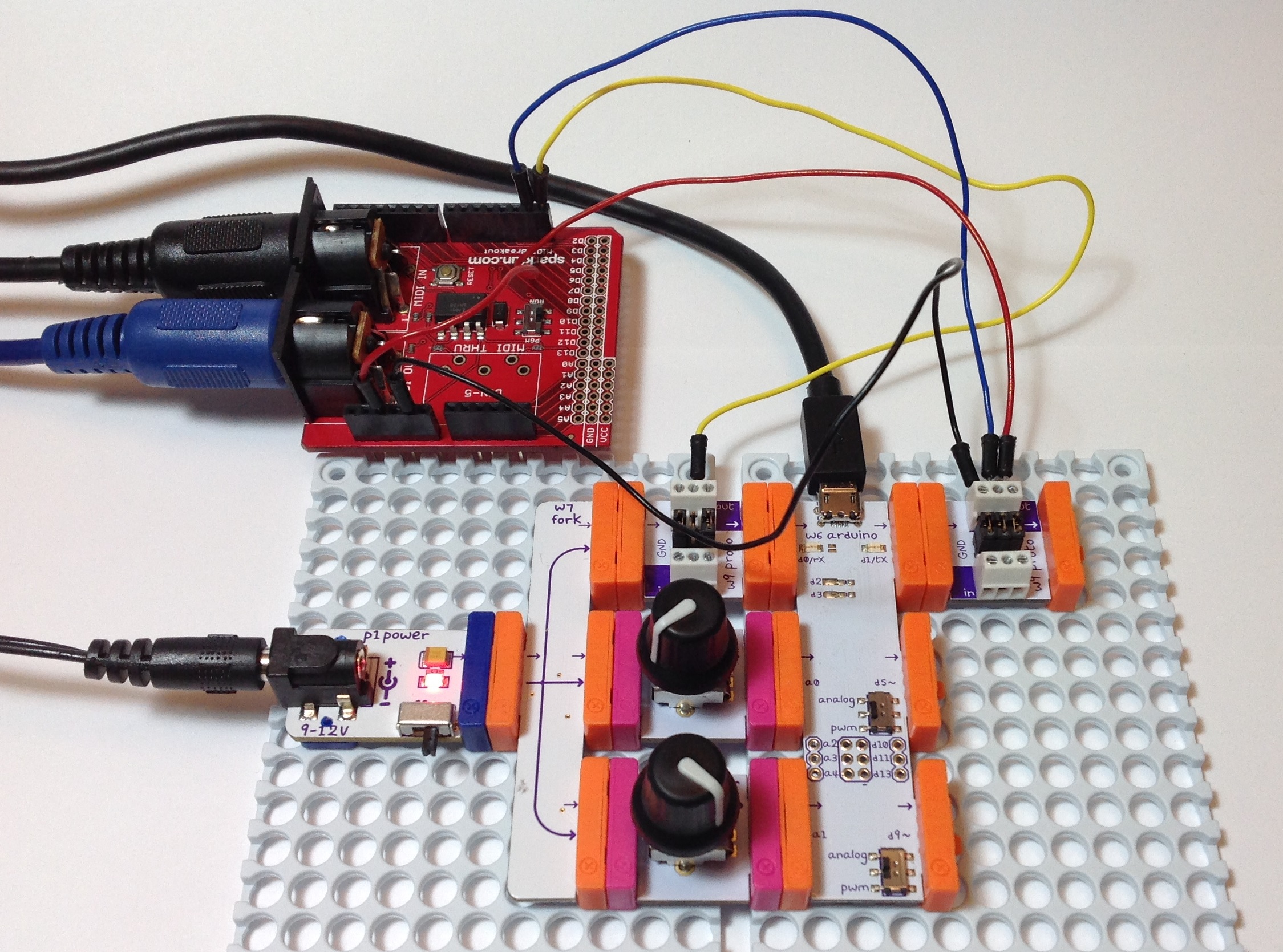
So, how do we make connections to the littleBits Arduino? I used two littleBits proto modules: one proto module for the MIDI input side and one proto module for the MIDI output side. The other end of each jumper terminates in a screw connector on a proto module. Please see the image below. (Click to enlarge.)

sparkfun_midi_littlebits_arduino

RX is connected to RX, TX to TX, +5 Volts to +5 Volts, and Ground to Ground. The MIDI IN goes to the Arduino’s RX pin and the the Arduino’s TX pin goes to MIDI OUT.

You must configure the jumpers on each proto module. The MIDI OUT side is easy; just leave all three jumpers installed. One the MIDI IN side, remove the center jumper on the proto module. This breaks the connection from the proto board input to the proto board output. You must remove this jumper or the input signal will interfere with the incoming MIDI data.

Once all of the connections are made, you’ll need sketches to test the connections. Please see my article about testing an Arduino MIDI interface. The article describes a simple testing process. The article also has links to a simple MIDI sequencer sketch and the source code for a MIDI IN to MIDI OUT sketch. The MIDI sequencer sketch checks the MIDI OUT side. Once you know the MIDI OUT is good, then the MIDI IN to MIDI OUT sketch checks the MIDI IN side. (The sketch echoes MIDI IN to MIDI OUT.)

That’s it! You should now have your 5-pin MIDI equipment talking with the littleBits Arduino. If this project has bolstered your confidence with hardware — and I hope that it has — then please take a look at the DIY 5-pin MIDI interface project.

littleBits Arduino MIDI interface

I thought, “When it comes time to test the 5-pin MIDI interface with the littleBits Arduino, just hook it up. Download the sketches. Take a victory lap.”

Instead, I got an “opportunity” to discover and learn. Not so fast, but not so bad, either.

Please recall that a few posts ago I described the design of a 5-pin MIDI interface for Arduino. The MIDI IN part of the interface attaches to the Arduino RX pin (pin D0) and the MIDI OUT part connects to the TX pin (pin D1). I tested the 5-pin MIDI interface with an Arduino UNO board using the simple MIDI sequencer sketch and a sketch to echo MIDI IN to MIDI OUT. My original plan was to connect the 5-pin MIDI interface to the littleBits Arduino via two protoboards, then run the sketches, again, for testing.

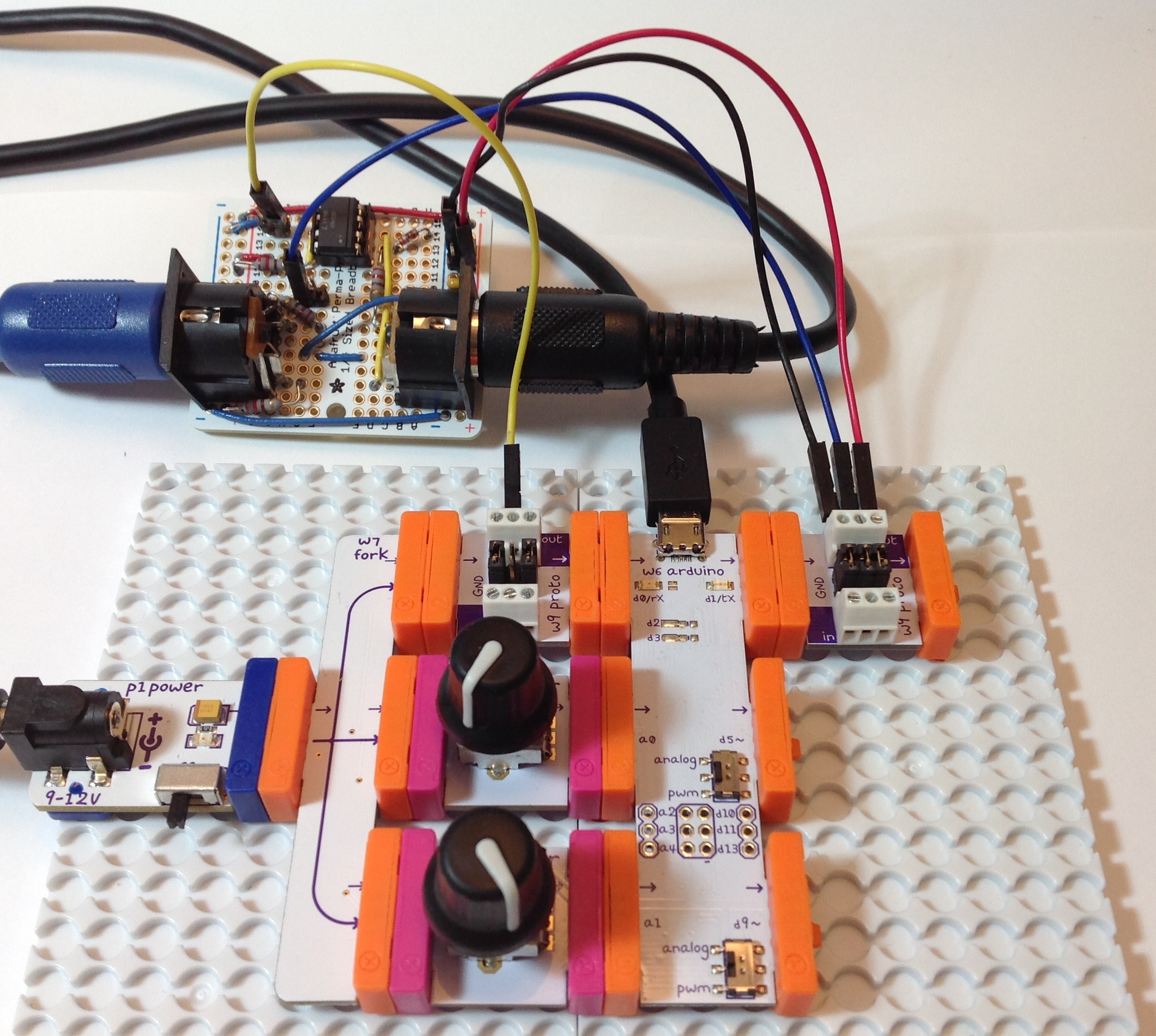
First, the hook up. The image below shows the littleBits hardware. (Click the image for full resolution.) The Arduino is “at the heart” and communicates with a PC through the USB port. The littleBits proto module directly to the left of the USB port brings the logic-level MIDI IN signal to the Arduino RX pin. The proto module directly to the right of the USB port sends the Arduino TX signal to the MIDI OUT circuit. The signals to and from the 5-pin MIDI interface board are:

  • Yellow wire: Logic-level MIDI IN
  • Blue wire: Logic-level MIDI OUT
  • Red wire: +5 Volts (Vcc)
  • Black wire: Ground

MIDI is a serial communication standard operating at a rate of 31,250 bits per second. RX and TX are the Arduino’s digital serial receive and transmit pins, respectively.

littlebits_arduino_midi_interface

So far, so good. There are a few extra details to consider. The positive supply voltage (+5 Volts) and ground are distributed throughout the whole interface board. Only one set of power supply connections are needed to power the interface board. I attached the power supply connections to the proto module handing the MIDI OUT. Next, the proto module jumpers are configured a little bit differently on the MIDI IN and MIDI OUT sides. Having all three jumpers in place, the MIDI OUT proto module passes all signals: Vcc, ground and the data signal arriving from TX. The MIDI IN proto module only passes Vcc and ground. It does not pass the signal from its input bitSnap. The output from the proto module is generated by the signal coming from the 5-pin MIDI interface board (i.e., the yellow wire). This signal is send to the RX pin.

Adhering to my original test plan, I downloaded the simple MIDI sequencer sketch. This sketch tests the MIDI OUT circuit by sending MIDI note on and note off messages. I attached the MIDI OUT connector to a MIDI tone module, flipped the power switch, and no sound. MIDI data was not being sent to the MIDI tone module. After much wailing, gnashing of teeth and browsing, I remembered that the Arduino Leonardo board has two serial ports, not one port like the UNO. One serial interface handles RX/TX and another serial interface handles USB communications.

The littleBits Arduino is a Leonardo board. Was the MIDI data being sent to the USB port? I turned on the Serial Monitor in the IDE. Yep, the Serial Monitor was showing jibberish arriving from the Arduino. I expected jibberish because the bit rate was all wrong, but nonetheless, observations confirmed that MIDI data was going to the wrong port (USB instead of TX).

The Arduino IDE exposes two serial ports for a Leonardo board:

  • Serial” refers to the virtual serial port over USB.
  • Serial1” refers to the serial port through RX/TX.

Originally, I wrote and compiled the MIDI sequencer sketch for an Arduino UNO board. The calls to write() refered to Serial. That’s fine on the UNO because the UNO uses the same serial port for RX/TX and USB communication and everything works. On Leonardo (littleBits), however, the sketch refers to the USB serial port, not RX/TX as I had intended.

I solved the problem with conditional compilation. Here is the new code for the function MidiSend() in the MIDI sequencer sketch:

//
// Send a short, 3-byte MIDI message
//
void MidiSend(byte cmd, byte data1, byte data2)
{
#ifdef LEONARDO
  Serial1.write(cmd | CHANNEL) ;
  Serial1.write(data1) ; 
  Serial1.write(data2) ; 
#else
  Serial.write(cmd | CHANNEL) ;
  Serial.write(data1) ; 
  Serial.write(data2) ; 
#endif
}

The symbol “LEONARDO” determines the code to be compiled into the sketch. If LEONARDO is defined then the sketch sends MIDI bytes to Serial1. If LEONARDO is not defined, then the sketch sends MIDI bytes to Serial. I also needed to fix up the code in setup():

#ifdef LEONARDO
  Serial1.begin(31250) ;
#else
  Serial.begin(31250) ;
#endif

After making these changes and defining LEONARDO at the beginning of the sketch:

#define LEONARDO 1

I compiled and uploaded the sketch. Voila! I heard music from the tone module! MIDI data was now being sent to the appropriate Arduino serial port (TX).

Along the way, I also learned some useful information about the RX and TX LEDs. The RX and TX LEDs flash when data is transfered through the USB port. They do not flash when data is sent through the RX/TX pins. If you want to flash the LEDs yourself, then use the following macros:

    RXLED0;
    RXLED1;
    TXLED0;
    TXLED1;

These macros are a feature of the Leonard board and are not recognized on UNO.

Two separate, independent serial ports has its advantages. First, it isn’t necessary to disconnect the 5-pin MIDI interface board when uploading a sketch. With only one serial port on UNO, TX/RX and USB communication cannot peacefully co-exist. On Leonardo (littleBits), they do peacefully co-exist and you can use the virtual serial port over USB (i.e., Serial Monitor) to trace program execution and print debug messages while using RX/TX for MIDI communication. Finally, if we don’t ever touch Serial1, we should be able to configure D0 and D1 as regular Arduino digital input and output pins (respectively).

By now, you realize that I had to modify the sketch that echoes MIDI IN to MIDI OUT, too. Instead of conditional compilation, this sketches defines a symbolic constant, “SERIALPORT,” which expands to the name of the serial port to be read and written. Full disclosure: I did not test the MIDI library version on littleBits (Leonardo).

//
// Send MIDI IN to MIDI OUT (THRU)
//

// Author:  P.J. Drongowski
// Date:    6 June 2016
// Version: 1.1
//
// Copyright (c) 2016 Paul J. Drongowski
// Permission granted to use, copy and distribute

// Uncomment the following line to use the Arduino 
// MIDI library instead of serial read() and Write().
// #define USE_MIDI_LIBRARY 1
// This has not been tested/debugged on LEONARDO!

// Define the symbol SERIALPORT to select the appropriate
// serial port:
//    Serial    UNO
//    Serial1   LEONARDO/littleBits
#define SERIALPORT Serial1


#ifdef USE_MIDI_LIBRARY

#include <MIDI.h>
MIDI_CREATE_DEFAULT_INSTANCE() ;

void setup() {
  MIDI.begin(MIDI_CHANNEL_OMNI) ;
}

void loop() {
  if (MIDI.read())
  {
    MIDI.send(MIDI.getType(),
              MIDI.getData1(),
              MIDI.getData2(),
              MIDI.getChannel());
  }
}

#else

int midiByte = 0 ;

void setup() {
  // Initialize the serial port for MIDI
  SERIALPORT.begin(31250) ;
}

void loop() {
  if (SERIALPORT.available() > 0) {
    midiByte = SERIALPORT.read() ;
    SERIALPORT.write(midiByte) ;
  }
}
#endif