Customizing the Sonogenic voice editor

Back to the Yamaha SHS-500 Sonogenic voice editor…

Thanks to Brent at Keyboard Corner for suggesting a different set of default voices in my MIDI Designer-based Sonogenic voice editor. Back when I released the editor, I was hoping that folks could customize the user interface, changing or adding their own buttons and controls. Brent downloaded the editor, got everything running, and hit a roadblock with MIDI Designer. That’s understandable because I doubt if anyone can dive right into MIDI Designer as easily as diving into the menu of a synth.

So, smart guy, how do you change bank select and program change? Here’s a sequence of screen shots that may help. [Not so easy a year later, is it? 🙂 ]

MIDI Designer ordinarily runs in its operational mode, that is, the buttons, sliders and other controls are live and send MIDI. In order to make changes, one needs to enter Design Mode (edit mode). With the Sonogenic voice editor loaded, tap the More menu button, then tap the Design button under “Tools”.

MIDI Designer More menu

You should see a floating button widget saying “Exit Design Mode”. If you see that, you’ll know that you’re in Design Mode.

MIDI Designer button (control) properties in Design Mode

Tap a button or other control to select it. MIDI Designer outlines the selected button (or control) in red. Double tap the button (or control) to display and change its properties.

In this case, I double tapped the “QuackLd” button. If you want to name the button something else, tap the “Label” field and change the button name.

Button MIDI properties

To send a different MIDI message, tap the MIDI icon in the lower left corner of the Properties dialog box. MIDI Designer should display the control’s MIDI properties. The Sonogenic QuackLd voice has the following bank select and program change values:

  • Bank select MSB: 0
  • Bank select LSB: 112
  • Program change: 84

Values for the other SHS-500 preset voices are listed in the Yamaha Sonogenic SHS-500 Reference Manual.

Tap the “MIDI Off → On” field to edit the program change value. Tap the “Channel – Bank #” field to change the MIDI channel, bank select MSB value and bank select LSB value. You should probably leave the channel value alone.

MIDI Designer channel and bank select dialog box

The “Channel, Bank MSB, LSB” dialog box displays three spinning number dials (kind of like a slot machine) where the first column is MIDI channel, the second column is bank select MSB and the third column is bank select LSB. Spin the dials to get the setting you want. Tap the return arrow in the upper left corner when you’re finished. To leave a dialog box, just tap a blank area in the user interface background.

MIDI Designer actions

Tapping the Actions icon in the lower right corner of the Properties dialog box displays MIDI Designer actions. Use the “Delete” action to delete the control. Use “Copy” and “Make Similar” to copy the control.

General MIDI voice example

The buttons for the Sonogenic General MIDI (GM) voices are similar. Here, I selected and double tapped the “Vibraphone” button.

General MIDI voice selection properties

Again, tapping the MIDI icon in the dialog box displays the MIDI message properties for the button. The GM voices adhere to the GM standard program change values. However, you must send zero for both bank select MSB and LSB to properly switch the Sonogenic.

Tap the Exit Design Mode button to leave Design Mode. Then test your changes with the Sonogenic. Also, you probably should save the modified MIDI Designer interface following the directions in my original article.

Hopefully, this tutorial is enough to get you started with customization!

Copyright © 2021 Paul J. Drongowski

Combo organ tone generation

Combo organs got me into this mess. 🙂

Back in the day, I played a Farfisa Mini Compact Deluxe. Even though it didn’t have many tabs or reverb, it was enough to cover Wooly Bully and the rest of the Top 40 hits. I always wanted a Vox, but the Jaguar and Continental were always out of my financial reach.

Farfisa Mini Compact Deluxe organ

Farfisa and Vox each had their own distinctive tone. The Farfisa is raspy and nasal. The Vox is brighter and more cutting. Farfisa offered more vibrato options while Vox is just ON/OFF. Either one could quease (or cheese) your stomach when overdone. 🙂

Vox Continental organ

There are several great on-line resources if you would like to know more about Farfisa, Vox and some of the lesser competitors (e.g., Gibson, Fender, Acetone). My two favorite sites are Combo Organ Heaven and The Vox Showroom. It’s also fun to browse E-bay and Reverb.com for vintage organ gear and spare parts. I also recommend the book “Classic Keys” by Alan S. Lenhoff and David E. Robertson.

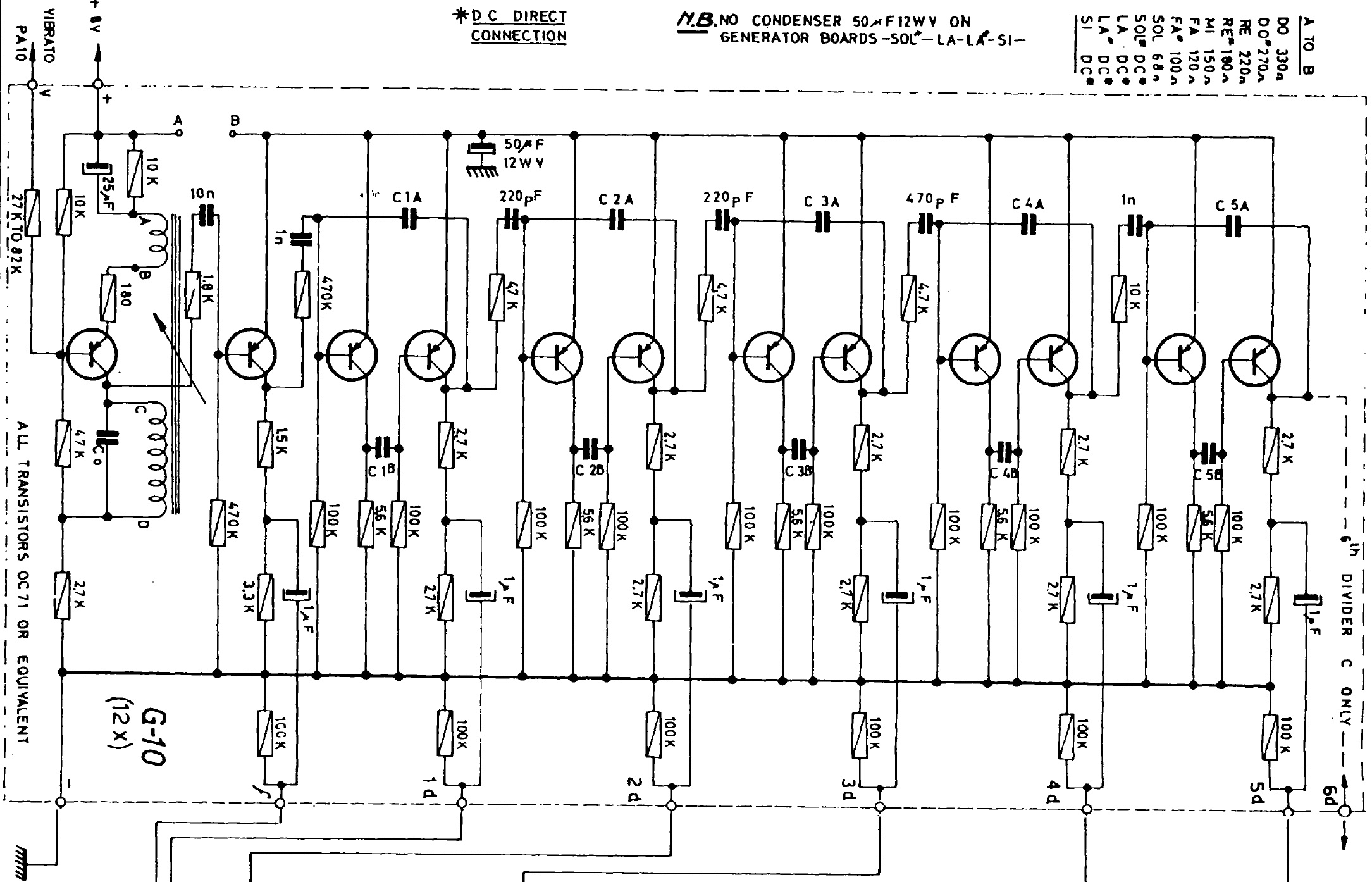
Internally, the 1960’s Vox and Farfisa models employed tone generation boards — one board for each of the twelve semi-tones in an octave. Each board consisted of an oscillator for the highest pitch (e.g., C6) and dividers for the corresponding pitches one or more octaves down (e.g., C5, C4, C3). A schematic for the Farfisa Mini Compact Deluxe tone generator board is shown in the picture below.

Farfisa tone generator circuit

The oscillator is, essentially, a square wave generator and the divider stages are a ripple carry counter. The square wave generator feeds the counter and each stage of the counter divides down by a power of 2, thereby producing the lower octaves. The square wave generator is on the left with five divider stages arrayed to the right.

Each board has different capacitor values (C1A to C5A) depending upon base pitch (C to B). The generator is tuned by a variable inductor coil. This darned coil was delicate back in the 1960’s and cost me an expensive repair when I tried to tweak the F# tuning. If you’re contemplating ownership of such a vintage instrument, don’t suffer delusions about the fixing and maintaining a vintage beast. Sixty or seventy years on, these critters are difficult to maintain.

Once the basic tones are generated, they are sent through a rat’s nest of wires comprising the key and bus bar switching network. Then, the individual (bus bar) signals are mixed and go to filters. Farfisa and Vox have different filters, giving each brand a distinctive voicing flavor. Farfisa routed its signals into a switched passive filter network while Vox sent its signals into drawbars. The Farfisa filters are switched in and out by the front-panel voice tabs while the Vox allows a mix of flute and reed tones. The Vox Jaguar employed an approach similar to Farfisa (tabs), letting Vox offer a cheaper alternative to the Continental.

Vox Continental drawbar circuit

The picture above shows the Vox Continental drawbar schematic. Key contacts switch signals onto four bus bars: 16′, 8′, 4′ and Mixture. The four main drawbars (1, 2, 3, and 4) mix the incoming ranks into a single signal which goes to the so-called sine and reed drawbars (5 and 6). Drawbar 5 filters the incoming square waves producing a sine-like, flute tone. Drawbar 6 doesn’t filter the incoming square waves and produces a brighter, reed tone.

If you would like to know more about Farfisa and Vox internals, I recommend getting acquainted with ElectroTanya. ElectroTanya is an on-line server providing service manuals for current and old gear. You can download up to five service manuals for free each day. The user interface is a little funky, but ElectroTanya is a terrific resource for out-of-print manuals. Here are links to the keyboards mentioned in this blog post:

Please keep these designs in mind. The oscillator/divider approach gave birth to the top-octave tone generator design that reduced the cost and complexity of organ tone generator boards. Thank you large scale integration (LSI).

Martinec wrote two of the best free combo organ VST emulations ever: Combo Model F and Combo Model V. You can still find copies of the Martinec VSTs on the Web. Get your combo groove on!

Arduino people should check out my sampled 60s Combo Organ (MidiVOX). I managed to get four voice polyphony out of an Arduino! Lo-fi heaven.

Copyright © 2021 Paul J. Drongowski

Curtis Electromusic Specialties

Tom Oberheim plans to bring back the TVS-Pro in the form of the TVS Pro Special Edition. The TVS-Pro Special Edition consists of a 3-octave keyboard, sequences and two Synthesizer Expansion Modules (SEM). The two modules are flexibly assigned to the keyboard, sequencer, etc. Designed by Tom Oberheim and manufactured by Marion Systems. Gordon Reid reviewed the original Two Voice Pro in Sound on Sound (July 2016).

To my ear, Tom Oberheim, OB-Xa and Curtis Electromusic Specialties (CES) are synonymous. And that brings me to today’s offerings from CES circa 1981.

OK, OK, Dave Smith, Prophet-5, Pro-One, and Curtis Electromusic Specialties are synonymous, too. Pro-One (CEM 3340, CEM 3310, CEM 3320) — wish I had that one back… 🙂

Doug Curtis was an analog synthesis circuit genius and founded Curtis Electromusic Specialties (CES) in 1979. Doug’s fertile mind and CES produced what is arguably the most successful line of commercial integrated circuits (IC) for analog synthesis.

I’m happy to share my collection of CES brochures, data sheets and schematics, all in PDF:

Unlike data sheets posted at some other sites, these data sheets are complete (not just the first two pages). The preliminary data sheets are hand-drawn — now that’s preliminary!

The SynthSource newsletter contains an interview with Tom Oberheim titled “Giving the musician more for his money.” Doug’s chips made Tom’s successful OB-X synths (OB-X and OB-Xa) physically and economically feasible. The OB-Xa used the entire CES chip line: 3310, 3320, 3330, 3340 and 3360.

The newsletter also announces the CEV 3301 Evaluation Board hosting one each of the CEM 3310, CEM 3320, CEM 3330 and CEM 3340. At that time, PAiA Electronics sold both CES chips and the CEV 3301 Evaluation Board. I bought ’em all. 🙂 The CEV 3301 PDF covers design, construction details, board layout and schematics. I’ve posted pictures (below) of the unpopulated CEV 3301.

Curtis Electromusic CEV 3301 Evaluation board (trace side)
Curtis Electromusic CEV 3301 Evaluation board (component side)

Have fun and stay healthy!

Copyright © 2021 Paul J. Drongowski

E-mu Systems and SSM ICs

E-mu Systems and Solid State Micro Technology for Music (SSM) were pioneers in analog synthesis. E-mu Systems was founded in 1971 by Dave Rossum, Steve Gabriel and Jim Ketcham. Solid State Music Technology was founded by Ron Dow and John Burgoon in 1974. E-mu, of course, is renown for its ground-breaking Emulator keyboard.

E-mu and SSM developed several integrated circuits (IC) for analog synthesis. Also in that era (1978), Curtis Electromusic Specialties (CES) introduced their own line of analog synthesis chips.

In 1978, I was finishing up my stint in Silicon Valley and heading to grad school at the University of Utah — as far east as my meager savings could take me. Little did I know that Ercolino Ferretti at the U was investigating computer music and I would soon enjoy his expertise and banter!

Nonetheless, I was interested in building my own synth gear and I wrote to E-mu/SSM for information about the SSM demonstrator board and their chips. Here are three PDFs covering the E-mu/SSM offerings in 1978:

Check out these prices!

  • SSM 2010 VCA: $12.50
  • SSM 2020 DVCA: $7.50
  • SSM 2030 VCO: $10.00
  • SSM 2040 VCF: $10.00
  • SSM 2050 TG: $7.50

Good luck finding E-mu/SSM chips today. They’re worth their weight in gold.

Copyright © 2021 Paul J. Drongowski

SN76477 Complex Sound Generator

Things are going to take a vintage turn during the next few weeks. I’m knocking out a few 60’s backing tracks, returning to classic combo organ sounds. As a teen, I owned and played a Farfisa Mini Compact Deluxe. As a neophyte engineer, I was also interested in rolling my own gear — a great entry-way to audio electronics. [Not drugs.]

Thanks to our move, I uncovered, literally, a small number of brochures and data sheets from the 70’s and 80’s era. Today’s subject is the Texas Instruments SN76477 Complex Sound Generator.

TI SN76477 Complex Sound Generator pin out

The SN76477 was an all purpose, mixed signal (digital+analog) noise maker, appearing in games, toys and other mass market consumer electronics. Its temperature stability was none-to-good, making it a poor choice for musical instrument design. It excels, however, at cheesy 1980’s sound effects.

TI SN76477 Complex Sound Generator block diagram

I built the SN76477 sound demonstration circuit (below) into a “busy box” for our son. Unfortunately, the busy box and the SN76477 is lost and gone. Only the data sheets and application notes remain in its place. If you find an SN76477, it’s most likely a “pull” from an old toy and probably not new old stock (NOS).

TI SN76477 Sound demonstration circuit

Here are links to the SN76477 data sheets and application guide. All of the files are PDF.

I apologize for the yellow pages, but we are talking true vintage! The sound development system schematic is brittle and requires careful handling.

TI wrote a very compresensive SN76477 guide, so there isn’t too much point in detailing the SN76477 here. If you’re going to experiment with the SN76477, the TI guide is a must-read. The guide describes a few of the internal circuits as well as sample application circuits.

Copyright © 2021 Paul J. Drongowski
Winter NAMM 2021: Do you believe?

Whew! Writing articles about ARM Cortex-A72 took quite a bit of time and effort (Part 1: Fetch and branch, Part 2: Execution and load/store).

If you drop by my site for music tech and synth info, never fear, I’m still playing with musical toys. The holiday gift return season is upon us and there are bargains popping up every day. Mint or lightly used open box items are available at a discount — a great way to stretch scarce cash. I hope to post mini-reviews as toys and time allow.

Even though the pandemic (sadly) rages on, Winter NAMM 2021 is next week (18-22 January 2021). Like many other events, Winter NAMM 2021 is virtual. Brick and mortar NAMM is replaced by NAMM Believe In Music Week. It doesn’t cost anything to register, so “Why not?”

I took a quick spin through the Believe In Music site and the organizers have done a terrific job. There, you will find the latest information about existing products and new products as they are announced. Some companies, like Yamaha, have placeholders for information to be released once the press (publication) embargo expires.

However, teasers sneak through! On Wednesday, January 20, Yamaha have four sessions scheduled:

  • New Yamaha Synth Product First Look (10AM)
  • New Yamaha Synth Product Integration (12PM)
  • New Yamaha Synth Product Playthrough (2PM)
  • New Yamaha Synth Product (3PM)

Definitely something to look forward to. So, register now and start looking for Easter eggs like this!

BTW, Yamaha have already published many Winter NAMM 2021 press releases on PR Web. Seach for “Yamaha” — or any other big-time vendor. That’s how I found the new Yamaha MSP3A compact reference monitor ($199 USD MAP). Before Christmas, I was shopping for a pair of mini monitors and would have consider these had I known about them. Went with Eris 4.5 which are more in line with my budget.

Given the NAMM Believe In Music Week site, there isn’t much need to preview products here on my site. (Time is precious and is not fungible.) However, if you’re a doting grandparent, I do recommend checking Soundbops. 🙂

Soundbops

In toys we trust. Go Browns!

Copyright © 2021 Paul J. Drongowski
Review: Roland Micro Cube GX for keyboard

You’ll find plenty of rave on-line reviews for the Roland Micro Cube GX — the go-to battery-powered practice amp for guitar.You won’t find a review covering the Micro Cube GX as a portable keyboard practice amp — until now.

Here’s a quick rundown (from the Roland site):

  • Compact guitar amp with a 5 inch (12cm) custom-designed speaker
  • 3 Watt rated output power
  • Eight COSM amp tones, including the ultra-heavy EXTREME amp
  • Eight DSP effects, including HEAVY OCTAVE and dedicated DELAY/REVERB with spring emulation
  • MEMORY function for saving favorite amp and effects settings
  • i-CUBE LINK jack provides audio interfacing with Apple’s iPhone, iPad, and iPod touch
  • Free CUBE JAM app for iOS
  • Chromatic tuner built in
  • Runs on battery power (6xAA) or supplied AC adapter; carrying strap included
  • 6 pounds (2.7kg)

I haven’t tried the Roland CUBE JAM application yet, so I’ll be concentrating on the amplifier itself. The included 3.5mm cable is the usual 4 conductor affair although it’s rather short. Roland also includes the AC adapter.

I’ve been searching for a good portable, battery-powered keyboard rig for quite some time. On the keyboard side, the line-up includes Yamaha Reface YC, Yamaha SHS-500 Sonogenic and Korg MicroKorg XL+. Although the YC and Sonogenic have built-in speakers, their sound quality is decidedly inadequate and poor quality. The MicroKorg XL+ doesn’t have built-in speakers. All three keyboards have mini-keys and are battery-powered.

To this point, I’ve been using a JBL Charge 2 Bluetooth speaker.The JBL has solid bass, but its output volume is easily overwhelmed during living room jams. It’s been a good side-kick, but I found myself wanting.

Roland Micro Cube GX and Yamaha SHS-500 Sonogenic

So, the latest addition is the Roland Micro Cube GX. Without comments from fellow keyboard players, buying the GX was a risk. Guitar amps are notoriously voiced for electric (or acoustic) guitar tone. Like the GX, you’ll typically find amp and cabinet simulators that help a guitar player chase their “tone.” The GX, however, includes a “MIC” amp type in addition to the usual 3.5mm stereo AUX input. Fortunately, my intuition was correct and the “MIC” setting does not add too much coloration.

Of course, there is some compromise in sound quality. The amp puts out 3W max through a 5 inch speaker (no coaxial or separate tweeter). Needless to say, you don’t hear much high frequency “air.” The GX cabinet does have a forward-facing bass port, producing acceptable bass even with B-3 organ. No, you will not go full Keith Emerson or Jon Lord with this set-up. 🙂 I first tested the GX with Yamaha MODX and found the B-3 to be acceptable.

Volume-wise, yes, you can get loud — too loud for your bedroom or ear-health. Bass heavy sounds can get buzzy. For clean acoustic instruments, I recommend the “MIC” amp setting. The reverb is pleasant enough and adds depth to my normally dry live patches. The delay is a nice alternative to the reverb ranging from reverb-like echo to explicit (non-tempo synch’ed) repeats.

I find the Sonogenic/Micro Cube GX combination to be the most fun. The SHS-500 has DSP effects, but they are rather tentative, as if Yamaha is afraid to offend anyone. That’s where the GX makes a good companion for the Sonogenic. Feel free to dial in the Jazz Chorus amp with the jazz guitar patch or a British stack with electric guitar. Or, try any of the modulation effects on the Sonogenic’s electric piano. Working with the GX is a far more intuitive and rewarding experience than the built-in Sonogenic DSP effects. You can cover Steely Dan EP to Clapton with this rig!

I have to call out the Heavy Octave and Spring reverb effects. You’ll find them at the right-most position of the modulation (EFX) and delay/reverb knobs, respectively. You can think of them as “going up to eleven.” The spring reverb is decent and you can throw the Heavy Octave onto just about anything to thicken up the sound.

Overall build quality is good. The Micro Cube GX feels solid. A metal grill protects the speaker. The knobs have a pleasant resistance and don’t feel cheap. The only not-so-robust feature is the battery compartment and its cover. As long as you avoid heavy abuse, you should be OK.

For the money, $160USD, it’s a decent sounding, inexpensive package. Given the physical cabinet, output power and speaker size, one should adjust expectations. However, if you’re a keyboardist and need a light, portable, battery-powered amp, the Roland Micro Cube GX is worth a try.

Copyright © 2020 Paul J. Drongowski

Keystep for littleBits

My last blog post took a look at the Pitch and Gate control voltages (CV) generated by the Arturia Keystep. Keystep’s Pitch and Gate behave conventionally. I also took note of how they differ from the littleBits gate CV signal, which combines pitch and gate control into a single signal. I mentioned two potential approaches for interfacing Keystep to littleBits:

  • Driving littleBits with Keystep’s Pitch and Gate, and
  • Sending MIDI to a littleBits MIDI module that handles conversion to littleBits gated CV.

I tried each approach. Here’s what I learned.

Keystep Pitch and Gate circuit

In this approach, the littleBits Oscillator is always running, always generating an audio signal. The Oscillator tracks the Gate voltage generated by the Keystep. The trick is opening up and shutting off the audio signal. For that, I put a littleBite Envelope module after the Oscillator and triggered the Envelope with the Keystep Gate voltage.

The resulting circuit is:

            Keystep Pitch                Keystep Gate 
| |
V V
Power --> CV Module --> Oscillator --> Envelope --> Speaker

The Keystep Pitch output is connected to the “CV IN” connector on the CV Module. The CV Module routes the incoming control voltage to its output, which sends the pitch control voltage to the Oscillator Module. The Keystep Gate output is connected to the Envelop’s Trigger input.

littleBits Proto Module ins and outs
littleBits Proto Module and quick-and-dirty patch cable

The Pitch output to CV IN connection is a standard 3.5mm patch cable. But, how is the 3.5mm Gate jack connected to the Trigger bitSnap? The littleBits Proto Module provides the solution. I cut a (stereo) patch cable in two and connected the shield and tip wires to the littleBits Proto Module as shown above. The Proto Module sends the incoming trigger signal (the Keystep Gate) to the output bitSnap. From the output bitSnap, the trigger signal goes to the Envelope Trigger input.

Properly, I should have used a mono patch cable, but I didn’t have one to sacrifice. I connected the TIP and SHIELD wires, leaving the RING unconnected.

That’s the entire setup! For testing purposes, I attached oscilloscope probes to the trigger (Keystep Gate) and the Envelope’s audio output. I also verified correct operation at intermediate points along the main signal path.

Oscillator audio (top) and Keystep Gate (bottom)

The screenshot above shows two oscilloscope traces. The top trace (green) is the final audio signal. Note the attack-release envelope around the oscillator signal. The bottom trace (red) is the trigger (Keystep Gate) signal. If the trigger is dropped before the entire envelop completes, the audio cuts off (i.e., it’s truncated). If the trigger is held beyond the combined attack plus release time, the audio signal merely stays at zero. The audio signal remains shut off until another trigger (the rising edge of Gate) is received.

Although this circuit gives us the desired behavior, it wasn’t easy getting things to work reliably. I seemed to suffer more than the usual loose connections and other lab-bench gremlins.

MIDI Module circuit

The MIDI Module approach is very similar to driving the littleBits Oscillator Module by MIDI over USB from a PC DAW:

           Keystep MIDI OUT 
|
V
Power --> MIDI Module --> Oscillator --> Envelope --> Speaker

MIDI arrives on the MIDI Module’s 3.5mm connector instead of the USB port. Otherwise, the main signal flow is the same.

Keystep/littleBits test rig

I monitored the gated CV signal produced by the MIDI Module and the audio signal generated by the littleBits Envelope using the oscilloscope. I played two notes in quick succession. The second note is two octaves higher than the first note.

littleBits audio triggered by MIDI Module

In the screenshot above, the top oscilloscope trace is the gated CV signal. The bottom trace is the synthesized audio. Not any different than the Pitch and Gate control volltage approach, eh?

Since the final audio is much the same, I would go with the MIDI Module circuit. It is simpler and its wiring is less touchy. The circuit uses the littleBots modules pretty much as intended by the littleBits engineers.

The MIDI Module approach makes the Keystep Pitch, Gate and MOD outputs available for other duties such as key-scaling (i.e., varying the effect of a sound modifier by keyboard pitch), modulation and user control. Don’t forget to insert littleBits Dimmer Modules (potentiometers) along control paths in order to set modulation level and so forth.

Copyright © 2020 Paul J. Drongowski

Arturia Keystep CV

My post about Arturia Keystep teardown and cleaning attracted a fair number of page views; it must have hit a common chord. 🙂

Today’s post continues with Arturia Keystep. Although the Keystep Gate and Pitch control voltage (CV) signals are conventional, I wanted to visualize them with an oscilloscope. I strongly recommend getting an oscilloscope when working in modular synthesis because pictures/graphs help understanding. [We haven’t even gotten to the audio yet!] I connected the Gabotronics Xminilab oscilloscope to the Keystep’s Gate and Pitch CV outputs and took a quick look.

First thing I noticed was a 12V positive trigger level. Holy smokes, I hope I didn’t apply that high signal to littleBits way back when! littleBits modules operate in the 0V to 5V range. Fortunately, littleBits input ports have an ON Semiconductor ESD9L5.0ST5G ESD suppressor/TVS diode, which protect against ESD and transient voltage events. Still, it’s better to configure voltages correctly ahead of time and not risk an accident.

Second thing is that Keystep CV voltages cannot be configured through its front panel. That’s somewhat understandable in a low cost product like Keystep. Control voltages are configured by Arturia’s MIDI Control Center (MCC) software — a free download for Keystep owners.

Here is the control voltage configuration that I used during testing:

  • MIDI CV output: Volt per octave
  • 0V MIDI note: C1
  • Note priority: Last
  • MOD CV source: Mod wheel
  • MOD CV max voltage: 5V
  • Pitch bend range: 2 semitones
  • Gate CV output: V-trig 5V

Keystep supports V-trigger 12V and S-trigger in addition to V-trig 5V. S-trigger is the old Moog convention that is not used very much anymore. It’s sometime called “negative trigger,” but it’s really a strange creature requiring a special connector.

Keystep Gate (green) and Pitch (red) control voltages

The screenshot above shows the Keystep in action. [Click image to enlarge.] The top trace (green) is the Gate (V-trigger 5V) output and the bottom trace (red) is the Pitch output. The Gate signal is, er, a gate. It goes high when a key is pressed, stays high while the key is held, and goes low when the key is released.

In the example, I played three notes where each note is an octave apart. The vertical oscilloscope scale is 2.56V per grid division. Each step up in the bottom trace (Pitch) is about 1V. Also, you see the Gate signal hit a maximum 5V.

In the future, I may need to tweak Keystep’s 0V MIDI note parameter if I drive the littleBits Oscillator module with the Pitch signal. One needs to find a happy operational sweet spot between Keystep octave transpose and note range versus the limited 5 octave range of the Oscillator module. Keystep’s Pitch signal ranges from 0V to 10V, and I don’t want to drive the littleBits Oscillator with more than 5V, if possible. MCC does not allow us to specify a maximum, do-not-exceed Pitch voltage.

One way around the pitch voltage issue is to control the littleBits Oscillator via the littleBits MIDI Module instead. In that case, the Keystep 5-pin MIDI OUT connects to the MIDI Module (mode switch set to IN) over a Korg convention, 5-pin to 3.5mm adapter. (The O-Coast adapter adheres to the same convention and works, too.) With the MIDI approach, we don’t need to worry about over-driving the Oscillator module with a high, out-of-range voltage. The littleBits MIDI module tops out at 5V.

I have both the littleBits MIDI module and littleBits CV module. Thus, I can drive littleBits oscillators via MIDI and send the Keystep MOD CV to the littleBits CV module for modulation duties. With the Keystep MOD CV max voltage set to 5V, I should be safe. If I need to reduce the MOD CV range further, I can always run the output from the littleBits CV module into a littleBits dimmer (potentiometer) and attenuate the level.

The MIDI module approach also produces the gated CV signal expected by littleBits oscillators. The Keystep Pitch output provides a simple, steady voltage level and doesn’t have an in-built gating function. When you hit a key, the Keystep changes the Pitch output voltage accordingly and the Keystep holds that voltage even when the key is released. If connected to a littleBits Oscillator, the Oscillator will never see a release event, that is, the Pitch voltage never drops to 0V when a the key is released. The littleBits Oscillator merrily continues to play! On the other hand in littleBits-world, the gated CV drops to zero. Thus, littleBits combines pitch control and trigger (gate) into a single signal.

One could build a simple converter from separate gate and pitch CV to the littleBits gated CV. I’m thinking of a voltage-controlled SPDT analog switch like the Texas Instruments TS5A9411 (or MAXIM MAX4544, etc.). The trigger (gate) signal controls the switch. When the trigger is low, the signal connects to ground and passes 0V. When the trigger is high, the switch passes the Pitch CV signal.

Another possible work-around is to follow the littleBits Oscillator with an Envelope module and connect the Envelope’s trigger to the Keystep Gate output through a littleBits CV module. [Whew!] The Envelope should pass and shut off the Oscillator’s sound when the gate is asserted and dropped, respectively. I’m going to give this idea a go.

Copyright © 2020 Paul J. Drongowski

Arturia Keystep tear-down and cleaning

As part of the littleBits revival, I pulled the Arturia Keystep from storage. The Keystep has a nice keybed and sequencer, and supports a wide range of interface options: 5-pin MIDI, CV, gate, sync and USB MIDI.

Although I love its industrial design, the Keystep keys have always been somewhat unreliable. Straight out of the box, one of the keys did not trigger reliably. After moving and storage, unfortunately, several more keys became flaky or non-operational. Time to tear down and clean! [Click images to enlarge.]

Arturia Keystep wide open

I watched a Youtube video covering repair of the aftertouch ribbon. Initial disassembly is straightforward: 1. Pull off the knobs. 2. Remove the 14 large screws on the bottom. 3. Carefully open the top (white or black front panel.

Arturia Keystep aftertouch cable (connected)

The key assembly connects to the main electronics through two ribbon cables: the aftertouch cable and the key matrix cable. I marked the top side of each cable so I would know the correct cable orientation during re-assembly.

Keystep aftertouch cable (disconnected)

The aftertouch cable has a four socket connector that slides over four right angle pins on the printed circuit board. Disconnecting it is easy; just slide the connector out in the same direction as the pins. Please note the black X. That’s my mark so I know how to orient the cable when putting everything back together. This is important because there isn’t an indexing mechanism for the cable and it’s possible to insert it the wrong way.

Keystep key matrix cable (black connector tabs open)

Next, one needs to disconnect the key matrix cable. Once again, I marked the cable in order to know its correct orientation. The cable is paper thin with exposed leads at the end. I always get faked out by these newfangled PCB cable connectors. Slide the two black tabs on either side of the connector in order to release the cable. During re-assembly, you’ll insert the cable and slide the tabs to lock the cable into place.

While we’re here, that’s an ST Micro STM32F103 ARM processor which is the brains of the whole operation. Ya know, for a 100 bucks (USD), there’s a lot of technology and quality built into this thing!

After disconnecting the cables, the front panel electronics can be separated from the keybed in the metal chassis tray. Now it’s time to remove the keybed itself by removing the 10 small screws on the bottom of the tray.

Keystep key switch matrix PCB (ignore the missing keys)

Flip the keybed over and you see the key matrix PCB. The key matrix lets the ARM scan the key contacts. The tiny components are switching diodes. For the time being, ignore the missing keys (!). I’ll explain later…

Next, remove the four tiny screws holding the key matrix PCB in place. Then, carefully push back the four black plastic tabs, one at a time. Remove the PCB and flip it over.

Now you see the actual key contacts. This is the money shot. The PCB has two maze-like traces for each contact. The black dots on the rubber contact strip make two separate electrical connections on the PCB when a key is pressed. One connection is made first, followed by the second connection. The ARM software senses the connections and measures the time between contact. The software maps this time into the MIDI note velocity.

At this point, I used alcohol prep pads (70% isopropyl alcohol) to clean both the PCB traces and each of the black dots on the rubber contact strip. These are the same small pads that doctors or nurses use before a finger stick test. Be gentle! I didn’t see any visible dirt, so maybe key flakiness is due to manufacturing residue. [I’m not a smoker.] Based on Web comments, flaky Keystep keys is a common problem — a frequent problem in what is otherwise a fine product.

From here, you need to reverse the disassembly steps in order to nail everything back together again.

Fixing broken keys or aftertouch

Now, to explain the missing keys. The original video demonstrates a repair to the aftertouch strip. I naively thought that I could get access to the key contacts through the top of the keybed. You only need to remove keys when fixing the aftertouch strip or broken keys. Do not remove keys if your goal is only contact cleaning.

Keystep key spring detail

My mistake did create a photo-op, however. In the picture above, you see the springs which give the keys their bounce. The springs hold the keys in place. To remove a key, you need to gently push down on the spring and release the “rounded” end of the spring from the black keybed frame. These little buggers will fly off, so be careful! During re-assembly, the conical ends fit into the key holes. Stretch the spring until the rounded end fits into the corresponding pocket in the keybed frame. Another re-assembly tip: do all of the black keys first.

Keystep with keys removed

The final picture shows the top of each rubber contact pair poking up through the black keybed frame. These are the top sides of the rubber contacts that we cleaned. The black strip running along side the key contacts is the aftertouch strip.

I connected the reassembled Keystep to my PC (via USB) and got the familiar start-up light show. I launched MIDI OX and tested each key. All keys responded quickly and reliably.

All in all, the process was relatively easy although care must be taken. I like the Arturia Keystep and love it even more, now that all of the keys are working.

Bonus: Learn how to tune littleBits with Keystep.

Copyright © 2020 Paul J. Drongowski